TABLE OF CONTENTS
- Reviewing: match hits
- Hit Details
- Recordkeeping: Match Statuses
- Individual & Entity Match Statuses, Definitions and Best Practice
- Can you provide me with advice to make a compliance decision?
- How Office Country Affects PEP Classification
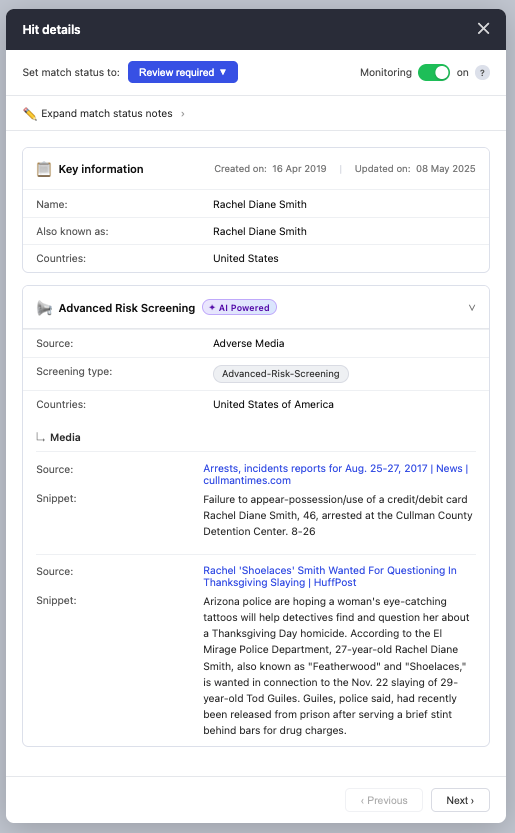
- Advanced Risk Screening Tool
This article is for any user with access to a case can review its screening matches. Changing a match status requires a role with permission to edit case details; if you don't see an Edit button, ask an admin on your account.
Reviewing: match hits
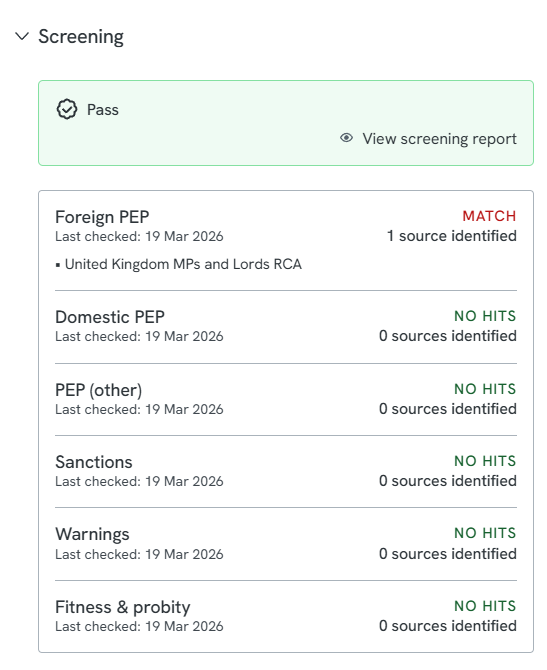
Open the case for the individual or entity you want to check, and go to the Verifications tab (the tab listing identity and screening checks for that person or entity). Hits appear in the Screening section. Each screening category with a match shows a summary of the sources it matched against.
Click a source to open the full screening report in a new tab and review the exact results. If a category has no match, there's nothing to click into.
Hit Details
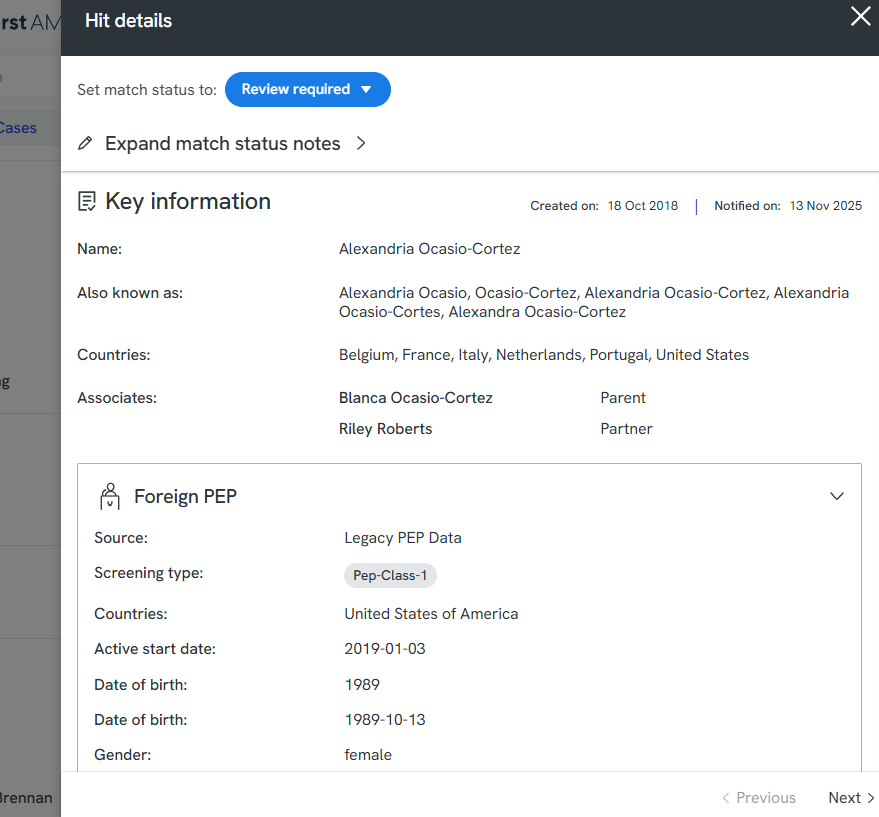
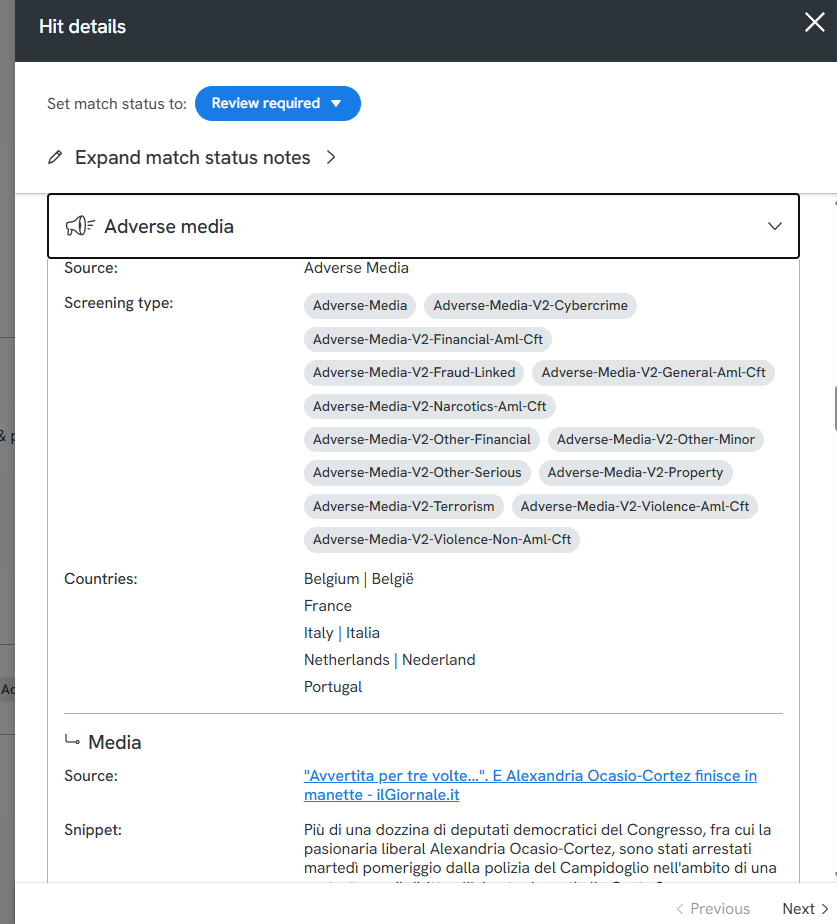
Click an entity's name to see more detail. Hit Details has three tabs: Key data, Adverse media, and Documents.
Key data shows the entity's full name, its entity type (person, company, organisation, vessel, or aircraft), and any AKAs (also known as). AKAs are other names the entity is known by, drawn from the sources we hold on them; searching by an AKA still returns a match for that entity.
The Adverse media tab links to published articles about the entity, including a short snippet of each so you can judge their relevance before opening it.
Recordkeeping: Match Statuses
Match status records your assessment of a case, or of an individual or entity within it, based on the screening results. You can set it at the case level, or at the individual or entity level from their Profile tab.
To update it:
From the Manifest tab, select the individual or entity you want to review.
Go to the Profile tab.
Click Edit.
Scroll to the screening section and choose a status from the Status dropdown. If you choose Match or Possible Match, you can add a note explaining the decision.
Click Save.
Individual & Entity Match Statuses, Definitions and Best Practice
Three statuses are set automatically, based on the screening result:
- In Progress is assigned when screening hasn't been run yet.
- No Match is assigned when screening ran and returned no hits.
- Match is assigned when screening ran and returned at least one hit. Once you've reviewed the hits, update the status if needed:
- Match — keep this status if a hit is a genuine match (a true positive).
- Possible Match — change to this if none of the hits are actually the person or entity you're looking for, even though they matched the search criteria (a false positive).
- Not Needed — use this for individuals or entities that don't require screening at all.
Best practice: if your initial search comes back as Match but none of the results are the person or entity you're looking for, change the status to Possible Match rather than leaving it as Match or setting it to No Match. This keeps a clear record that a review took place, and why the hit was ruled out.
Can you provide me with advice to make a compliance decision?
At First AML, we are not able to provide compliance advice on how to handle a specific case. We cannot advise on what next steps to take if you do find a match on our database. If you think the information on an entity is incomplete or incorrect, let us know via First AML Support and we'll look into it.
How Office Country Affects PEP Classification
With the new Office and Classification updates, every office is now defined by both a name and a specific country, which serves as the "home" jurisdiction for that office. This country setting is critical because it acts as the benchmark for PEP screening; if a detected PEP belongs to the same country as the office, they are automatically classified as a Domestic PEP. If the country cannot be identified by the data provider or if the results pre-date the March 2026 update, the system will categorize them under "Other" to ensure no potential risks are overlooked during the transition.
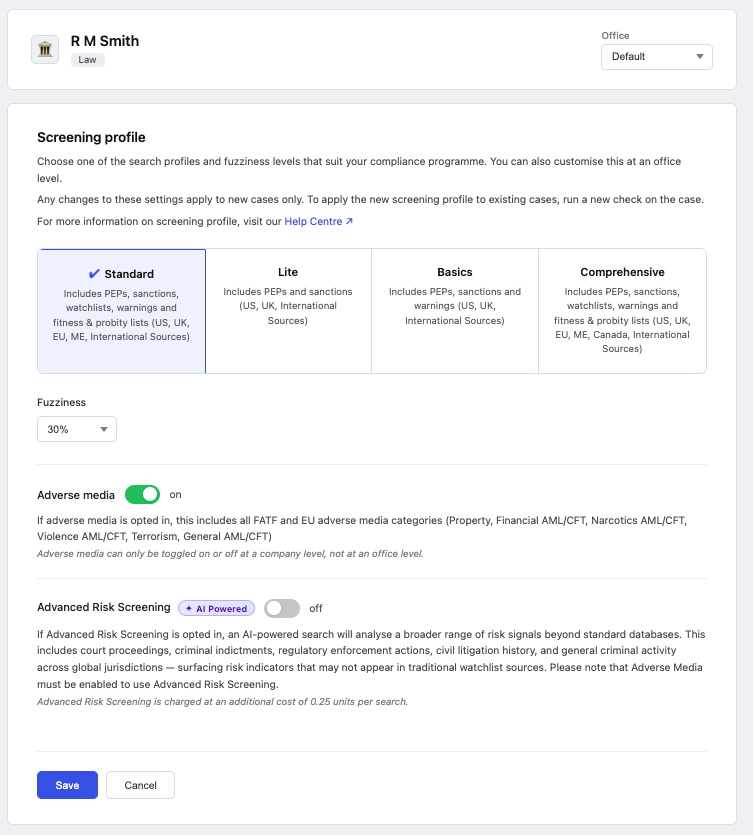
Advanced Risk Screening Tool
Advanced Risk Screening extends this coverage further, picking up court proceedings and paywalled content that standard screening can miss. See Screening: Criminal activity for how it works and how to turn it on.