
TABLE OF CONTENTS
- Video walkthrough
- What do the screening categories mean?
- If a person is sanctioned, is any company linked to them sanctioned too?
- How to review results
- Where to review hits and record notes
- To review and record a decision on an individual hit:
- How to control ongoing monitoring for a hit
- How to filter matches and hits
- How to make bulk screening decisions
- How to download screening results
- Related articles
The steps below apply to both individuals and entities in a case. Differences between the two are called out where relevant. For what's specific to each, see How to review individual screening and How to review entity screening.
Anyone with access to a case can review its screening matches. Changing a match status requires a role with permission to edit case details; if you don't see an Edit button, ask an admin on your account.
Video walkthrough
____________________________________________________________________________________
What do the screening categories mean?
____________________________________________________________________________________
PEP - a Politically Exposed Person is someone entrusted with a prominent public function, and who may present a higher financial risk because of the influence they hold. PEP status applies to individuals; entities are instead screened for adverse media, sanctions, warnings, and fitness & probity.
Adverse Media - negative information linking an individual or entity to corruption, money laundering, terrorism or threat financing, or other unlawful activity, found across news or other publications.
Sanctions - lists imposed by governments and international organisations against those who breach international norms. Sanctioned entities are statutorily banned from doing business in or with the jurisdiction imposing the sanction.
Warnings - lists issued by law enforcement or regulators. Entities on these lists are involved in law-breaking, under investigation, or found guilty of a regulatory breach, and may carry financial, compliance, or reputational risk.
Fitness & Probity - lists of individuals and entities disqualified or restricted from holding certain positions or activities, such as publicly funded contracts, due to a regulatory or conduct breach.
If a person is sanctioned, is any company linked to them sanctioned too?
____________________________________________________________________________________
Sanctions lists follow the legal frameworks of the jurisdictions that issue them. If a company doesn't appear on a sanctions list itself, we can't flag it as sanctioned. That said, some sanctions lists do return a hit for companies owned or controlled by a sanctioned individual, and the same logic works in reverse for individuals associated with a sanctioned company.
How to review results
____________________________________________________________________________________
Go to the Manifest tab for your case and scroll down to see all individuals and entities. Once checks have run, each one shows its screening result.
A green banner means no hits: screening cleared with nothing to review. A red or yellow banner means a match against a PEP (individuals only), sanctions, adverse media, warnings, or fitness & probity hit.
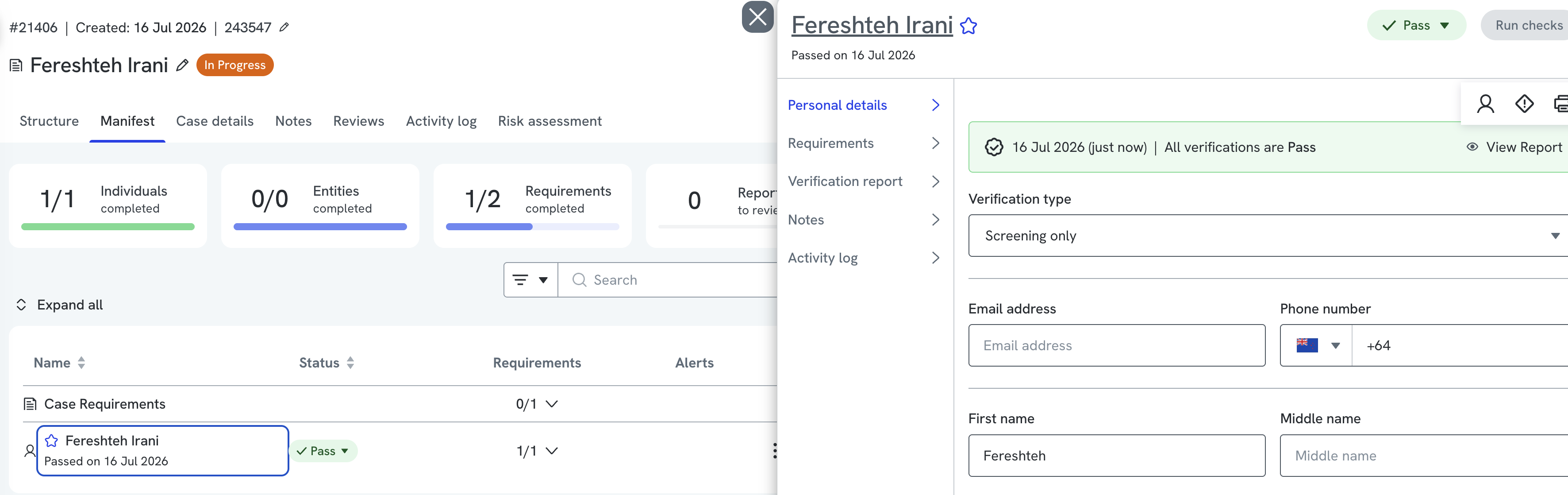
No-match (green) example.
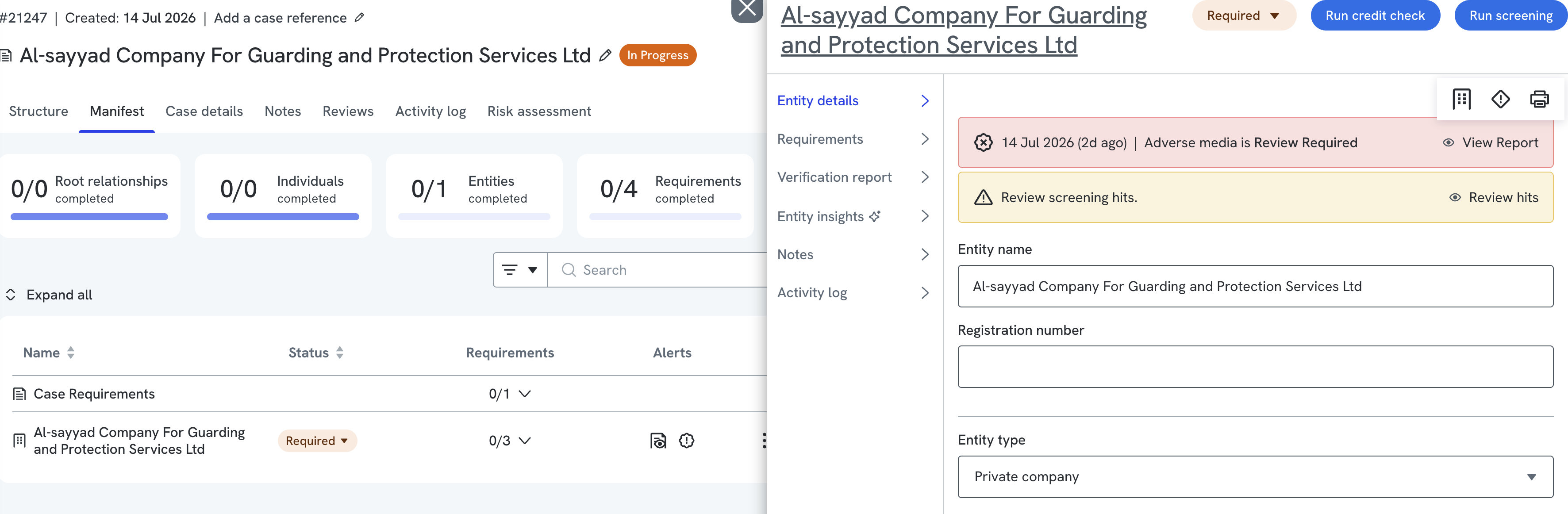 Match (red/yellow) example.
Click Review hits in the banner to open the screening report. Every hit starts with a default status of Review required.
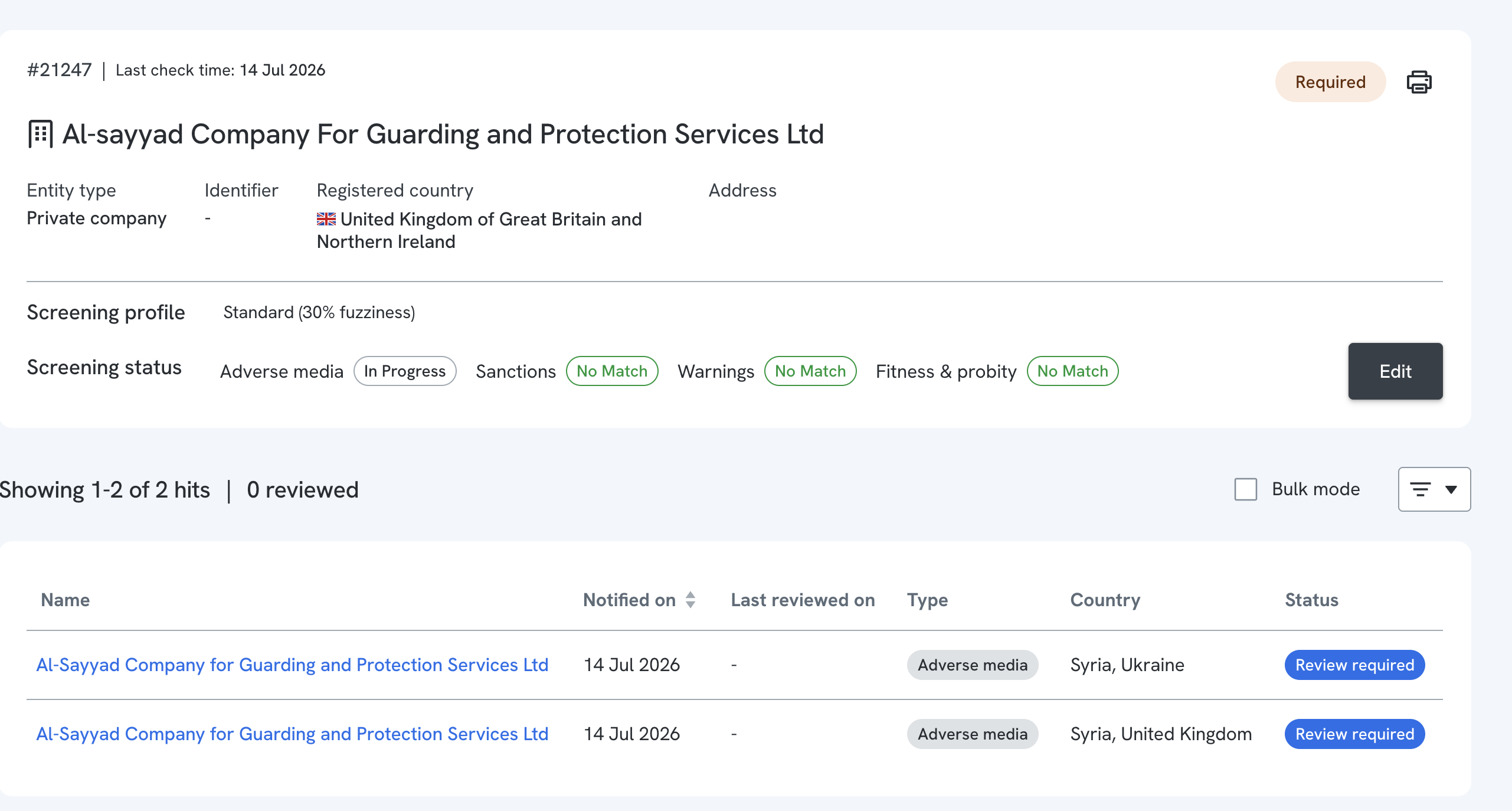
The screening report opened from the Review hits banner.
Where to review hits and record notes
____________________________________________________________________________________
Open the screening report to see basic screening status, the potential matches, and the reason for each match.
For audit purposes you can't delete a hit, but you can add notes to record your decision.
To record findings at the report level:
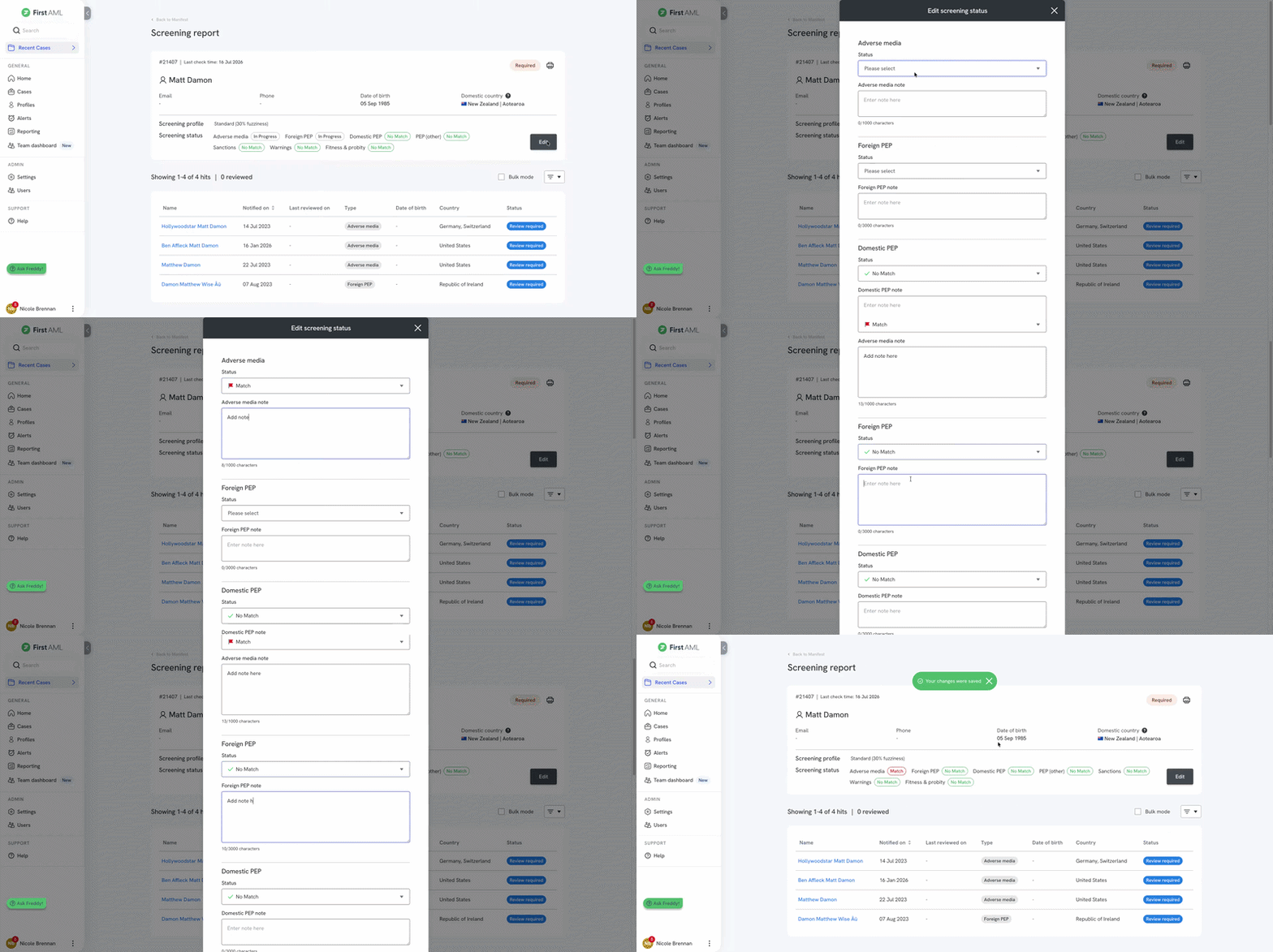
- Click Edit next to the screening header. This opens a pop-up.
- Set the status for each applicable category (PEP for individuals; sanctions, adverse media, warnings, and fitness & probity for both) to No Match, Match, or Possible Match.
- Add notes if you want to record why.
- Click Save.
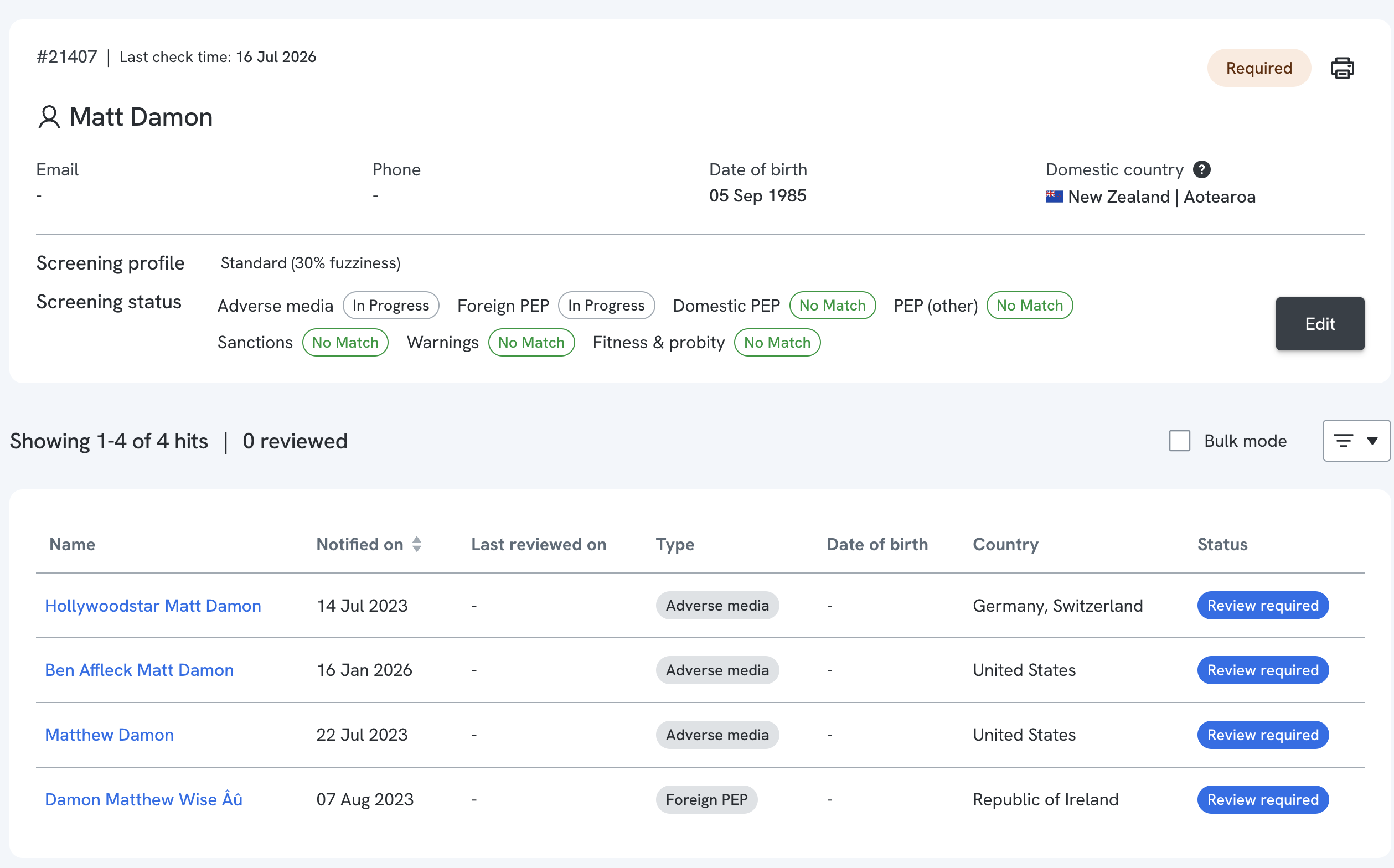 Editing the report-level status.
 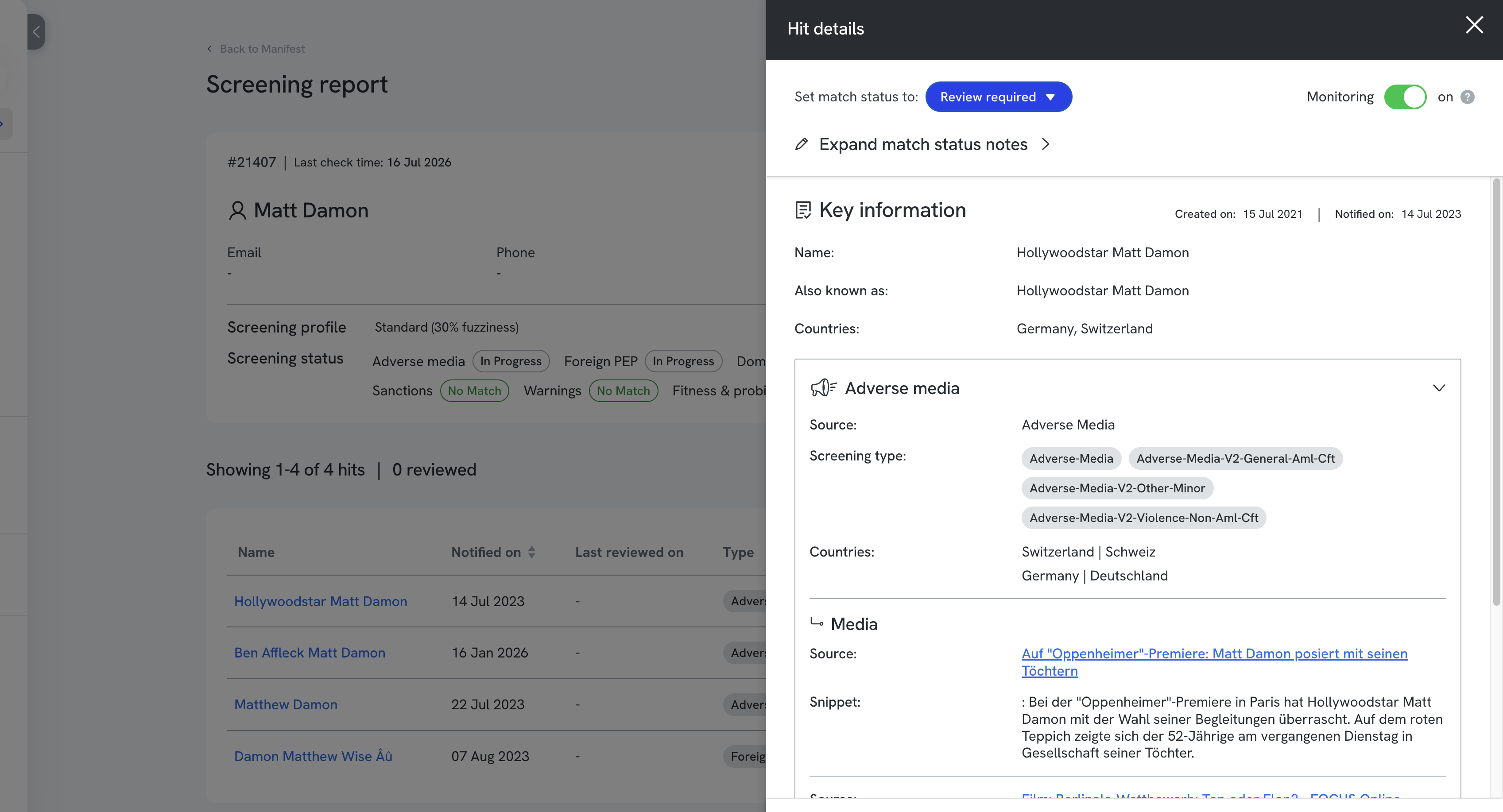 The match slide-out with underlying sources.
Click any match to open a slide-out on the right showing its underlying sources and extra detail.
 The match slide-out with underlying sources.
To review and record a decision on an individual hit:
____________________________________________________________________________________
1. Click the hit to see its key information, background sources, a link to the original source, and a snippet of the content.
2. Set the hit's match status: Review required, False Match, True Match, or Possible Match.
3. To add an internal note, click Expand review details at the top of the module, enter your note, and click Save note. This records your name and the review date against the hit.
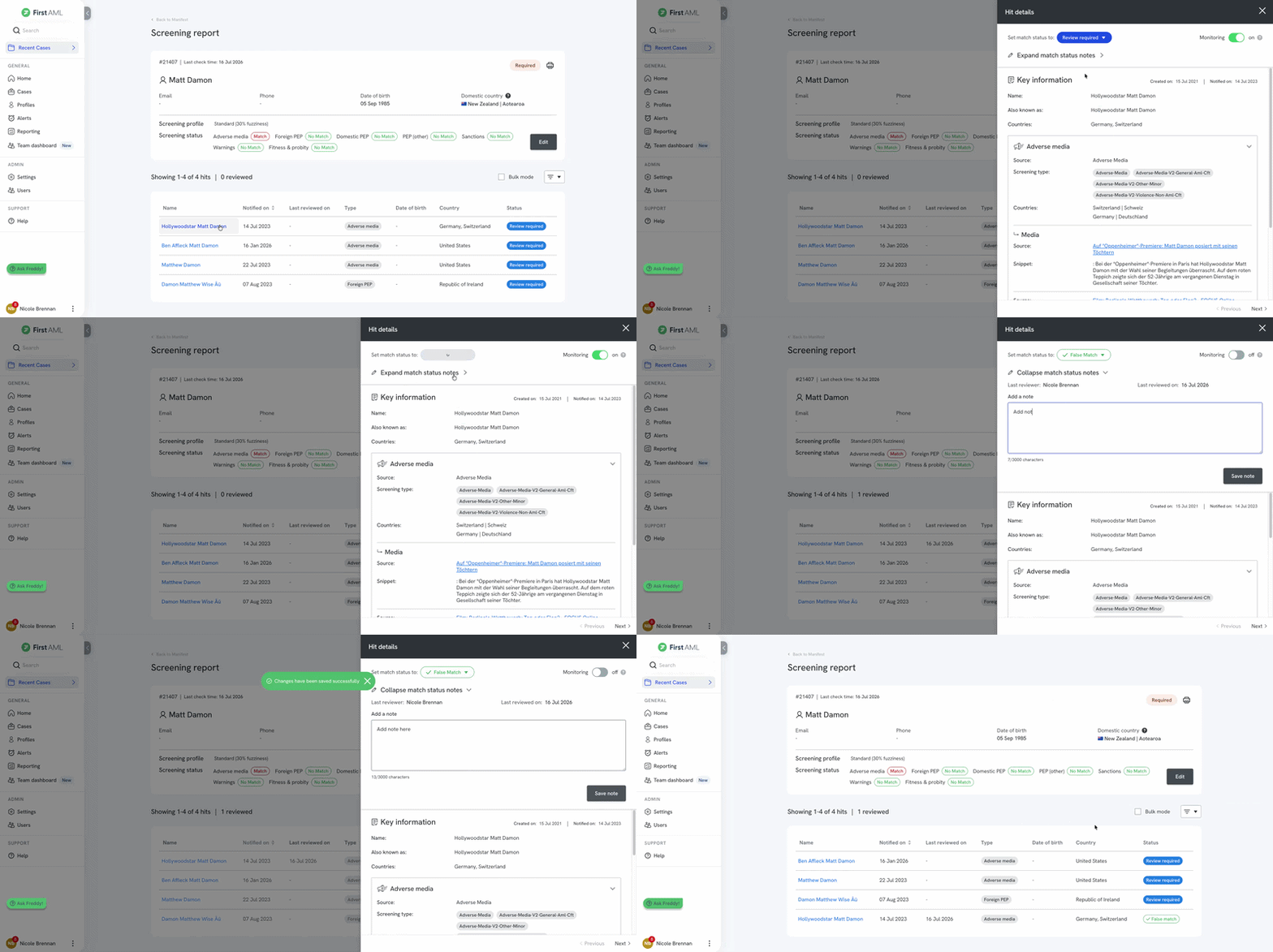
Recording a decision on a single hit.
How to control ongoing monitoring for a hit
____________________________________________________________________________________
If ongoing monitoring is enabled for the case, each hit has a Monitoring enabled toggle that controls whether future updates to that hit are included in your alerts. This keeps alerts relevant by cutting noise from hits you've already ruled out.
All hits default to monitoring enabled. Setting a hit's status to False Match automatically turns this off, though you can switch it back on manually. When a monitoring update comes in for a hit, we check its monitoring setting before creating an alert.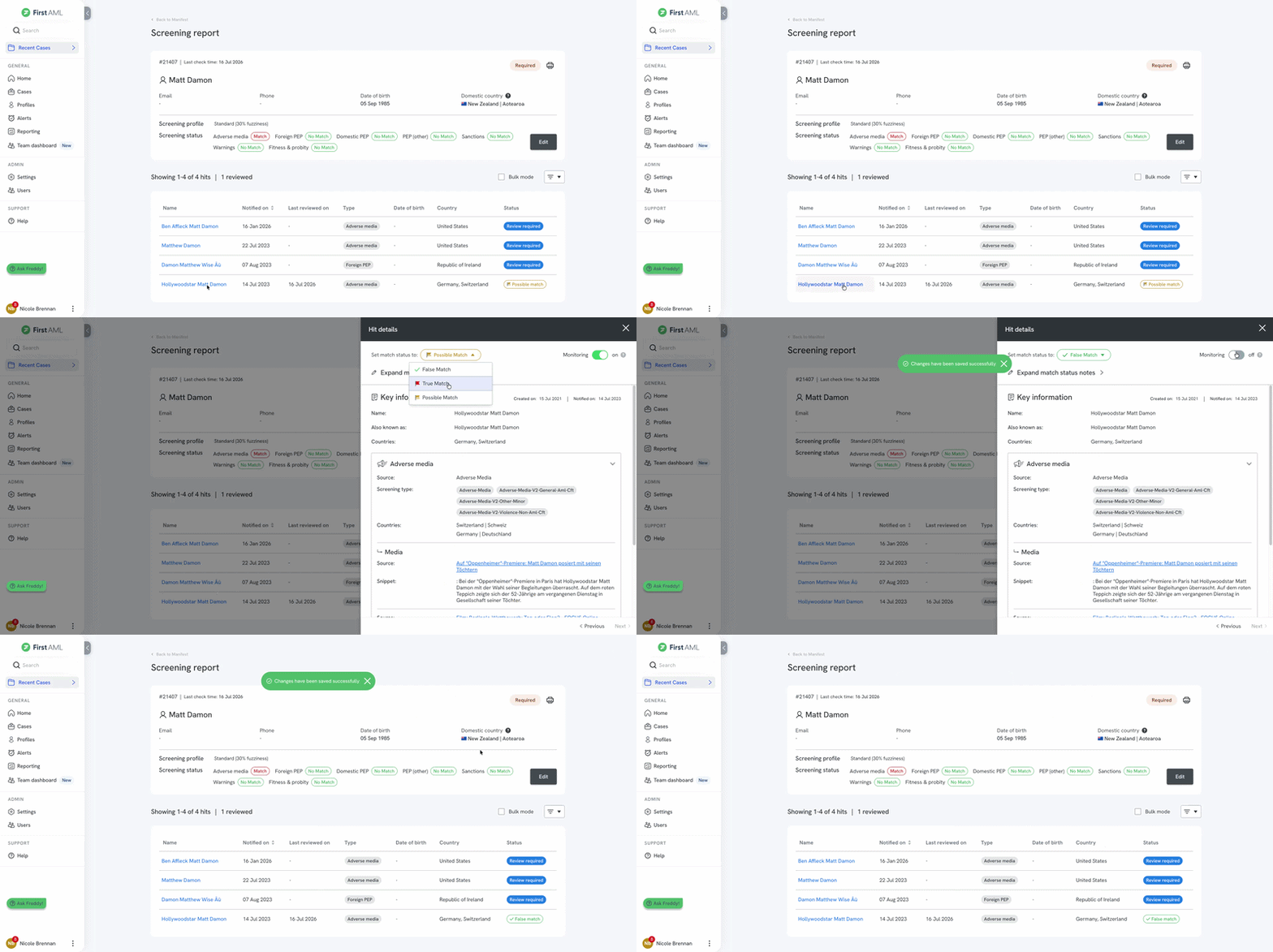 Toggling ongoing monitoring for a hit.
How to filter matches and hits
____________________________________________________________________________________
When there are a lot of results, you can filter to narrow them down:
- Status - False Match, True Match, Possible Match, Not Reviewed.
- Category - PEP (individuals only), Sanctions, Adverse Media, Warnings, Fitness & Probity.
- Notes - Has notes, Does not have notes.
Click the Filters icon above the results list to set these.
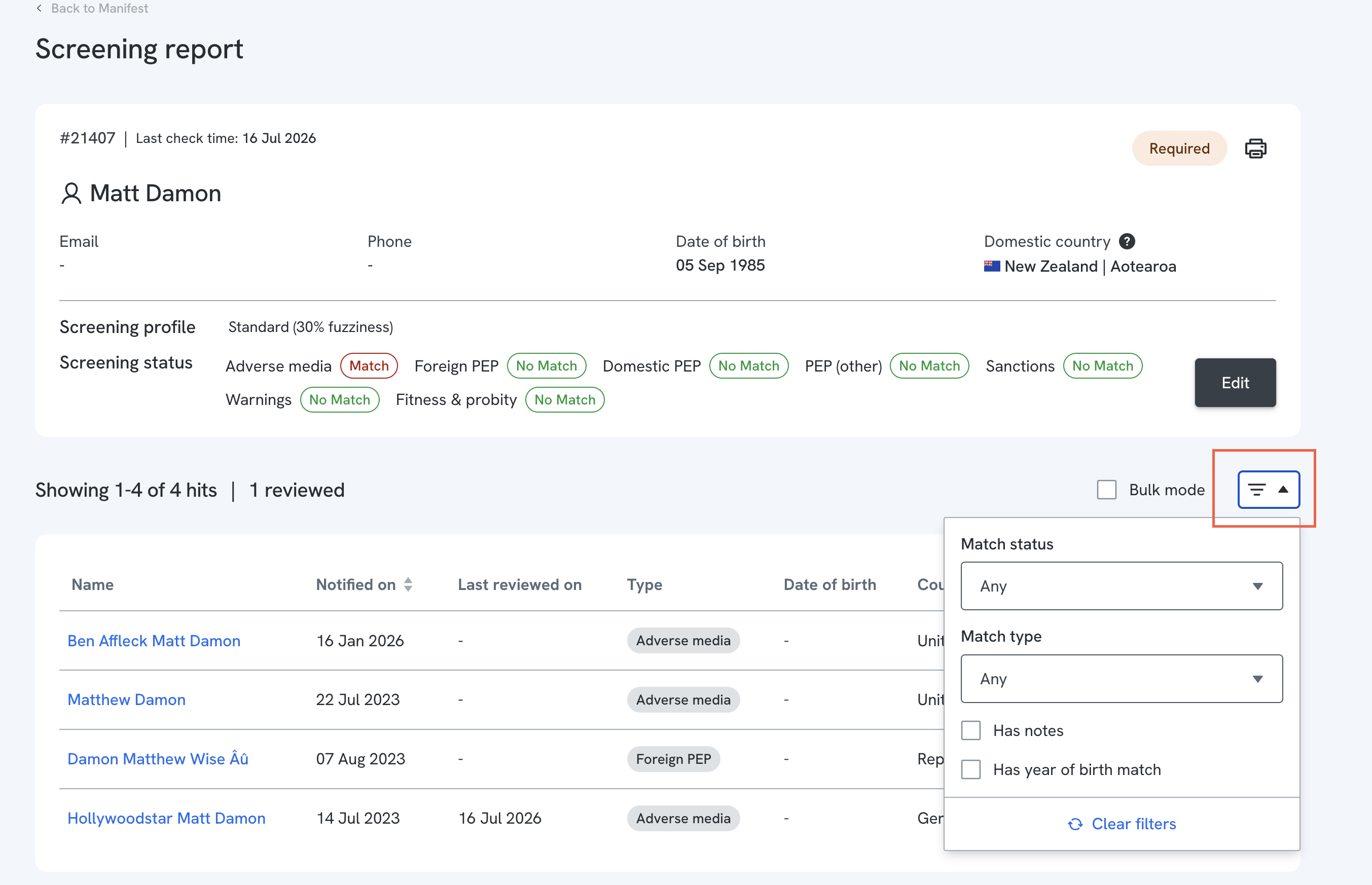


The filters panel.
How to make bulk screening decisions
____________________________________________________________________________________
Bulk mode helps you clear large numbers of likely false positives at once.
- Click Bulk mode.
- Select the hits you want to update, or select all.
- Set a match status for the selection: Review required, False Match, True Match, or Possible Match.
- Add a note if needed; it's recorded against every hit in the selection.
- Choose whether the selected hits should be included in or excluded from ongoing monitoring.

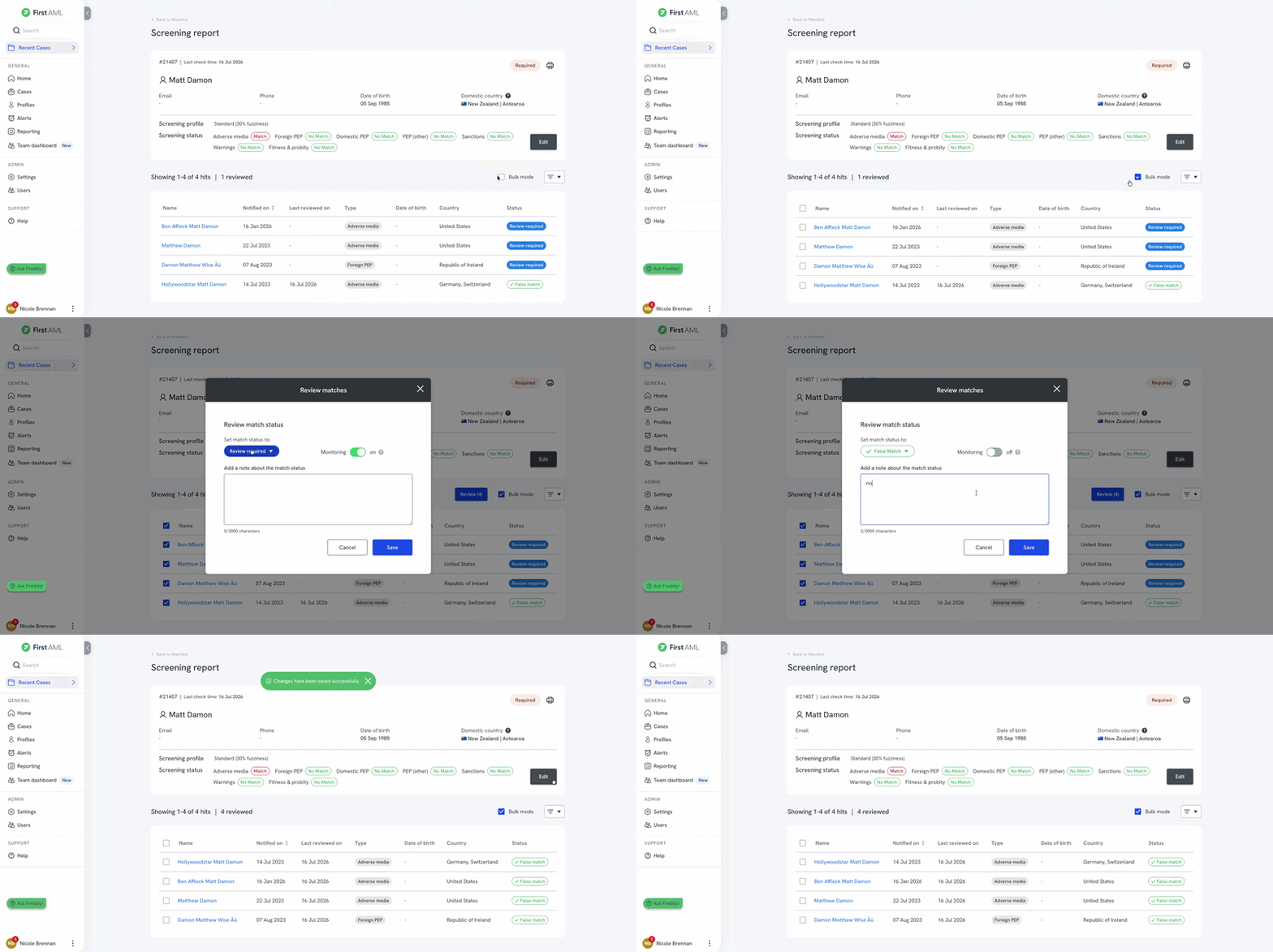
Bulk-reviewing multiple hits.
How to download screening results
____________________________________________________________________________________
To download an individual's or entity's screening results, go to their profile from the Manifest tab and click the printer icon at the top right. When the print window opens, change the destination to Save as PDF, then click Save.
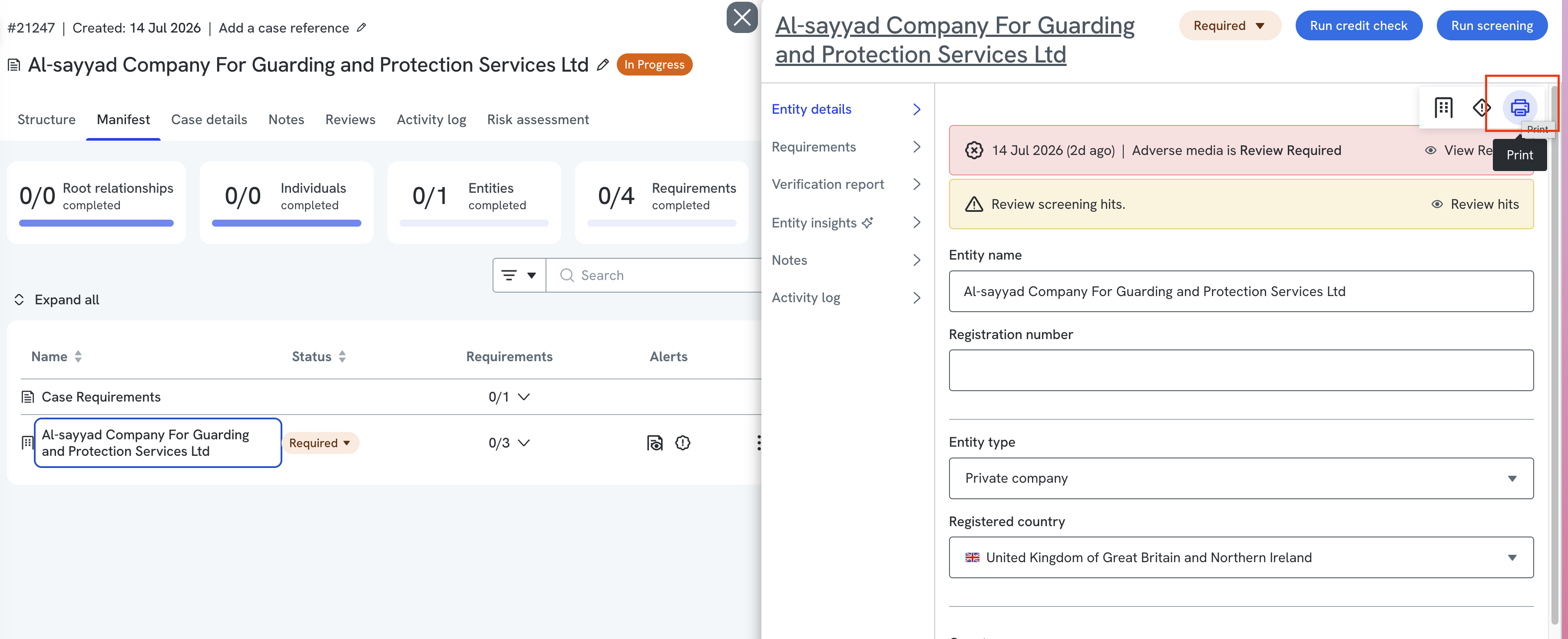 The printer icon on the profile.
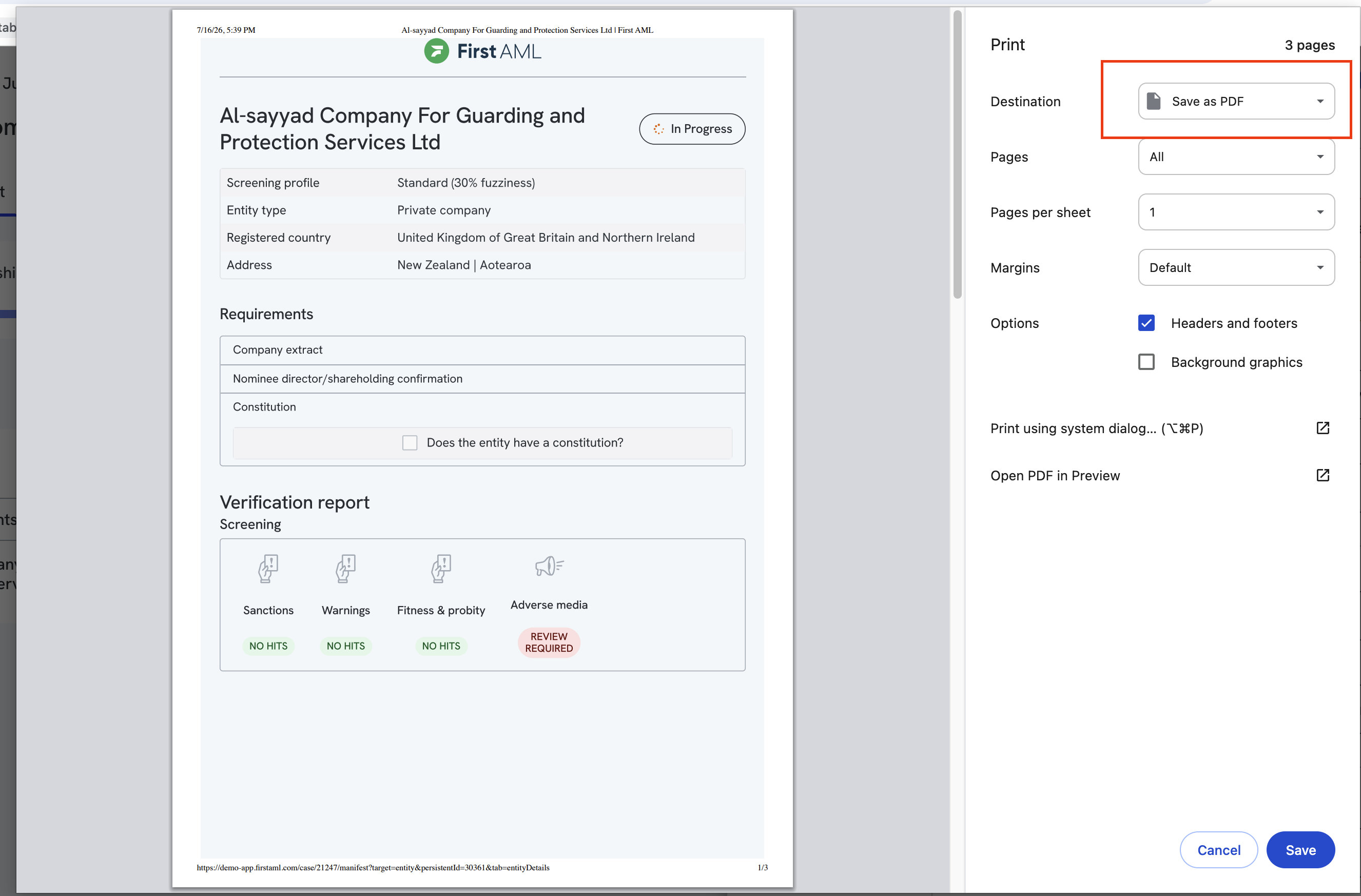
Saving as PDF from the print window.
Related articles
- Understanding individual and entity status
- How to review individual screening
- How to review entity screening