
TABLE OF CONTENTS
- Company Unwrap Automation
- Setting up the automation
- Using conditions with automations
- How it works
- Troubleshooting Tips
Company Unwrap Automation
Setting up this automation requires admin access to platform Settings. If you don't have Settings access, ask an admin on your account.
The Company Unwrap automation streamlines case setup by automatically unwrapping a company's structure as soon as a case is created, or as soon as Start Unwrap is clicked. Each layer refers to one level of the shareholding structure: layer 1 is the company's direct shareholders, layer 2 is their shareholders, and so on.
Setting up the automation
Go to the Automations tab in platform Settings (also referred to as Manifest Configuration).
Choose how many layers down the shareholding structure you'd like the automation to process.
Save your changes
Using conditions with automations
As with any automation rule, you can add conditions to control when the unwrap triggers. This is useful if you want to:
Exclude specific jurisdictions, for example ones where unit consumption (the billing credits used per unwrap [confirm exact term]) is high.
Only unwrap for certain entity types.
This ensures the initial unwrap starts automatically, saving time and keeping unwraps consistent across cases.
This setup ensures the initial unwrap begins automatically, saving time and improving consistency across case.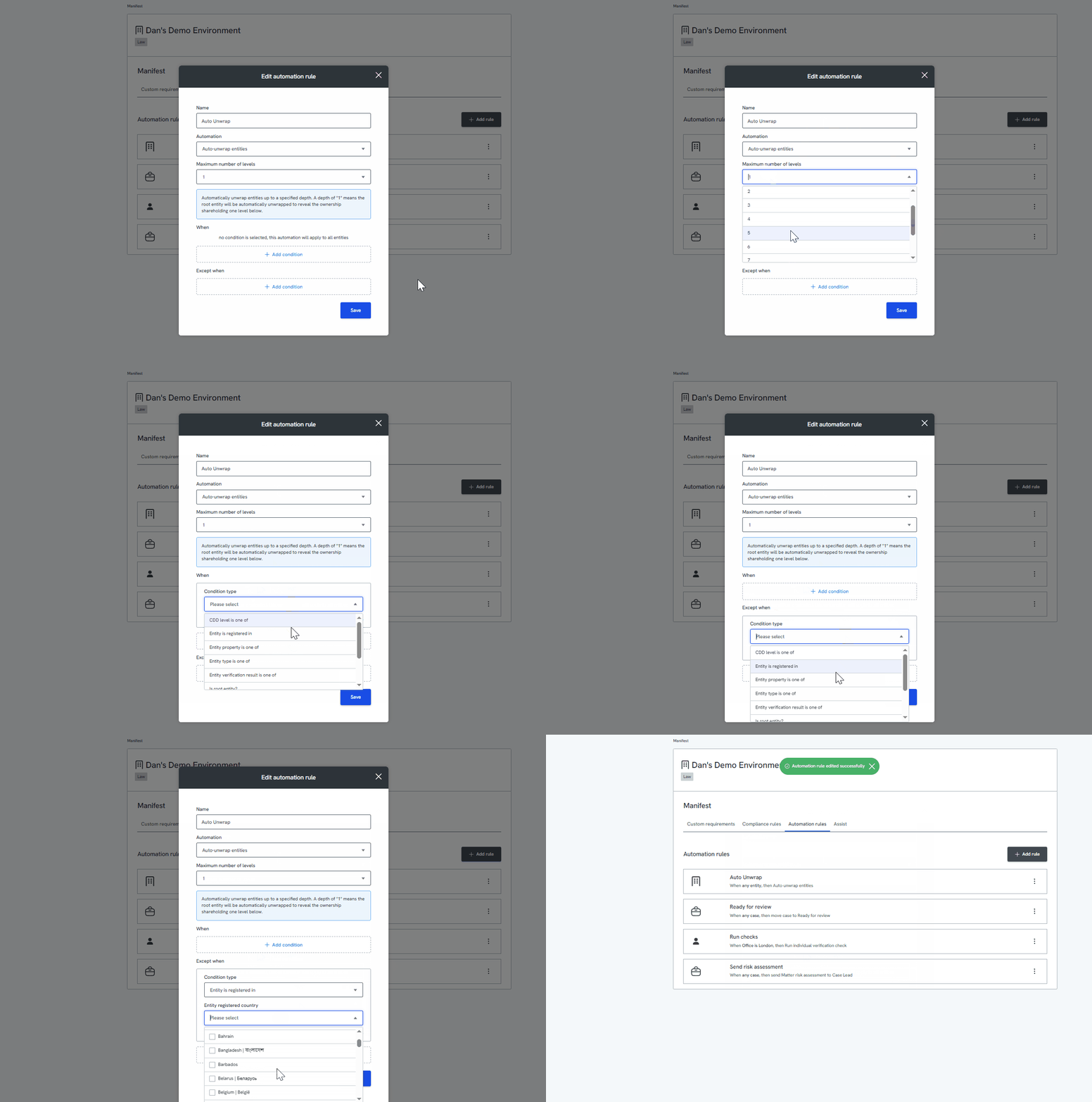
How it works
To trigger the automation:
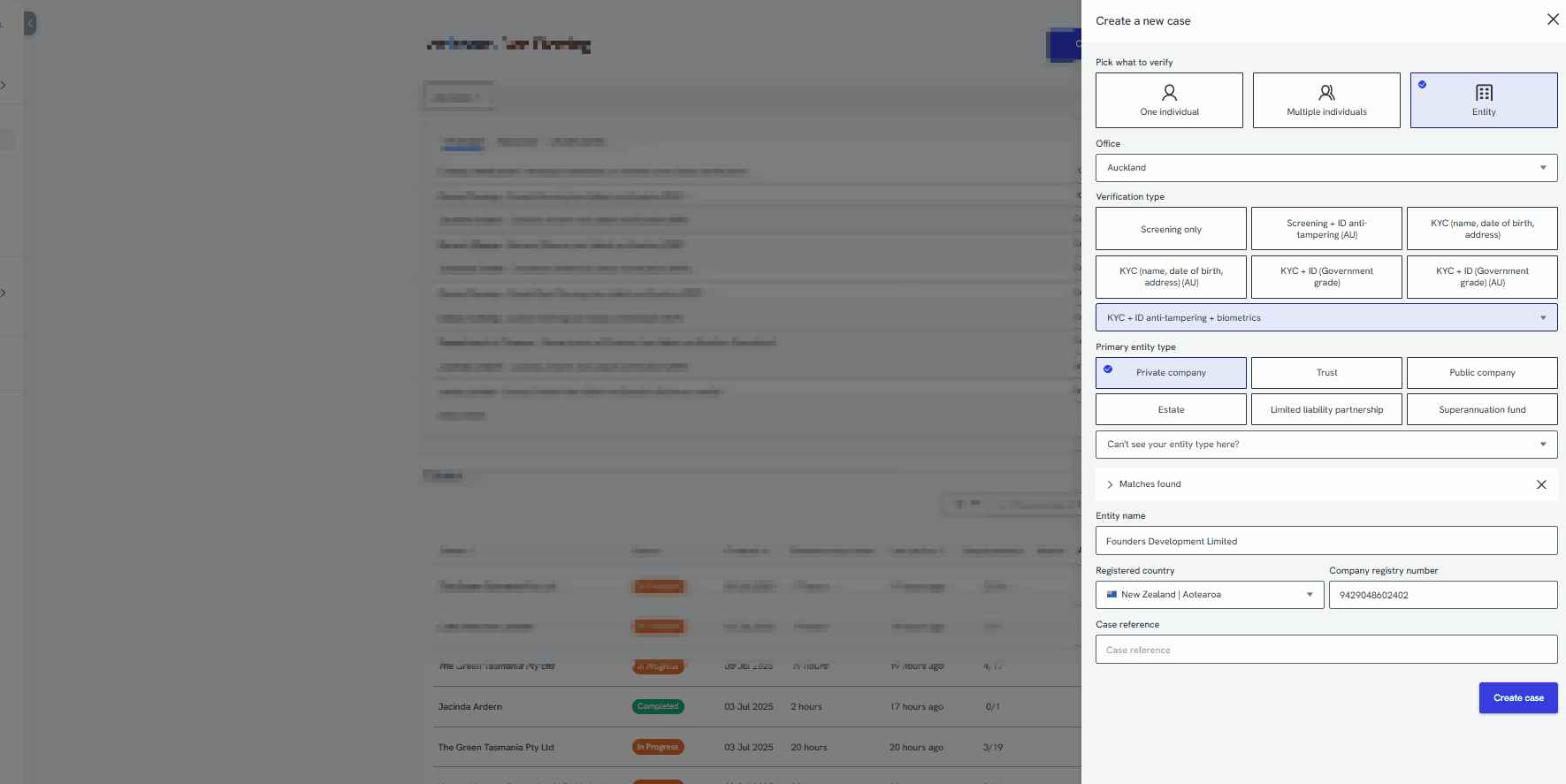
Select the correct country when creating the case.
Enter the company registration number. For Australian companies, we recommend using the ACN (Australian Company Number).
Once the case is submitted, the automation unwraps the company structure based on your configuration.
Tip: even if the automation doesn't complete the full unwrap, it's a fast way to get started. From there, you can manually continue unwrapping as far down the structure as you need
Troubleshooting tips
If the automation doesn't trigger as expected, check the following:
The company number is valid and in the correct format, for example an ACN for Australian companies.
The selected country matches the company's actual jurisdiction.
If the information entered is incorrect or incomplete, a slide-out panel appears on the right so you can manually search for the company and continue the unwrap from there.
For more on troubleshooting entity verification errors generally, see Troubleshooting entity verification fails. For the manual unwrap process, see [How to unwrap a structure]