
TABLE OF CONTENTS
- Overview
- How API credentials work
- Keeping your credentials secure
- If you are building your own application
- Consider what credentials you need
- Controlling the data your credential can access
- Creating a new credential
- Choosing scopes for a custom integration
- Viewing a credential
- Editing credentials
- Deleting a credential
Overview
API credentials let you connect First AML to another system through an integration, or via our Public API. A credential is a matched pair of keys, a Client ID and a Client Secret, that the other system uses to prove it is allowed to talk to First AML on your organisation's behalf.
Compliance Admins can now create and manage these credentials from Settings > Integrations, without needing to contact First AML. This article explains how to create a credential, view or delete it, and how to keep your keys safe.
How API credentials work
Every credential is a pair of keys:
- Client ID: Identifies the integration.
- Client Secret: Treat it like a password. This is the private half of the pair. Anyone who has the secret can act as your integration, so it must be kept confidential.
Keeping your credentials secure
Your Client Secret is as powerful as a password. Anyone who has it can access any of the data within First AML that the credential is allowed to reach, so treating it carefully is critical:
- Treat the Client Secret like a password. Do not share it in email, chat, Slack, a support ticket, or a shared document. First AML will never ask you to send it to us.
- Only give the keys to the person setting up the integration. Share them directly with that person or supplier using a secure method, such as a password manager or your organisation's approved secure sharing tool.
- Do not reuse one credential across unrelated integrations. Create a separate credential for each system so you can delete one without affecting the others.
- Grant the least access needed. Prefer limiting the credential to only access the specific offices needed, over your whole organisation, and for custom integrations choose only the scopes the integration needs.
- Delete credentials you no longer use. Fewer live credentials means less risk.
- If a secret may have been exposed, act quickly. Delete the affected credential and create a new one, then give the new keys to the integration. Because a deleted credential stops working immediately, this cuts off the exposed keys straight away.
If you are building your own application
You are responsible for storing and using these keys safely. You must ensure that:
- API credentials are not stored in plain-text configuration files.
- API credentials are not checked into source code or version control.
- API credentials are stored encrypted at rest.
- Access tokens are stored encrypted at rest, unless they are held in memory only.
- API credentials and access tokens are only ever stored and used server-side. They must never be exposed to any client-side application, which would let an end user of the integration obtain the access token and make their own requests.
Consider what credentials you need
Before you create a credential, you need to consider two things: which system you are connecting, and how much of your organisation's data it should have access to. The answer to this question will determine how you need to create your credentials.
For example:
- Are there multiple CRM accounts in use across your organisation, one for each of your First AML offices? Then you'll need to create a unique credential for each CRM account, that only provides access to the corresponding office.
- Do you have a single CRM account in use, and no First AML offices? Then it may be acceptable to create a single credential that has access to your whole organisation.

Controlling the data your credential can access
For every credential, you choose how much of your organisation’s data it can reach:
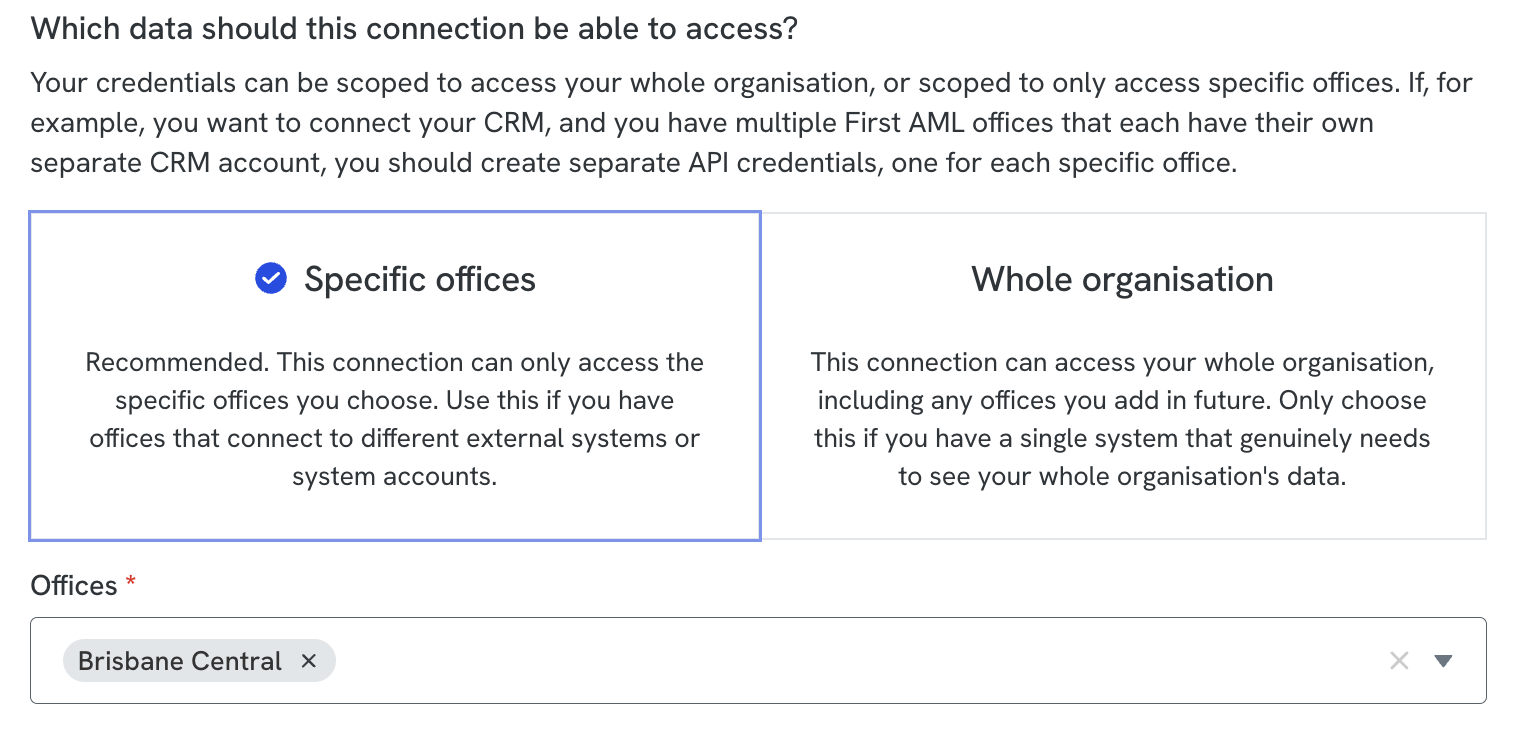
- Specific offices: the credential can only access data for the offices you select. This is the recommended option. Give an integration access only to the offices it actually needs.

- Whole organisation: the credential can access data for every office, including offices you may add in the future. You will see a warning when you choose this, because it is the broadest level of access. Only choose it when the integration genuinely needs to work across your entire organisation.
Creating a new credential
- Go to Settings > Integrations and open the API Credentials card.

2. Select Create (or Create new credentials).
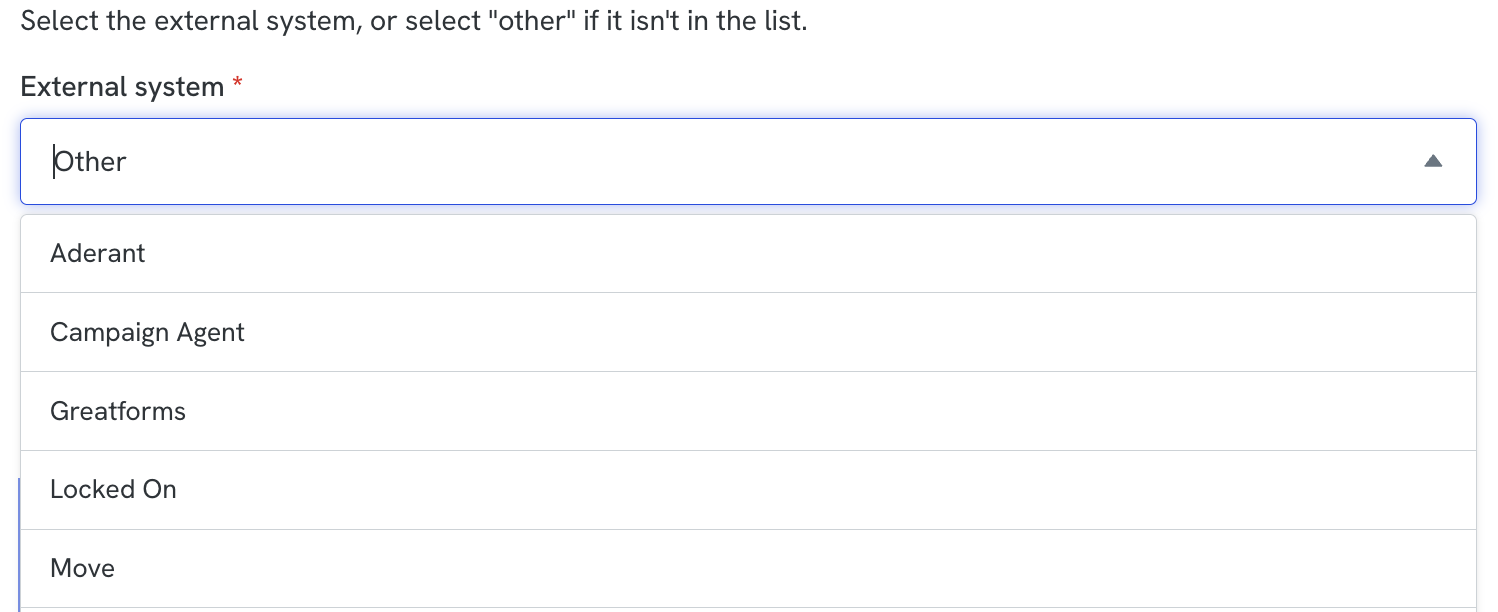
3. Choose the external system from the dropdown. Pick the partner system by name, or choose Other for a custom integration.
4. Choose the access level: select specific offices and tick the offices the integration needs, or choose whole organisation.
5. If you’ve selected Other, you’ll need to select the scopes the integration needs. See Choosing scopes for a custom integration below. Partner integrations skip this step.
6. Give the credential a clear, recognisable name. This name is only for your reference, so you can tell your credentials apart later.
7. Select Create.
First AML then shows you the Client ID and Client Secret.
Choosing scopes for a custom integration
Scopes are permissions. They limit what a credential is allowed to do. When you choose Other, you select from these scopes:
- read-only: Required to be able to retrieve any information about a case.
- case-management: Required to call any case related mutation.
- api-management: Required to be able to manage aspects of API usage, such as webhook creation.
Viewing a credential
You can look up a credential’s keys at any time. Simply find the credential in the list and select View. The Client ID and Client Secret are shown, ready to copy.
Editing credentials
Credentials cannot be edited. If you need to change the offices associated with a credential, you will need to follow the instructions below to delete the credential and create a new one.
Deleting a credential
Deleting a credential is permanent and takes effect immediately. As soon as you delete it, the connected system can no longer access First AML, and the keys cannot be recovered or reused.
- Find the credential in the list and select Delete.
- Confirm that you want to delete it.
Delete a credential when the integration is no longer used, or if you believe the Client Secret may have been exposed. If the integration is still in use, make sure a replacement credential is in place first, otherwise the integration will stop working.
Credential names and office access cannot be edited after creation. To change either, delete the credential and create a new one, then update the connected system with the new keys.