
TABLE OF CONTENTS
- Overview
- What the activity log records
- Where to find the activity log
- Reading an entry
- Filtering the activity log
- Adding a manual activity log
- Using notes in the activity log
- How to add a note
- Mention notifications
- Individual and entity activity logs
Overview
The activity log is a record of everything that has happened on a case: what changed, who changed it, and when.
Actions on a case are captured automatically, whether taken by a person on your team, an automated rule, or an AI agent. You can also log correspondence that happens outside the platform, and leave notes to collaborate with your team.
The activity log is available to all users.
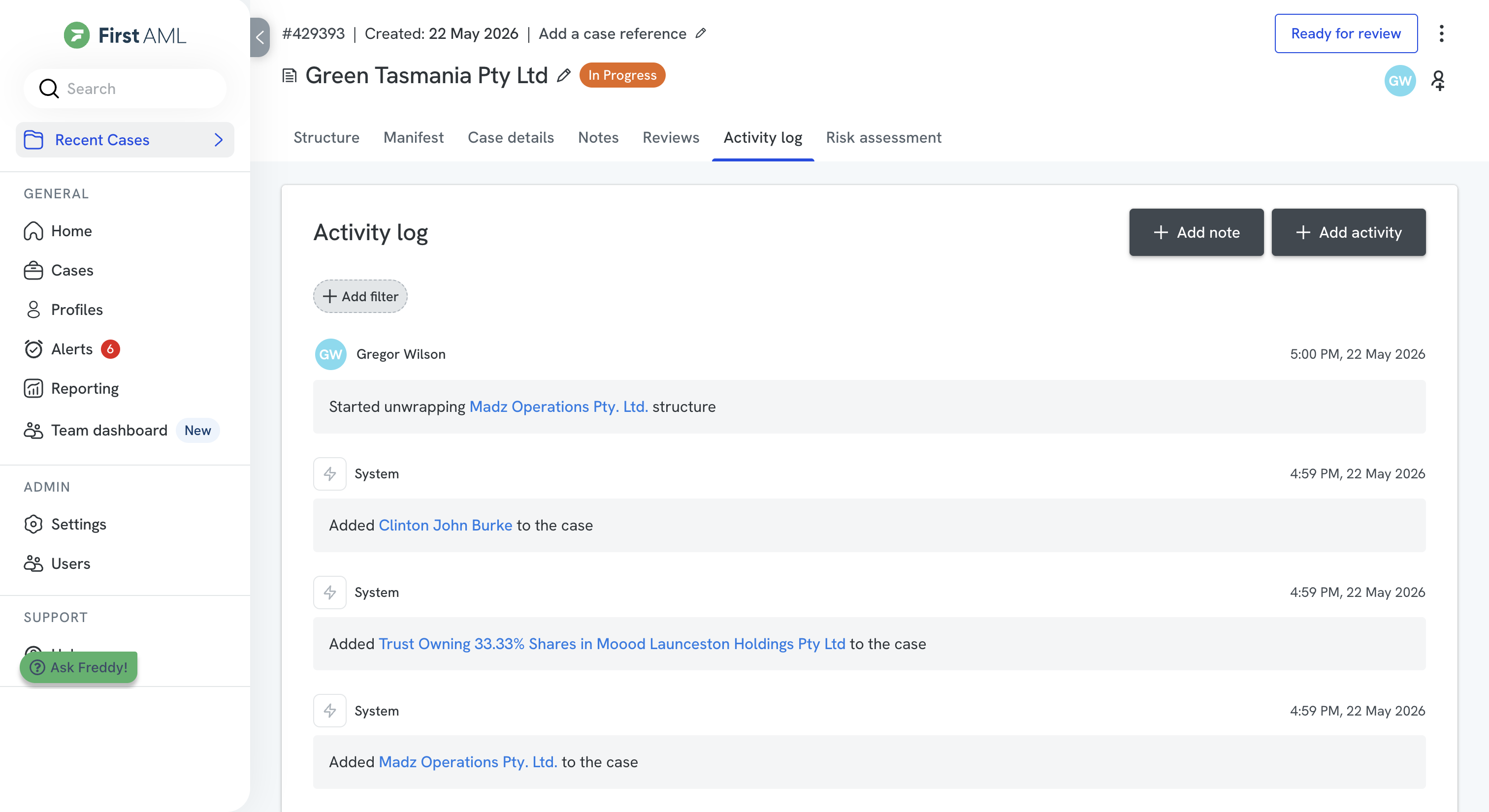
Description: the activity log open on a case, showing the filter bar across the top and the list of events below.
What the activity log records
The activity log captures events from across the whole case, including:
- Case lifecycle changes, such as status updates
- Individuals and entities added to or changed on the case
- Requirements added, completed, or updated
- Risk assessment activity, including risk score overrides
- Screening activity, including hits and how they were resolved
- Ongoing monitoring updates
- Communication, such as emails sent from the platform and correspondence logged manually
- Notes left on the case, an individual, an entity, or a screening hit
Every event also records the actor that performed it. An actor is one of:
- User: a person on your team
- System: an automated rule configured for your organisation
- AI agent: an AI feature, such as the Screening Agent
Where to find the activity log
You can open the activity log from several places in a case. Each one opens focused on where you are, with the relevant filters already applied:
- From the case: the full case history
- From the structure page: events for the entities on the case
- From an individual: events for that individual, including their requirements, screening, and notes
- From an entity: events for that entity, including its requirements, screening, and notes
Wherever you open it, you can clear the applied filters to widen the view back out to the full case history.
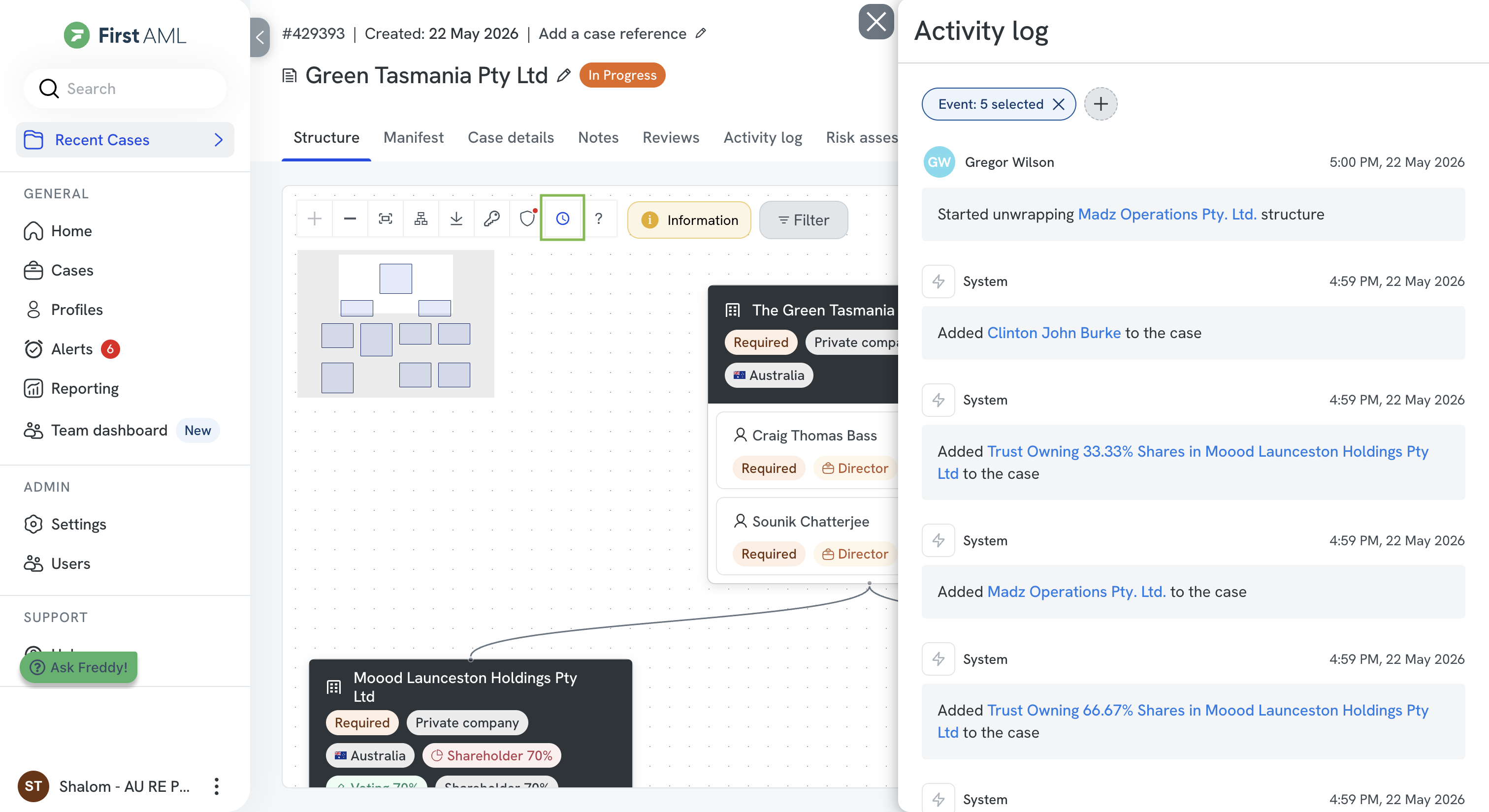
Description: On the structure page, selecting the activity log icon (the clock) in the toolbar opens the log in a panel alongside the structure.
Reading an entry
Each row in the log shows four things:
- Description: what happened
- Related to: the area of the case the event belongs to
- Actor: the person, rule, or agent that performed it
- Date & time: when it happened
Filtering the activity log
The controls at the top of the log let you narrow the history down to what you are looking for. You can apply more than one at a time; the log shows only the events that match all of them.
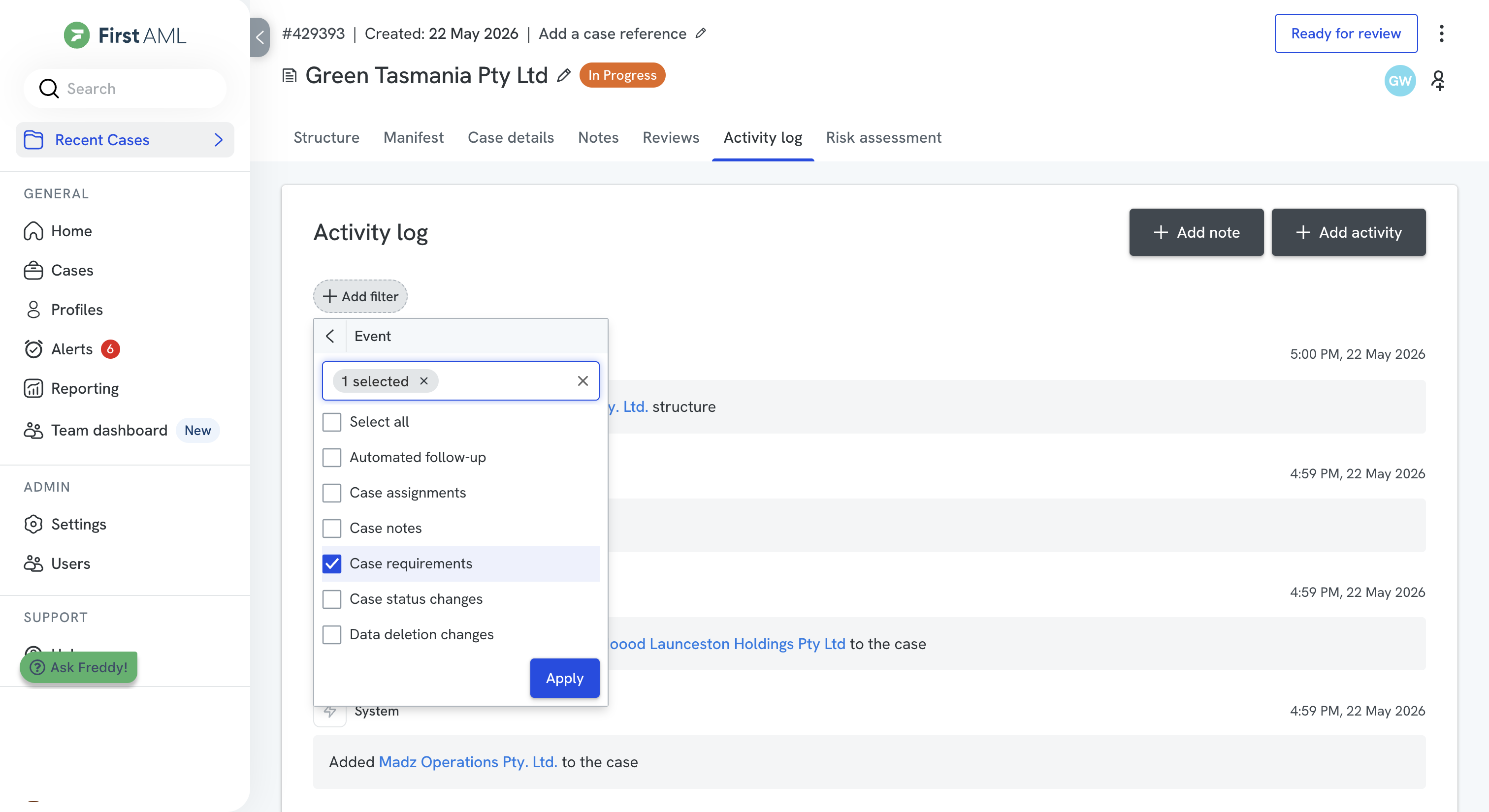
Description: the filter bar, with Search descriptions, Related to, Actor type, Actor, Date, and More filters labelled
To return to the full history, clear the filters you have applied.
Adding a manual activity log
Emails and text messages sent from the platform are added to the activity log automatically. You can also log correspondence that happens outside the platform, such as a phone call, an external email, or a text message, so the case holds a complete record of your client interactions.
To add a manual log:
- In the activity log, select Add.
- Choose the activity type: Email, Call, or SMS.
- Adjust the time stamp if you need to.
- Enter your note.
- Select Save activity.
To change an entry later, hover over it and select the pen icon to edit, or the bin icon to delete.
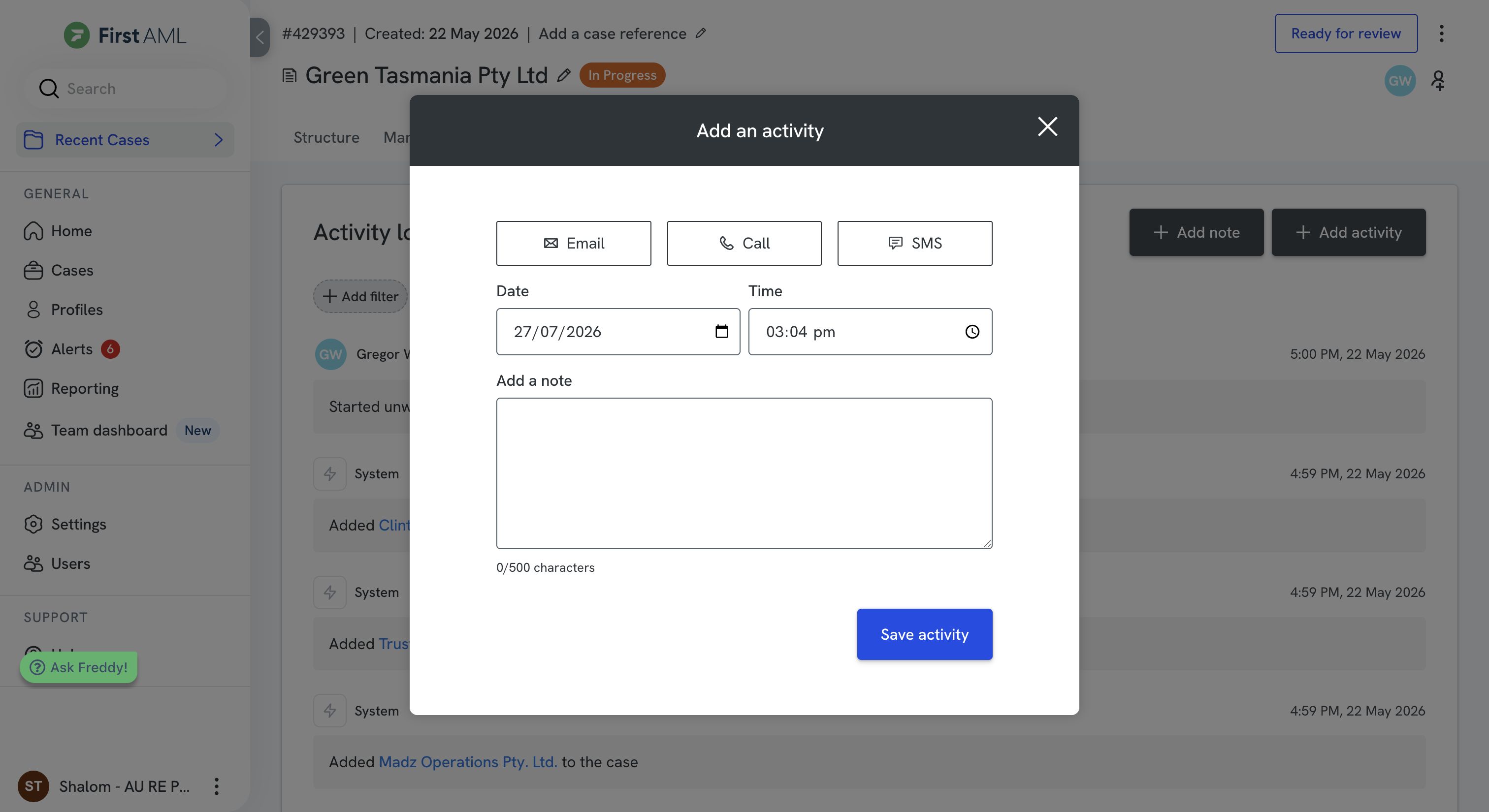
Description: The manual log dialog, showing the activity type options and the note field.
Using notes in the activity log
You can add notes directly in the activity log to collaborate with your team. Notes support:
- Threads: reply to a note to build a conversation within the case
- Mentions: type @ to tag a team member who has access to the case, and they receive a notification
- Contextual collaboration: keep case-related discussions in one place
Use notes to flag issues, ask questions, or record internal context without leaving the case view.
How to add a note
- Select Add note.
- Type your note. You can adjust the text style, create lists, and add links, and there is no character limit.
- To tag a team member, type @ and select their name from the dropdown. This sends them an in-platform notification and a link to your note.
- Select the blue submit icon.
Once submitted, a note cannot be edited, but you can reply to it to build a conversation thread within the case.
If the person you want to tag does not appear in the list, ask your Platform Admin to review their office and permissions.
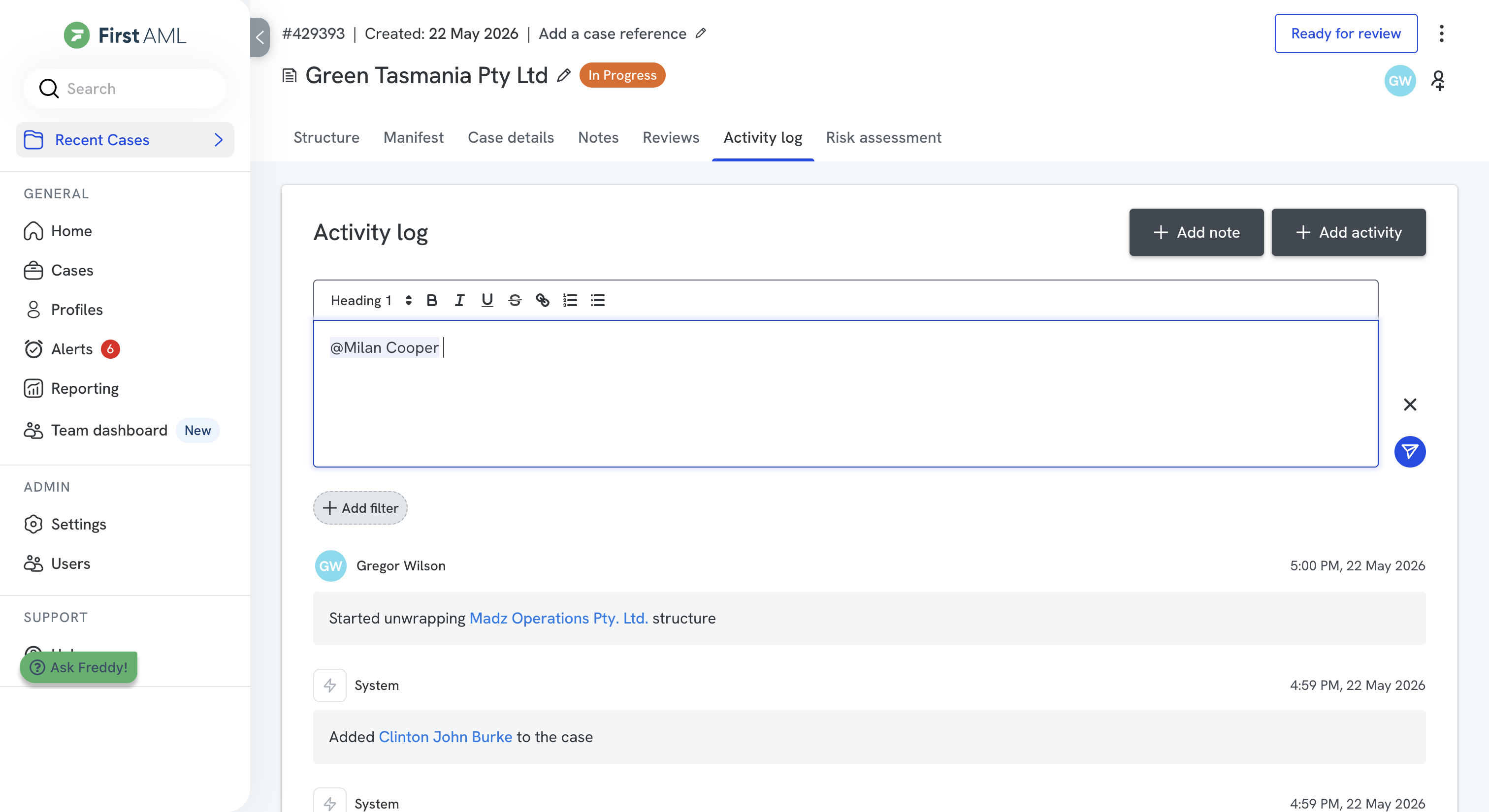
Description: Adding a note, with the @ mentioned user.
Mention notifications
When you are tagged in a note, you receive an in-platform notification that links directly to the thread, so you can view and respond. Select Mark as read to dismiss it.
You can also receive email alerts when you are mentioned. A Platform Admin enables these under Settings > Notifications, by configuring the Conversation mention notification type.
Individual and entity activity logs
As well as the case-level activity log, each individual and entity has its own activity log. These logs let your team:
- Leave and reply to notes, just as in the case activity log
- View notes carried over from previous cases, with a link to the source case
- Keep a continuous record of communication and decisions at the person or organisation level
If you do not have permission to view a linked case, you will see a placeholder instead of a link.