
TABLE OF CONTENTS
- Summary
- How to set up ongoing monitoring and amend alerts
- Email notifications
- Setting up duration rules
- How to manage Ongoing Monitoring for an individual (or entity) customer
- How to manage Ongoing Monitoring in bulk
- Does a new screening automatically enable ongoing monitoring for clients it has been switched off for?
- Why doesn't a new screening automatically enable the ongoing monitoring again?
- What happens if I switch ongoing monitoring on after a period of having it switched off?
Summary
First AML’s ongoing monitoring feature provides daily updates on screening matches for your clients (individuals and entities) directly within the platform. Compliance Admin users have the ability to control how long profiles are monitored, either on an individual case basis or in bulk.
How to set up ongoing monitoring and amend alerts
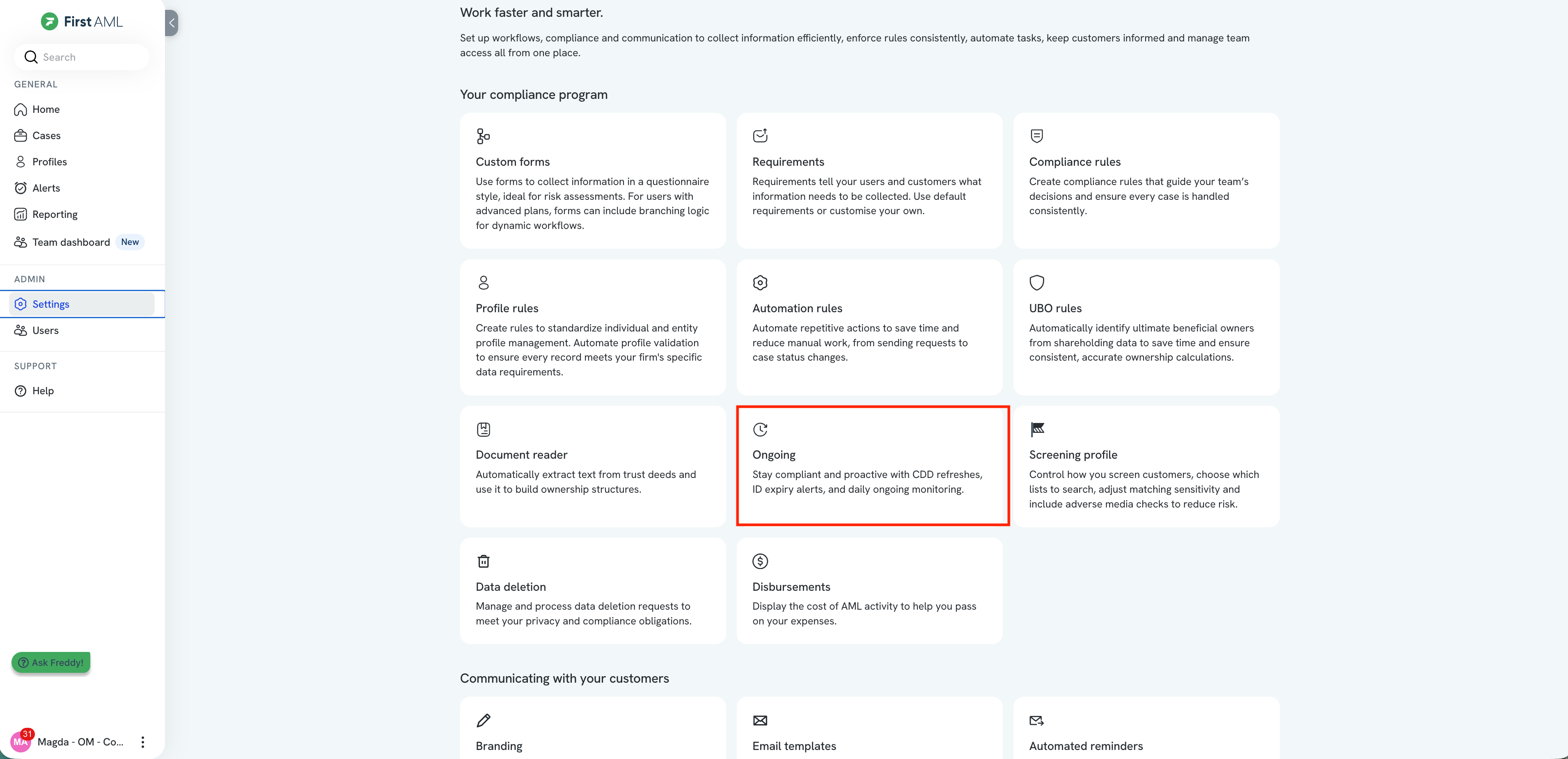
You can configure and adjust alerts for ongoing monitoring in the Admin Panel:
- Go to Settings > Ongoing.
- Select the Ongoing Monitoring section.
- Use the toggles to enable or disable ongoing monitoring for individuals and entities as needed.
Setting up in-platform alerts
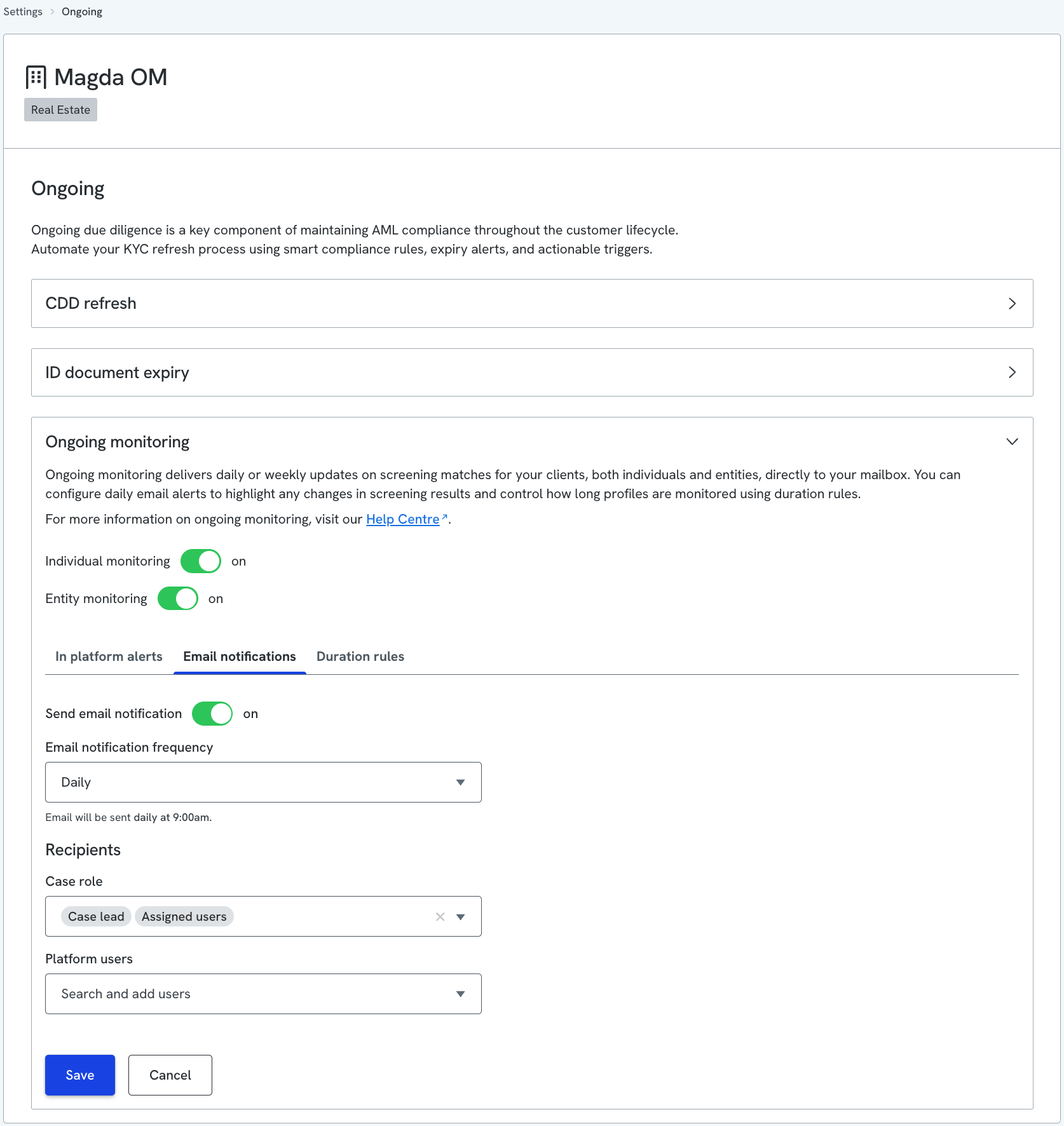
When ongoing monitoring is on, ongoing monitoring alerts appear on the Alerts page. Use the In platform alerts tab to choose who is assigned to these alerts and whether they get an in-platform notification. Make sure ongoing monitoring is turned on first (see How to set up ongoing monitoring and amend alerts above).
A Compliance Admin sets this up in Settings > Ongoing > Ongoing Monitoring > In platform alerts.
Choosing who gets alerts
By default, alerts follow the standard assignment rules. See Ongoing Monitoring alerts for how those rules work. To send alerts to specific roles or people instead:
- Under Office, leave it as Default to follow your account settings, or select a specific office to set different recipients for that office.
- Choose who to assign:
- User role: assign alerts to anyone with a specific role in the selected office.
- Platform users: assign alerts to specific people by name.
- Select Save.
Recipients are only assigned to and notified about profiles in their own office. They aren't assigned to profiles in other offices.
To return to the default assignment, remove all recipients and save your changes. If you set recipients for more than one office, clear them for each office and save each one.
Turning in-platform notifications on or off
Assigned users can always find their alerts on the Alerts page. An in-platform notification is a separate, immediate prompt that takes the user straight to the profile's Ongoing Monitoring page. Use the Send in platform notification to recipients toggle to control these:
- On: recipients get an in-platform notification when an alert is created or when they are added to one.
- Off: recipients no longer get in-platform notifications. Alerts still appear on the Alerts page as usual.
Email summaries are set separately in the Email notifications tab and aren't affected by this toggle.
Email notifications
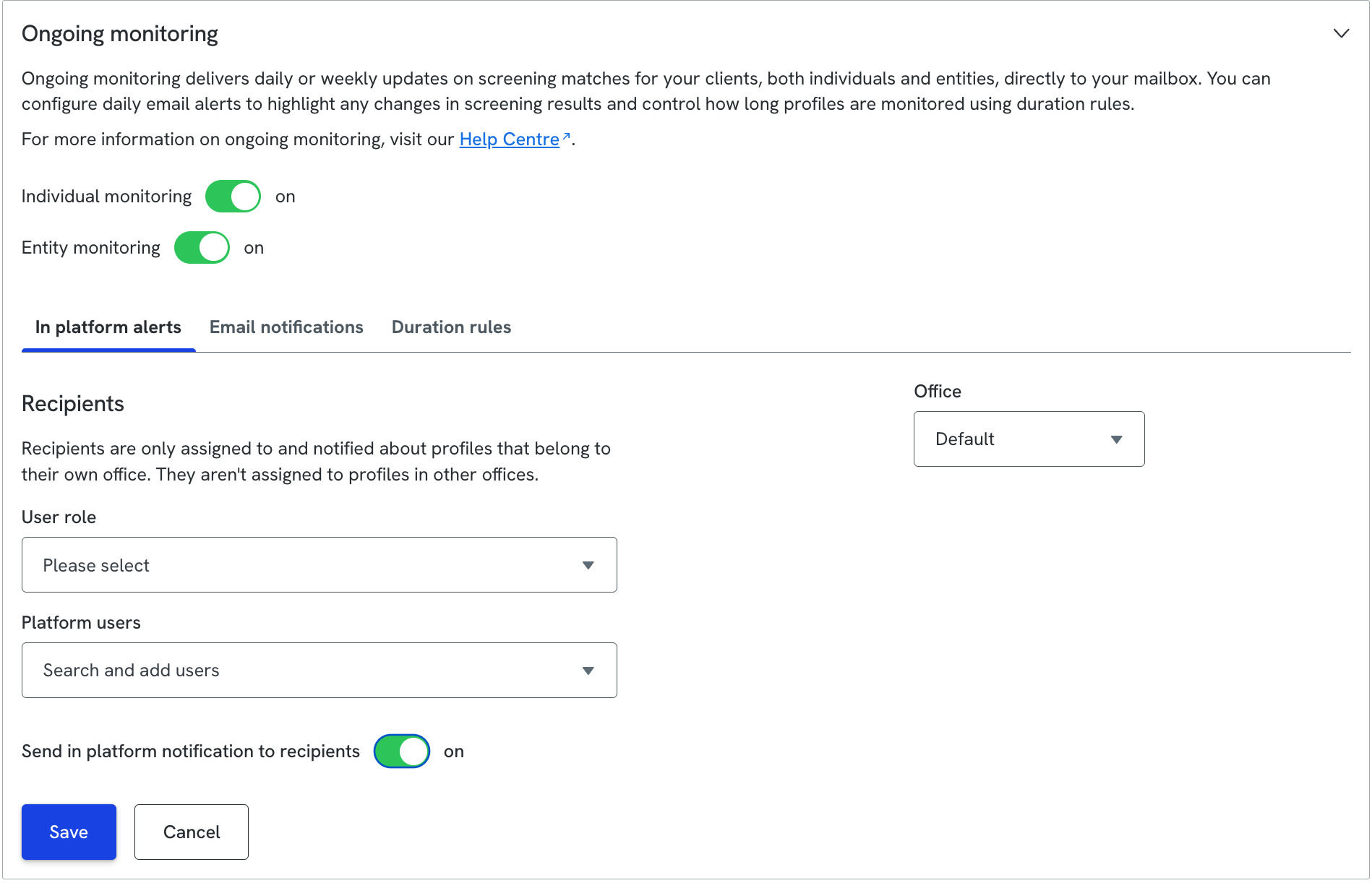
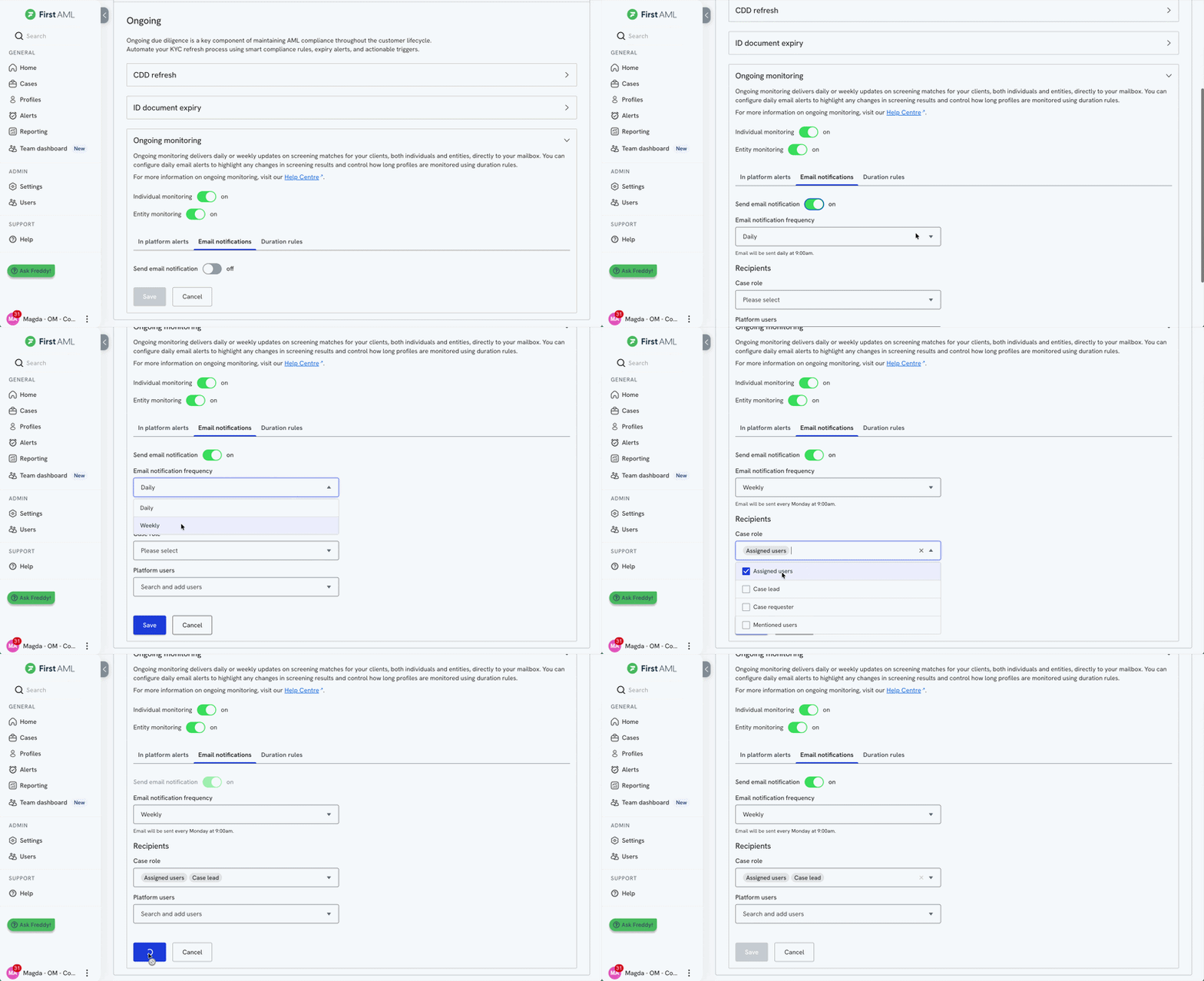
Once ongoing monitoring is set up, all individuals and entities verified through the platform will automatically be enrolled in this feature.
Email notifications will be sent to your designated recipients (case lead, assigned users, case requester or a specific platform user) if there are any new matches, updates to existing hits, or removals of hits, these notifications can be set to daily or weekly.
Users can click the ‘Review potential matches’ button to review any changes in the Ongoing Monitoring tab within the client’s profile.
Setting up duration rules
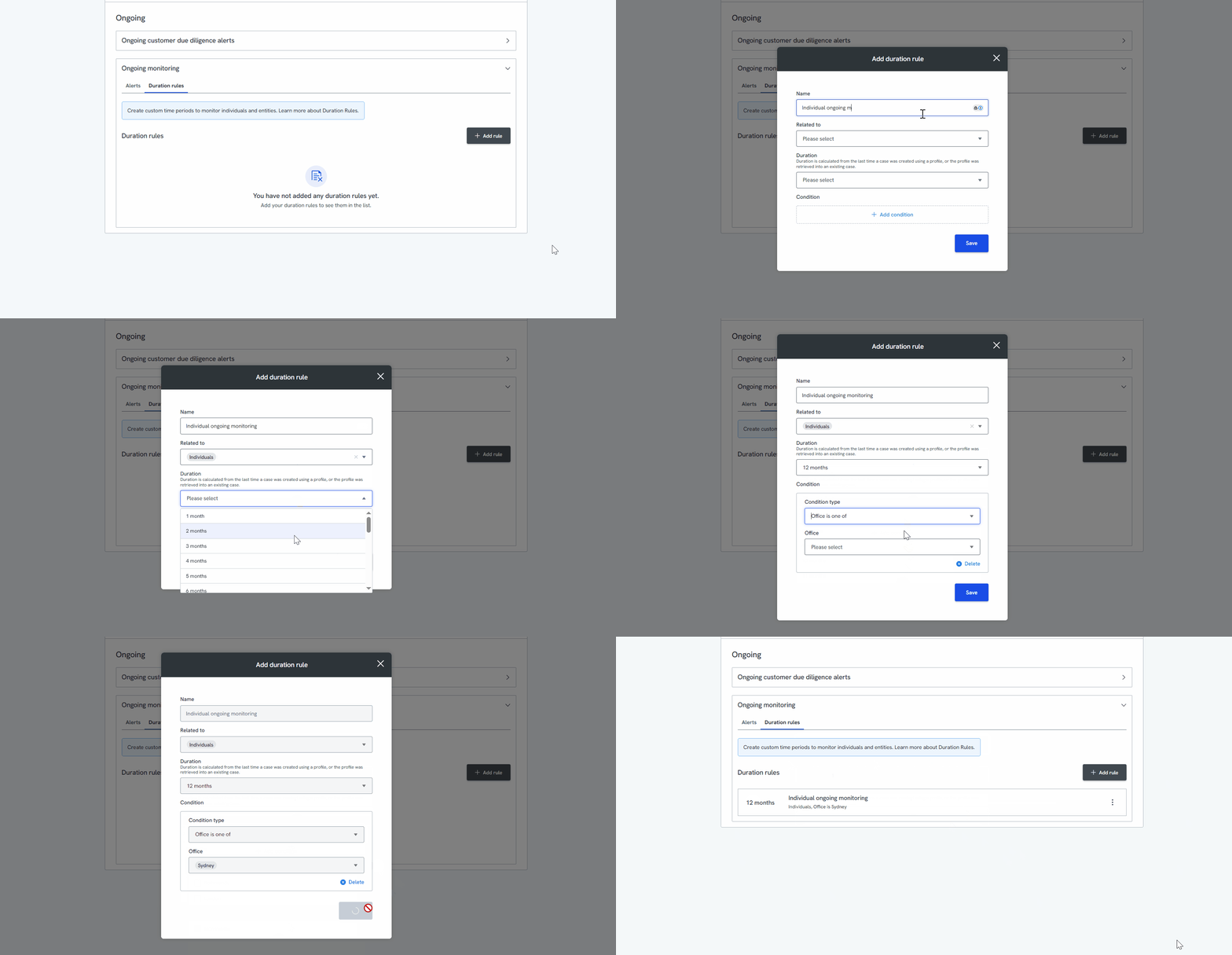
Once you have set up ongoing monitoring you can also create custom time period of up to 24 months to monitor your clients in the duration rules tab.
- To set the rule you would click on '+ Add rule' and select if this rule is individuals, entities or both
- Select the duration you would like anywhere from 1-24 months
- Select any relevant conditions.
- 'Save' rule
How to manage Ongoing Monitoring for an individual (or entity) customer
Follow these steps to manage ongoing monitoring for individual client profiles:
Navigate to Ongoing Monitoring:
- From the main menu, select Profiles then Ongoing Monitoring.
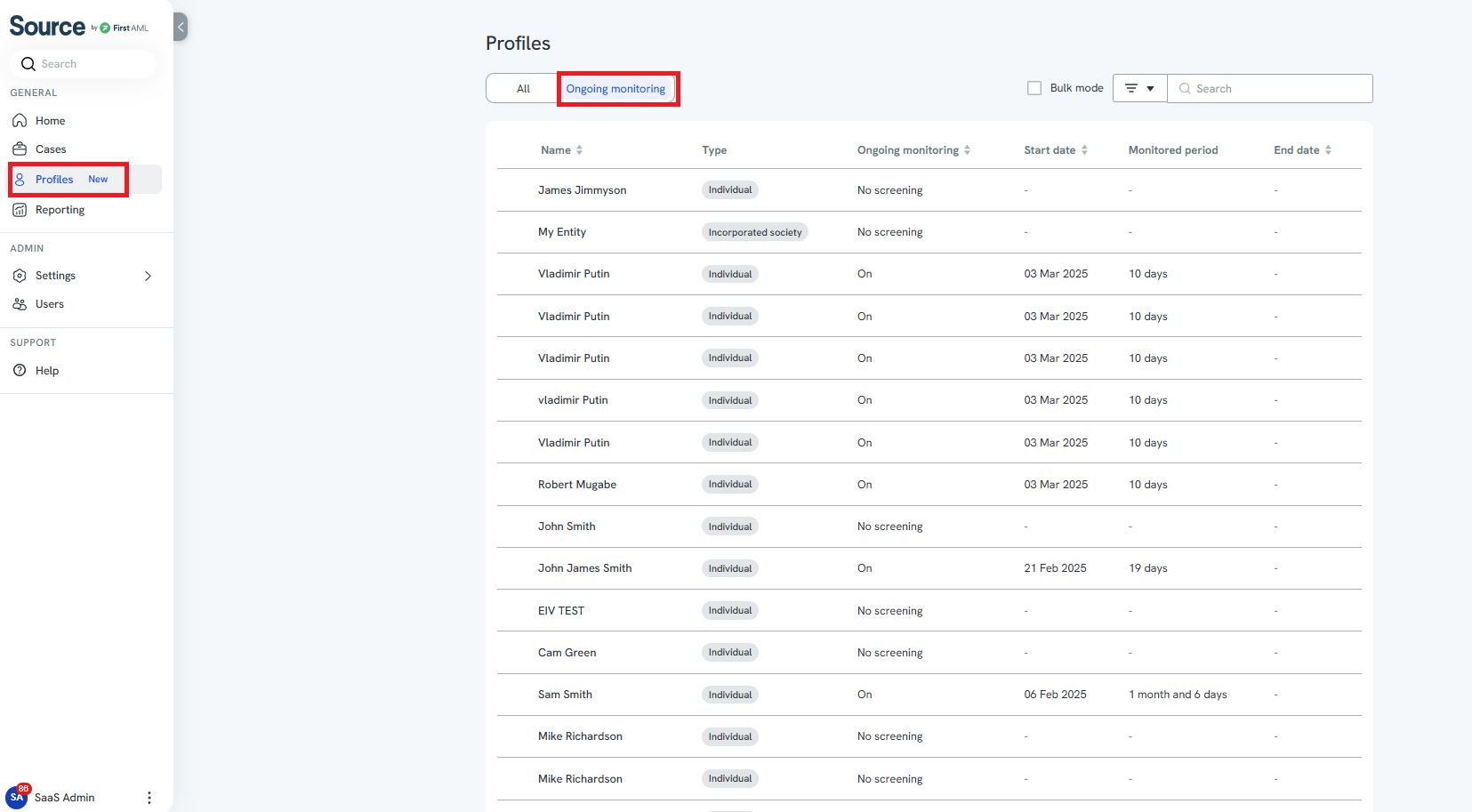
2. Select the Profile:
- Use the search bar or available filters to locate the desired profile.
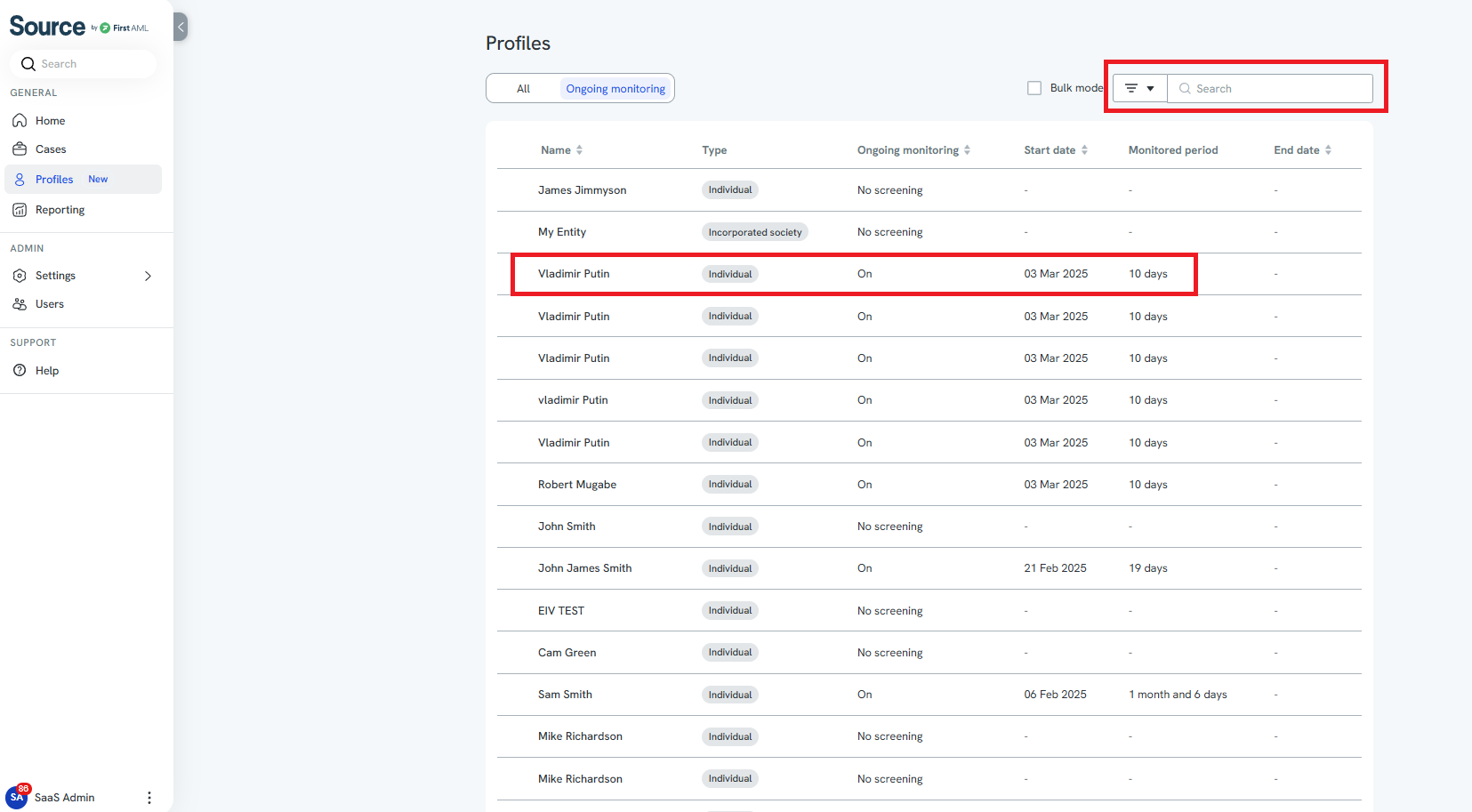
3. Open the Profile:
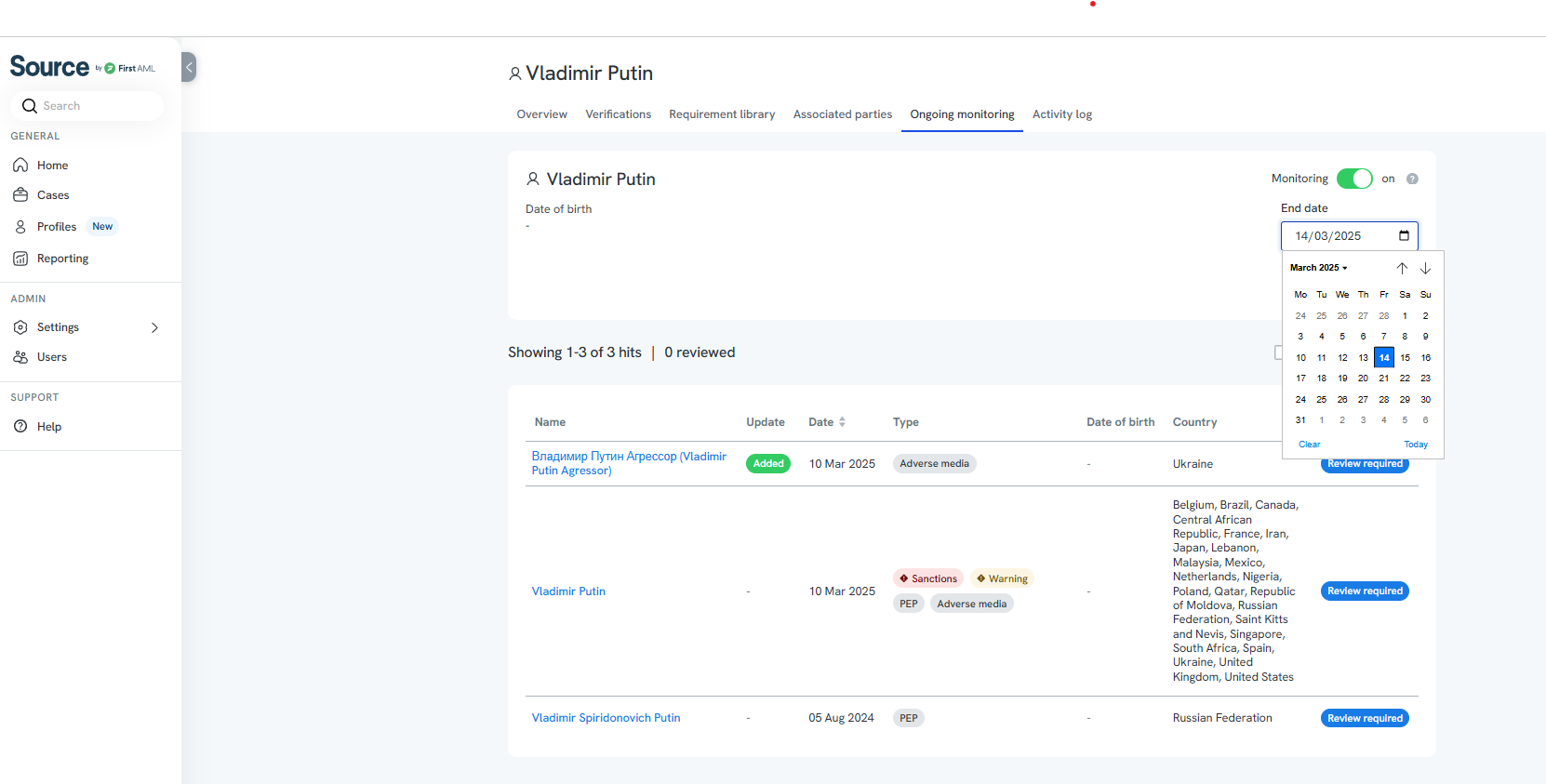
- Click on the selected profile to open the overview and then navigate to the Ongoing Monitoring tab.
- Use the toggle to switch ongoing monitoring on or off for that profile.
- Your changes will be automatically saved in the activity log for future reference.
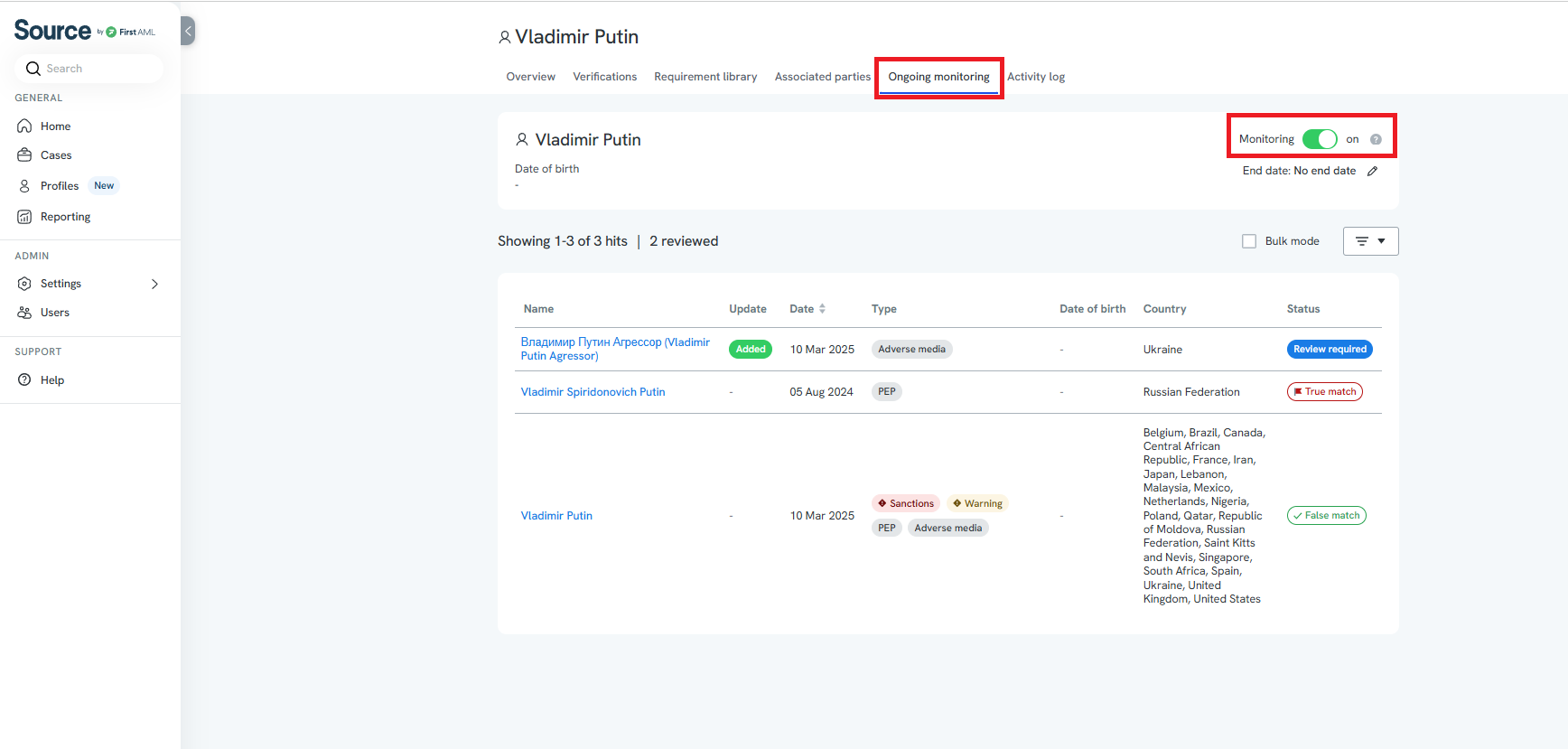
4. Adjust Expiry Date (Optional):
- Click the pen icon to set or adjust the expiry date for the ongoing monitoring, if required.
How to manage Ongoing Monitoring in bulk
To manage ongoing monitoring for multiple profiles at once, follow these steps:
Navigate to Profiles:
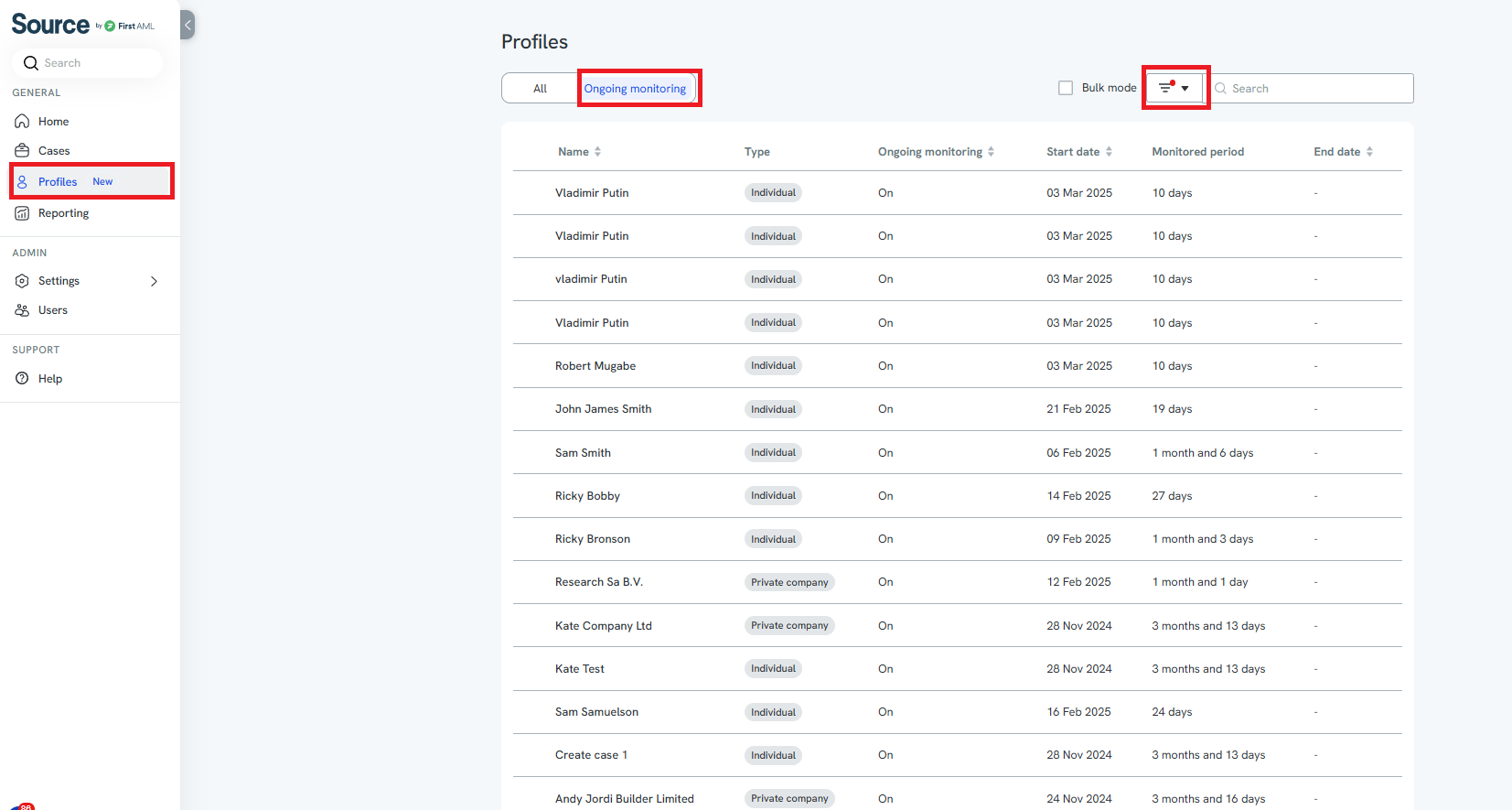
- From the main menu, select Profiles, then Ongoing monitoring
- Use filters to narrow down the list of profiles you wish to modify.
2. Enable Bulk Mode & Select Profiles:
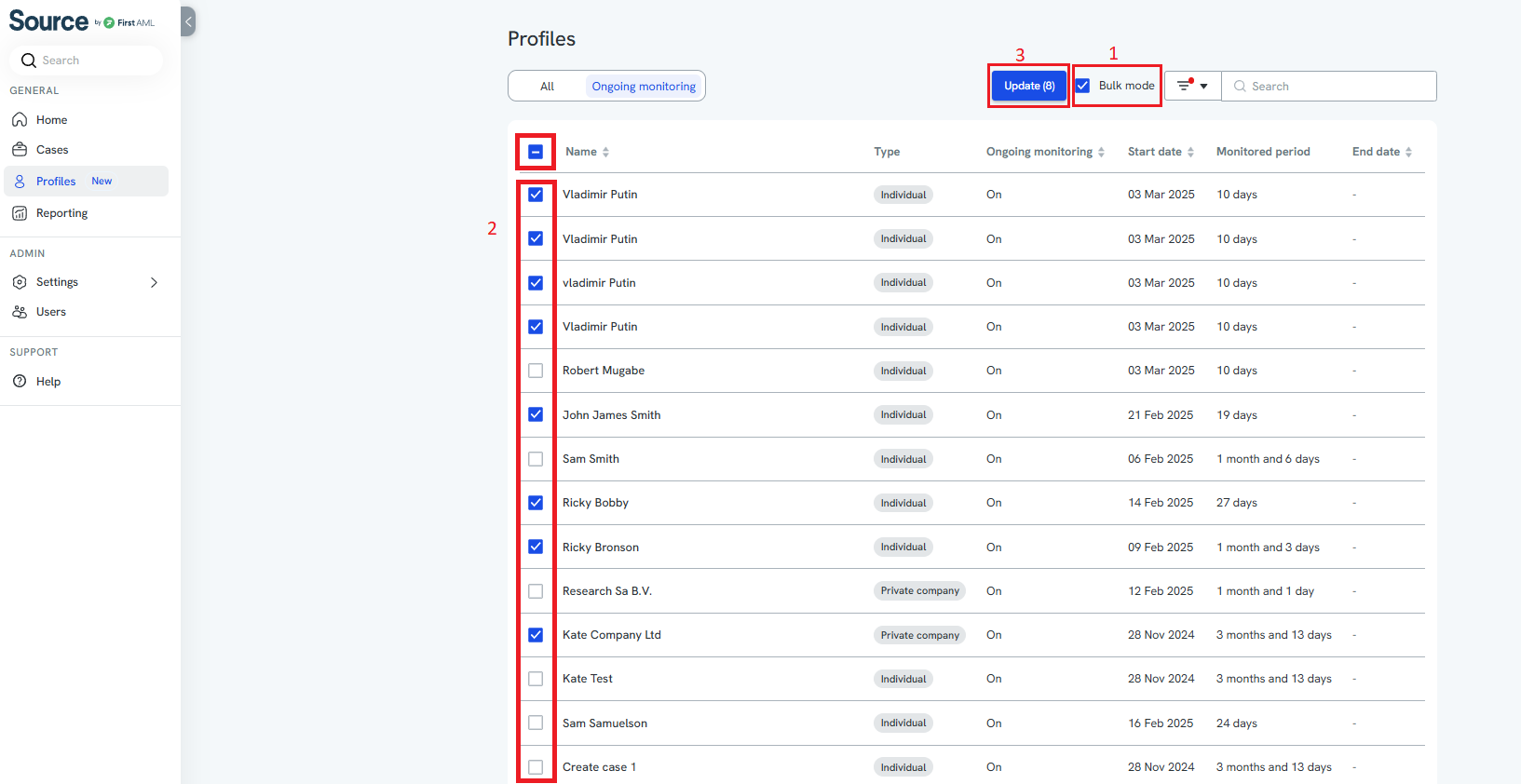
- Click on the Bulk Mode button to activate the bulk editing functionality
- Select the profiles you wish to update from the list. To select all tick the box at the top.
- Click Update
3. Update the Status:
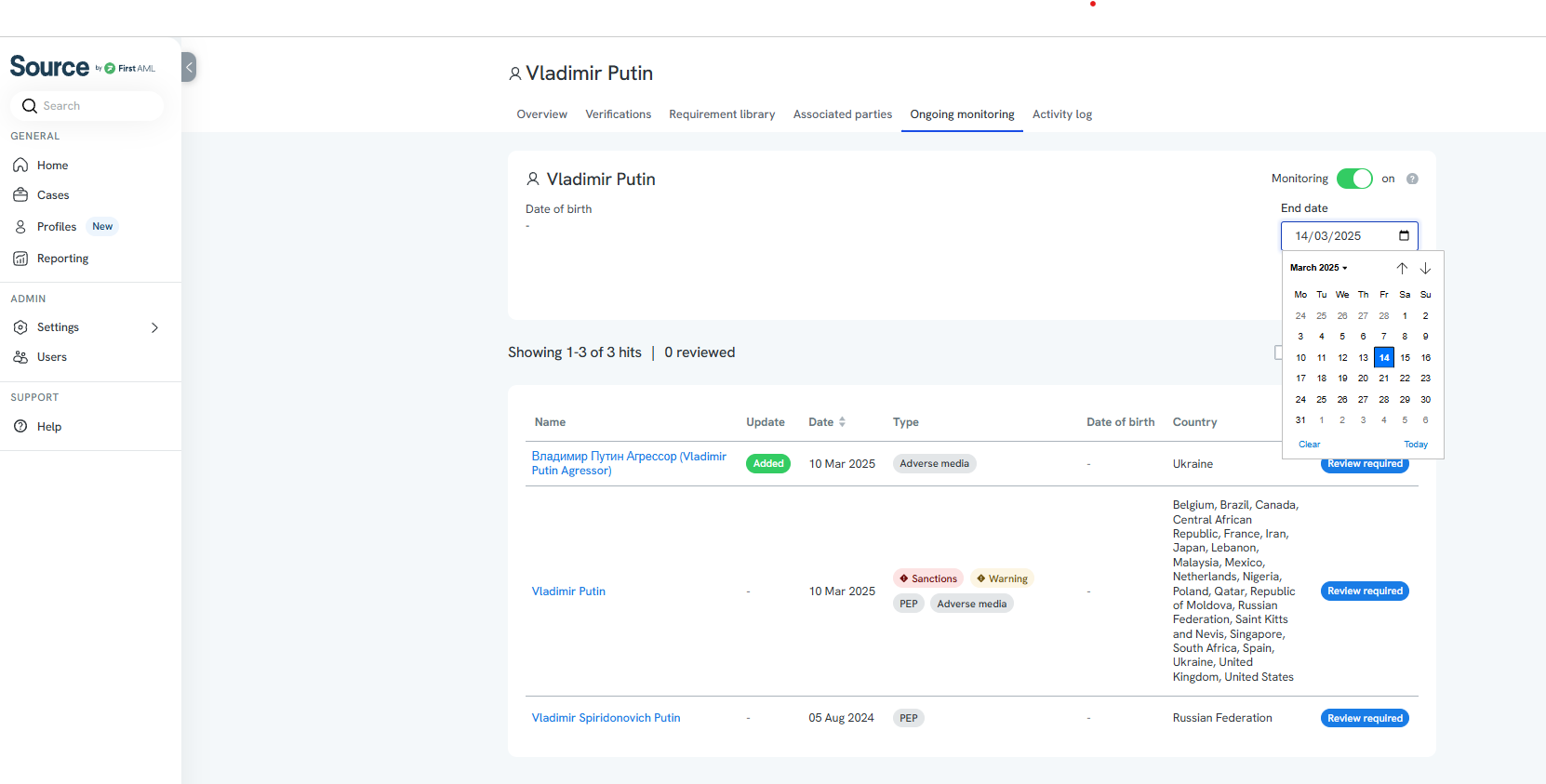
- Choose the new status for ongoing monitoring: on or off.
- If needed, set an expiry date for ongoing monitoring for the selected profiles.
- Click Update to apply the changes to all selected profiles.
- Your updates will be recorded in the activity log for each modified profile.
Does a new screening automatically enable ongoing monitoring for clients it has been switched off for?
If monitoring has been switched off manually or by duration rules a new screening check will not enable it again, you will be required to go to toggle on the ongoing monitoring on the clients profile.
Why doesn't a new screening automatically enable the ongoing monitoring again?
The platform is designed to follow the existing monitoring decisions, this means that if the ongoing monitoring has been turned off by a platform user or the duration rules, the platform prioritises this decision even when a new screening is completed.
What happens if I switch ongoing monitoring on after a period of having it switched off?
If these names weren't previously monitored but you've now switched monitoring on, then any changes made to these entities (e.g., if information has been added or removed) since the person was initially onboarded will be reflected in the next monitoring cycle. Essentially, we will pick up and alert you to all the historical changes that have occurred since their initial onboarding.