TABLE OF CONTENTS
Summary
The alerts dashboard is your central location for managing key compliance alerts in the platform. It helps ensure you never miss an alert - such as re-verifying a client due to an expired ID or an upcoming CDD refresh.
What is the alerts dashboard?
The Alerts Dashboard surfaces actionable items based on system rules and alert configurations. It gives your compliance and operations team visibility into tasks that require follow-up to stay aligned with AML obligations.
You can access the Alerts Dashboard directly from the homepage if you have the appropriate permissions. Alerts are visible to users with the following roles:
- Compliance Admin: full, organisation-wide access.
- Compliance Office Admin, Compliance Office Approver, and Compliance Office Member: access to alerts within their assigned offices.
Other roles, such as Author, Auditor, Read-Only, and Agent/Frontline, do not have access to the Alerts Dashboard.
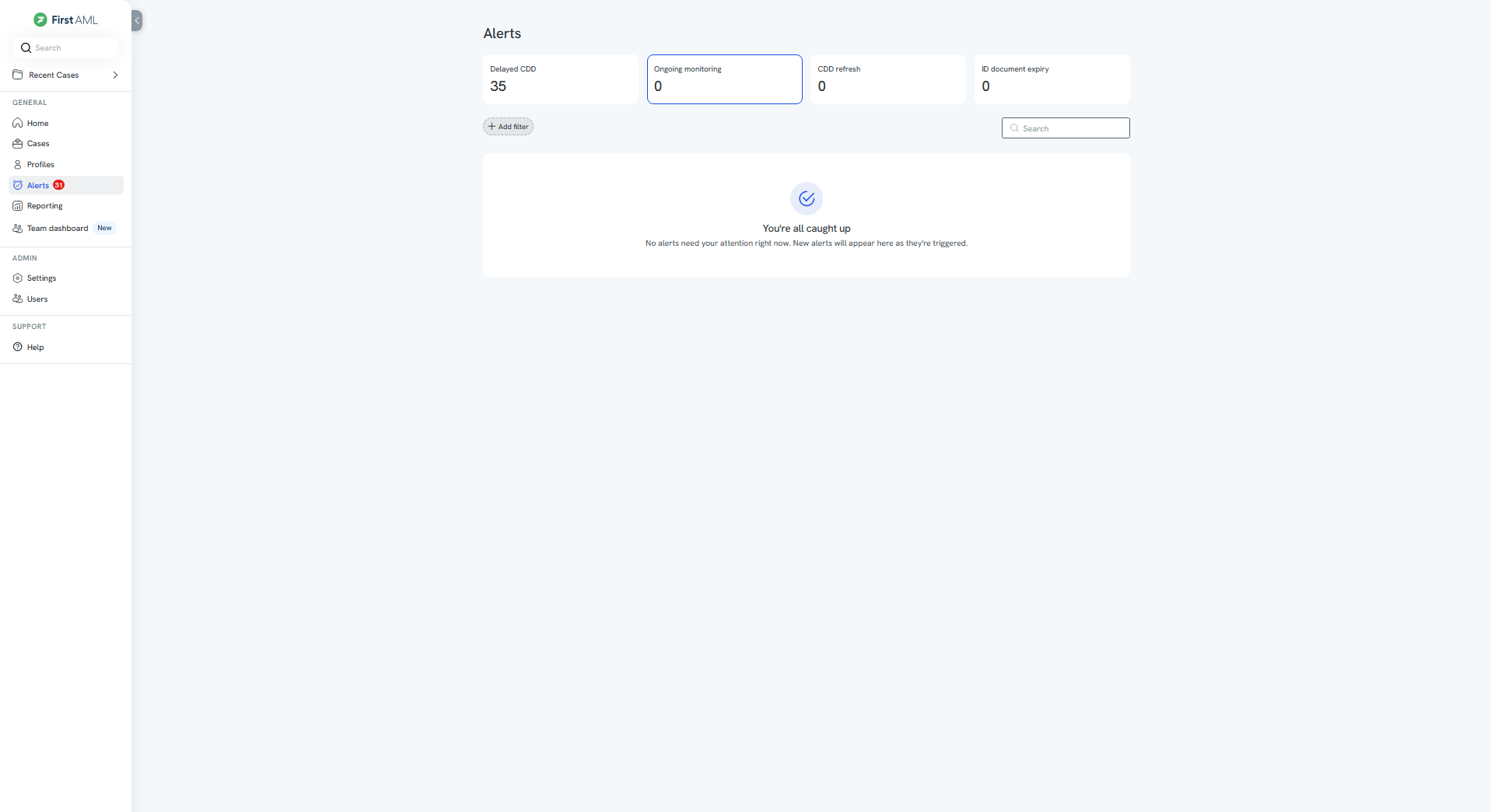
Use the filter and sort tools at the top of the table to prioritise the most urgent items.
Current alerts types
1. ID Document expiry alerts
These alerts notify you when an identification document is:
Already expired
Due to expire within the next 12 months (with a visual pill warning in the case Manifest, the checklist view of a case showing all requirements, their statuses, and what's still outstanding).
What you can do from the Alerts Dashboard:
View all individuals with upcoming or expired ID documents
Click through to the relevant case or individual
Update the document or request new ID from the client
More on ID expiry alerts
2. Ongoing Monitoring Alerts
Ongoing monitoring checks your active profiles against sanctions, PEP, and watchlist sources every day. When new screening hits are found, an ongoing monitoring alert appears so you can review the new hits.
Where they appear:
- On the Alerts page, showing the profile name, number of hits to review, risk level, status, and assigned user
Who sees them:
- You see the alerts assigned to you. Compliance Office Admins see all alerts for their offices, and Compliance Admins see all alerts
What you can do:
- Select Review hits to open the profile's Ongoing Monitoring page and set each hit's match status
- Each profile has one alert at a time. New hits for the same profile are added to the open alert instead of creating a new one
- The alert stays open until all hits have been reviewed, then it clears automatically
Ongoing monitoring alerts can't be dismissed. They clear automatically once all hits have been reviewed.
More on Ongoing Monitoring alerts
3. CDD Refresh
These alerts are triggered based on your organisation's configured CDD refresh cadence (e.g. every 12 months for standard-risk clients). You may also see this referred to as "Ongoing Monitoring" or by its older name, OCDD (Ongoing Customer Due Diligence), in some parts of the platform. They all refer to the same alert type.
Where they appear:
- On the final section of the homepage, sorted by re-verification due date (most urgent at the top).
What you can do:
Click the alert to open the case
Create a new case for the re-verification process
Once the individual or entity is marked as PASS, the cadence resets and the alert disappears
If marked as FAIL, the alert is removed, and that subject is excluded from future OCDD reminders
The alert can also be dimissed if not needed
4. Delayed CDD (AU Real Estate buyer cases only)
This alert type only applies to Australian real estate Buyer's Agent clients. If this doesn't describe your organisation, you won't see this alert type and can skip this section.
Under Tranche 2 AML rules for Australian real estate, buyer verification can be completed after contract exchange, but must be finished no later than the earlier of 28 days post-exchange or 3 days before settlement. This alert notifies you when a buyer case is approaching or has passed that deadline, so verification isn't missed before settlement.
More on CDD Refresh Alerts
Dismissing Alerts
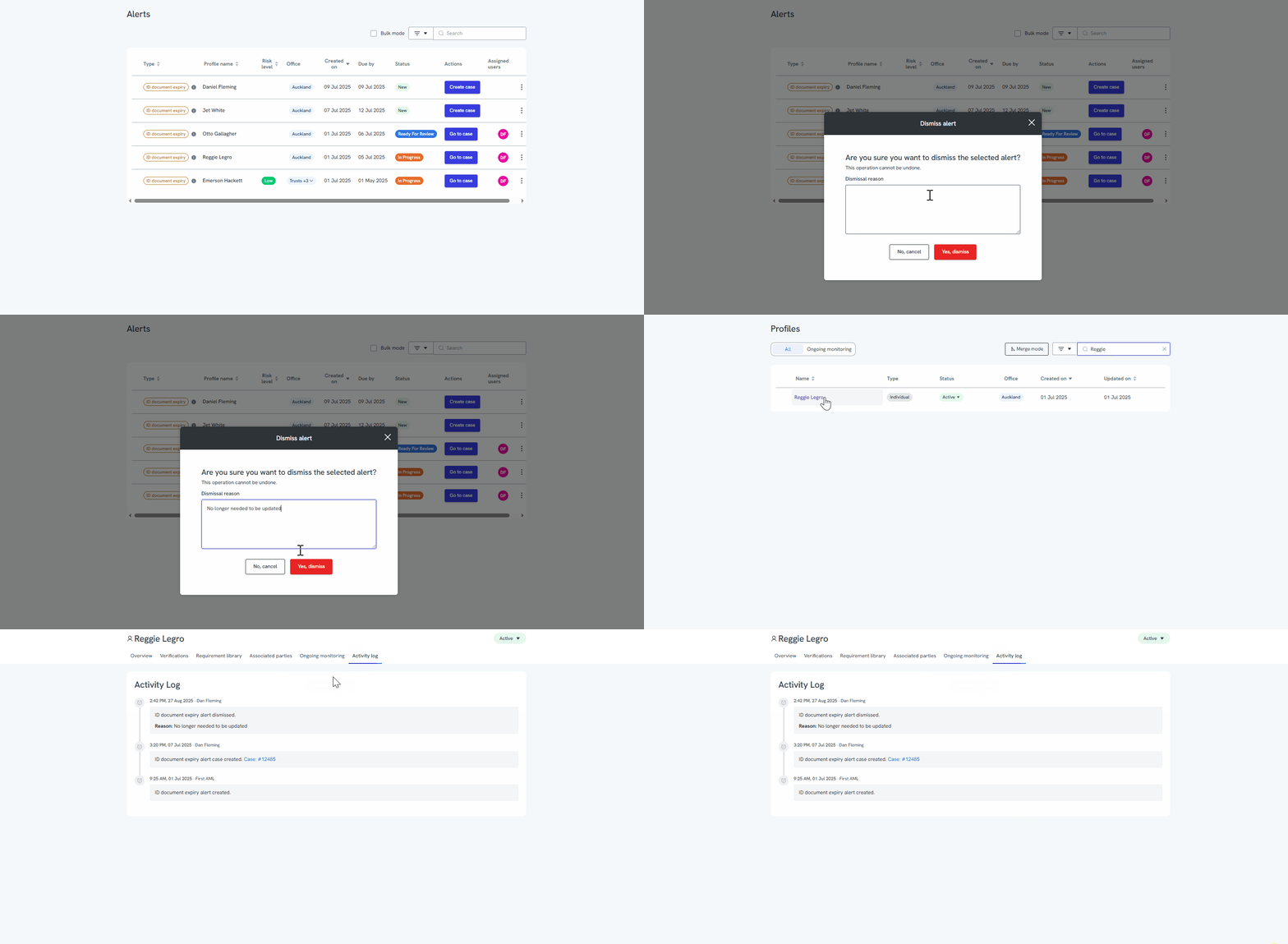
You can dismiss alerts directly from the Alerts Dashboard if they are no longer required to be actioned (this doesn't apply to ongoing monitoring alerts). They can't be dismissed and clear automatically once all hits have been reviewed.
When dismissing an alert, you must select a dismissal reason before submitting. This ensures there is a clear record of why the alert was closed.
Once an alert has been dismissed, the selected reason is automatically recorded in the client’s profile under the Activity Log, where it can be reviewed by your team at any time.
This helps maintain transparency and an audit trail for all alert decisions.
Clear alerts promptly to keep your dashboard focused and up to date.