
TABLE OF CONTENTS
- Overview
- Before you start
- Cost
- What the agent does with each hit
- What you'll see on the screening report
- Hit statuses and what they mean
- Accepting the agent's decisions
- Changing a decision
- Seeing the full history in the activity log
- Where the agent runs
- Configuring the agent
- Turning agent review on or off
- Auto-accepting the agent's decisions
- How the agent decides, and why you can trust it
- Common questions
- Do I have to use it?
- What does "suggested" mean on a status?
- Can the agent mark a hit without me?
- The report shows the agent still working.
- A decision looks wrong.
- How do I stop using the agent?
- Related articles

Overview
The AI screening agent makes working through your screening results faster and easier. It works on the screenings you run in a case and on ongoing monitoring hits, taking the first pass for you: it reviews each hit, decides whether it's a genuine match, and writes a short reason in plain language.
It resolves the clear non-matches and leaves the hits that need your judgement for you to review. The ones that matter stand out and get the attention they deserve, and you review the agent's work and confirm rather than starting from a blank page on every hit.
You stay in control the whole way. Every decision the agent makes is recorded, attributed to it, and yours to confirm or change. Your screening stays quick to work through and ready for audit.
Before you start
- Roles: These decisions can be reviewed and accepted by the same user roles authorised to perform screening reviews - compliance and internal admin/analyst roles.
- Availability: the agent is on for all organisations from 12 August 2026. You can turn it off at any time. See Turning the agent on or off. If you informed us before 7 August 2026 that you did not want the AI screening agent, it is already off for your organisation.
- Changing these settings: only users with a Compliance Admin role can turn the agent on or off, or change auto-accept.
Cost
The agent is free to use until Friday 6 November 2026 inclusive.
From Saturday 7 November 2026, standard charges apply:
- Initial screening: 0.4 units for each individual or entity that returns screening hits. This is charged once per individual or entity, not per hit.
- Ongoing monitoring: 0.1 units for each individual or entity each year, from the second year of monitoring onwards, where monitoring is turned on.
If you are not sure what a unit costs on your plan, talk to your CSM.
If you do not want to use the agent, you can turn it off at any time and no charges apply. See Turning agent review on or off.
What the agent does with each hit
For every hit, the agent reaches one of three outcomes:
- Resolved as a false match. The agent is confident the hit is not your customer. For example, the date of birth or country does not match, or a company only shares a generic word like "International Holding Co". It sets the hit to false match and writes the reason.
- Flagged as a true match. The agent has found a hit that looks like a genuine match. It flags it for you with the evidence.
- Left for your review. When the agent cannot decide with confidence, it leaves the hit unresolved and counts it under review required. You review these the same way you do today.
The agent only acts when it is sure, so anything genuinely uncertain still reaches a human.
What you'll see on the screening report
When you open a screening report the agent has worked on, you'll see:
- A summary banner at the top of the report showing what the agent did, for example "AI screening agent resolved 9 of 10 hits".
- A breakdown below the banner showing how many hits it marked as false matches, how many as true matches, and how many are review required.
- A status on every hit, showing the decision, who made it, and whether it has been accepted yet.
Hit statuses and what they mean
Two things on a status tell you where a hit has got to. The icon shows who made the decision: a sparkle for the agent, a person for someone on your team. The word suggested means the agent has decided but nobody has accepted it yet.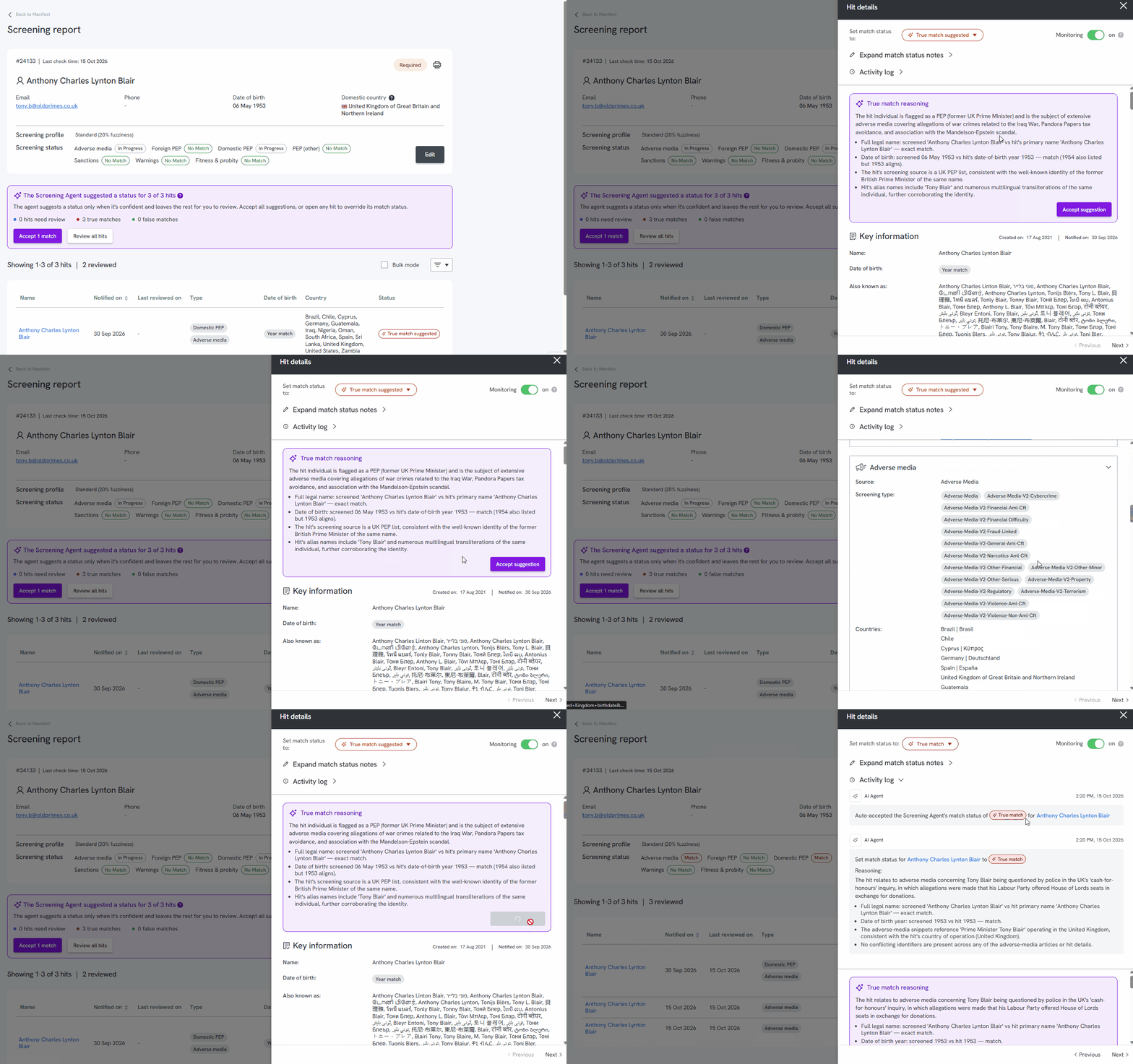
| Status | What it means |
True match suggested or False match suggested, with a sparkle icon and an outline | The agent has made a decision and is waiting for you to accept it. Nothing is recorded against the hit yet. |
True match or False match, with a sparkle icon | The agent made this decision and it was accepted automatically, because auto-accept is turned on for this hit type. |
| True match or False match, with a person icon | Someone on your team accepted the agent's decision, or changed it. |
| Review required | This hit needs a person to decide. Either the agent could not decide with confidence, or someone has sent it back for review. |
If auto-accept is turned off, every decision the agent makes shows as suggested until you accept it. If auto-accept is turned on, the agent's decisions are already accepted when you open the report, and only Review required hits are left for you.
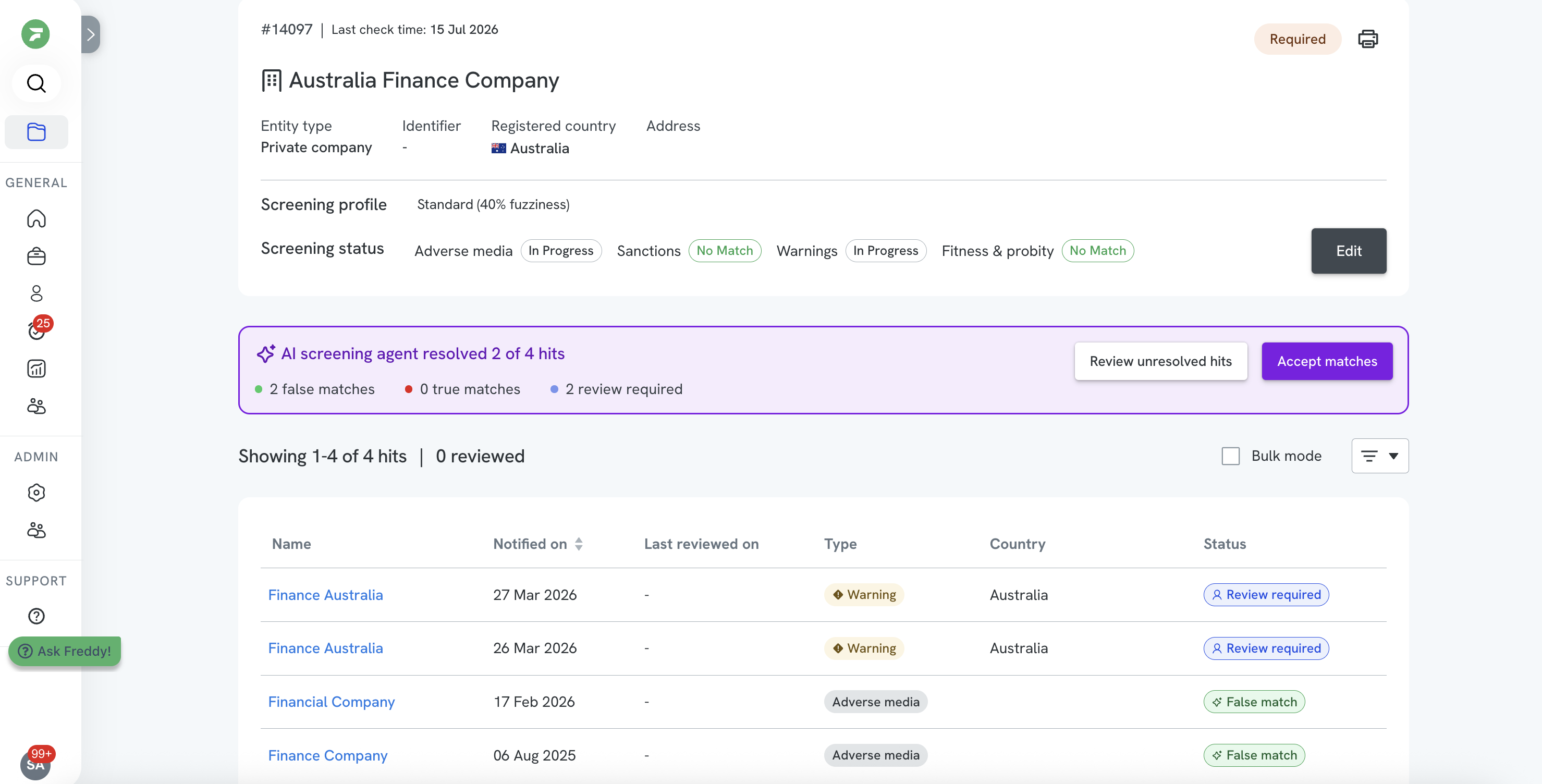
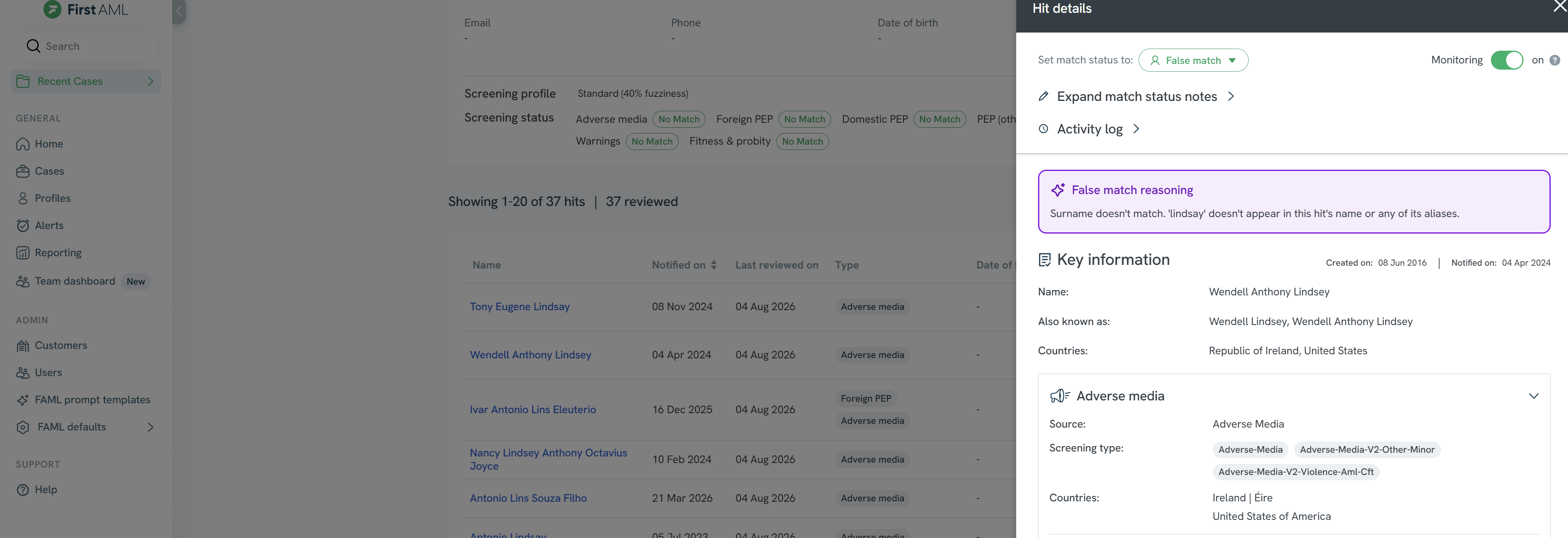
Open any hit to see the full Hit details. The agent's decision appears at the top as the match status, and its explanation sits in a Reasoning box in plain language. The rest of the panel shows the key information and sources behind the hit.
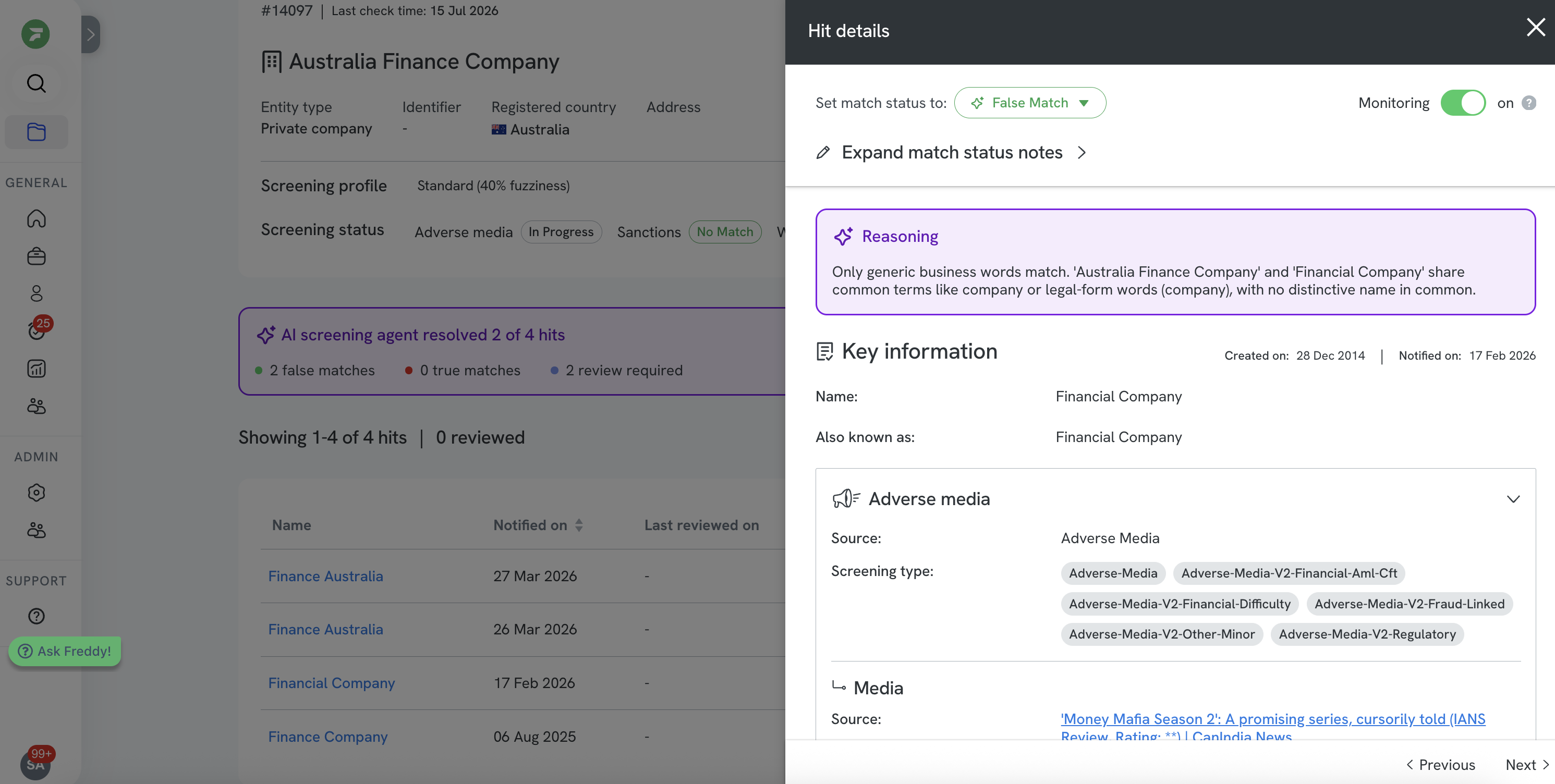
If you open a report while the agent is still working, you'll see an in-progress state instead of the counts. The report updates on its own once the agent finishes, so you don't need to refresh.
Accepting the agent's decisions
You don't confirm hits one by one. To accept the agent's work in a single step:
- Review the summary banner and the breakdown of what the agent decided.
- Spot-check the agent's decisions by opening any hits you want to check, reading the Reasoning box.
- Select Accept matches to accept the batch.
The agent's decisions become the recorded decisions on those hits. The word suggested drops off each status and the icon changes to a person, because you made the final call. Hits marked Review required stay in your queue unchanged.

Changing a decision
You stay in control of every hit. If you don't agree with the agent:
- Open the hit.
- Use the Set match status to dropdown to change the status yourself.
- Optionally, add your own note under Expand match status notes.
Your decision replaces the agent's, and the change is recorded against your name with the date. The agent's Reasoning is not overwritten. The record always shows what the agent decided and what you decided.
Seeing the full history in the activity log
Every decision on a screening is captured in the activity log, so you always have a complete record of who decided what, and when. You'll find it in two places:
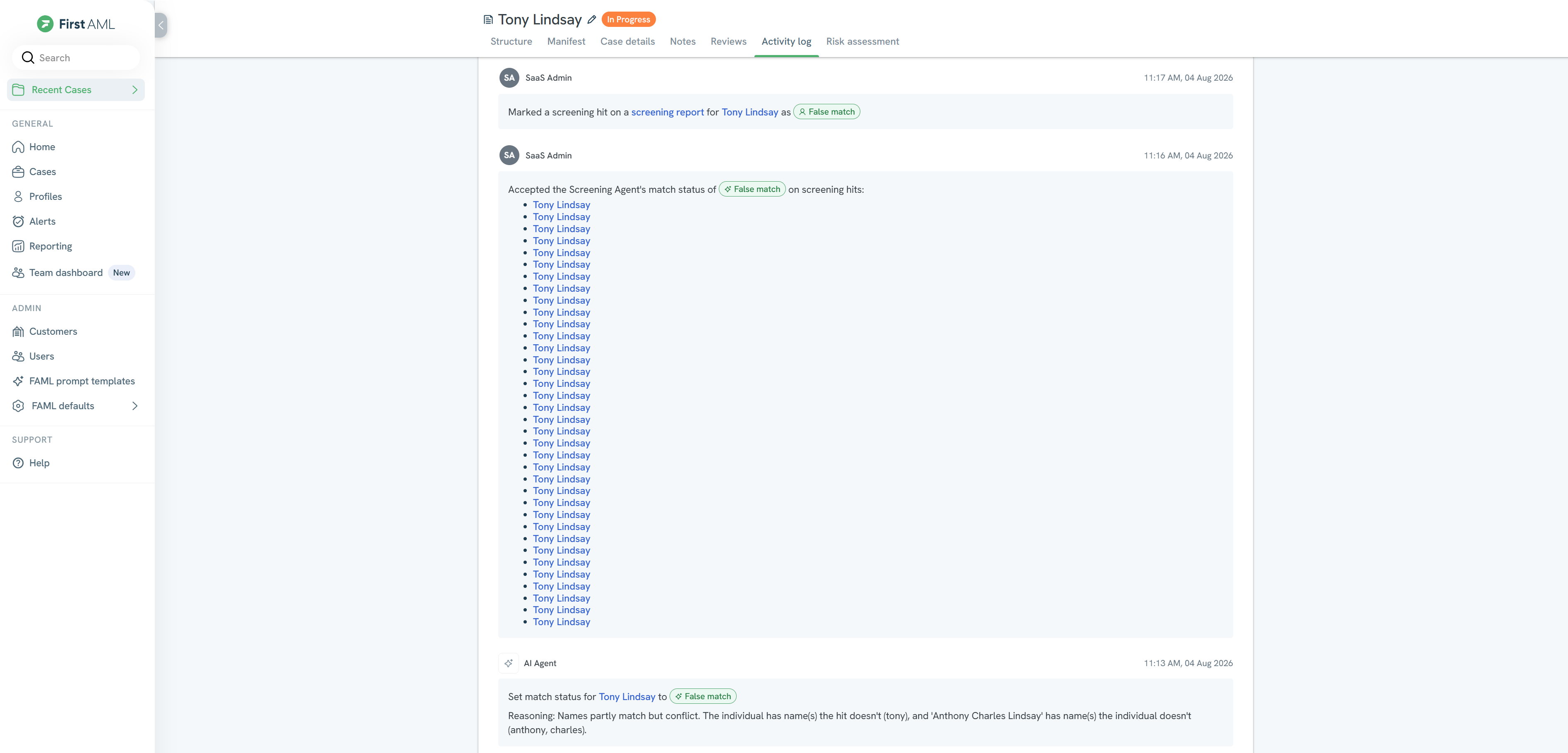
- On the case. The Activity log tab on a case shows everything that has happened on it, including each screening decision. Accepting the agent's work in a batch is recorded here as a single entry that lists the hits it covered.
- On each hit. Open a hit and expand its Activity log to see the history for that hit on its own.
Each entry shows who or what took the action, and the time. The agent's entries are attributed to it and include the plain-language reasoning it gave, for example "Surname doesn't match". Any decision you accept or change afterwards is recorded against your name. Nothing is overwritten, so the record always shows the agent's original decision alongside yours.
Where the agent runs
- New screenings in a case. When you run screening on a case, the agent resolves the hits on that screening.
- Ongoing monitoring. When ongoing monitoring produces new hits on an entity you're already watching, the agent resolves those the same way, so monitoring alerts get the same first pass.
Configuring the agent
Your admin controls where the agent runs and how far it takes each decision, from the AI screening settings.
Turning agent review on or off
- Case screening - by office. Turn the agent on or off for each office, so you can roll it out to some offices before others, or keep it off where you'd rather review every hit yourself.
- Ongoing monitoring - client-wide. Turn the agent on or off for ongoing monitoring across your whole organisation. This one setting isn't per office.
Auto-accepting the agent's decisions
By default the agent does a first pass and leaves its decisions for you to accept. Auto-accept takes this a step further: where you're comfortable, the agent accepts its own decisions for you, so those hits are resolved without a manual step.
You choose where auto-accept applies:
- Screening reports and ongoing monitoring, separately. Turn auto-accept on for case screening reports, for ongoing monitoring hits, or both.
- By hit type. For example, auto-accept adverse media hits but keep sanctions hits for manual review, if that fits your risk appetite.
Auto-accept is designed for lower-risk offices or match types. As with everything else, every auto-accepted decision is still recorded and attributed, and you can change any of them. With auto-accept on, the agent's decisions are already accepted when you open the report, so you will not see the word suggested on the hit types you have turned it on for. Those hits show a plain True match or False match with a sparkle icon.
As with turning the agent on and off, auto-accept for case screening is configured by office, while ongoing monitoring is configured client-wide.
How the agent decides, and why you can trust it
The agent doesn't judge a hit on the name alone. It uses the context First AML already holds on the case: the verified date of birth, the country, the entity structure and ownership, and the documents collected. That context is what lets it tell a genuine match apart from a coincidence, and it's what makes each decision defensible.
Every decision the agent makes is written in plain language, attributed to the agent, and kept in the record alongside your own decisions. Nothing the agent does is hidden, and nothing it does is final until you accept it.
Common questions
Do I have to use it?
No. The agent does a first pass, but the decisions are yours. You can review and accept its work, change any decision, or work through the hits yourself as you do today.
What does "suggested" mean on a status?
A status such as True match suggested means the agent has made a decision, but it is not recorded yet. It is waiting for you to accept it, either by selecting Accept matches on the summary banner or by accepting that hit on its own. Once accepted, the word suggested drops off and the icon changes to a person.
Can the agent mark a hit without me?
That depends on your settings. By default the agent's decisions show as True match suggested or False match suggested and are not recorded until you accept them, so nothing is final without you. If your organisation has turned on auto-accept, the agent's decisions are recorded as it makes them, for the hit types you have chosen, and they keep the sparkle icon so you can always see the agent decided. Either way the reasoning is saved and you can change any decision at any time.
The report shows the agent still working.
The agent hasn't finished this screening yet. The report updates on its own when it's done, so you can wait or start reviewing hits yourself.
A decision looks wrong.
Open the hit and use Set match status to to change it. Your decision replaces the agent's and is recorded against your name. The agent's original decision and reasoning stay in the record.
How do I stop using the agent?
Go to Settings, select AI capabilities, and turn the screening agent off. You can do this at any time from 12 August 2026, and you can turn it back on whenever you want. You need a Compliance Admin role to change this. Any decisions the agent has already made stay in the record.