
TABLE OF CONTENTS
Overview
Every user in First AML is assigned exactly one role, which determines what they can see and do across the platform.
Roles fall into two groups:
Organisation roles apply across your entire account. A user with an Organisation role can work across every office in your organisation, depending on what their role allows.
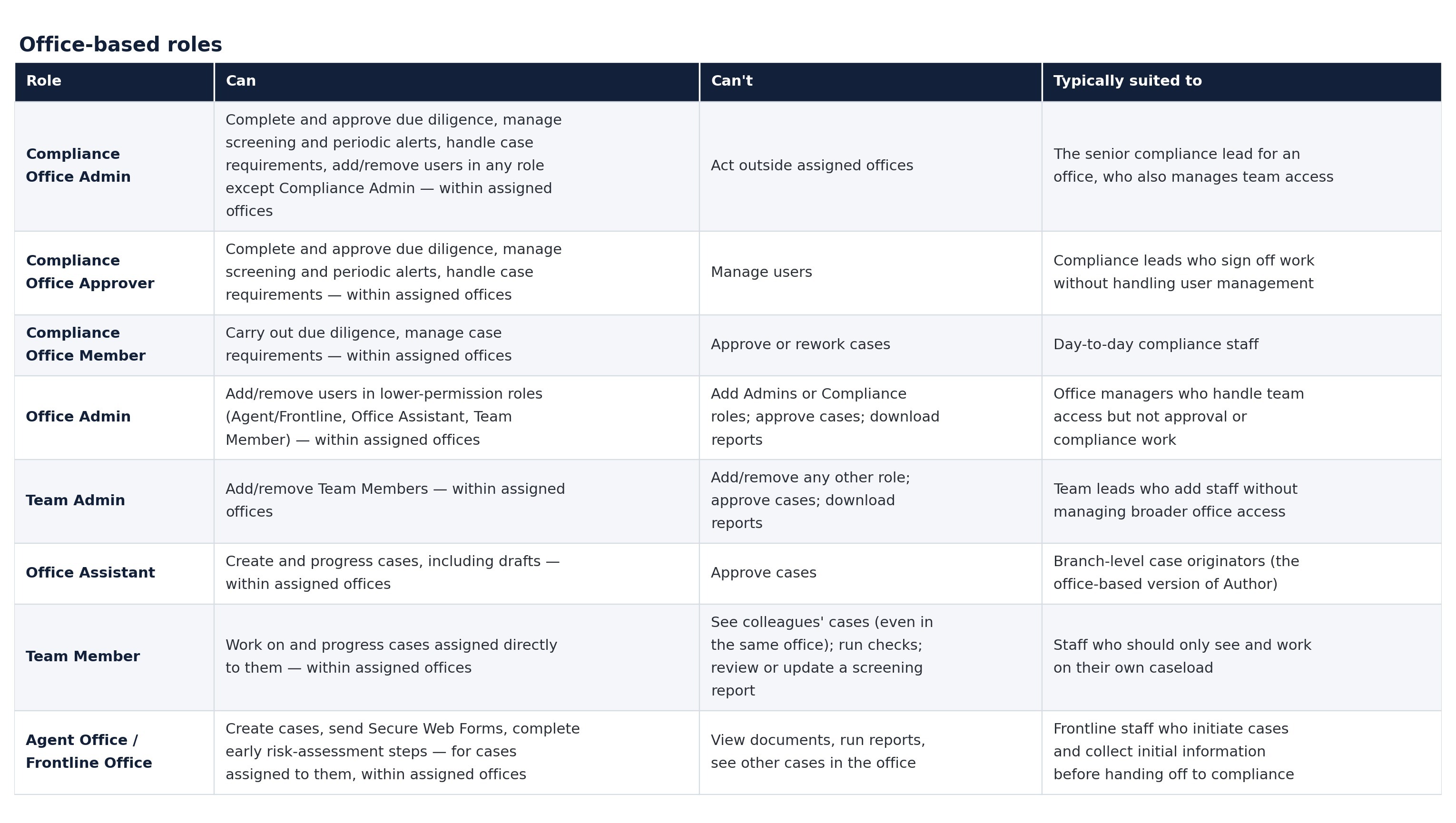
- Office-based roles are scoped to one or more specific offices. A user with an Office-based role only sees cases, alerts, and activity within the offices they're assigned to. Most users fall into this group.
Only Compliance Admins can assign or change a user's role.
Compliance Office Admins, Office Admins, and Team Admins can add and remove users from their team, but they cannot change anyone's permissions. For instructions on adding, editing, or removing users, see our How to create/remove/edit users guide.
If you're not sure where to start, most organisations only need a handful of roles to run their day-to-day compliance work:
- Compliance Admin
- Compliance Office Approver
- Compliance Office Member
- Agent Office / Frontline Office (or Agent / Frontline if your account doesn't have offices set up).
Only Compliance roles can send requirements to request further information or documents from a client:
- Compliance Admin
- Compliance Office Admin
- Compliance Office Approver
- Compliance Office Member
The rest of the roles below cover more specific needs, such as audit access, reporting, or narrower user management.
Roles
The tables below describe each role: what it can do, what it can't, and who it's typically suited to. Roles are grouped by what they do, not by job title.
The same job title can map to different roles depending on how your organisation works.
Organisation Roles
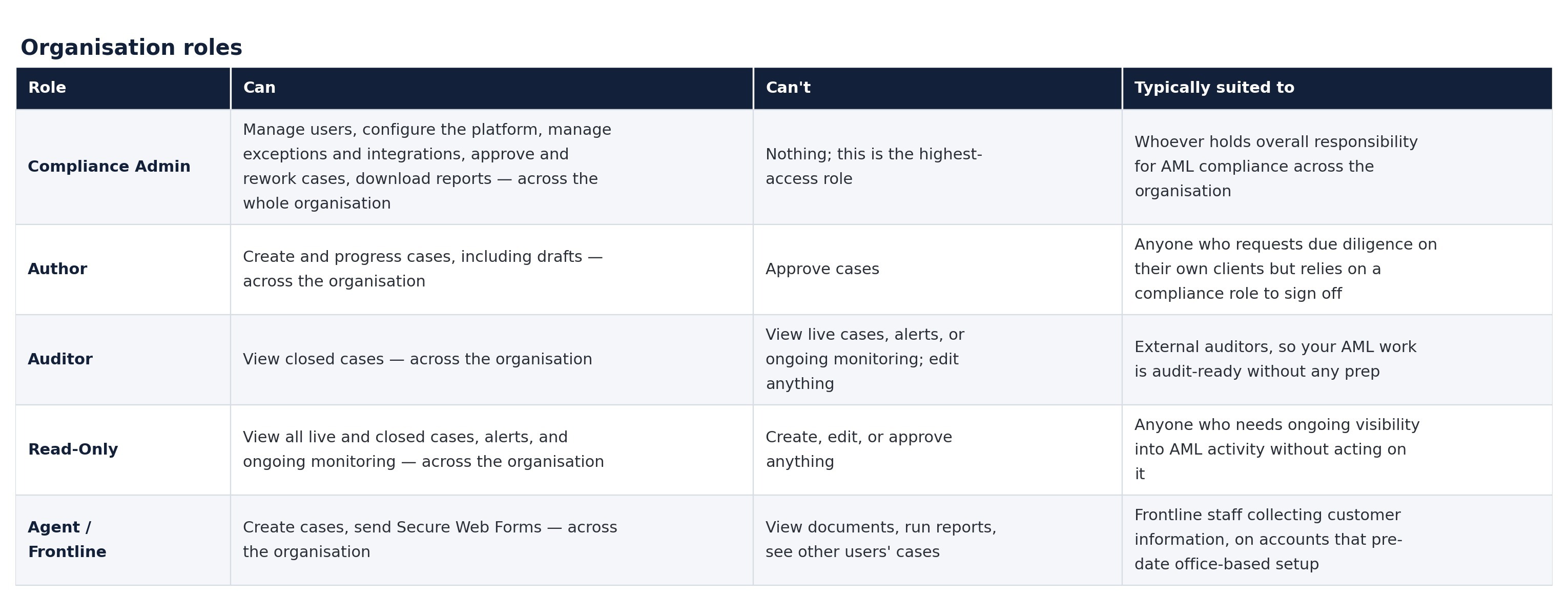
Note: If your account has offices set up, use Agent Office / Frontline Office below instead of Agent / Frontline. All new accounts are built with offices from the start.
Office-based roles
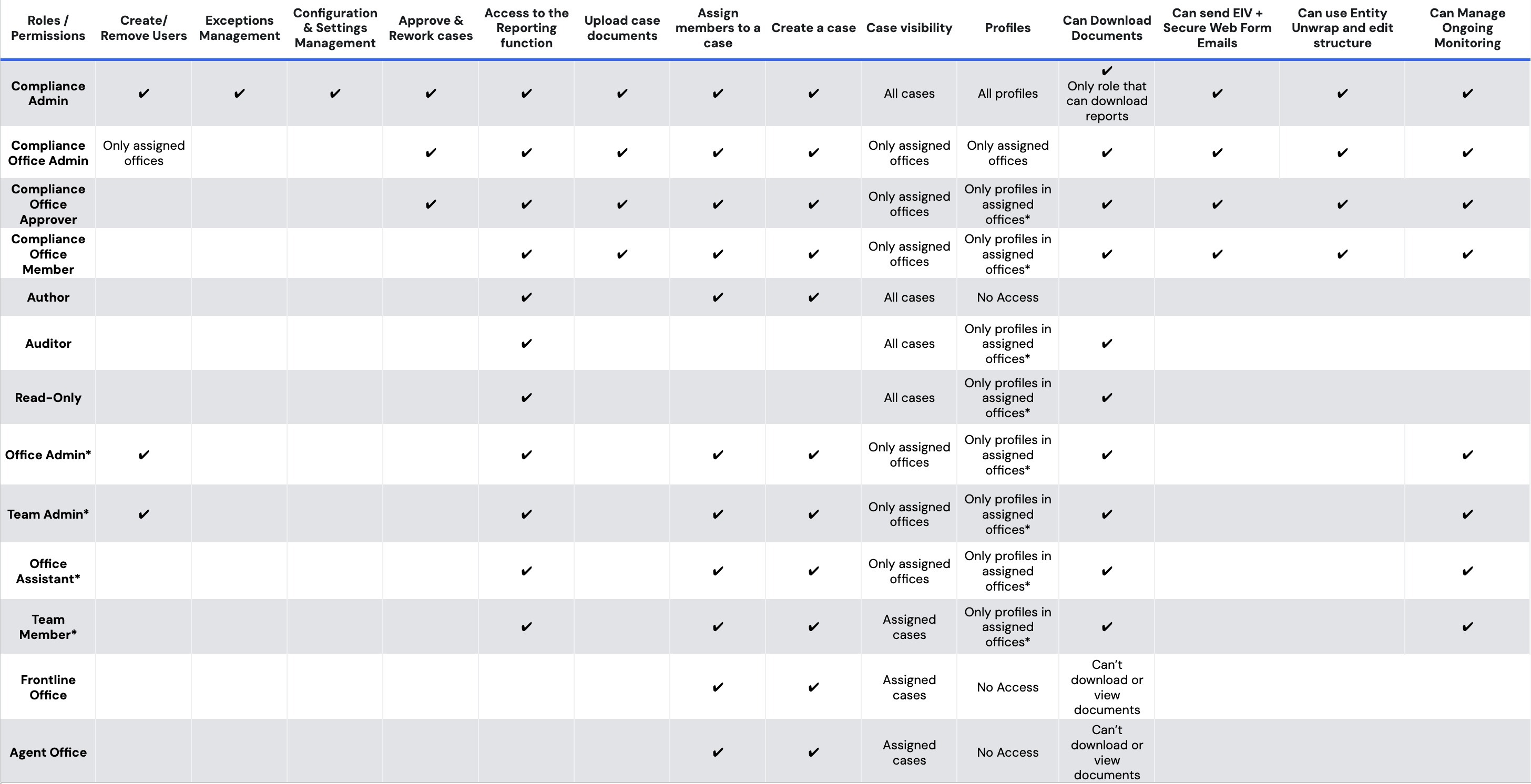
Full permissions matrix
The tables above cover what most users need.
Use the detailed matrix below only if you need the exact permission-by-permission breakdown, for example when auditing access or setting up a new office.
Common Questions (FAQs):
Question: How to edit user roles?
To edit user roles, you must have a user-management-capable role (see the Permissions reference above).
- Click Users in the left navigation bar.
- Click the grey pencil icon next to the user's details.
- Click the Role field to open the dropdown and select the new role.
- Click Save user.
Note: Only Compliance Admin, Compliance Office Admin, Office Admin, and Team Admin can edit roles.
Question: How do I decide which role to assign?
Assign the role based on the person's actual day-to-day responsibilities, not their job title:
- Needs organisation-wide access: Organisation role (otherwise, Office-based role)
- Approves or reworks cases: Compliance Admin, Compliance Office Approver, or Compliance Office Member
- Creates or removes users: Compliance Admin, Office Admin, or Team Admin, depending on scope
- Views cases without acting on them: Read-Only (ongoing visibility) or Auditor (closed cases only)
Refer to the Roles section above for the full list of what each role allows.
Question: Who can complete or approve a risk assessment?
Building or editing risk assessment templates: Compliance Admin only, via Settings.
Completing a risk assessment within a case:
- Any case, any office: Compliance Admin
- Within their assigned offices: Compliance Office Admin, Compliance Office Approver, or Compliance Office Member
- Early steps only, before handing to compliance: Agent Office / Frontline Office
Approving a risk assessment: Compliance Admin, Compliance Office Admin, or Compliance Office Approver.
Overriding the risk level: Anyone completing the assessment can override it manually, from the Risk Assessment or Case Details tab. Consider turning on override notifications to alert your compliance lead.
Question: I can't see a case I expected to see
Case visibility depends on your role and office assignments. Common causes:
- You have the Team Member, Agent/Frontline, or Agent Office/Frontline Office role, and the case isn't assigned directly to you.
- You have an Office-based role, and the case is in an office you're not assigned to.
- You have the Auditor role, and the case is still live. Auditors only see closed cases.
To check your role and assigned offices, ask a Compliance Admin to view your account under Users in the sidebar.
Question: I can't approve a case
Only Compliance roles can approve cases:
- Compliance Admin can approve any case across the organisation, and Compliance Office Admin or Compliance Office Approver can approve cases within their assigned offices.
Note: If you need approval rights, ask a Compliance Admin to change your role.
Question: I can't download reports
Report download access depends on your role.
Can download reports:
- Compliance Admin
- Compliance Office Admin
- Office Admin
- Office Assistant
Can view reports, but not download:
- Auditor
- Author
- Compliance Office Approver
- Compliance Office Member
- Read Only
- Team Admin
- Team Member
No access to reports:
- Frontline Office
- Agent
Note: If you're not sure which role you have, or need download access, ask a Compliance Admin in your organisation to check or update your role.