
TABLE OF CONTENTS
- Verification error messages: what they mean and what to try
- No match for Date of Birth
- No match for Name, Date of Birth, and Address
- No Match for Address
- My client input incorrect data.
- Understanding Verification Criteria
- Client Issues with the EIV Form
- Screening (PEP/Sanctions/Adverse Media) Matches
- Anti-Tampering & Biometric Caution/Failure
- No Match for Government ID
Verification error messages: what they mean and what to try
When an individual verification doesn't pass, sometimes First AML is able to show a specific error message (this depends on the provider and the nature of the error). Use the table below to understand what each message means and what to check. After making any correction, update the individual's details in the Verification Details panel and re-run the checks.
Most of these errors mean the information entered doesn't exactly match the individual's identity document or the data source. Enter every detail exactly as it appears on the document. As always, depending on the risk of the client and the information collected, you may take a risk-based approach and manually 'Pass' the individual — refer to your compliance programme.
| Error message | What it means | What to try |
|---|---|---|
| First name does not match | The first name entered doesn't match the document or data source. | Enter the first name exactly as shown on the ID. Check it hasn't been combined with the middle name, and that a nickname hasn't been used in place of the legal name. |
| Last name does not match | The last name (surname) entered doesn't match. | Enter the surname exactly as on the ID. Check for maiden vs. married names, double-barrelled surnames, and spacing. |
| First and Last names do not match | Neither the first nor last name matched. | Re-check both names against the document, including the order (some documents list the surname first). |
| Middle name does not match (new) | The middle name entered doesn't match. | Enter the middle name exactly as on the ID. If there's no middle name on the document, leave the field blank. Check it hasn't been combined with the first name. |
| Invalid characters in first name (new) | The first name contains characters that can't be processed. | Remove or replace special characters — accents/diacritics (é, ü), apostrophes, or hyphens — and enter the plain form. |
| Invalid characters in last name | The last name contains characters that can't be processed. | Remove or replace special characters — accents/diacritics, apostrophes, or hyphens — and enter the plain form. |
| Date of birth does not match | The date of birth entered doesn't match. | Check the DOB is entered correctly (watch for day/month order). See "No match for Date of Birth" for fuller guidance. |
| Licence number does not match | The licence number entered doesn't match. | Re-check for formatting and character errors (lowercase "l" vs. uppercase "I", "0" vs. "O") and remove any spaces. Confirm it's the current licence version, not an outdated one. |
| Card number does not match | The card number entered doesn't match. (The card number is separate from the licence/document number.) | Re-check the card number against the physical document and confirm it hasn't been confused with the licence number. For Australian licences, the card number location varies by state/territory — see the linked state/territory guide. |
| Document number does not match (new) | The document number (e.g. passport, national ID) doesn't match. | Confirm the correct document type is selected, then re-check the document number in the correct location on the ID. |
| Card type does not match (new) | The document/card type selected doesn't match the ID provided. | Confirm the correct document/card type is selected in First AML for the ID being verified. |
| Expiry date does not match (new) | The expiry date entered doesn't match. | Re-check the expiry date on the document and confirm the ID is current, not an expired or superseded version. |
No match for Date of Birth
Possible Reasons:
- Your jurisdiction requires two sources to verify the date of birth, but only one matched.
- The individual’s DOB is not recorded in the available data sources.
- Credit bureaus, which derive data from utility and telecom providers, may only collect names and addresses i.e. DOB is not recorded
Solutions:
- Risk-based approach: Depending on the risk of the client, the transaction and the information collected, you may decide to overlook this DOB failure to ‘Pass’ the individual.
- Collect another form of ID If a passport was used, try obtaining a driving licence or national ID.
No match for Name, Date of Birth, and Address
Possible Reasons:
- Your jurisdiction requires two sources for verification, but only one or none matched.
- The individual’s details may not be recorded in our available data sources.
- The individual resides outside of the UK/NZ/AU where there is varying qualities/availabilities in data
General advice for UK verifications:- Use the address finder to ensure the formatting of the address is correct. If the address does not appear within the dropdown it is almost certain the checks will not pass as the address needs to match first.
- If you update the address rerun the checks. If the details still fail you may want to reach out to the client to confirm their address history, if they have recently moved you can run their details against the previous address which should generate a pass result. In this example you might also want to collect a proof of address document for the new/current address.
Solutions:
- Risk-based approach: Depending on the risk of the client, the transaction and the information collected, you may decide to overlook the failure to ‘Pass’ the individual.
- Collect another ID: Obtain a secondary ID with the individual’s full details
- Certified Copy: If required by your compliance program, collect a certified document.
No Match for Address
Possible Reasons:
- The jurisdiction requires two sources for address verification, but only one or none matched.
- The individual recently moved, and their address has not yet updated in the database.
- They have a limited or no credit footprint (e.g., children, individuals in care facilities).
- They have multiple or recently changed names (e.g., after marriage)
- The individual resides outside of the UK/NZ/AU where there is varying qualities/availabilities in data
General advice for UK verifications:- Use the address finder to ensure the formatting of the address is correct. If the address does not appear within the dropdown it is almost certain the checks will not pass as the address needs to match first.
- If you update the address rerun the checks. If the details still fail you may want to reach out to the client to confirm their address history, if they have recently moved you can run their details against the previous address which should generate a pass result. In this example you might also want to collect a proof of address document for the new/current address
Solutions:
- Verify Address Entry: The end user may have inputted an incorrect address. Check for the correct flat/apartment number, building name, suburb etc.
- Adjust the formatting to try different combinations e.g. Flat 7, 12 Main Street could be recorded as 7/12 Main Street
- Add or remove the building names e.g. Apt 7, Sugartree Apartments
- Rearrange the postal town, city/town and region address fields.
- Failed Check: Postal Town = Leeds, City/Town = West Yorkshire, Region/State = Leeds
- Passed Check: Postal Town = Blank, City/Town = Leeds, Region/State = Leeds
- Check Name Variations: If the individual has multiple names, update their profile and rerun the check.
- Risk-based approach: Depending on the risk of the client, the transaction and the information collected, you may decide to overlook the address failing and ‘Pass’ the individual.
- Collect Proof of Address: Obtain a document confirming the individual’s address
- Certified Copy: If required, collect a certified address document.
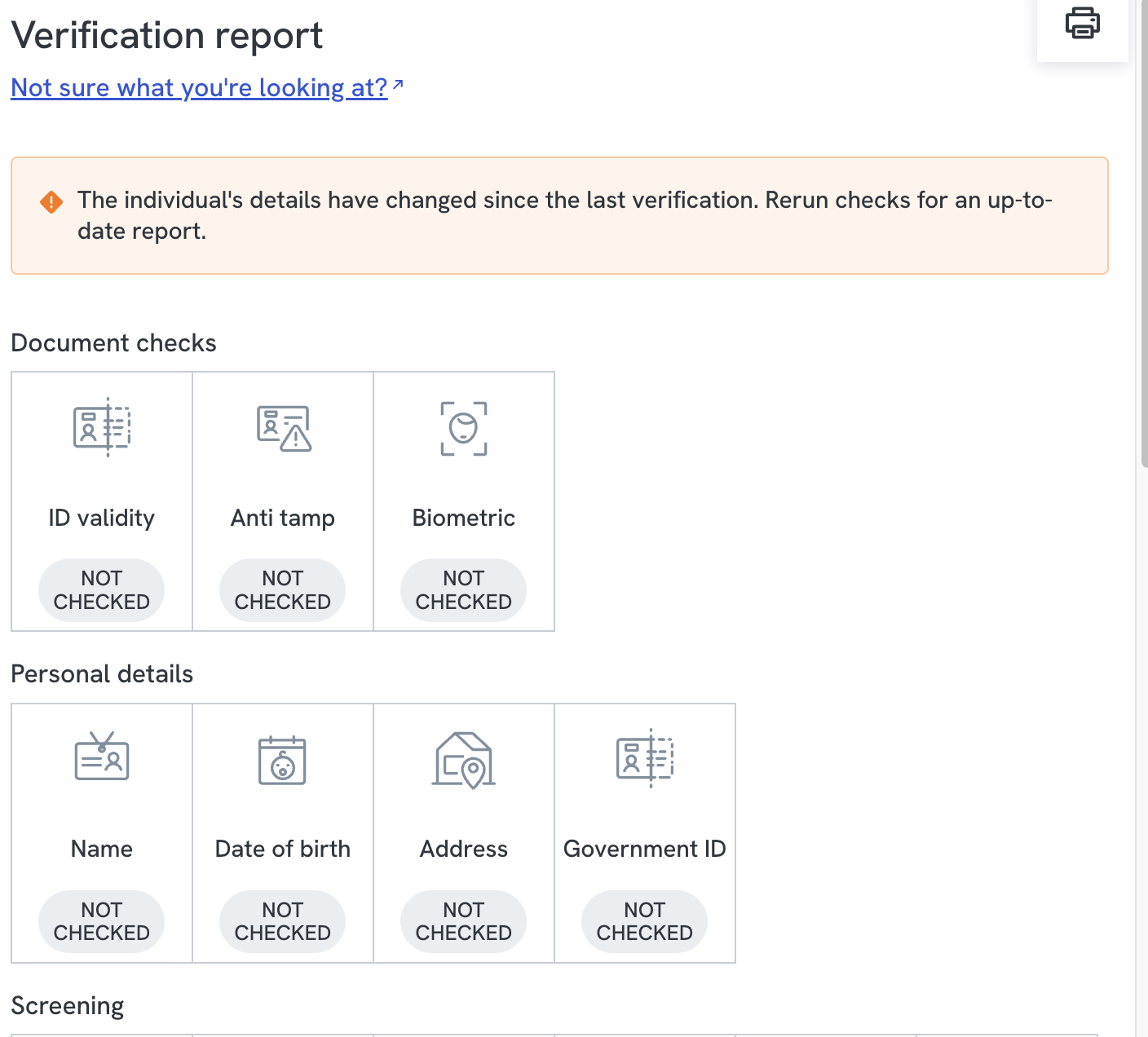
Why do some sections of my verification report show "Not checked"?
"Not checked" appears against a section of the verification report when that check was not run. It replaced the "Error" label, which used to appear in the same situations and suggested something had gone wrong when usually nothing had.
There are two reasons a section shows "Not checked".
The verification type did not include that check
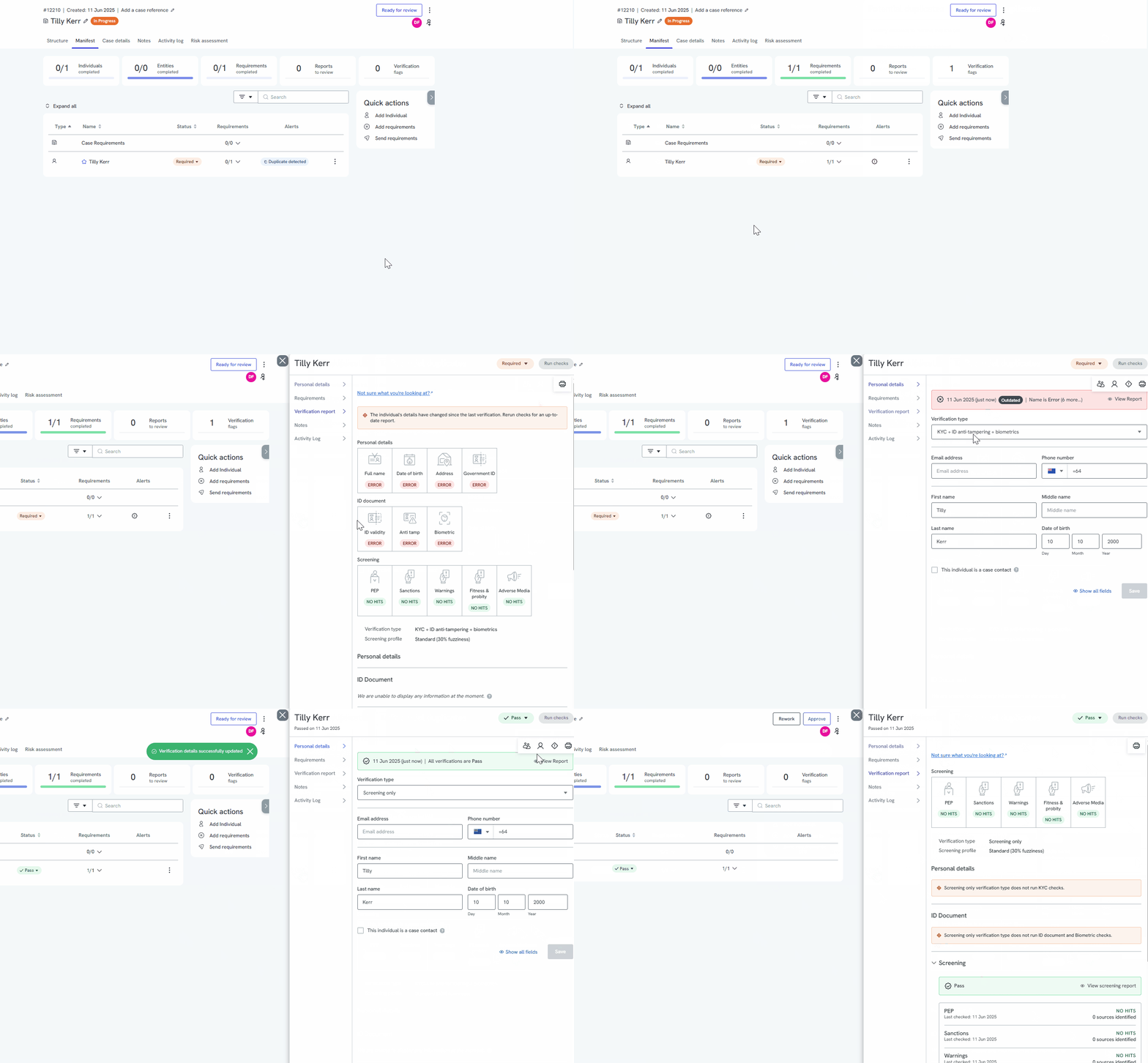
This is the most common cause. It usually happens when an individual is retrieved into a case that uses a different verification type from the one originally completed for them. For example, an individual verified under "Screening only" who is retrieved into a case set to a KYC or biometrics type will show "Not checked" against the sections that rely on data which was never collected.
To resolve this:
- Open the individual's Personal Details.
- Change the verification type to the one that was actually completed, for example "Screening only".
- Save.
The sections will update, and "Not checked" will clear from anything the verification type does not cover.
The check ran but could not complete
Less often, the check was attempted and could not finish. This is not the same as a check that ran and found no match, which shows as a fail rather than "Not checked". If the verification type is correct and a section still shows "Not checked", re-run the check. If it happens again, contact First AML support.
Each result section of the verification report also includes a "What can I do?" area, which explains the next step for that particular result.
My client input incorrect data.
To correct verification details:
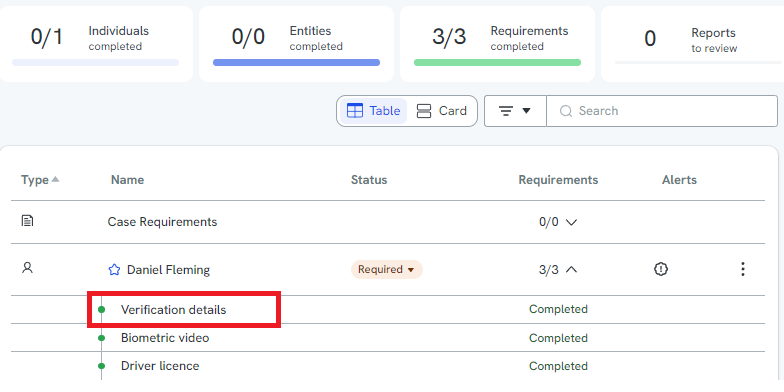
Open the Verification Details panel.
Edit and update incorrect details (e.g., DOB, name, address).
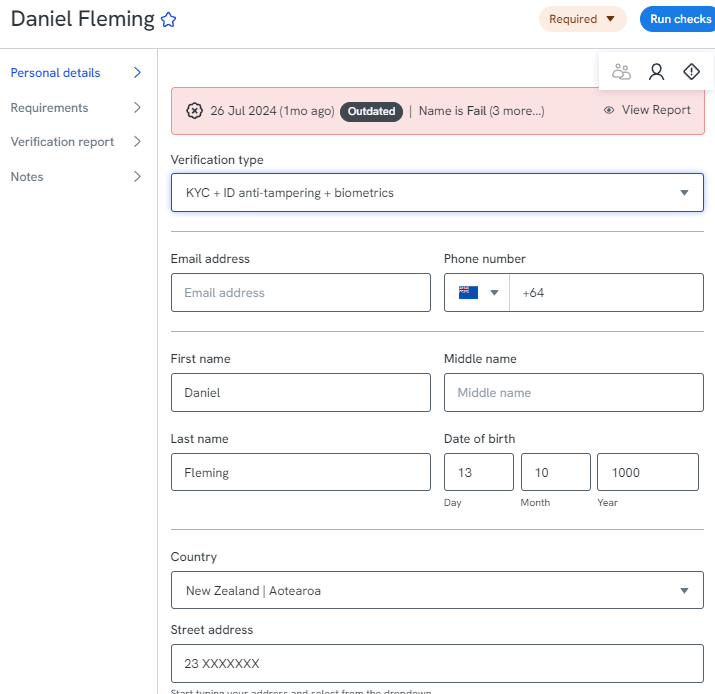
Save then Re-run checks (only available if core verification details were updated).
Understanding Verification Criteria
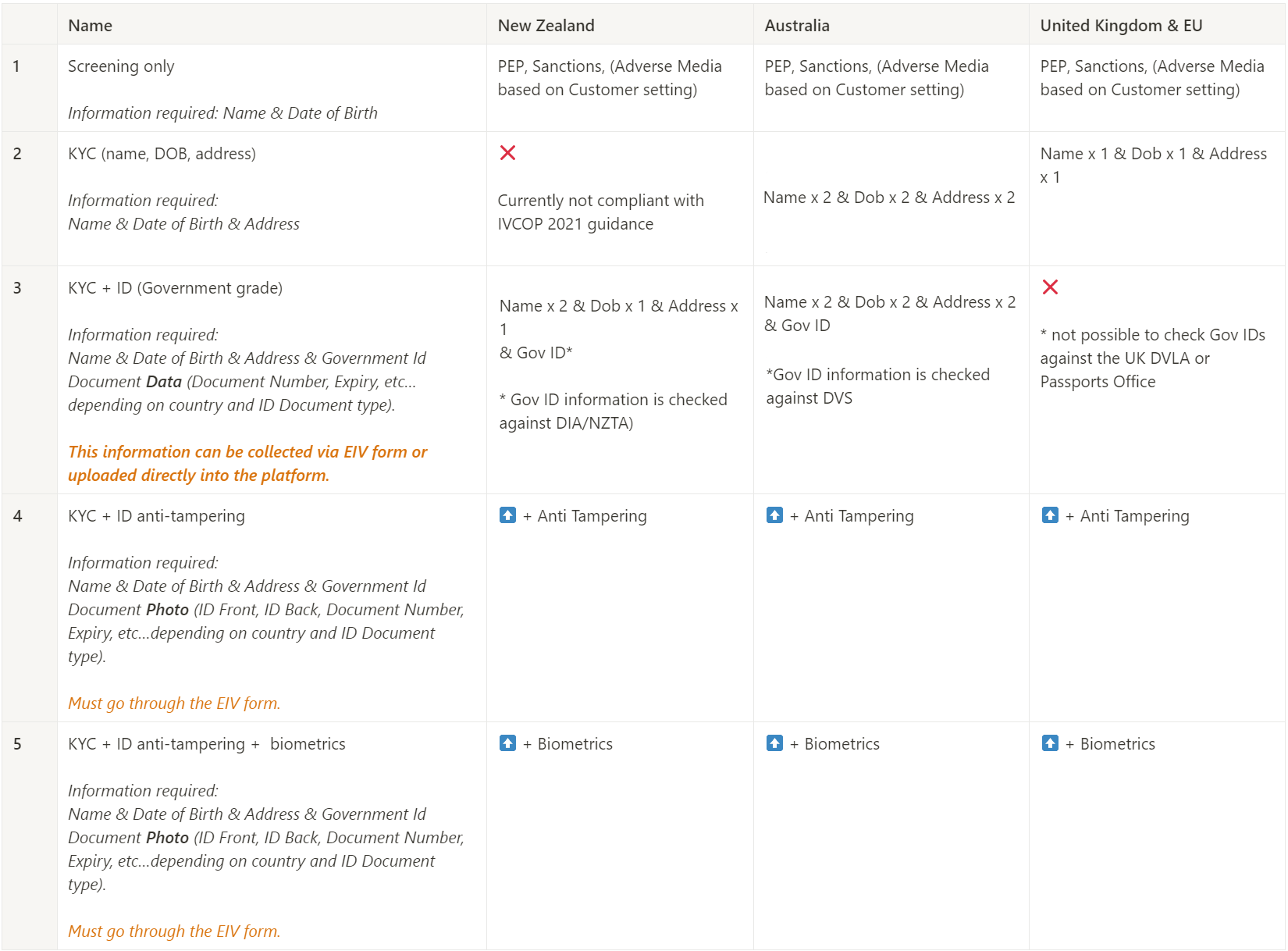
Each jurisdiction has different verification requirements based on regulations.
Refer to the Verification Criteria Table for minimum requirements.
Client Issues with the EIV Form
- For the best result with our form, we recommend that you open it using either Google Chrome (Microsoft/Android devices) or Safari (Apple devices). If the form does not automatically open in Chrome or Safari, you can right-click the link, then select "copy link address" (desktop) or press and hold then copy the link (mobile/tablet), then insert the link into the preferred browser.
- See our step by step guide here: How do I complete the verification form?
Screening (PEP/Sanctions/Adverse Media) Matches
Learn how to review screening matches in our Individual Screening Guide.
Anti-Tampering & Biometric Caution/Failure
Learn how to interpret the anti-tampering and biometric results here
Solutions:
- Review the caution/failure reasons and the image and/or the video. Sometimes external factors such as glare on the ID photo, background noise in the video etc can cause issues.
- Typically these factors are something for you to consider but are not reasons to fail the overall verification. Refer to your compliance programme for guidance.
- Risk-based approach: Depending on the risk of the client, the transaction and the information collected, you may decide to overlook the result and ‘Pass’ the individual.
- Request New ID/Video- Resend the EIV form for a fresh submission. You may want to ask the client to complete with a different photo ID.
- Collect Alternative ID: Obtain another photo ID or certified copy if needed.
No Match for Government ID
New Zealand Licence
- Licence version mismatch (client using an outdated version)
- Data entry mismatch (e.g., first and middle names combined).
- Formatting errors in licence numbers and special characters (e.g., using lowercase “l” instead of uppercase “I”).
- Blocked Centrix profile (security restrictions set by the individual, which they should be aware of and can unblock with Centrix).
- The licence may be blocked or cancelled due to licence suspension.
Australian Licence
- Incorrect entry of licence and card numbers. Please check this link if you need assistance locating the licence and card number for each state and territory.
- The licence may be blocked or cancelled due to licence suspension
- Client submitted an outdated licence instead of the latest version
Solution:
- Verify with Client: Ask if they have a newer version or an alternative ID.
- Request Additional Documentation: Obtain supporting documents if needed.
- Risk-based approach: Depending on the risk of the client, the transaction and the information collected, you may decide to overlook failing to ‘Pass’ the individual manually.