
TABLE OF CONTENTS
Summary
Once a case has been created in the platform, you have the ability to assign other team members who may need access to the case for tracking or for working on the case. You can assign the case to other users from the case itself and also from the home and case dashboards.
Before you start
Any user role can assign colleagues to a case, except Read-only and Auditor roles, which don't have permission to do this.
How to assign a case
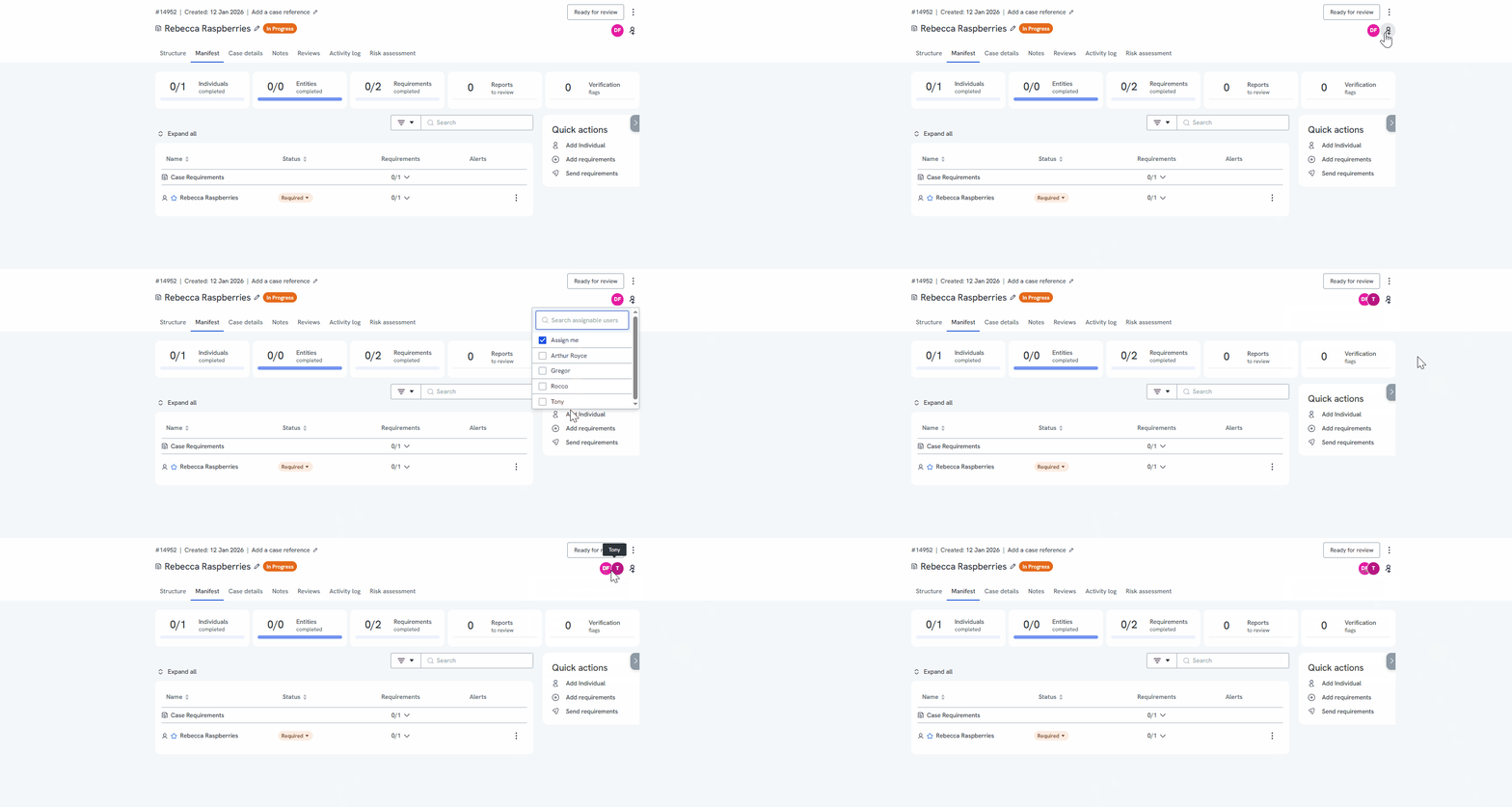
Within a case:
- Navigate to the relevant case.
- In the top right-hand corner of the case, click the assign icon (shown as a person with a plus sign).
- From the dropdown, select the platform user who requires access.
- Once selected, the platform user will be assigned to the case.
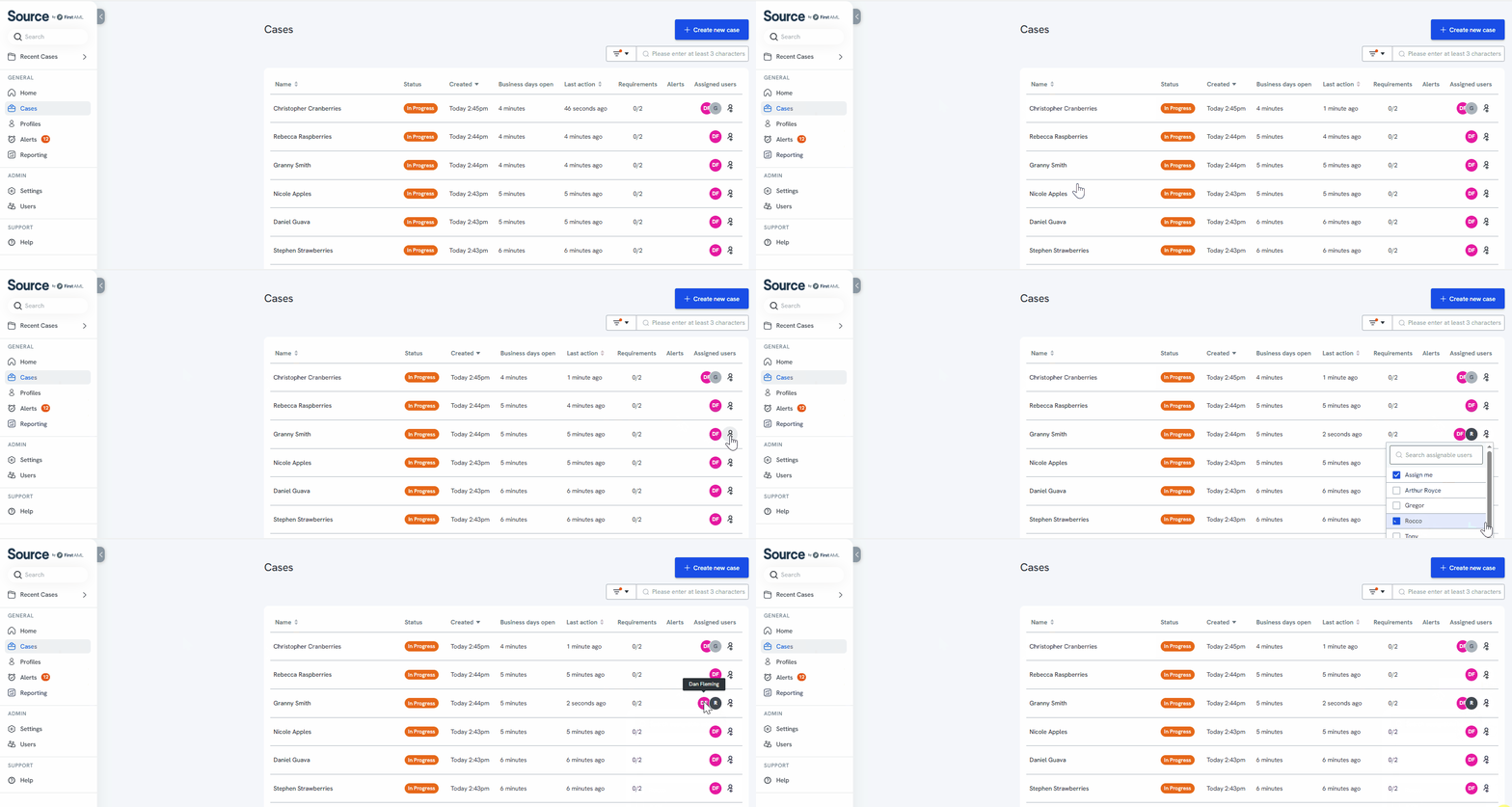
From the dashboard:
- Find the case within the case or home page list that you are looking for.
- At the end of the row you will see the assign icon (shown as a person with a plus sign).
- From the dropdown, select the platform user who needs to be assigned.
- Once selected, the platform user will be assigned to the case.
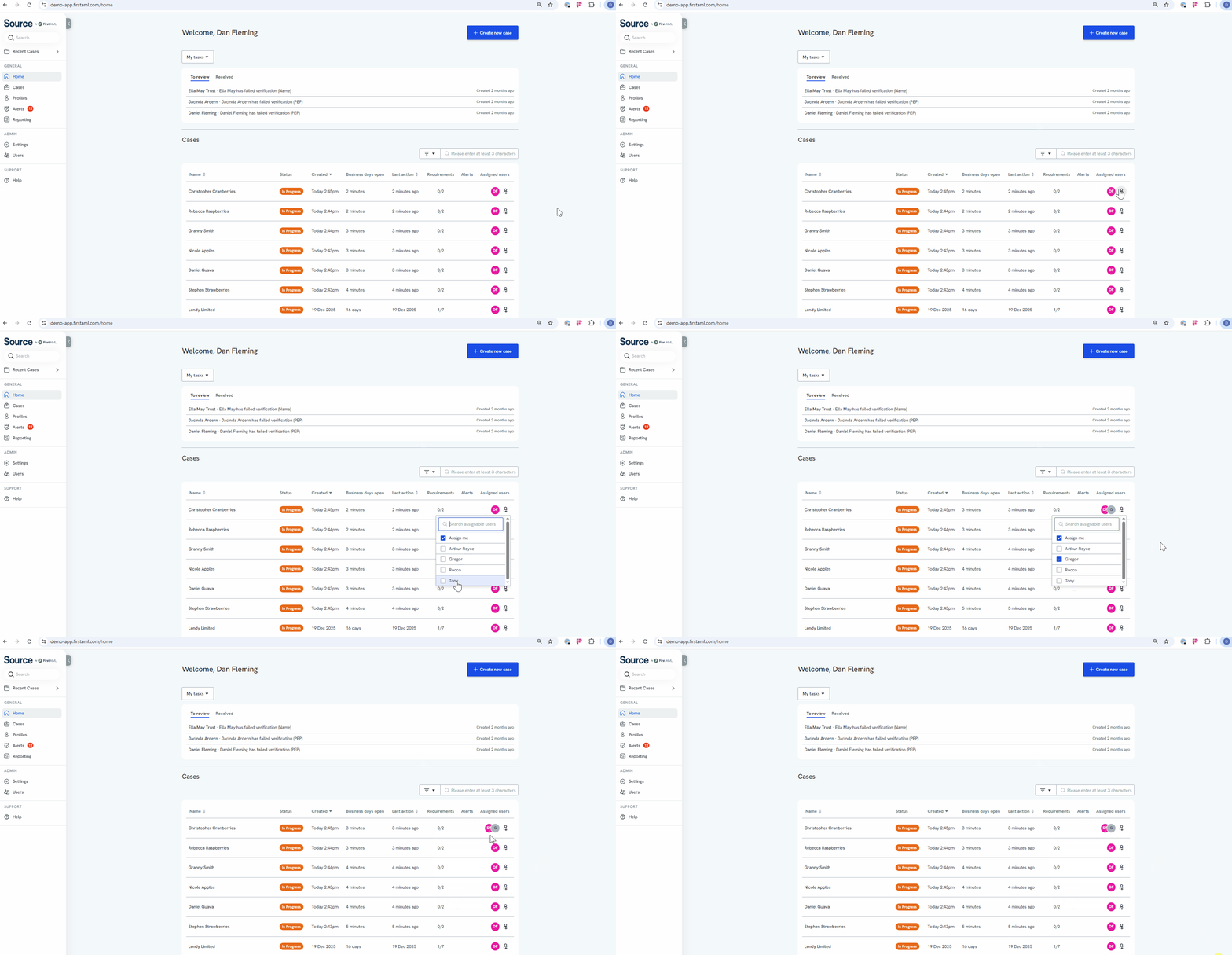
Please note that the platform user may need to refresh their window in order for the update to be visible on their end.
Why would I need to assign a case to another user?
There are several reasons you may need to assign a case to another user:
- Some users may like to track the case and having them assigned to the case is an easy way for them to track the progress.
- You are assigning work out from cases which have been created via an Integration Partner without assigning the users to the cases.
- Notifications for the case can be sent to assigned users.
- For cases which need another user to work on them.