
TABLE OF CONTENTS
- Summary
- What is a screening profile?
- How to configure
- Setting up as a customer/company level
- Setting up at an office level
- Fuzziness Levels
- Adverse media
- Which categories are covered by adverse media?
- Ongoing monitoring
- FAQS
Summary
This article explains the available screening profiles, fuzziness levels, adverse media, and some frequently asked questions.
What is a screening profile?
A screening profile customises which international lists are searched when you run a screening check on your customer. As a Compliance Admin, you can select one of four profiles, customise the fuzziness level, and decide whether to turn adverse media on or off.
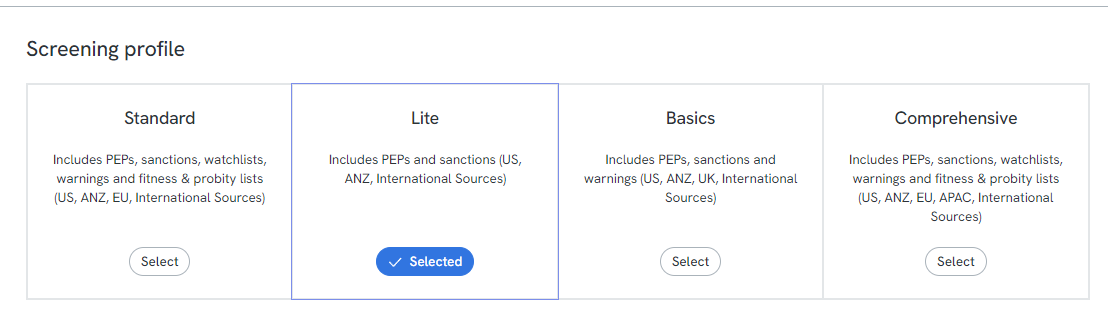
You can set a profile at a company level or at an office level. Customising at an office level is useful if your offices are set up in the platform as separate workstreams and you'd like more comprehensive checks completed on higher-risk workstreams.
The default profile is Standard, and the default fuzziness level is 30% for each profile.
How to configure
Custom profiles can only be set up by Compliance Admin users. You'll find this option in Settings if you're a Compliance Admin for your Source platform.
1. Go to Settings in the left-hand navigation, then click the Screening profile tab
2. Leave the selection at the customer/company level, or choose a specific office, to customise the screening profile, fuzziness, and whether adverse media is toggled on.
3. Select the desired screening profile and fuzziness level.
The profile used for screening is shown on the individual's profile.
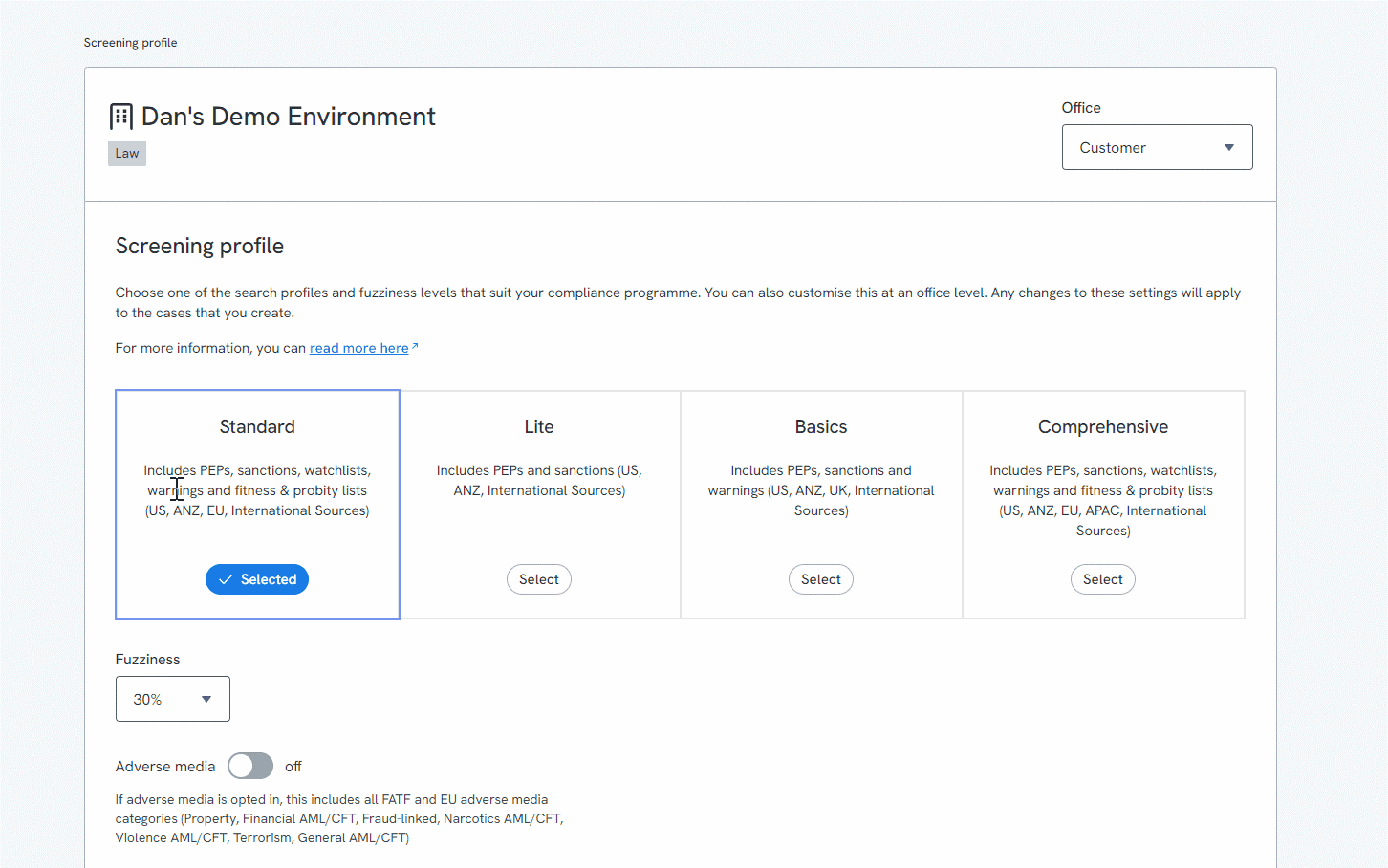
Setting up as a customer/company level
In the Office dropdown at the top of the Screening profile page, select Customer (rather than a specific office). Any profile, fuzziness, or adverse media setting you choose here applies company-wide, to every office that doesn't have its own override.
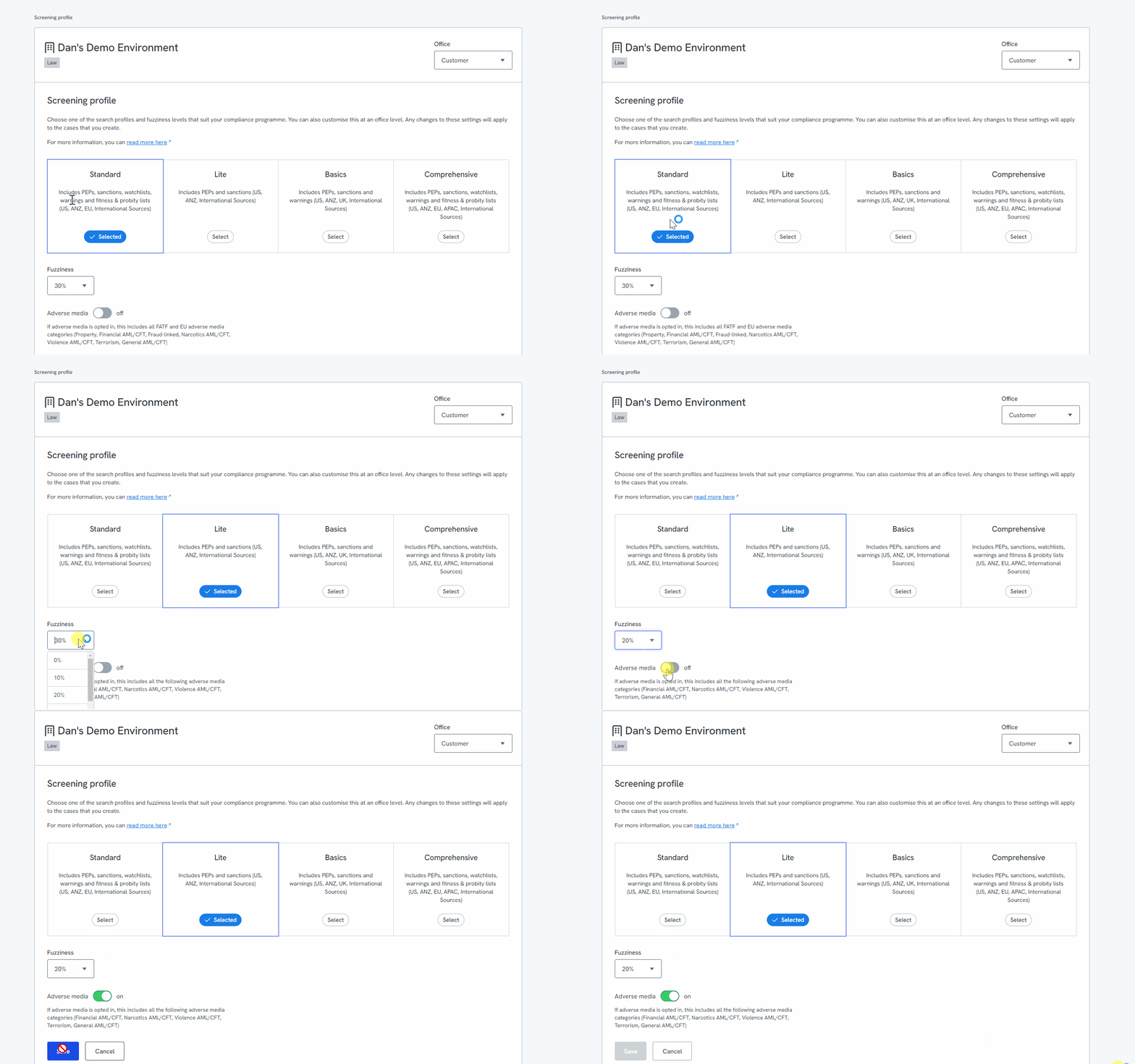
Setting up at an office level
Select the specific office from the Office dropdown instead of Customer, then choose the profile, fuzziness level, and adverse media setting for that office. Click Save to apply it.

The profile used for the screening is shown in the individual profile.

Fuzziness Levels
Fuzziness (Edit/Levenshtein Distance) is a matching technique that allows for variation or small spelling mistakes between a search term and the entities returned in the search results.
Fuzziness allows one phonetic typo per word in the search term; the fuzziness percentage relates to the length of the word. Where you set this depends on your risk-based approach, and how confident you are that the names you're searching are accurate — for example, names taken directly from a customer's ID and entered manually are more prone to error than names pulled automatically from a verified source.
For more detail, see Screening: fuzzy matching.
Adverse media
Adverse media is information about an individual or organisation that signals potential negative regulatory, financial, or reputational risk. It must be fact-based rather than opinion, drawn from sources classed as reputable in our validation process.
Each adverse media reference includes:
- A link to the original article or webpage
- The article title and publish date, where available
- A snippet of the relevant part of the article
For more detail, see Screening: adverse media definitions & categories.
Adverse media can only be toggled on or off at a company level, not at an office level.

Which categories are covered by adverse media?
Adverse media profiles are assigned at least one category depending on the type of media they have been associated with. These categories enable users to distribute risk across different teams and to better understand the context of a profile.
Adverse Media categories can include:
- Financial AML/CFT
- Narcotics AML/CFT
- Violence AML/CFT
- Terrorism
- Fraud-linked
- Property
- Cybercrime
- General AML/CFT
The screening profile selected will determine which categories are covered when running adverse media checks.
If you would like to check each category description along with FATF and EU ML Directive confirmation, please reach out to First AML Support to receive the entire document.
Ongoing monitoring
If you change the profile or fuzziness level, this only affects new screening checks. Historical ongoing monitoring continues to use the profile and fuzziness level that was in place when those checks were originally run.
FAQS
Can you recommend a screening profile?
We would suggest that you refer to your compliance program to determine which profile would be suitable.
Can you recommend the best fuzziness level?
Our default of 30% is the recommended starting point — check your compliance program to see if this suits your risk approach.
Why would I change screening profile/fuzziness?
This depends on how wide you want to cast the net when screening individuals and companies. Different fuzziness levels can allow for spelling mistakes or matching on full legal names versus just first and last names.
Should we be using adverse media?
We cannot recommend whether you should have adverse media switched on or off. We have seen customers who are required to run adverse media checks based on their risk assessment questionnaire and compliance documentation. The main use case for running Adverse Media checks is to potentially learn about adverse media items which your customer may not have disclosed to you.
I am a compliance admin and the profiles changed, can you show me which user changed this?
Yes. If you notice an unexpected change to your screening profiles, contact First AML and we can confirm which admin made the change and when — submit a ticket via the Help Centre.
What lists are covered with the different screening profiles
See the Screening profiles table above for what each profile covers by category and region. If you need the exact named list sources within a region (for example, which specific sanctions bodies are included), contact First AML Support.