TABLE OF CONTENTS
- Summary
- Before you start
- Adding Requirements
- Requesting Requirements from Clients
- Requirement Retrieval
Summary
Requirements are tasks assigned during the onboarding process, such as uploading a document or verifying identity. These can be applied at the case, individual, or entity level.
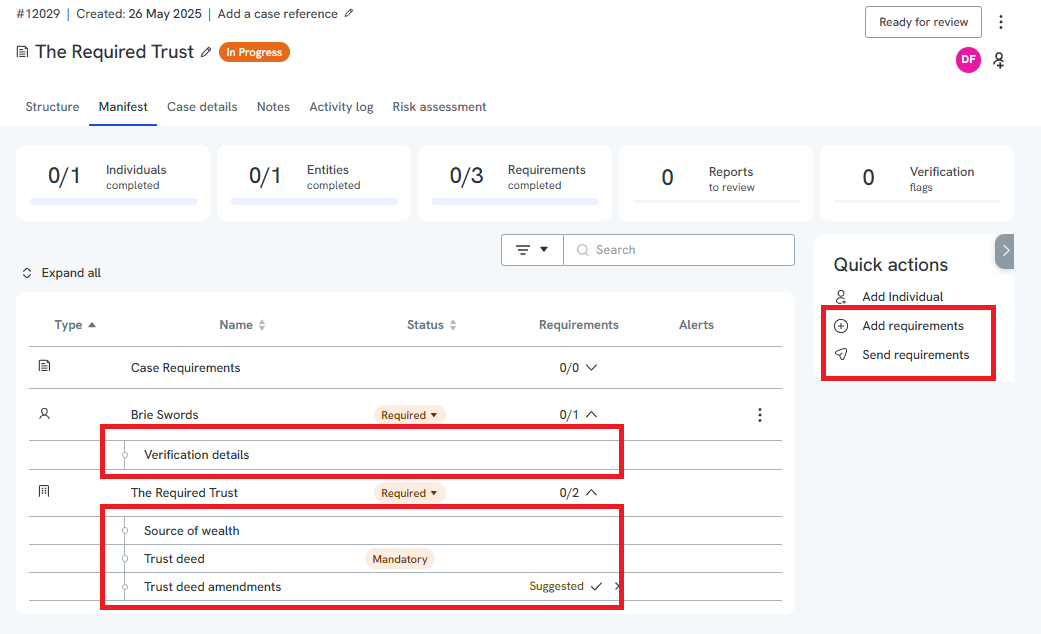
The Manifest tab (the hub within a case that lists all individuals, entities, and requirements) will automatically suggest requirements based on your platform's pre-set compliance rules.
You can choose to:
- Accept a suggested requirement by clicking the checkmark icon, or
- Dismiss it if it's not needed.
Before you start
- Office-level permissions: you can only retrieve a requirement directly if you have access to the case or office it originated from. If a requirement exists in another office you don't have access to, you'll see it flagged but won't be able to retrieve it yourself; a Compliance Admin (a user role with elevated, cross-office access to manage retrieval and configuration on others' behalf) can retrieve it into the case for you.
- Deduplication: retrieval across offices for the same person or entity only works if the profile has been deduplicated (matched and merged into a single profile) by a Compliance Admin.
Adding Requirements
To manually add new requirements:
Go to Quick actions > Add requirements
Use the dropdown to search and select the items you want to add
Tip: Use Select All to assign the same requirement to multiple people or entitiesClick Add requirements
Requesting Requirements from Clients
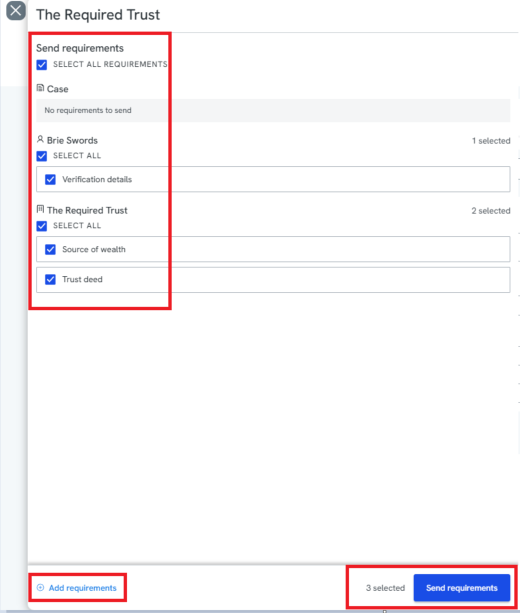
Navigate to Quick actions > Send requirements
Select the requirements you want to send:
Click items individually, or
Use Select all to include all listed requirements
Click Send requirements
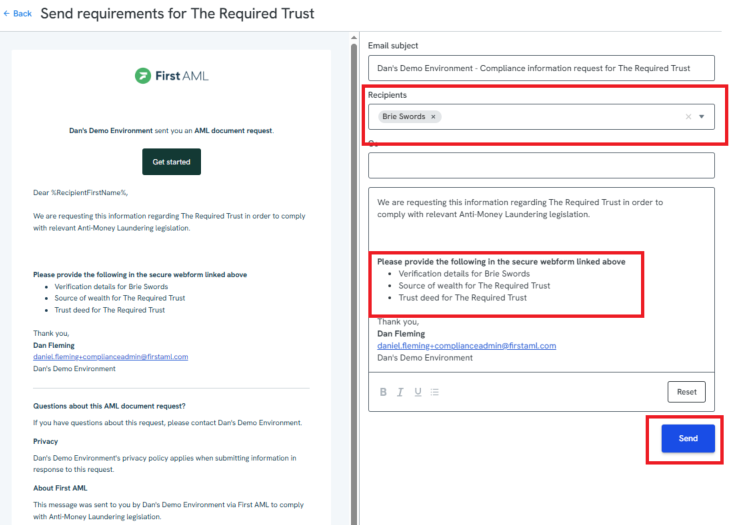
In the To field, choose the person or entity who should complete the request
Click Send
Requirement Retrieval
Requirement retrieval allows you to reuse previously completed requirements from other cases or from the individual's or entity's profile, helping avoid duplicate work for both you and your clients.
It's designed for ad hoc reuse of completed requirements, and is most commonly used when requirements already exist on the case (e.g. through rules or manual entry) and you're looking to bring in the most recent, completed version from elsewhere.
When can requirements be retrieved?
- Two Open Cases (Same Person or Entity):
If two cases are open at once for the same individual/entity, and a requirement is completed in one, users working in the other case may be prompted to retrieve it.
This works across offices if the profile has been deduplicated by a Compliance Admin (i.e. matched across offices). - Cross-Office Case, With Restrictions
If a client was verified in another office, you may see a message saying requirements exist elsewhere but cannot be retrieved due to office-level permissions.
In this case, contact your Compliance Admin, who can retrieve the documents into the case on your behalf.
How retrieval works
When adding or reviewing requirements:
The platform checks for matching, completed requirements in the profile or linked cases
If found, it will display:
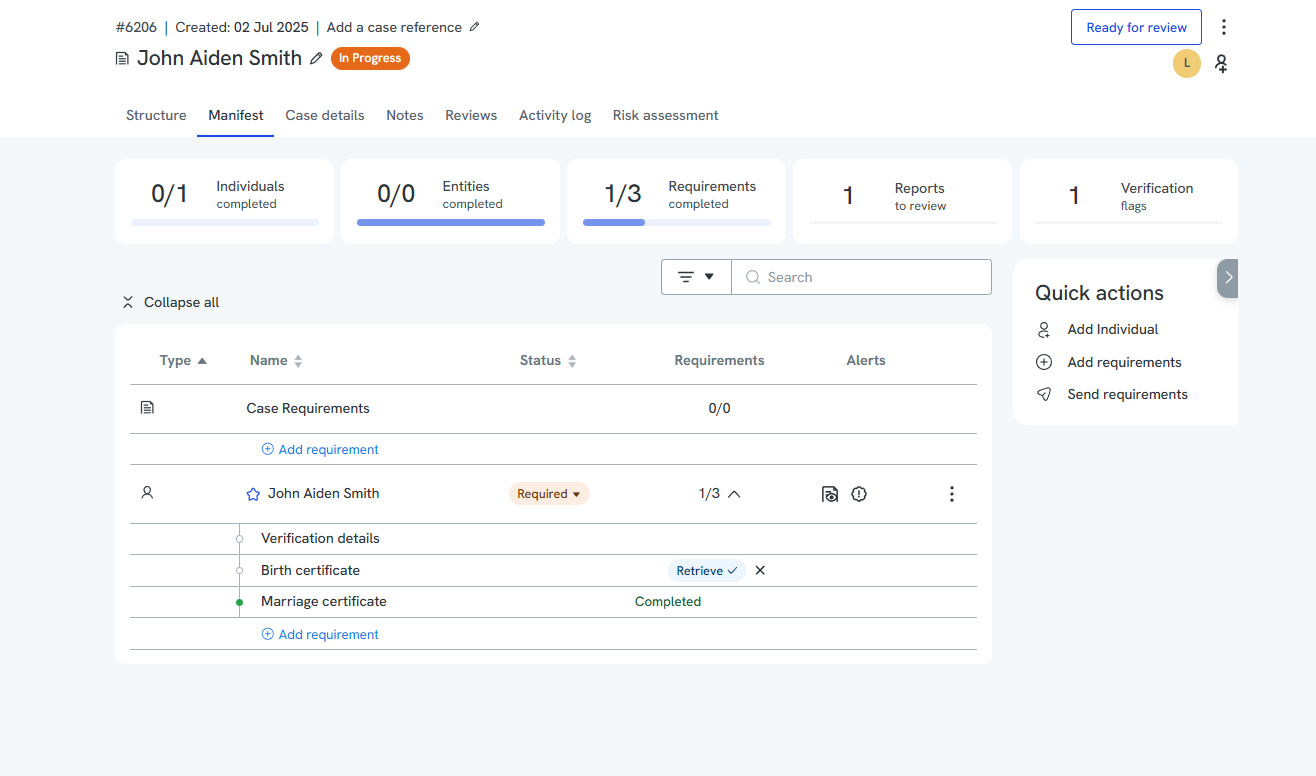
A “Retrieve” button
The last modified date
The originating case (unless redacted)
You can:
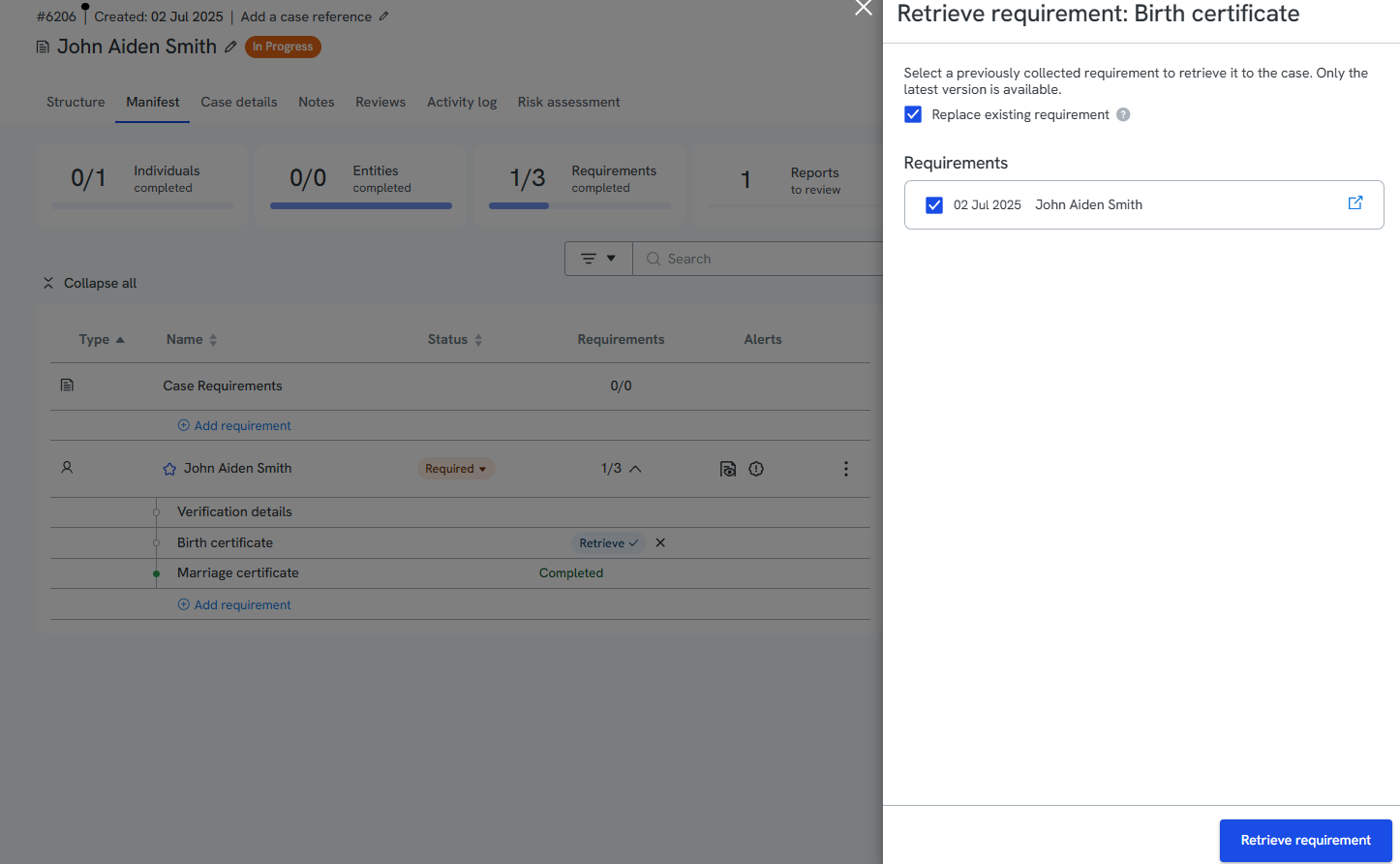
Replace the existing requirement (default), or
Add it as a new additional entry and click the blue tab icon to preview the document before retrieval
Additional notes:
Only the most recent completed version can be retrieved
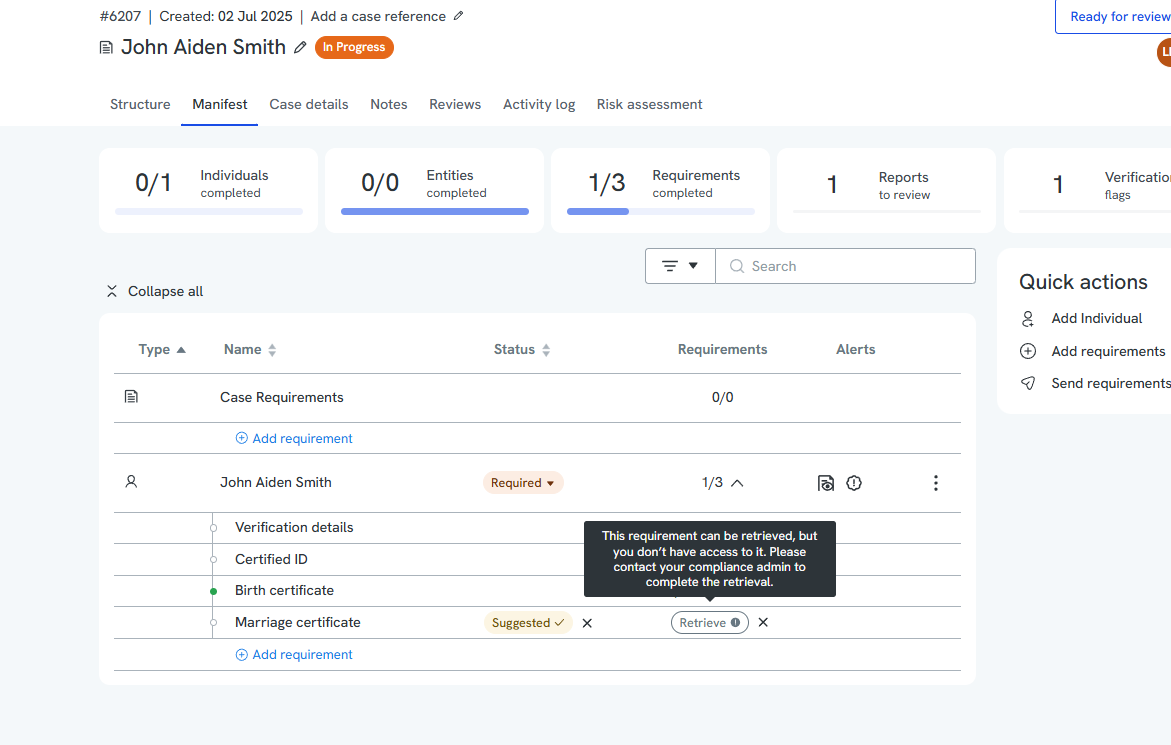
Requirements from cases you don’t have access to are greyed out, with a tooltip explaining why and how to escalate
Does retrieving cost anything?
No, retrieval itself doesn't trigger a charge. When you retrieve an individual, their previous check result is copied into the new case; nothing runs automatically, so no charge occurs at that point.
Screening or verification only re-runs (and gets re-charged) if the individual's information has materially changed (e.g. name, DOB) and checks are subsequently run. A verification type upgrade on its own doesn't count as a material change, so it won't re-run or re-charge already-completed screening.
A couple of things to be aware of:
- You may see an "outdated" banner on a retrieved individual even when nothing actually needs re-running; this is just a display quirk, not an indication you'll be charged.
- If you deliberately force-run checks by clicking Run Checks button (greyed-out), this bypasses the material-change check, so whatever re-runs will be charged, including screening, even if nothing changed.
- Ongoing monitoring is separate: it re-screens on its own cadence regardless of retrievals, and isn't affected by this.
Retrieval Scenarios
Scenario 1: Requirement is already within case
When a requirement is received for an individual within another case and there are no office restrictions (user has access to both offices or both cases are within the same office), you will have the option to retrieve the requirement into the case.
1. Click 'Retrieve'
2. Choose to replace or add an additional requirement
3. (Optional) Preview the requirement by clicking the blue tab icon
4. Click 'Retrieve requirement'
Scenario 2: Requirement exists, but is office-restricted
If the requirement is from a case in another access and you don't have access:
- You’ll see a message stating the requirement exists elsewhere but cannot be retrieved
- Contact your Compliance Admin and ask them to retrieve it for you (they can follow the same steps above).
Scenario 3: Manually adding requirement
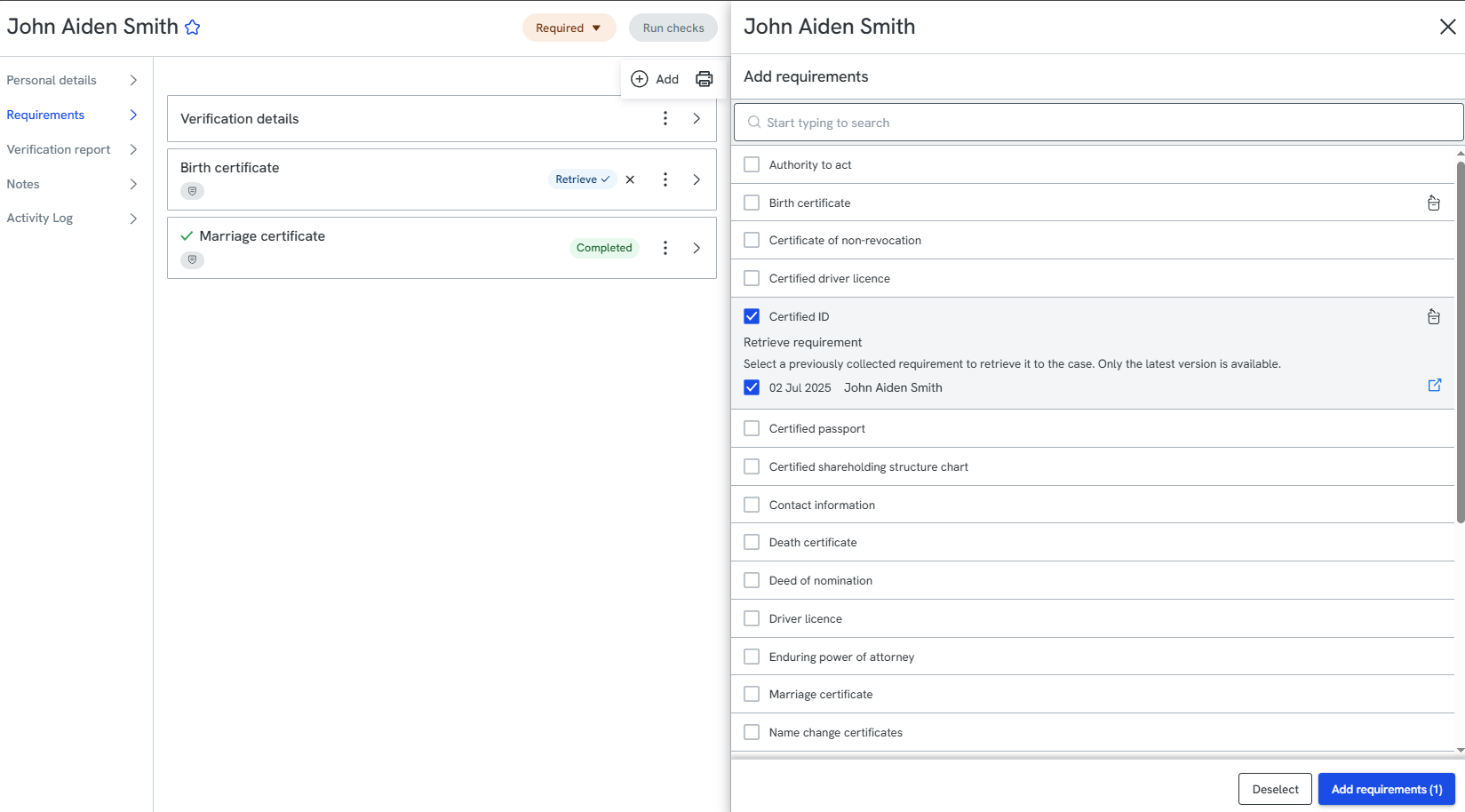
You can also retrieve while manually adding a requirement:
1. Click 'Add requirement'
2. Select a requirement with a retrieve option (indicated by an icon)
3. (Optional) Preview the requirement by clicking the blue tab icon
4. Click Add requirements