
TABLE OF CONTENTS
- Summary
- What is the ID expiry chip?
- Setting up ID expiry alerts
- Accessing your expiry alerts dashboard
- Managing expired IDs from the alerts dashboard
Summary
ID documents eventually expire, and maintaining valid documentation is critical for ongoing AML compliance. The First AML platform makes it easy to track document expiry through visual indicators (chips) and optional alert settings.
Viewing alerts: any user with access to the relevant office can view the Alerts dashboard.
Configuring alerts: restricted to Compliance Admin / Compliance Office Admin.
What is the ID expiry chip?
The ID expiry chip is a visual tag that appears in the Manifest (the hub within a case that lists all individuals, entities, and requirements) when an individual is retrieved into a case. It helps you quickly identify two key states:
- Expiring soon: a chip appears showing "Expires in [X] months" when the ID document is due to expire within the next 12 months. This 12-month window is fixed, and is separate from the configurable alert threshold described below.
- Expired: a chip reading "Expired" appears if the ID document has already expired.
You may also see a "Latest ID document" tag alongside the expiry chip, indicating which document is the most recently collected one on file.
These chips are shown automatically, even if expiry alerts haven't been configured, giving users visibility at the point of case creation or review.

Setting up ID expiry alerts
While the expiry chips are always visible, you can optionally set up expiry alert thresholds. Unlike the chip's fixed 12-month window, this lets you choose exactly how many days before expiry you want to be notified (e.g. 30, 60, or 90 days), helping your team stay proactive.
While the expiry chips are always visible, you can optionally set up an expiry alert threshold. Unlike the chip's fixed 12-month window, this lets you choose exactly how many days before expiry you want to be notified.
To set up expiry alerts:
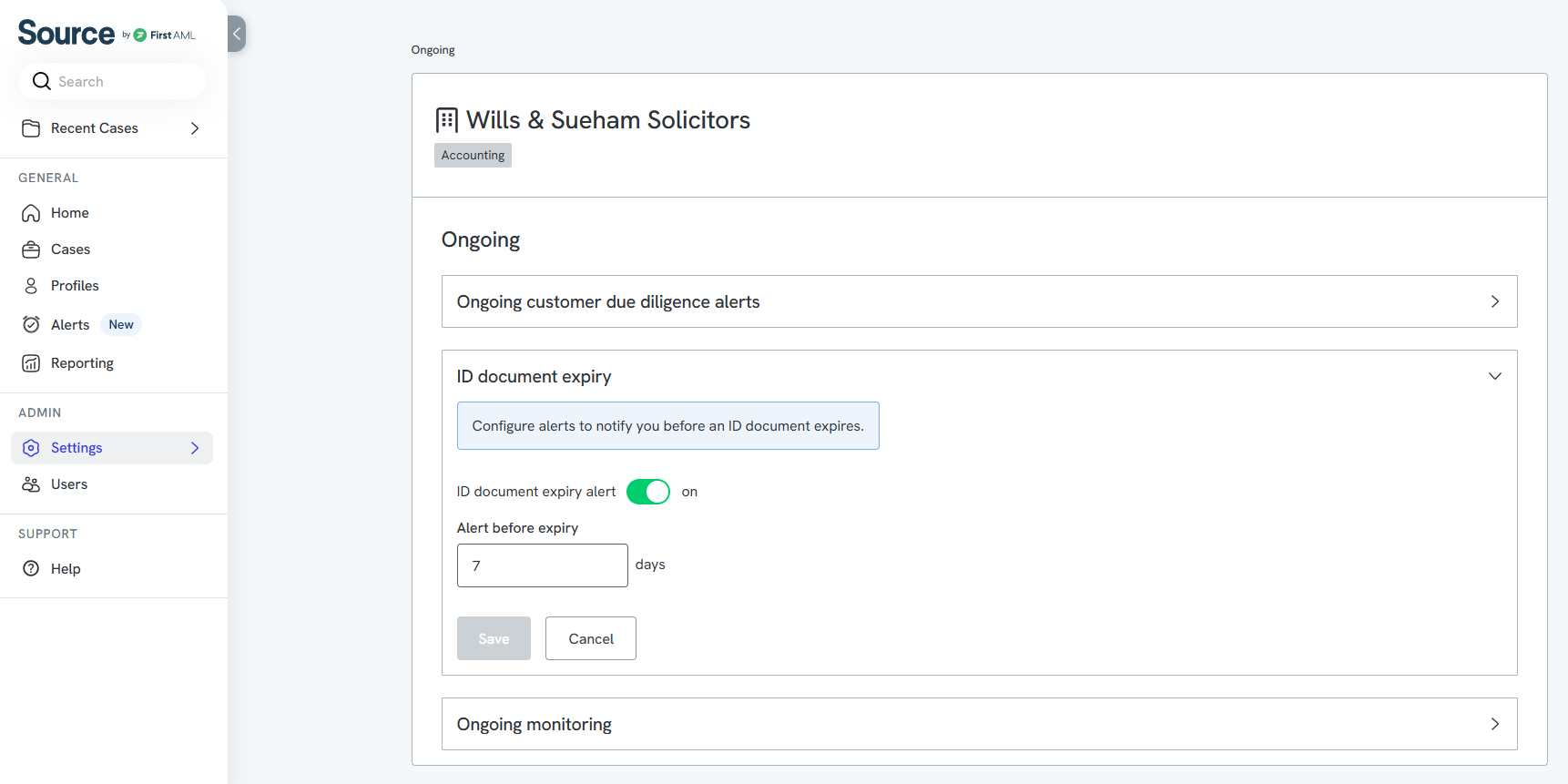
- Go to Settings > Ongoing > ID document expiry.
- Toggle ID document expiry alert on.
- Set Alert before expiry to your preferred number of days.
- Click Save.
These alerts will appear on your alerts dashboard, allowing proactive management of ID renewals.
Even if expiry alerts are not turned on, the expiry chips in the Manifest will still appear automatically, using the fixed 12-month window described above.
Accessing your expiry alerts dashboard
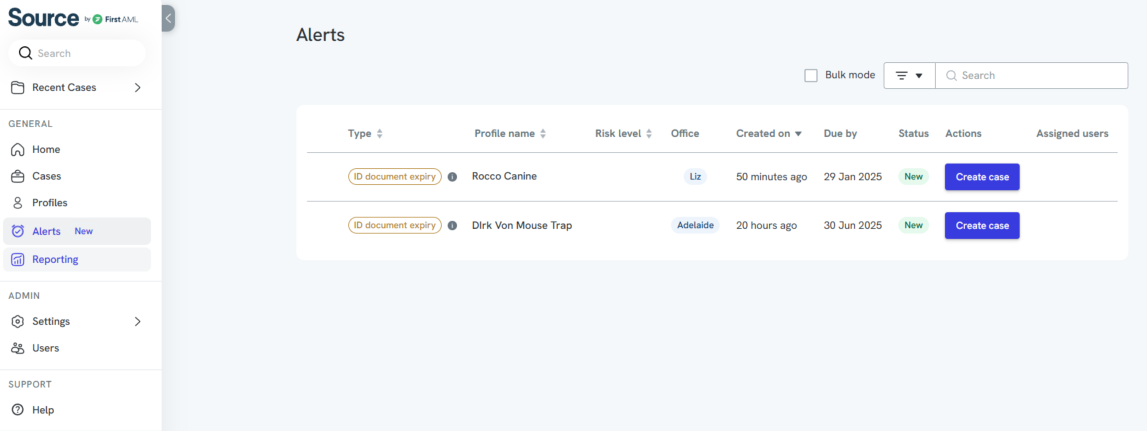
To view your expiry-related alerts, click Alerts on the left-hand toolbar in Source, First AML's platform. Here, you can see upcoming expiries and take direct action on flagged IDs.
Managing expired IDs from the alerts dashboard
Expired ID alerts can be actioned directly from the alerts screen. From here, you can:
- Create a new case to collect an updated ID document.
- Refresh expired CDD (Customer Due Diligence) requirements, ensuring your documentation remains compliant.
This helps your team maintain compliance without manual checks, and ensures a smooth process for following up with clients when necessary.
Once you click "Create new case," the case status will update on your dashboard. From there, you can click directly into the case to begin working on it.
