TABLE OF CONTENTS
- Summary
- Duplicate detected
- How matching works
- Same case vs another case
- How to resolve a match in another case
- How to merge duplicates within the same case
- After dismissing a duplicate
Summary
The Manifest tab is the hub for progressing your due diligence checks in a case. It lists all individuals and entities being verified, and includes alerts to help you manage data, specifically around duplicates and syncing.
Duplicate detected
The Duplicate detected alert appears in the Manifest tab when the platform finds a potential match for an individual or entity.
There are two situations this covers, and they behave differently:
- The match is in another case, where the individual or entity has already been verified elsewhere.
- The match is within the same case, where the same individual has been added more than once. This commonly happens after unwrapping an entity's ownership structure, or when someone appears in the structure twice, for example as both a shareholder and a director.
How you resolve the duplicate, and what data carries across, depends on which of these it is.
How matching works
- The platform matches names on the first initial and last name, so similar names are picked up as well as identical ones. It checks both legal and preferred names.
- Email address, phone number and entity identifier must match exactly.
- The search includes inactive as well as active profiles.
Same case vs another case
Match in another case. The individual or entity has already been verified in a different case. Resolving the duplicate retrieves their verified information into this case.
Match within the same case. The same individual appears more than once in this case. You can merge the two records into one. Merging keeps personal details and entity structure relationships, but does not keep the removed individual's requirements, documents, verification report or screening results.
Merging within the same case is available for individuals only. If you have duplicate entities in the same case, they cannot be merged and need to be deleted manually.
If an individual has duplicates both in this case and in other cases, you are offered the same-case merge first, then the match in the other case. These are two separate steps.
How to resolve a match in another case
- Click the Duplicate detected alert in the Manifest tab.
- A panel opens showing potential matches with key details such as name, email and phone.
- If none of the matches apply, click No match to dismiss.
- If a match is found:
- Select the correct match.
- When prompted, select the information you want to merge, for example Legal name or DOB. You will only see this prompt if any fields do not exactly match the previously collected information.
- Click Retrieve Individual to pull through verified information.
How to merge duplicates within the same case
Available for individuals only.
- Go to the row of the individual you want to keep, and click the Duplicate detected alert on that row. You can also start from the three dots menu next to their name.
- Choose which duplicate you want to remove.
- Choose the source for each personal detail: legal name, preferred name, date of birth, address, email and phone.
- Confirm to merge the two records into one.
What is kept: personal details, with the source chosen by you for each field, and entity structure relationships from both individuals.
What is not kept: the removed individual's requirements, documents, verification report and screening results are permanently deleted. This cannot be undone.
Before you merge, check the following.
- Start from the right individual. The individual whose row you start from is the one you keep. This is the opposite of resolving a match in another case. You cannot switch direction partway through, so if you start from the wrong row, cancel and start again from the other one.
- Check where the work sits. Look at which of the two individuals holds the requirements, documents and verification report, and start the merge from that one. If both hold work you need, do not merge them, as there is currently no way to combine that work.
- Watch for blank fields. If you choose a source that has no address or date of birth, the empty value is written over the populated value from the other record. Check each field before you confirm.
- Ongoing monitoring follows the legal name. Monitoring stays with whichever profile's legal name you choose at step 3, not with the individual you keep. If only one of the two has monitoring active, choose that one's legal name, or the monitoring will stop.
Two other things to expect. Because duplicates are matched on the first initial and last name, both records often show the same or very similar names, so use the date of birth to tell them apart. And because the merged record takes the winning legal name, the name shown in the Manifest tab after the merge may not be the name you started from.
After dismissing a duplicate
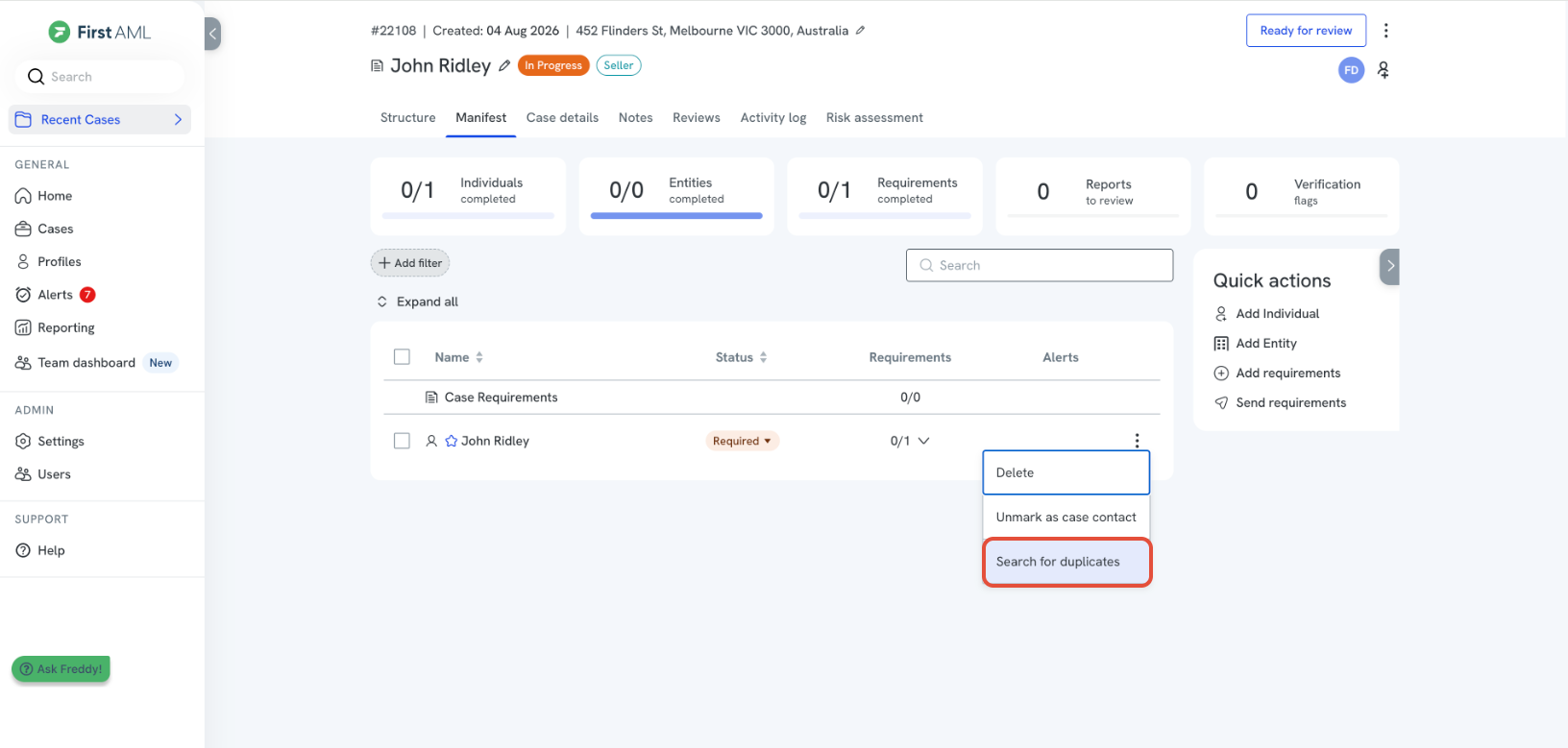
You can re-run the duplicate search at any time from the three dots menu next to the individual or entity name.