
TABLE OF CONTENTS
Summary
Profile Rules allow you to automate the review process for individual profiles.
Profile Rules are similar to Compliance Rules (which automatically add or suggest requirements to cases based on conditions you set), but they act on a different target: Compliance Rules act on specific cases, while Profile Rules act directly on the Individual and Entity profiles in your left-hand navigation, independent of any one case
This is restricted to Compliance Admin.
Note: because Profile Rules is a new feature, the available conditions are currently focused on risk levels and screening hits. More condition types will be added over time.
Available Conditions
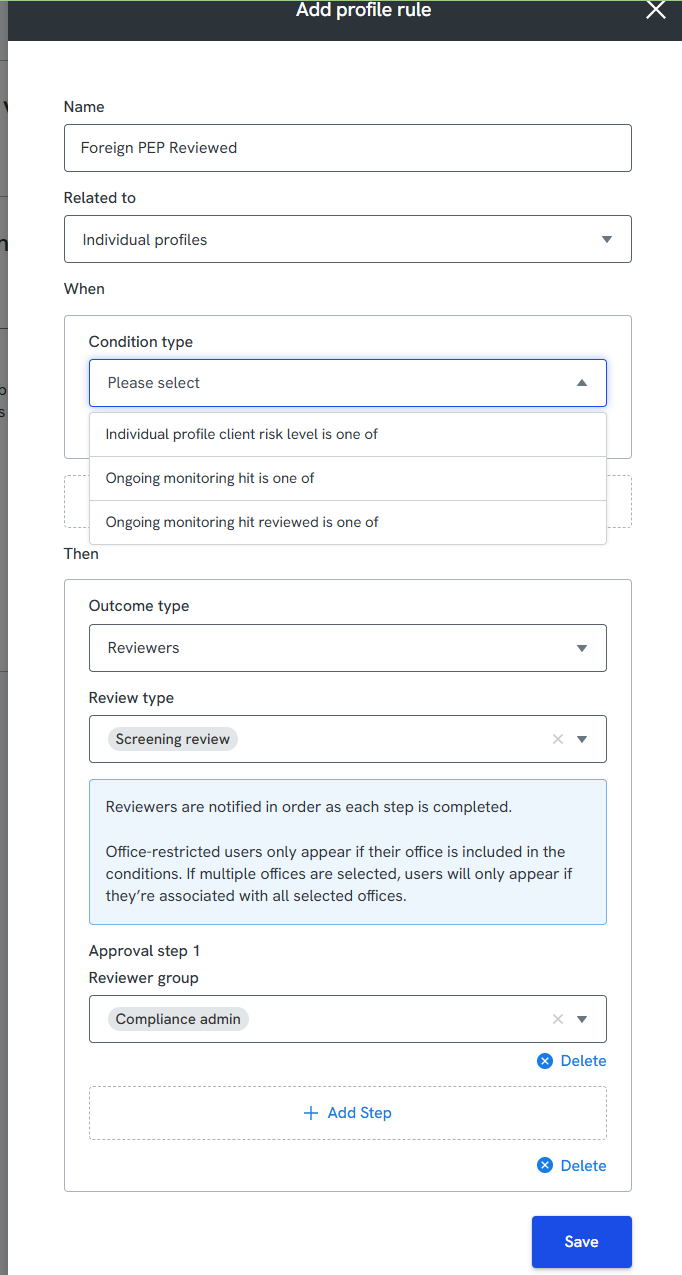
A rule fires when its "When" condition is met. The three available conditions are:
- Individual profile client risk level is one of: triggers whenever a client's risk level matches the value(s) you specify.
- Ongoing monitoring hit is one of: triggers when a screening provider detects a new or updated hit, such as a new Foreign PEP detection. (A PEP, or Politically Exposed Person, is an individual who holds, or has held, a prominent public function, along with their close associates and family members. A Foreign PEP specifically holds or has held such a role in a country other than the one the check is being run in.)
- Ongoing monitoring hit reviewed is one of: triggers when a user manually completes a review of a hit in the Ongoing Monitoring tab (the tab within a profile where screening hits are listed and reviewed).
Rule Outcomes
Profile Rules currently support two outcome types:
- Assign Reviewers: automatically assign a specific team (e.g. "Compliance Admin") to review the profile. When you choose the Reviewers outcome type, you'll also select a Review type (e.g. "Screening review") to specify what kind of review is being assigned.
- Multi-Step Approval: built from the same Reviewers outcome by adding more than one approval step. Each step has its own Reviewer group, and reviewers are notified in order as each prior step is completed. Click Add Step to add further approval steps.
Note: office-restricted users only appear as available reviewers if their office is included in the rule's conditions. If multiple offices are selected, a user only appears if they're associated with all selected offices.
How to Create a Profile Rule
- Navigate to the Rules configuration section and select Add profile rule.
- Enter a name for your rule (e.g. "Foreign PEP Reviewed").
- Set Related to as Individual profiles or Entity profiles.
- Define your When condition (e.g. "Ongoing monitoring hit is one of...").
- Define your Then outcome by selecting the reviewer group that needs to take action.
- Click Save.
Worked example
Say you want every Foreign PEP hit to be reviewed by your Compliance Admin team automatically, rather than relying on someone remembering to escalate it:
- Create a rule named "Foreign PEP Reviewed," related to Individual profiles.
- Set the When condition to Ongoing monitoring hit is one of: Foreign PEP.
- Set Outcome type to Reviewers, and Review type to Screening review.
- Under Approval step 1, set Reviewer group to Compliance admin.
- Save the rule.
From then on, any profile that receives a new Foreign PEP hit is automatically assigned to your Compliance Admin team for review, without anyone needing to spot and escalate it manually.