
TABLE OF CONTENTS
- Overview
- PrerequisitesTo set up the integration, you will need:
- Copy your Box and Dice Agency Reference ID
- Connecting the integration in First AML
- Understanding how your offices are connected
- How it works
- Important process note
Overview
Our Box and Dice integration is simple to set up and lets you search for a Box and Dice property from within First AML when creating a case. Property and contact details flow through automatically, which means less manual data entry, fewer errors, faster onboarding, and a smoother AML process that keeps your Box and Dice AML records in sync.
Prerequisites
To set up the integration, you will need:
- To be a First AML Compliance Admin.
- To be a Box and Dice administrator with authorisation to enable or disable integrations. If you're unsure, contact the Box and Dice Support team for assistance.
For everyday use of the integration, users need a First AML account for creating cases. We call this an Agent role: it lets a user search Box and Dice properties and create cases day to day, without the admin permissions needed to configure the integration itself.
Copy your Box and Dice Agency Reference ID
Your Agency Reference ID is a unique identifier for your agency's Box and Dice account. First AML uses it to connect to the right account, so you'll need to copy it before connecting the integration.
- As a Box and Dice administrator with authorisation to enable and disable integrations, navigate to "Settings" > "Integrations".
- Select "Custom Integrations".
- Find "First AML" and select "Enable First AML".
- Highlight and copy the Agency Reference ID shown.

Connecting the integration in First AML
If you do not have offices configured
- As a Compliance Admin in First AML, select "Settings" in the left-side menu, then go to "Integrations" > "Box and Dice" > "Connect".
- Paste in the Agency Reference ID you copied and select "Connect".
If you have multiple offices
If you have multiple offices, how you connect to Box and Dice depends on what your offices represent and whether they should share the same Box and Dice account. In First AML, an office is the access-scoping unit that determines which users can see a case, so this choice affects who in your firm can use each connection.
1. If you have multiple offices sharing the same Box and Dice account
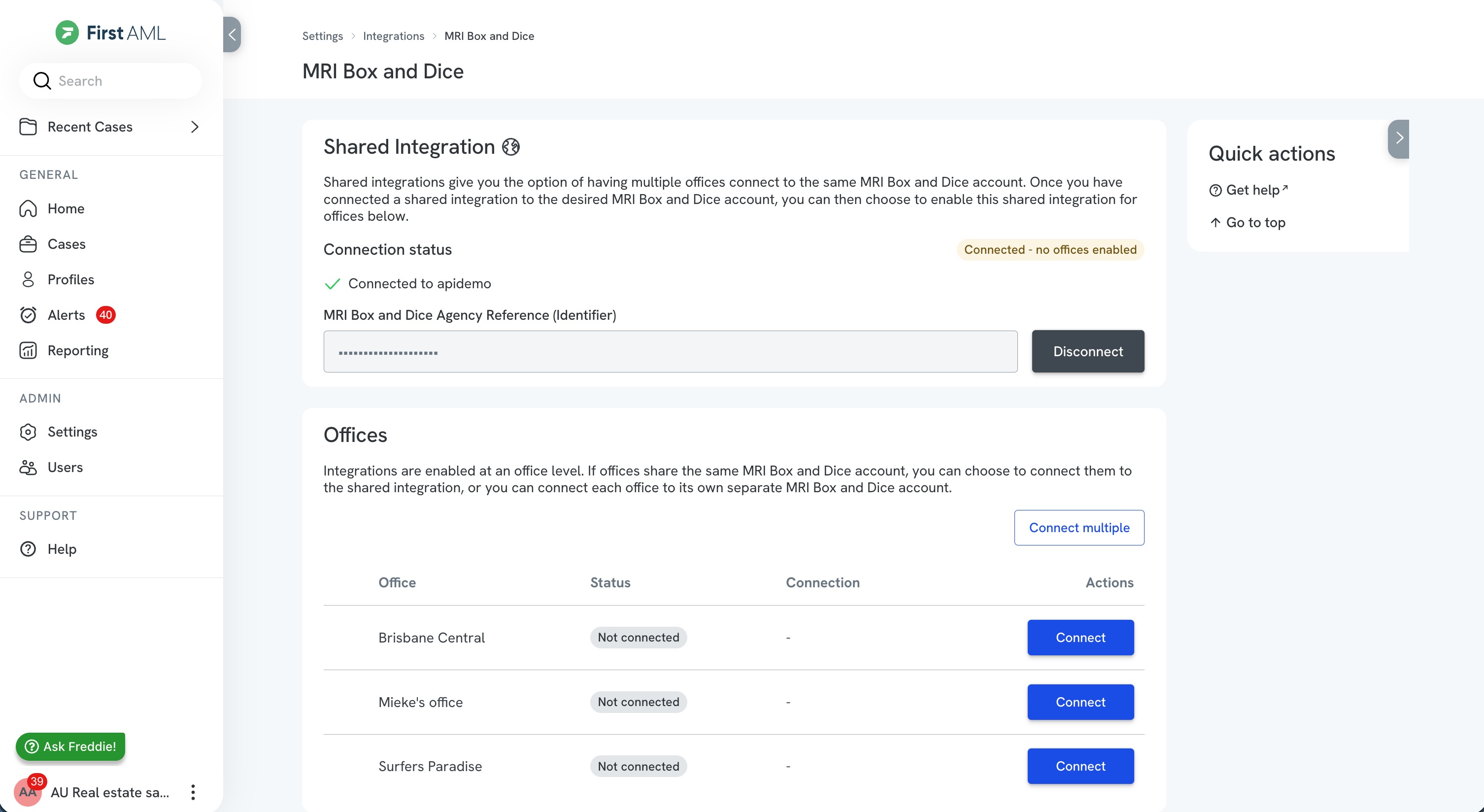
If you have multiple First AML offices sharing the same Box and Dice account, our "Shared integration" lets you connect your Box and Dice account once and enable that connection for multiple offices, without setting up each office individually.
- Copy your Agency Reference ID in the Box and Dice account that should be shared, following the instructions above.
- As a Compliance Admin, select "Settings" in the left-side menu, then go to "Integrations" > "Box and Dice".
- In the "Shared Integration" section, paste in the Agency Reference ID and select "Connect".
- Your Shared Integration now shows as connected, but no offices are enabled to use it yet. In the "Offices" section below, select "Connect multiple" to choose all the offices that should connect to this Box and Dice account.
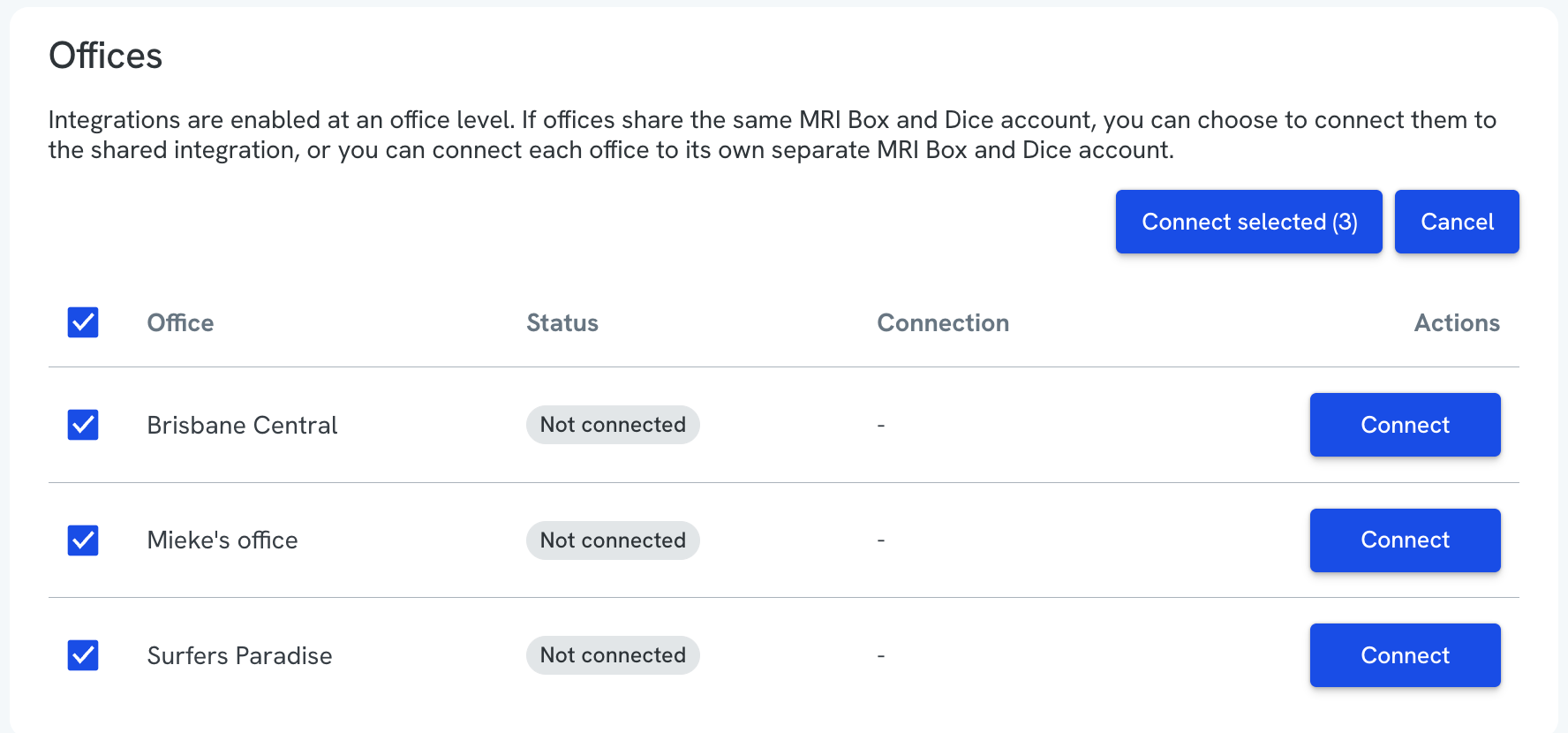
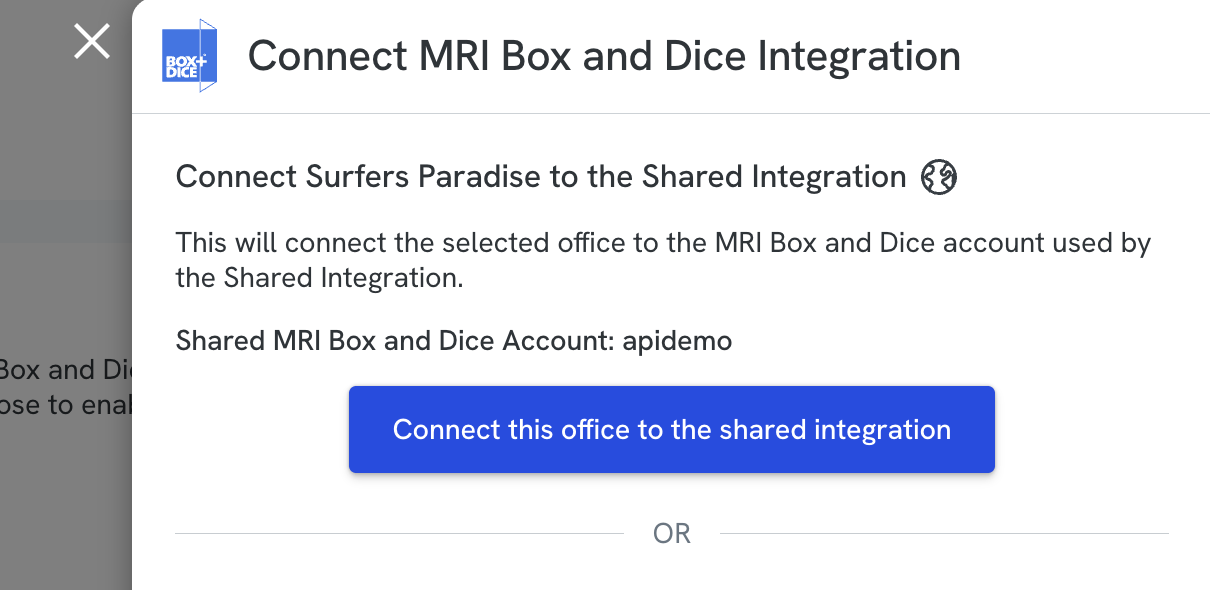
- You can also select "Connect" for individual offices, then select "Connect this office to the shared integration" to enable it.
Tip: if you already have a shared integration set up but have a second group of offices you want to connect to a second shared Box and Dice account, you can still connect multiple offices to that Agency Reference ID manually by following the steps below.
2. If you want to connect an individual office to its own Box and Dice account
- Copy your Agency Reference ID in the desired Box and Dice account, following the steps above.
- As a Compliance Admin, select "Settings" in the left-side menu, then go to "Integrations" > "Box and Dice".
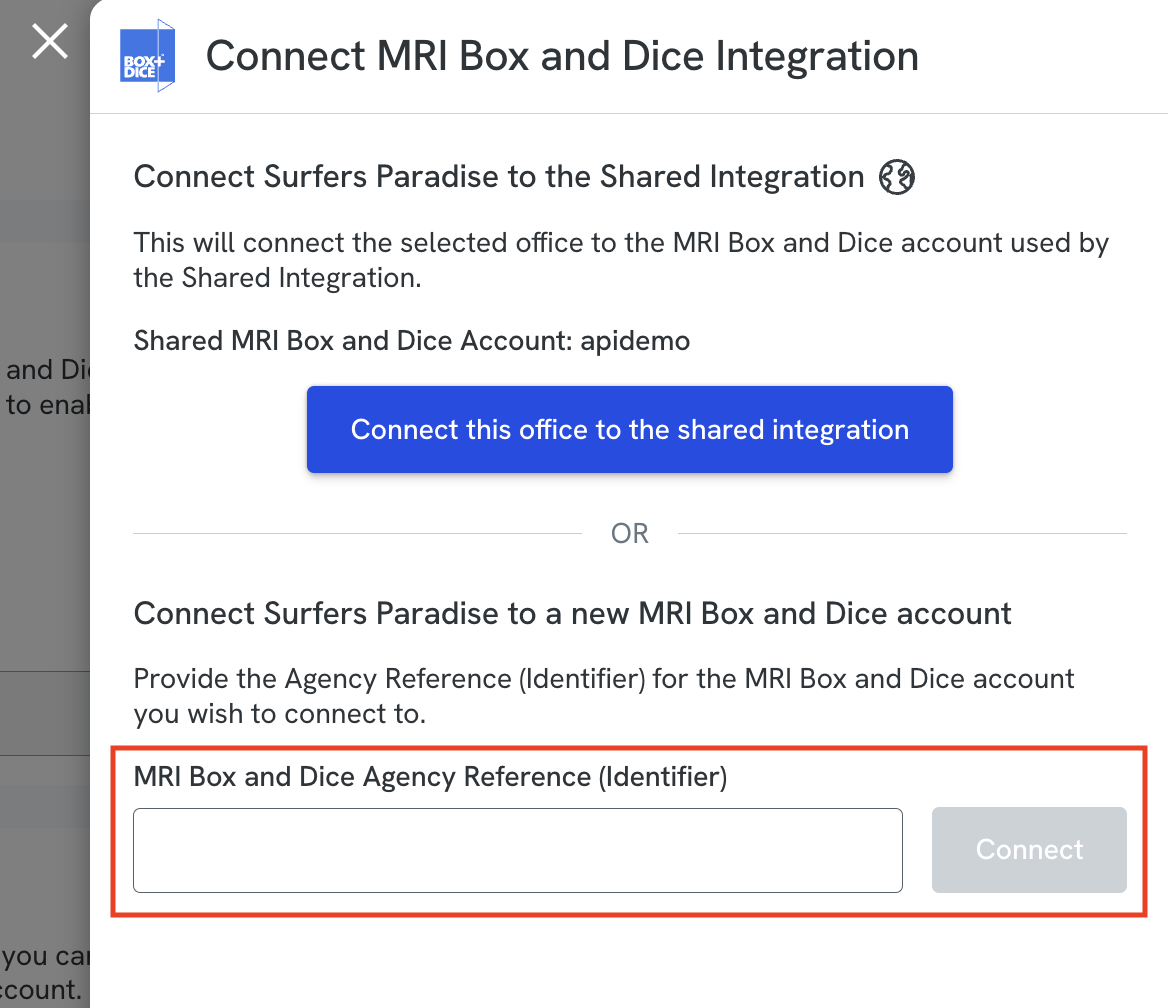
- In the "Offices" section, select "Connect" for the office you want to integrate with this Box and Dice account.
- Paste in the Agency Reference ID specific to this office and select "Connect".
Understanding how your offices are connected
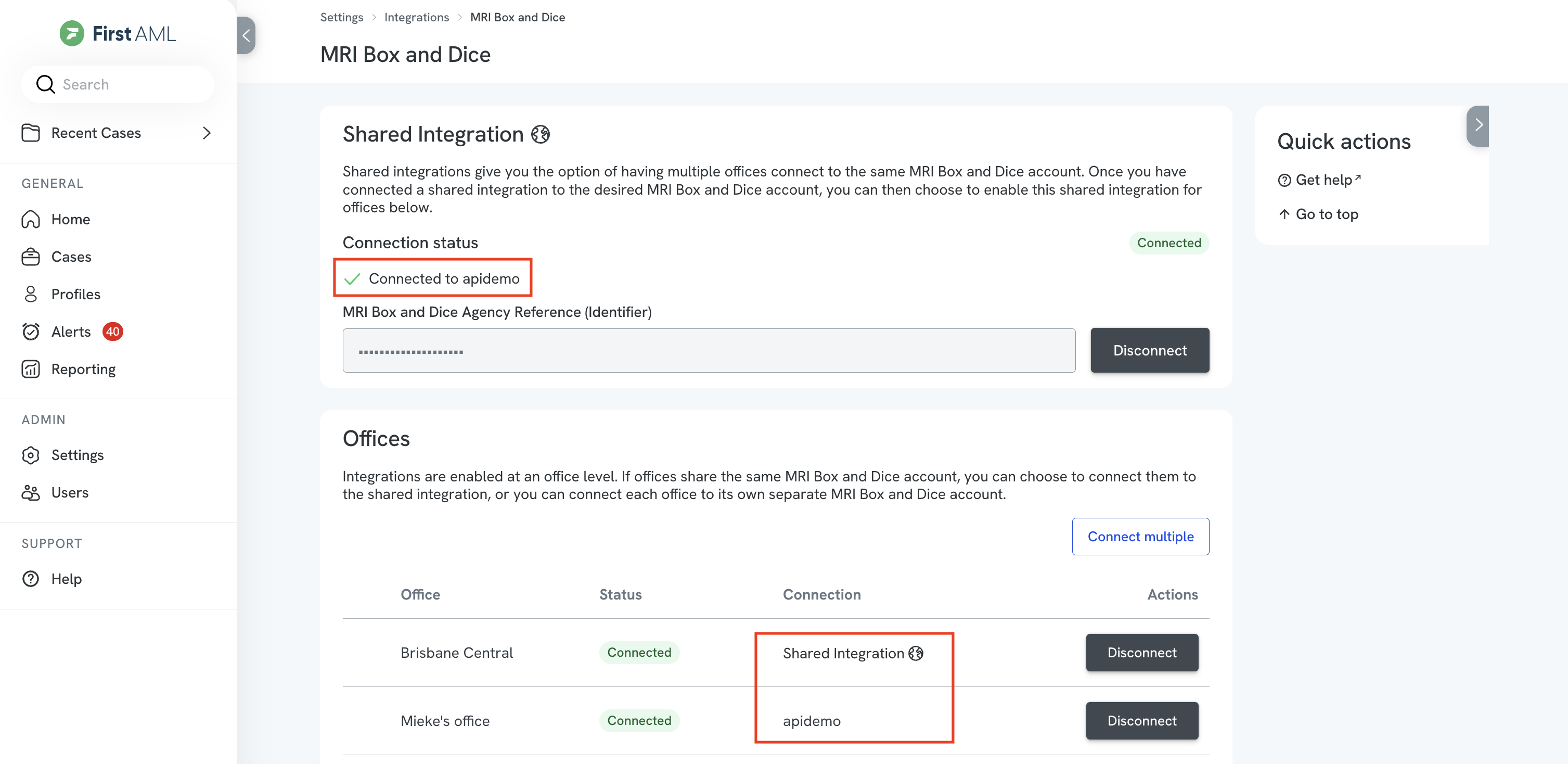
The "Connection" column in the Offices section shows which Box and Dice account name each office is connected to.
If an office is connected to the Shared Integration, the Box and Dice account name being used is shown underneath the Shared Integration connection status.
Enforcing use of the integration
You may want certain roles (such as Agent Office) to only ever create a case if it is integrated with a Box and Dice property.
To do this:
- Navigate to the Enforcement tab.
- Select the roles that must only create cases that are integrated with Box and Dice.
- Save
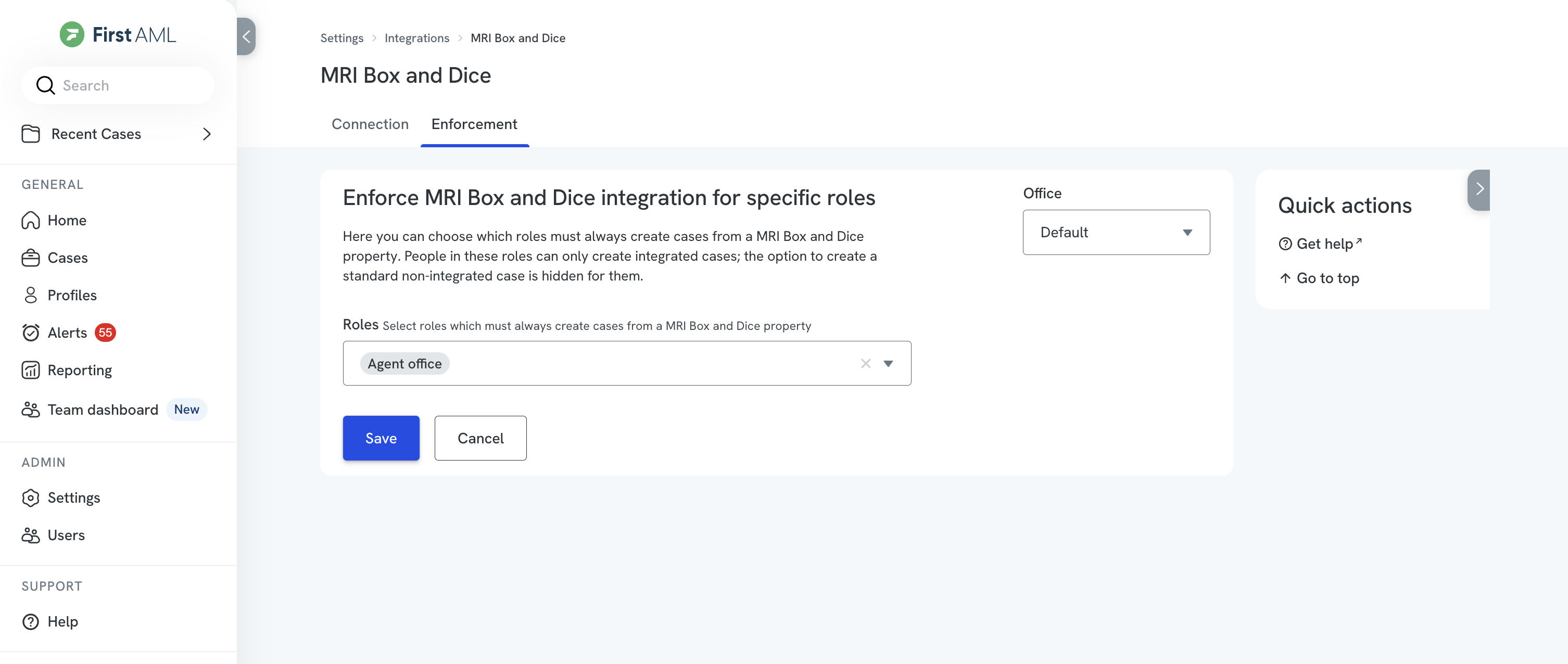
The selected users will now be forced to select a Box and Dice property when creating a case, and will not be able to create a case manually if that property does not exist in Box and Dice.
How it works
Creating a case in First AML
- The property must already exist in Box and Dice, and the sellers or buyers you want to verify must be associated with that property.
- Create a new case and select the relevant office.
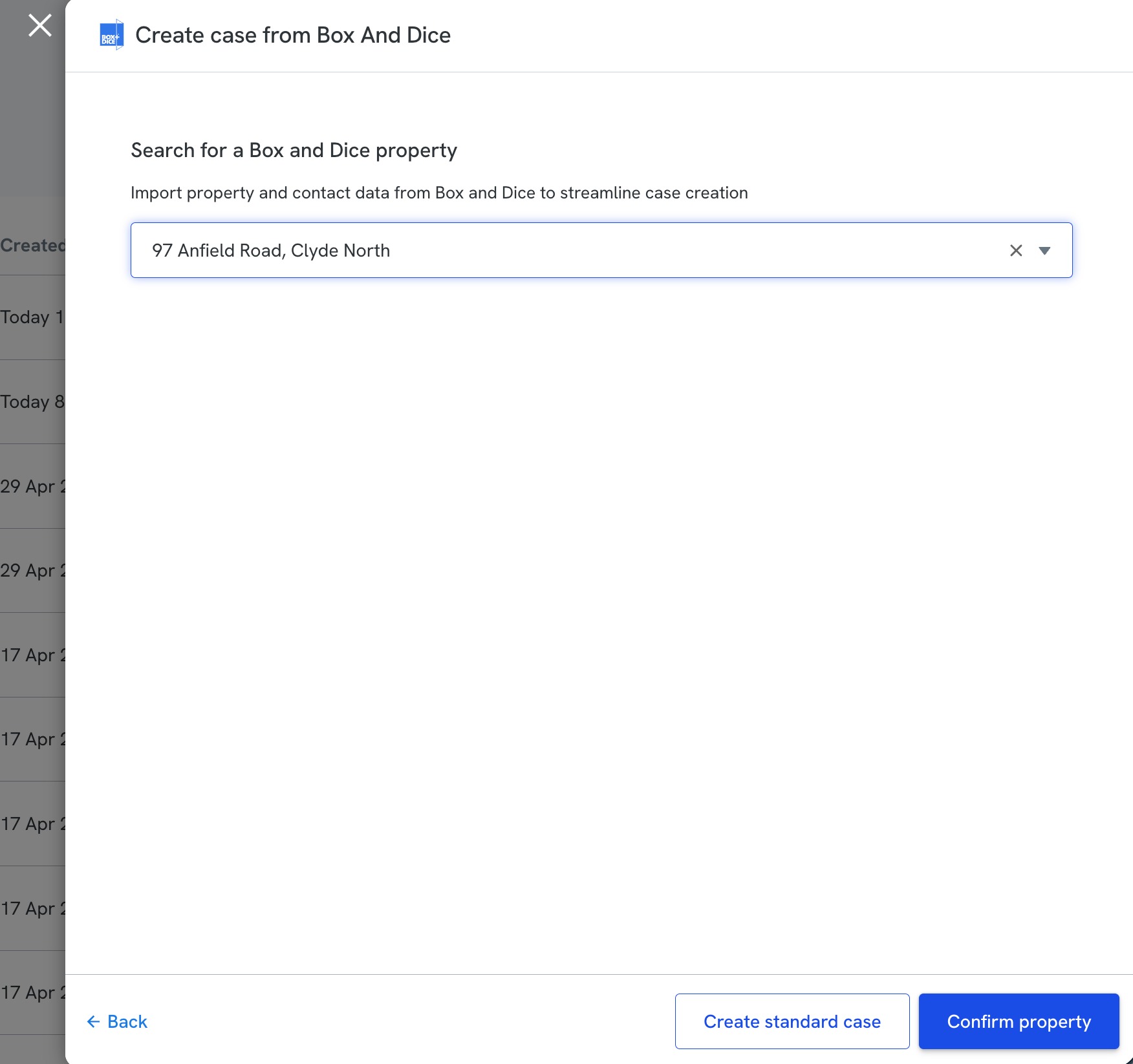
- Search for and select the Box and Dice property, then select "Confirm property". The property address and any associated sellers and buyers are pulled in from Box and Dice automatically.
- If both sellers and buyers are associated with the property, confirm whether the case relates to the seller or buyer, then select the Box and Dice contacts that require verification.
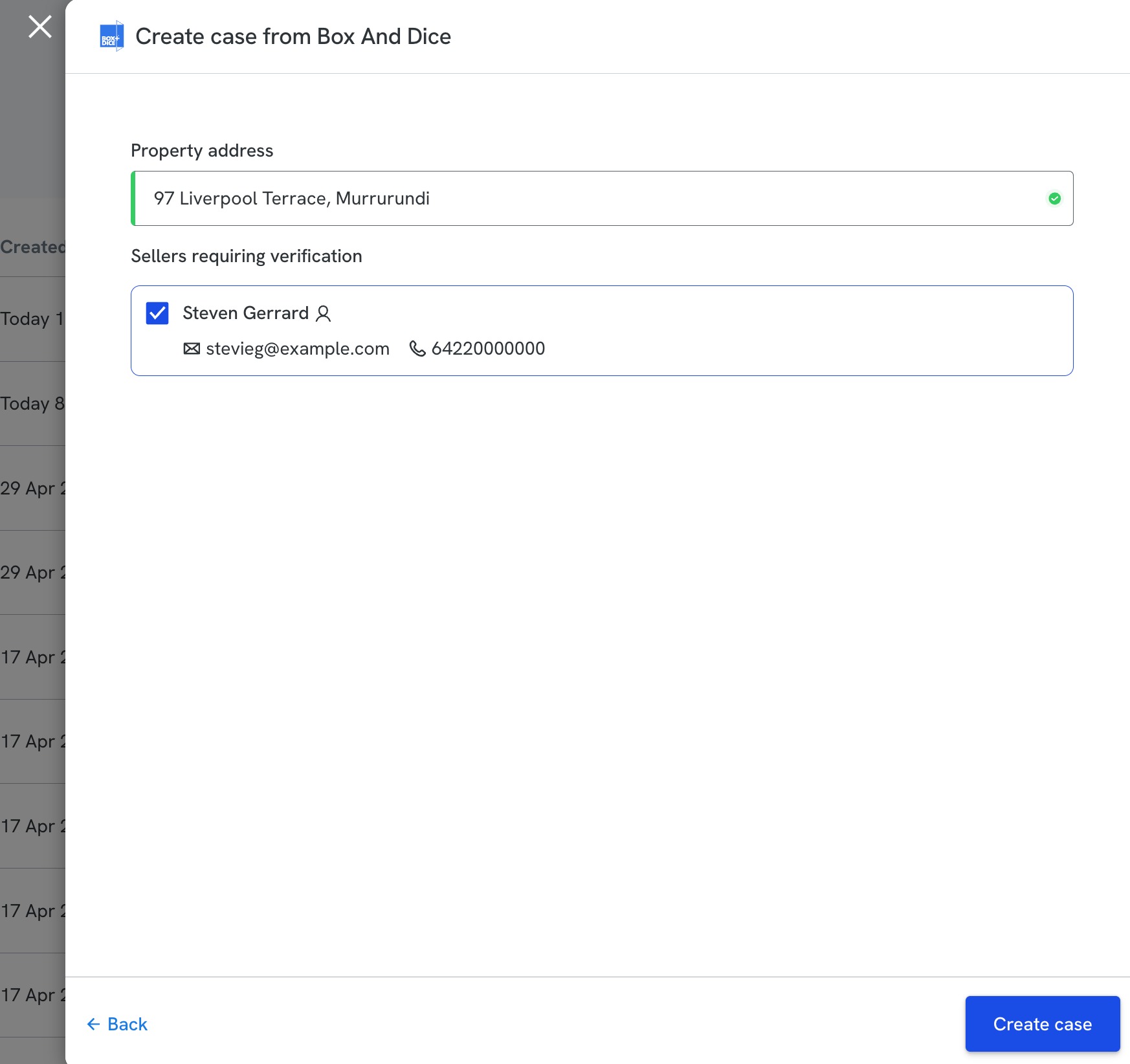
- When you create the case, the integration automatically creates an In Progress AML check in Box and Dice for each contact you selected. First AML retains key Box and Dice reference information, and you can link from a case or profile back to the associated Box and Dice record.
- Once the AML case is completed, Box and Dice AML check statuses update automatically with the verification results.
- On an ongoing basis, whenever we recognise a returning contact from Box and Dice, we retrieve them into the First AML case automatically. The user can see that contact's last verification result if they have permission to view that data.
Note: if you have multiple offices, our retrieval rules respect your Profile Sharing Policy. This is the setting that controls whether a profile created in one office can be seen and reused by another. Profiles will not be retrieved automatically if they sit in an office with a "No Access" sharing policy.
Important process note
When using this integration, your team should initiate AML checks from within First AML, not from Box and Dice.
To do this, the Box and Dice contact being verified needs to be associated with the property you're searching for, as one of the following contact types:
- Appraisal Contact: a contact linked to a property while it is still being appraised, before it is listed for sale.
- Listing Vendor or Listing Purchaser: a contact linked to a property once it has been formally listed, as the seller (vendor) or buyer (purchaser).
Important: in Box and Dice, AML checks only appear against a Property record once the property is Listed. If you need to see an AML check for a seller while the property is still in the Appraisal stage, go to the seller's Contact record instead of the Property record.