
TABLE OF CONTENTS
- Summary
- Creating an office
- Offices & Profile Access
- Risk assessment during case creation
- How to archive and restore an office
- Office Country Determines PEP Classification
Summary
The Office feature allows you to segment your platform into different sections. This enables you to:
- Assign users to specific offices
- Configure office-specific compliance rules, workflows, and settings
While called "offices," these segments don't have to represent physical office locations. You can use them to represent teams, regions, workstreams, or risk levels.
Creating an office
Only Compliance Admins can create or manage offices.
To create a new office:
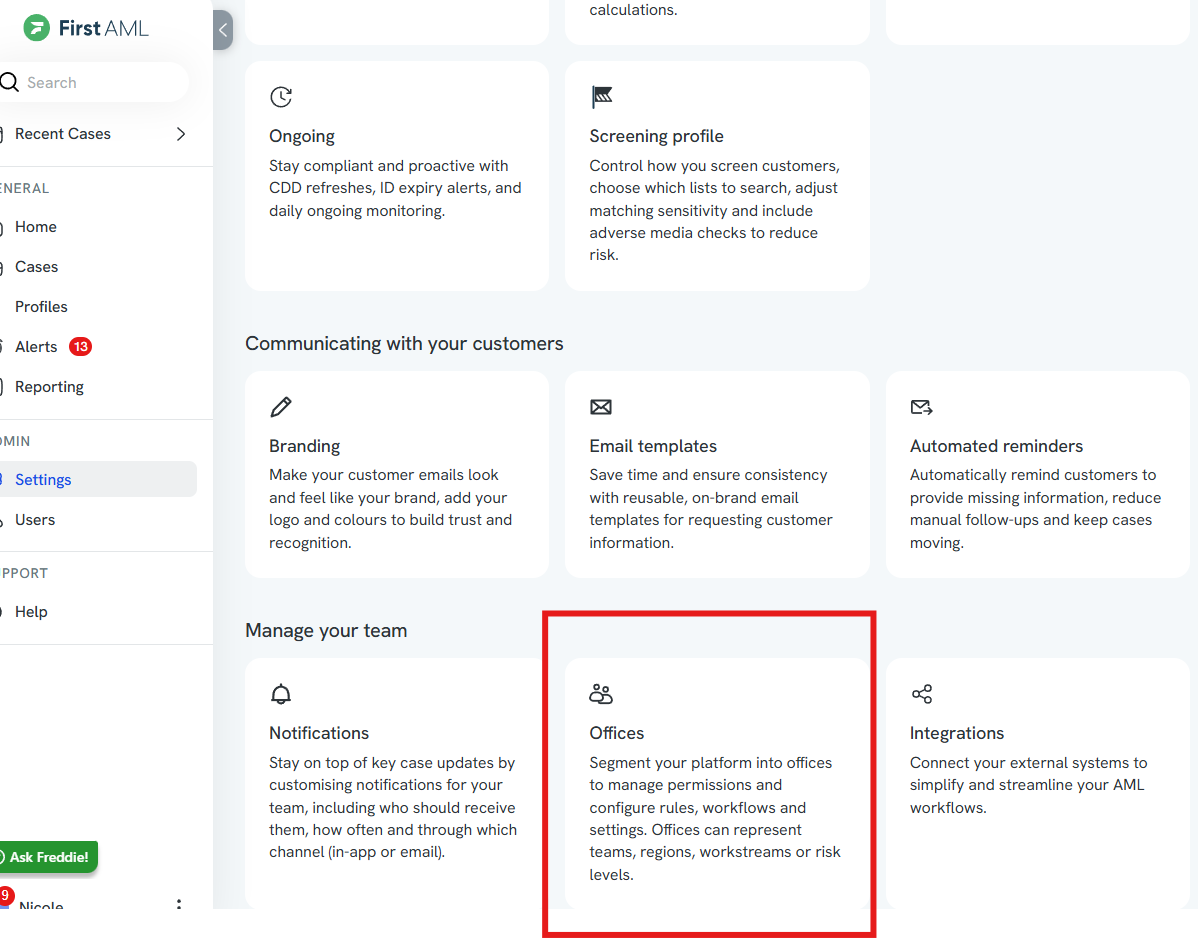
Go to Settings > Offices from the left-hand sidebar.
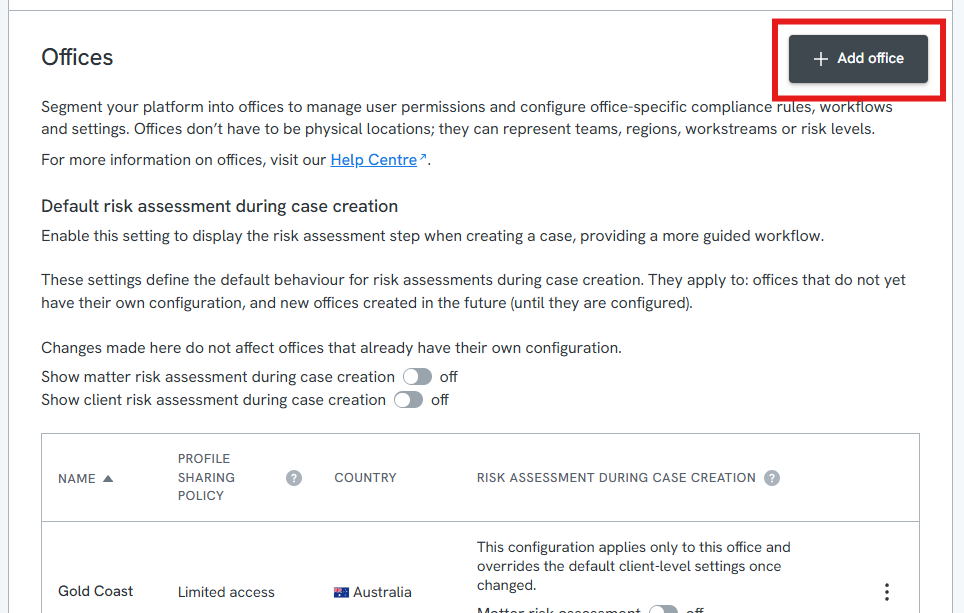
Click the + Add Office button.
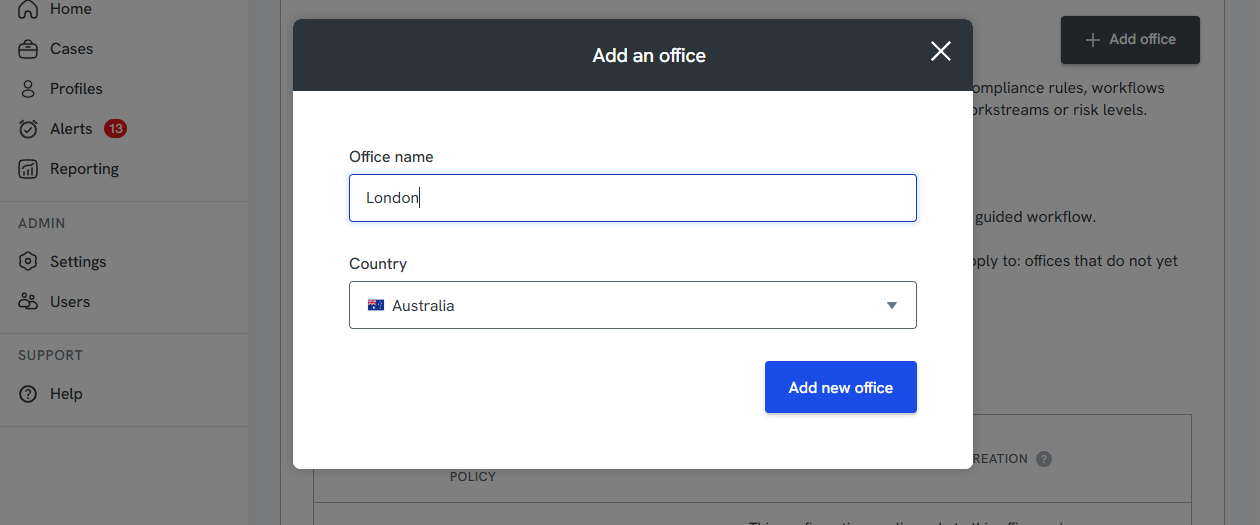
Enter the name of the office (e.g., "Auckland", "High Risk Clients", or "Trust Workstream").
Choose Country
Click Add new office to save.
The new office will now appear in your list of available offices.
Offices & Profile Access
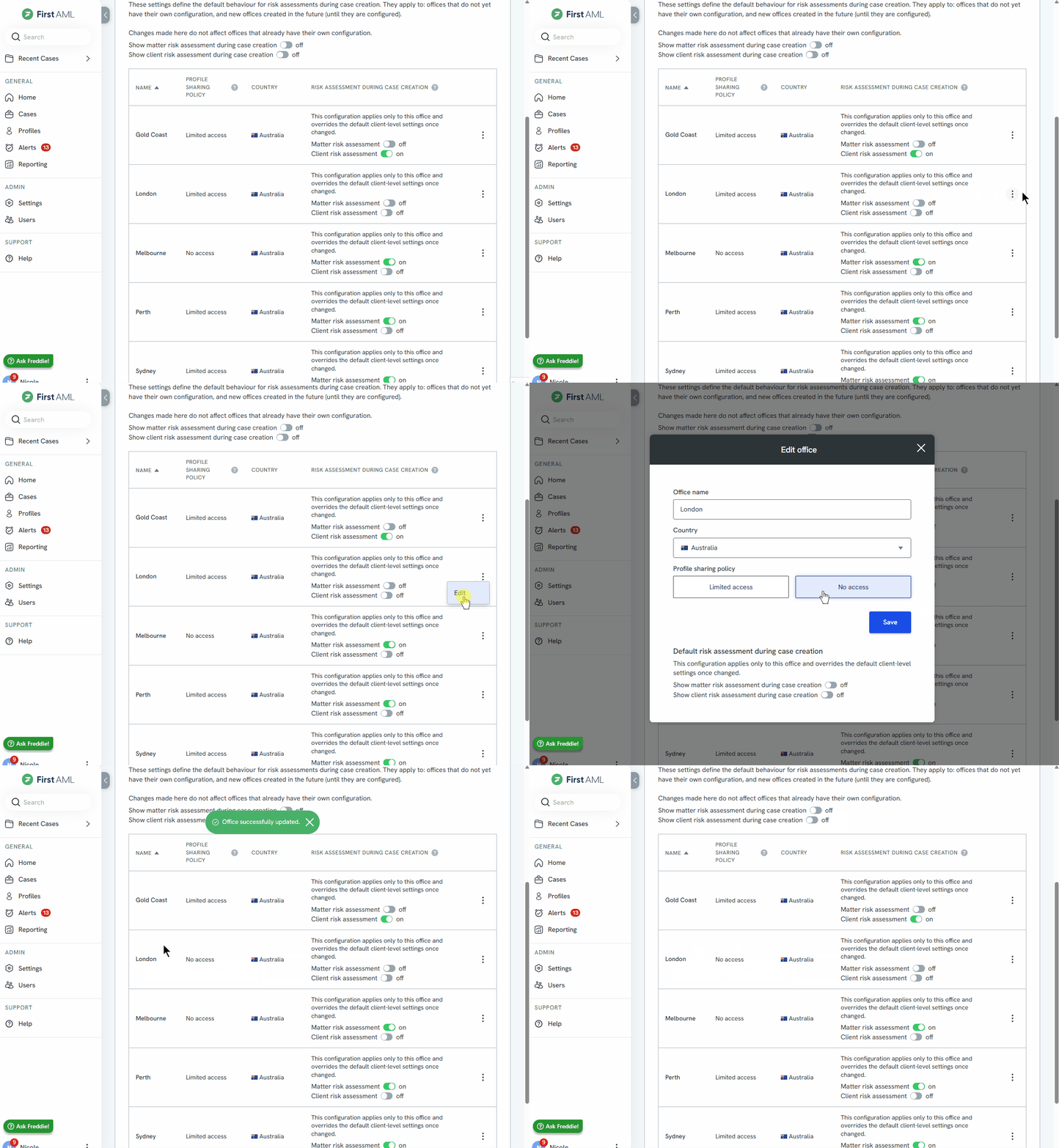
When offices are enabled, you can control access to profiles based on a user’s office assignment. This helps ensure that users only see the data relevant to them.
There are three access levels for profiles:
- Full access – Given to users who are assigned to the same office as the case/profile. They can see all profile details and take full action.
- Limited access (default for other users) – Users not assigned to the office will only be able to view the profile’s name, email address, and phone number.
- No access – Users will not be able to see any information about the profile.
What can I use the office function for?
Despite the name, "offices" can represent a range of organisational segments. Some common use cases include:
Office location (e.g., London, Auckland)
Workstream (e.g., Conveyancing, Trusts, Estates)
Client risk levels (e.g., Low, Medium, High)
Fund name or project
Branding might be different across offices
Creating offices gives you the flexibility to customise several features at the office level, including:
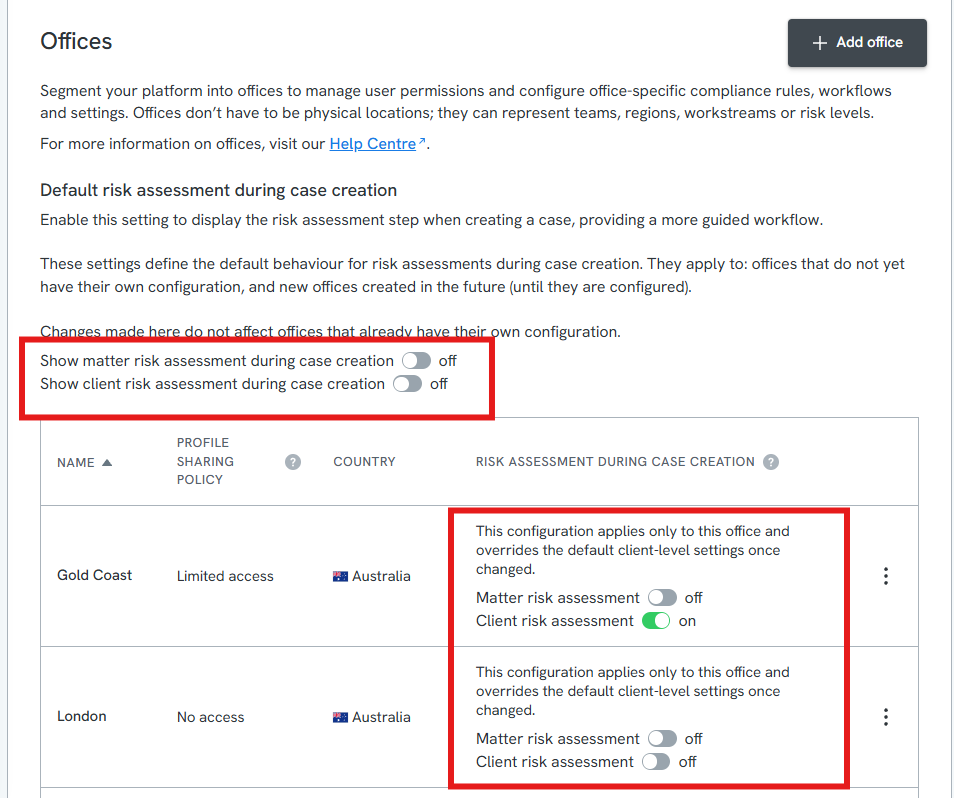
Risk assessment during case creation
This setting allows you to enable the risk assessment step during case creation, providing a more guided workflow for users. When enabled, the risk assessment is shown as part of the case creation process.
These settings define the default behaviour for risk assessments and apply to offices that do not yet have their own configuration, as well as any new offices created in the future. Changes made at this level do not impact offices that already have their own customised settings.
Including the risk assessment during case creation is particularly useful for the real estate sector, where agents may be creating cases (First AML's term for the record of work involved in verifying one or more individuals or entities for a transaction) on a mobile device while meeting clients in person.
Risk assessments can be toggled on or off as a default for all offices, or configured differently for individual offices within the office settings. See Building a form for how to set up a risk assessment form.
This flexibility helps you tailor processes, access, and compliance requirements to suit different teams or workflows.
How to archive and restore an office
You can archive an office to remove it from everyday use, and restore it later if you need it back. Archiving is a self-serve way to keep your list of offices tidy without losing any data.
This is useful for offices that have closed, merged, or were set up in error and are cluttering the list.
What archiving an office does:
- Removes the office from the case creation options, so it can no longer be selected when creating a new case.
- Removes the office from the office filters used across the platform.
- Leaves existing cases unaffected. Cases in an archived office stay attached to that office and remain fully accessible.
Restoring an office puts it back in both the case creation options and the office filters.
To archive an office:
- Go to Settings > Offices from the left-hand sidebar.
- Find the office you want to archive in your list of offices.
- Select Archive against that office.
- Confirm when prompted.
The office is removed from the case creation options and office filters. Its cases remain attached and accessible.
To restore an office:
- Go to Settings > Offices from the left-hand sidebar.
- Show your archived offices.
- Find the office you want to restore.
- Select Restore against that office.
The office returns to both the case creation options and the office filters.
Office Country Determines PEP Classification
Every office is defined by both a name and a specific country, which acts as the benchmark for PEP screening. For how this determines whether a detected PEP is classified as Domestic or Other, see Screening FAQs.