
TABLE OF CONTENTS
What are manager dashboards?
The manager dashboard gives you a real-time view of your team's AML workload, all in one place. Instead of opening individual cases to understand where things stand, you can see at a glance how work is distributed, which cases need attention, and how your team is tracking. You can also take action directly from the dashboard, like reassigning cases when workload becomes uneven.
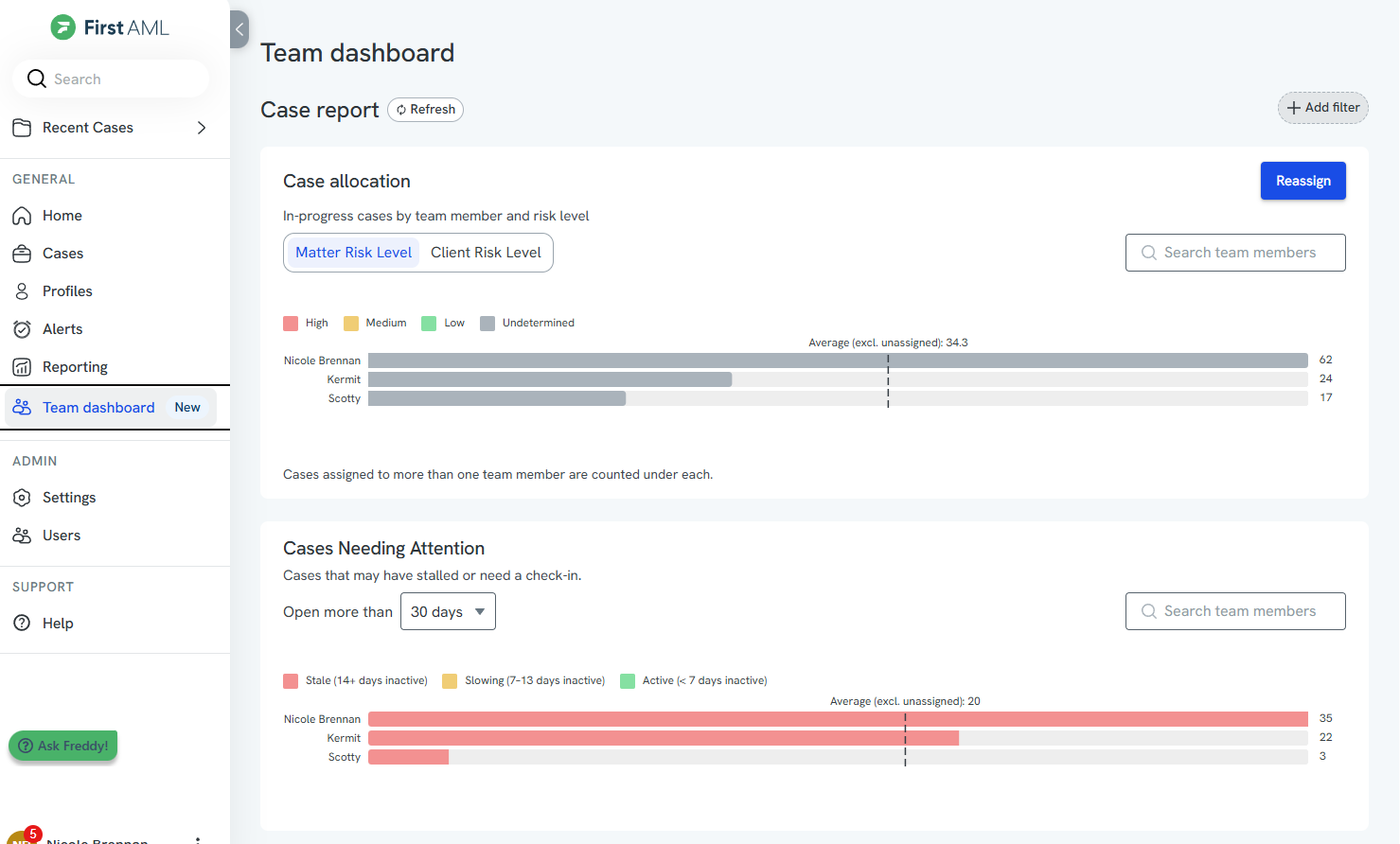
The dashboard is made up of five widgets.
Case Allocation shows how in-progress cases are distributed across your team. Use it to spot imbalances and move work around when needed.
Cases Needing Attention shows in-progress and ready-for-review cases that haven't been updated in a while. You can filter by how long a case has been inactive to decide where to follow up.
Team Throughput shows how many cases each team member has completed over a set time period. Use it to monitor capacity and catch early drops in output.
Risk Score Overrides shows cases where a team member has manually changed the system-calculated risk level. Use this for audit and quality review.
Profile Risk Indicators gives you an overview of your portfolio's risk exposure, broken down by Domestic PEP, Foreign PEP, and Sanctions matches.
Every widget is interactive. Click on any bar, data point, or count to go directly to the Cases or Profiles page, pre-filtered to match what you clicked. You can also filter each widget by assigned users, user roles, offices, or tags, and adjust the date range to focus on a specific time period.
Who can access the manager dashboard
The manager dashboard is available to users with the Compliance Admin, Compliance Office Admin, or Team Admin role.
Accessing the Manager Dashboard
Log in to First AML.
Click General in the left-hand navigation menu.
Select Team Dashboard.
The dashboard loads with all five widgets. Use the filters at the top of each section to narrow the data shown across all widgets in that section.
Available filters for case widgets: Assigned users, Assigned user roles, Offices, Tags.
Available filters for the profile widget: Offices.
Bulk Assign and Reassign
Bulk assign and reassign lets you update case assignments across multiple cases in a single action. You can add assignees, remove assignees, or do both at once.
You can start a bulk assign from two places: the Case Allocation widget on the manager dashboard, or the Cases page.
Starting from the manager dashboard
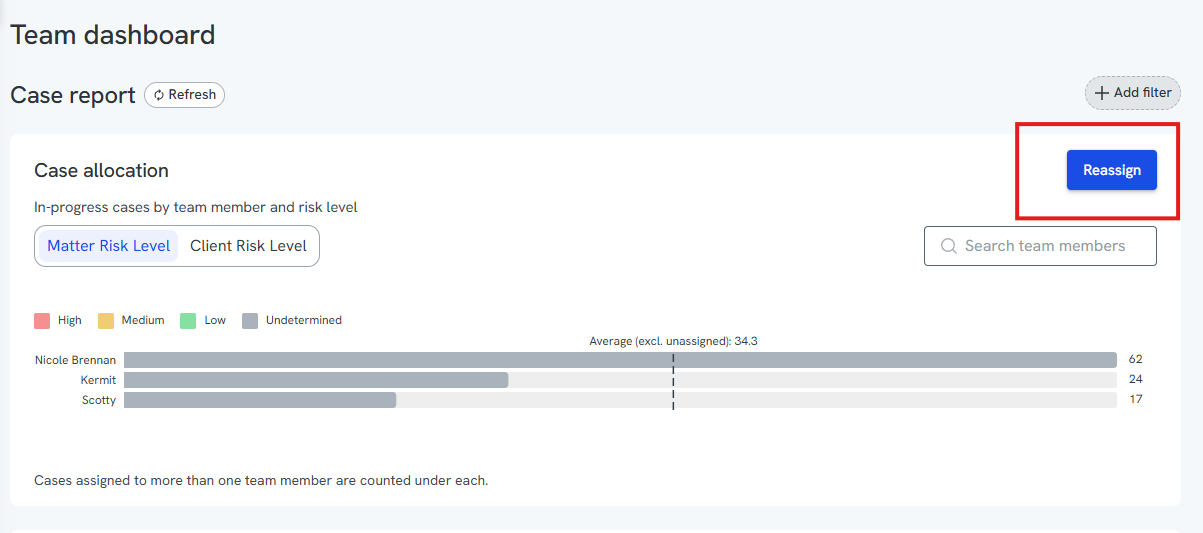
Go to the Case Allocation widget.
Click Reassign. You'll be taken to the Cases page with the relevant cases already filtered.
Tick the checkbox next to each case you want to update. You can select all filtered cases at once using the checkbox at the top of the list.
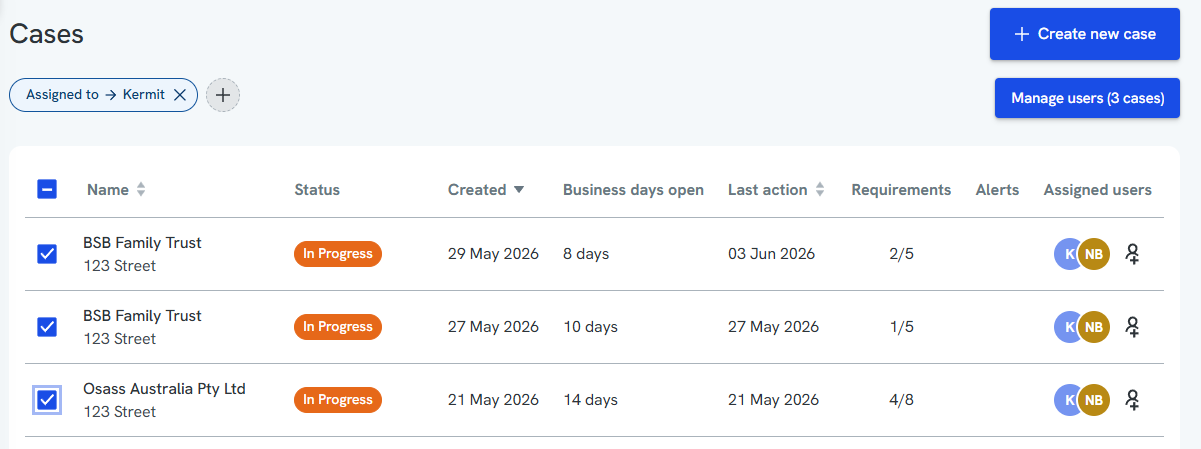
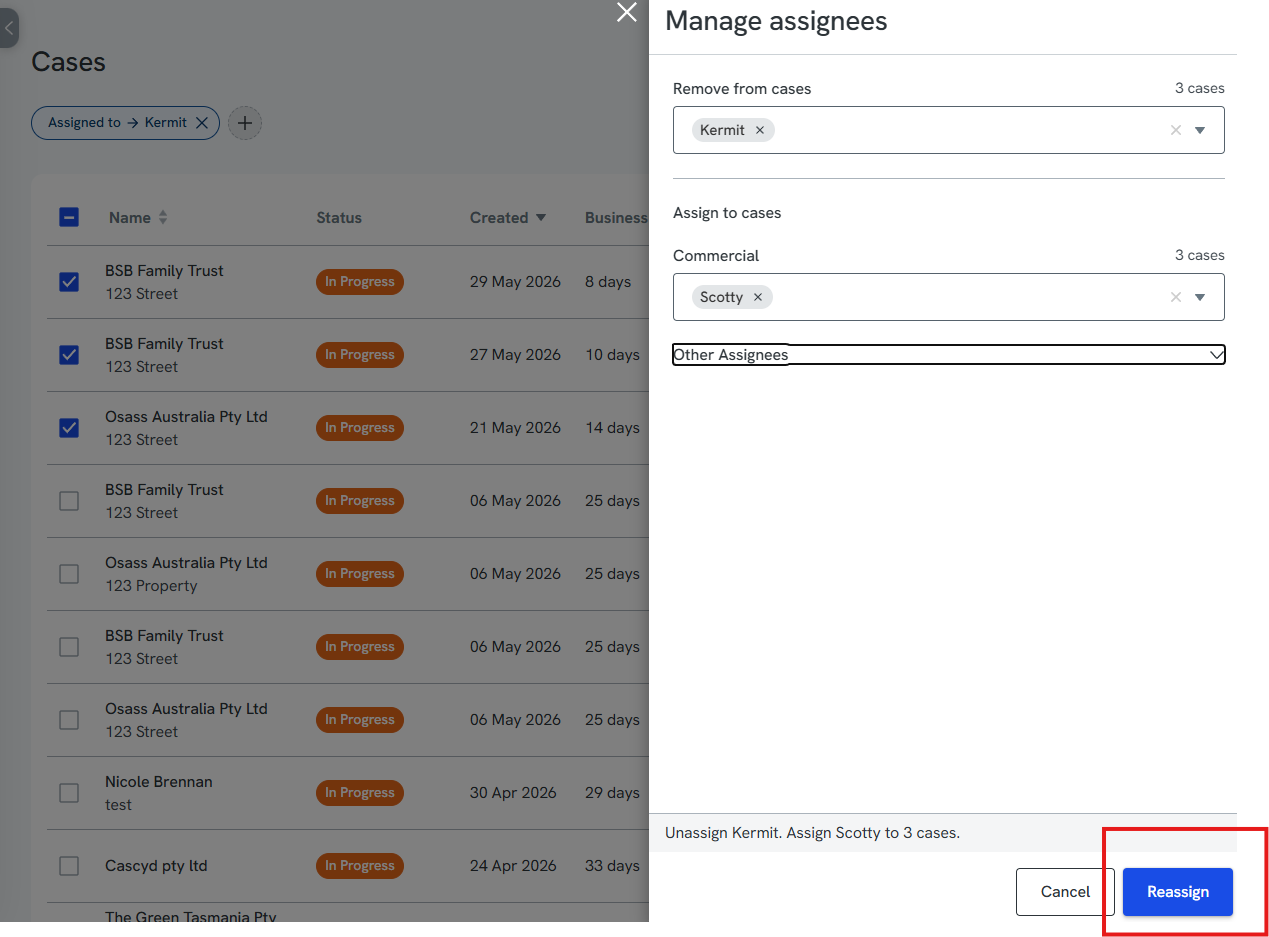
The bulk assign panel appears once cases are selected.
In Manage users, select the team member or members you want to assign to the cases.
In Remove from cases, select the team member or members you want to unassign from the cases.
Click reassign to apply the changes.
Starting from the Cases page
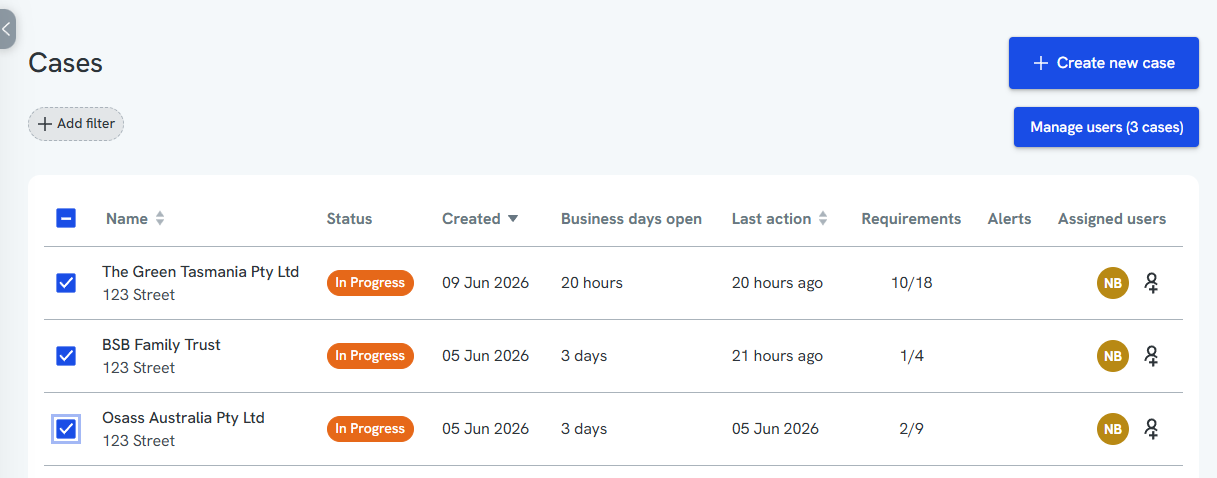
Go to Cases in the left-hand navigation menu.
Use the filters to find the cases you want to update.
Tick the checkbox next to each case you want to update. You can select all filtered cases at once using the checkbox at the top of the list.
The bulk assign panel appears once cases are selected.
In Add assignees, select the team member or members you want to assign.
In Remove assignees, select the team member or members you want to unassign.
Click reassign to apply the changes.
The Add assignees dropdown only shows users who can be assigned to all of the cases you've selected. If a team member doesn't appear in the list, they may not have access to one or more of the selected cases.
FAQs
Who can use bulk assign and reassign?
- Bulk assign/reassign can actually be done by any user roles that have access to assign users to a case (which is everyone but Auditor, Agent, ReadOnly users)
- But they can only view the Manager Dashboards if they are a Compliance Admin, Compliance Office Admin, or Team Admin.
Can I assign and unassign in the same action?
- Not sure if we want to add this in but just fyi if a particular assignee is included in both add and remove fields, the assignee will be added to any cases they are not already assigned to, and will not be removed from any cases.
Why can't I see a team member in the assignee dropdown?
The dropdown only shows users who can be assigned to every case in your current selection. If a team member is missing, they likely don't have access to one or more of the selected cases. Try narrowing your selection to cases they have access to.
Will the new assignee be notified when a case is reassigned?
Yes any new assignees that are assigned to a case are notified.
Is there a limit on how many cases I can bulk assign at once?
It's up to 20 as it's the length of our Cases page at the moment.
Can I use bulk assign on the Cases page without going through the dashboard?
Yes. You can bulk assign from the Cases page at any time, without needing to go through the manager dashboard first.