TABLE OF CONTENTS
- Summary
- Reviewing risk assessments
- Assigning a reviewer
- Assigning reviewers automatically with compliance rules
- Reviewing the risk assessment
- Open the case and go to the Risk Assessment tab.
- When a risk assessment is resubmitted
- Risk assessment reviews and case status
- Manually overriding risk levels
- Overriding within the Risk Assessment tab
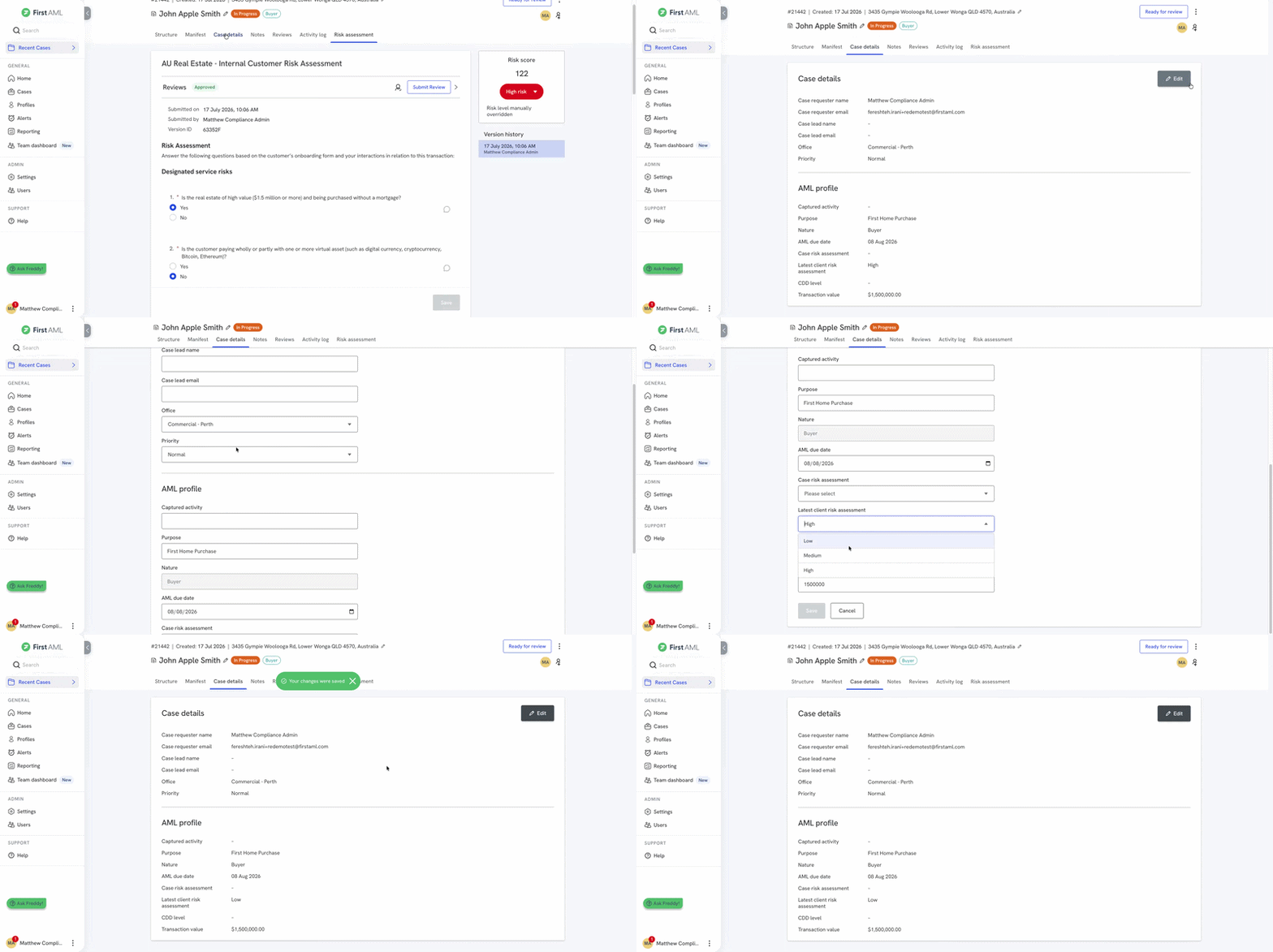
- Overriding within the Case Details tab
- Related articles
Summary
Once a risk assessment (RA) has been completed, you can assign a reviewer to check it before it's relied on. The reviewer approves or rejects the assessment. You can also manually override a calculated risk level if there's information outside the questionnaire that should be factored into the risk level.
Reviewers can be added by hand on a case, or added automatically by a compliance rule. When a risk assessment is resubmitted, a new review only starts if the risk level has changed. If the risk level stays the same, the existing review carries on.
Every review decision and manual override is recorded automatically in the case Activity log.
Related: for completing and sending a risk assessment in the first place, see Completing and sending a risk assessment.
Reviewing risk assessments
Assigning a reviewer
- Open the relevant case and go to the Risk Assessment tab.
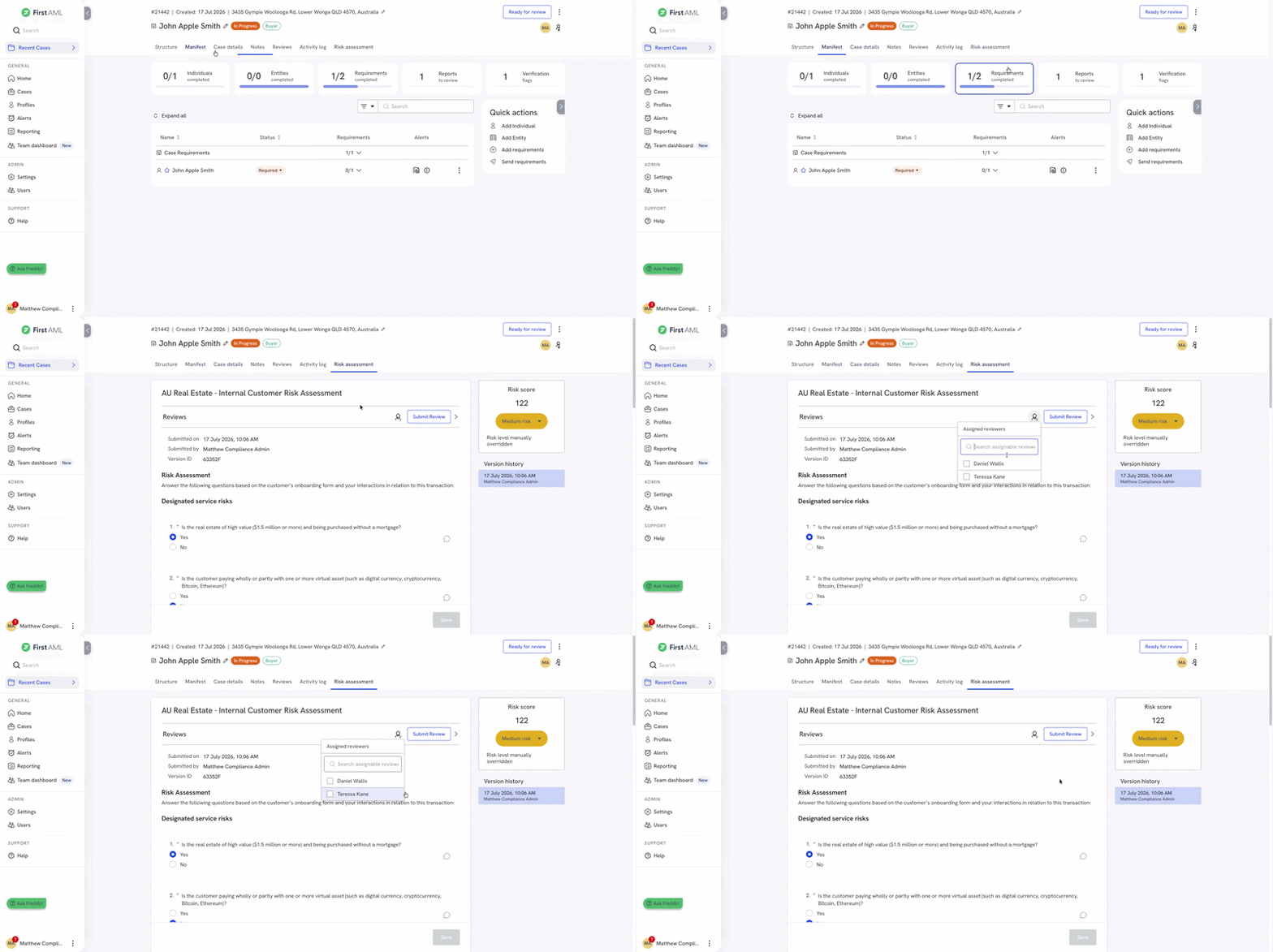
- Once the risk assessment is complete, click the assign icon next to Reviews.
- Select the team member you want to assign as reviewer.
The assigned reviewer receives a notification to review the risk assessment.
If a compliance rule also applies to the case, the rule adds its reviewers alongside anyone you add by hand. See Assigning reviewers automatically with compliance rules below.
Assigning reviewers automatically with compliance rules
You can use a compliance rule to add reviewers to case risk assessments and client risk assessments automatically, in the same way rules already assign reviewers for case reviews and screening reviews. When the rule applies, its reviewers are added to the review and notified.
- Go to Settings > Compliance rules and create or edit a rule for Case.
- Add the conditions for the rule, for example office or risk level.
- Add a Reviewers outcome, open Review type and select Case risk assessment review, Client risk assessment review, or both.
- Set the reviewer group under each approval step.
- Click Save.
Rules that use risk level as a condition are checked again each time a new review starts. For example, if a rule adds a reviewer only when the risk level is High and the assessment is resubmitted at Medium, that reviewer isn't added to the new review.
Reviewing the risk assessment
Open the case and go to the Risk Assessment tab.
- Under Reviews, read through the submitted answers. Click the comment icon next to any question to leave feedback on that specific answer.
- Add an Overall comment summarising your review.
- Click Submit Review.
- Choose to approve or reject the risk assessment.
The review outcome, along with any comments, is recorded in the case Activity log.
Each review shows the full date and time, and each decision shows which submission it was given on, for example "On the submission from 29 September 2026, 2:13 PM". This tells you exactly which version of the answers was approved or rejected.
When a risk assessment is resubmitted
When a risk assessment is resubmitted, First AML checks whether the risk level (Low, Medium or High) has changed.
- Same risk level: the existing review carries on. Its reviewers and any approvals stay in place, and nobody is notified.
- Different risk level: a new review starts. Earlier approvals stay on the earlier review and don't count towards the new one.
| What happens | Reviewers on the review | Who's notified |
|---|---|---|
| First submission (always starts a review) | Reviewers from any compliance rule that applies | Those reviewers |
| Resubmitted at the same risk level (review carries on) | No change. Approvals stay. | Nobody |
| Resubmitted at a different risk level (new review starts) | Anyone added by hand on the earlier review, plus reviewers from rules that apply at the new risk level. Each person appears once. | Everyone on the new review |
| Someone adds a reviewer by hand | That person is added. Rules still add their reviewers alongside them. | The person added |
When a new review starts:
- Reviewers who were added by hand on the earlier review are added to the new review and notified. Their notification names the person who originally added them. Their earlier approval doesn't carry over, so they need to review again.
- Reviewers from compliance rules aren't copied across. Rules are checked again at the new risk level, so a rule reviewer may not appear on the new review if the rule no longer applies.
- If no rule applies and no one was added by hand, the new review has no reviewers and nobody is notified.
Note: This only applies to risk assessment forms that have scoring turned on and Low, Medium and High thresholds set. Without scoring there's no risk level to compare, so every resubmission starts a new review. To set up scoring and thresholds, see Configuring forms (risk assessment + custom).
Risk assessment reviews and case status
A risk assessment review decides who reviews the assessment and when a new review is needed. It doesn't control the case:
- Case status doesn't depend on the risk assessment review. A case can move to Ready for review and be closed while a risk assessment review is unapproved, rejected, or has no reviewers.
- The risk assessment requirement is complete when the form is submitted, not when it's approved. Rejecting the review doesn't reopen it.
- If a change in risk level starts a new review on a case that's Ready for review or closed, the case status stays as it is.
- Opening an older version in Version history doesn't show a review. The review only shows on the latest submission it applies to.
Tip: If you need a reviewer to approve before a case can be closed, use a case review rule.
Manually overriding risk levels
You can manually override a risk level if there's information not captured in the risk assessment questionnaire that should be factored into it. There are two places you can do this: the Risk Assessment tab, and the Case Details tab.
Tip: you can set up a notification for whenever a risk level is overridden, in Setting up notifications. Consider sending this to your AML compliance officer.
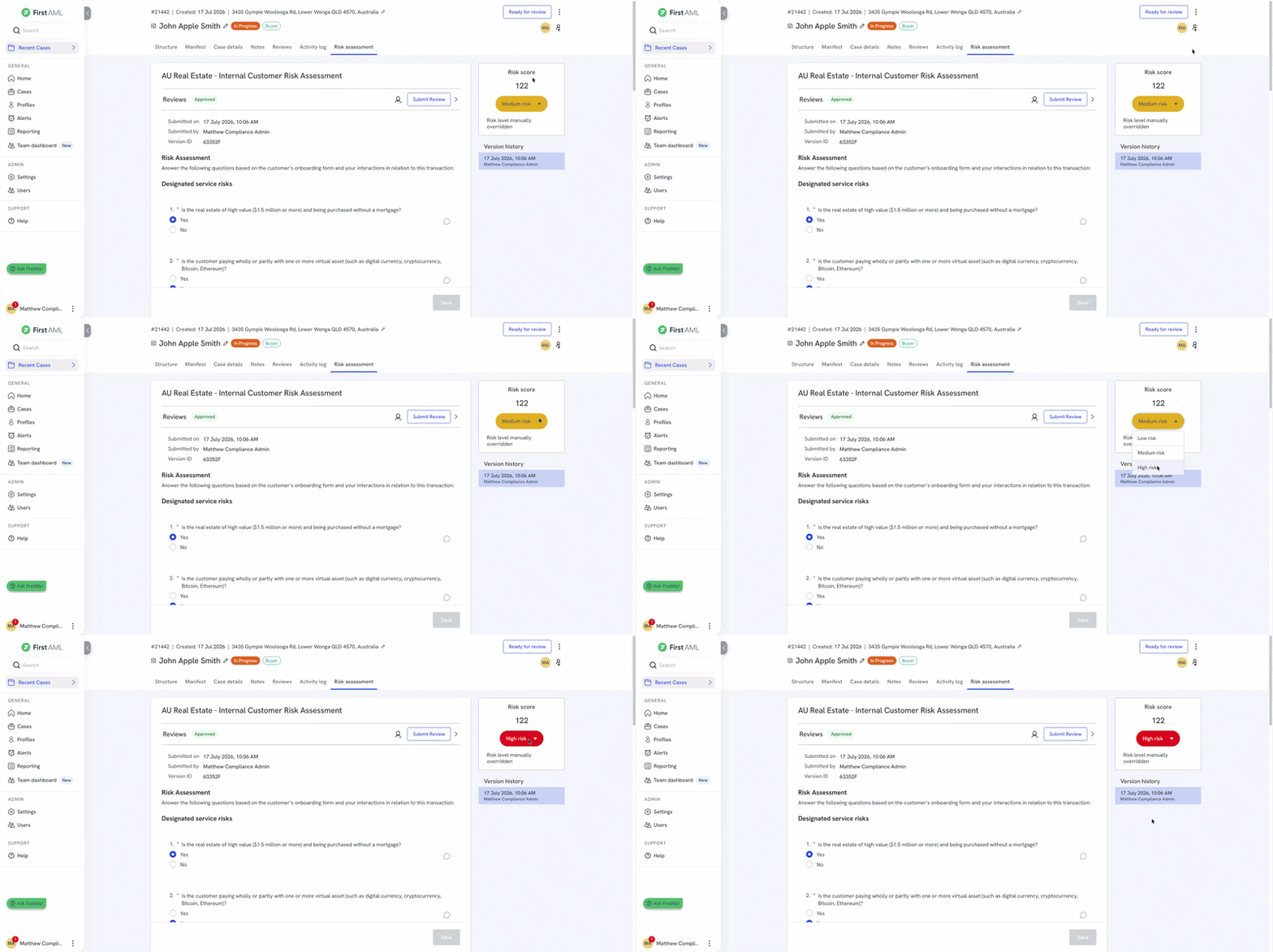
Overriding within the Risk Assessment tab
- Open the case and go to the Risk Assessment tab.
- In the Risk score panel, click the risk level dropdown (for example, "High risk").
- Select the new risk level.
- Add a comment in the Overall comment field explaining the reason for the override.
- Click Save.
Overriding within the Case Details tab
- Open the case and go to the Case Details tab.
- Click Edit.
- Update the relevant risk field (for example, Case risk assessment or Latest client risk assessment) to the new risk level.
- Click Save.