
TABLE OF CONTENTS
- Overview
- Key terms
- What can I configure?
- How to configure an approval rule
- Go to Settings.
- Open Compliance rules.
- FAQ
- Related articles
Overview
Approval rules let you build structured approval workflows for cases: setting conditions for when a case needs approval, adding multiple review layers, and choosing who can approve at each layer. This article covers how to configure approval rules. For what reviewers see and do once a case is in review, see Case review experience.
Approval rules are configured in Settings > Compliance rules.
Key terms
Compliance rule: a rule that automatically applies an action to a case when set conditions are met, for example adding a requirement or, with this feature, applying an approval workflow.
Approval layer: a stage in the approval workflow. A case can have 1 to 5 (or more) layers, and each layer must be completed before the case moves to the next.
Case roles: roles assigned to specific people on an individual case: Case Lead, Case Contact, or Case Requester. These are different from a user's organisation-wide role (see Compliance Office Approver, below).
Assigning an approval step to a case role means the rule applies to whoever holds that role on the case, not to one fixed named person.
Compliance Office Approver: an office-based user role that can approve and rework cases within its assigned offices. This is a user role, not a case role. See Understanding types of user roles for the full permissions list.
What can I configure?
- Set conditions to define when a case requires approval and who can review it. For example, high-risk clients must be reviewed by a specific compliance officer.
- Select the number of approval layers: from 1 up to 5 (or more if required).
- Choose who can approve at each layer: specific users, or case roles (Case Lead, Case Contact, Case Requester).
To include users with Compliance Office Approver access in a layer, add their office as a rule condition (When) first. Otherwise they won't appear in the list of available approvers.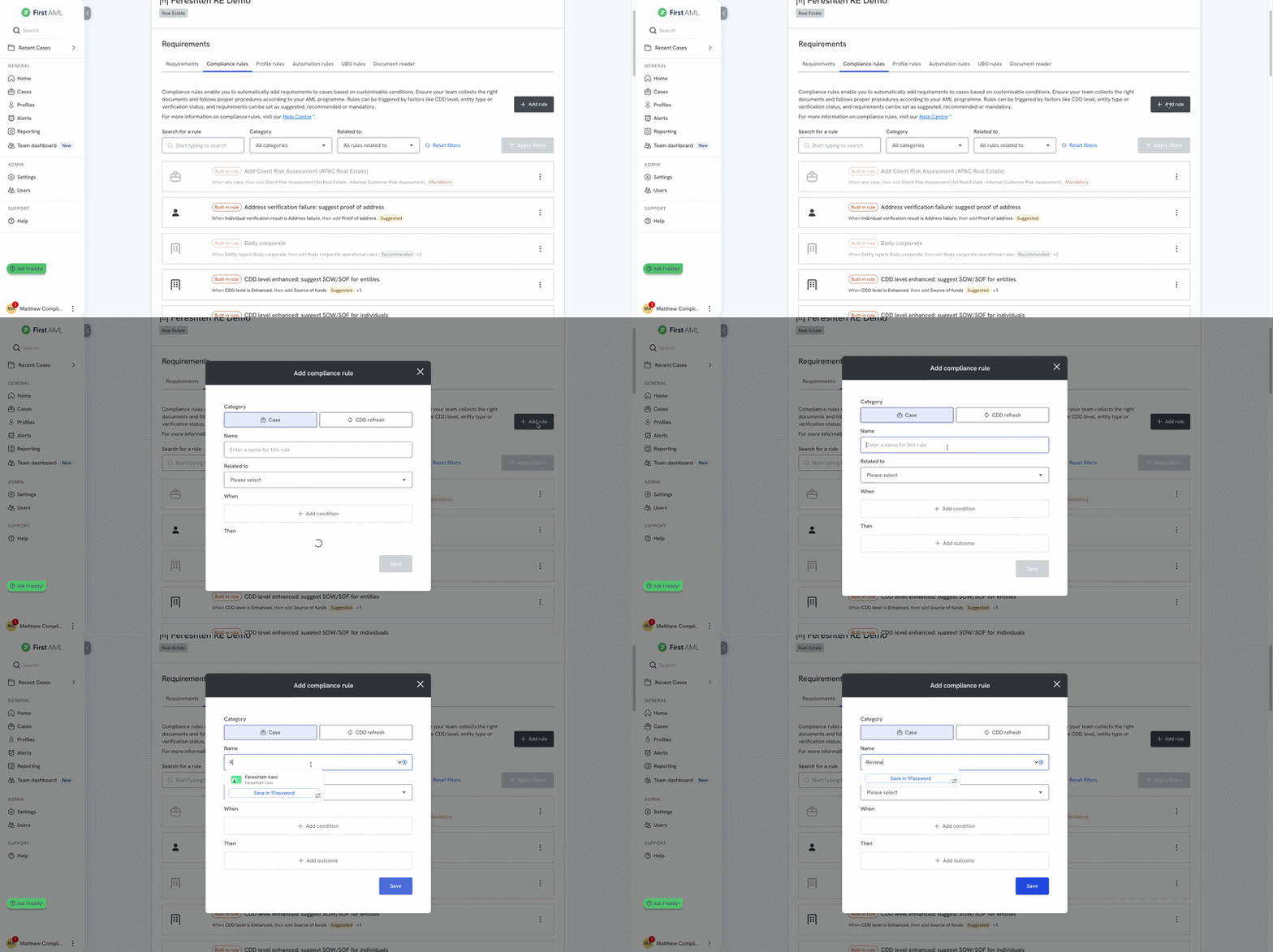
How to configure an approval rule
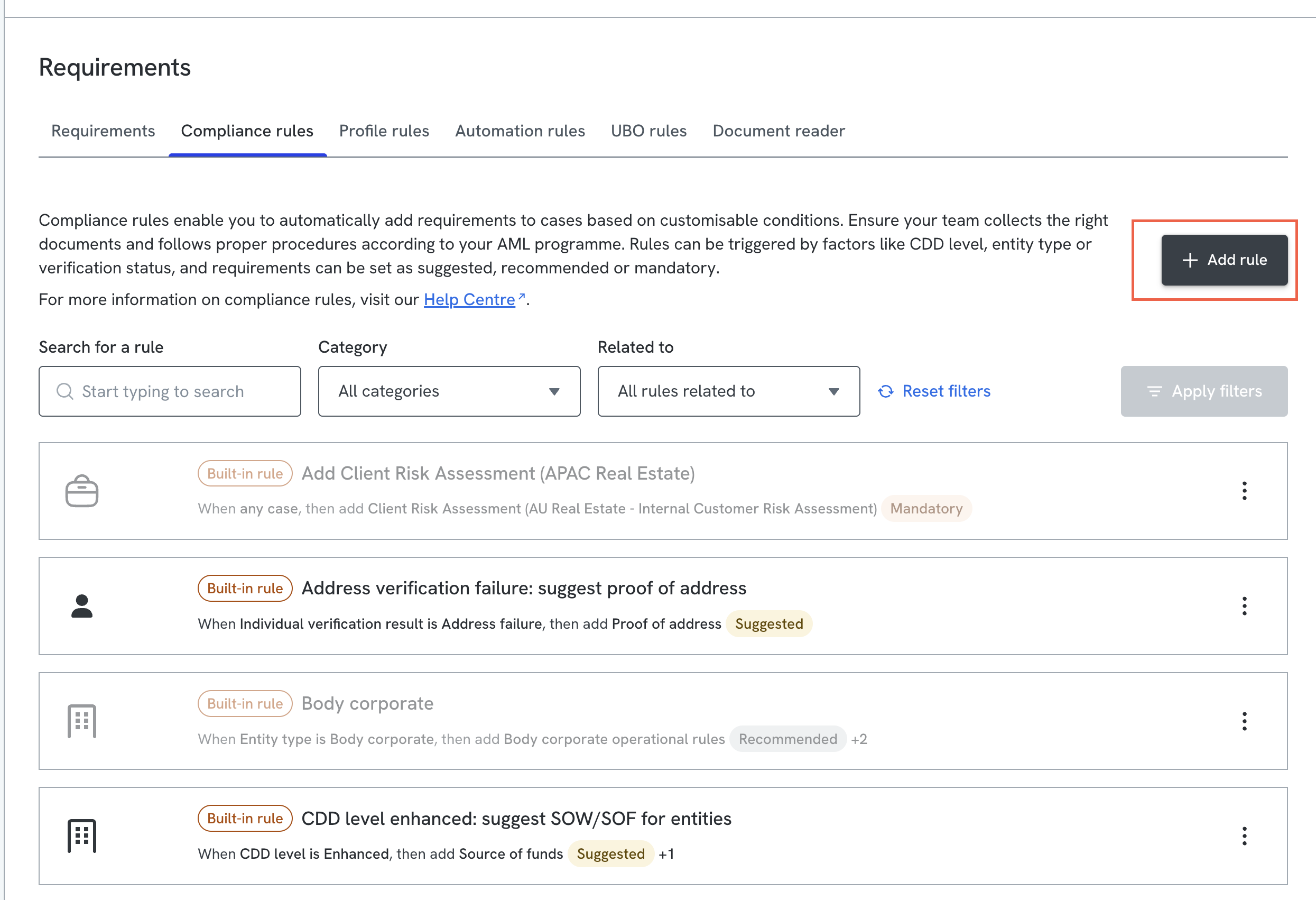
Go to Settings.
Open Compliance rules.
- Click Add rule.
- Enter a name for the rule.
- In the Related to field, choose what the rule applies to: Case, Entities, or Individuals.
- Set the When conditions to define which records the rule applies to. If you leave When empty, the rule applies to all cases (or entities/individuals, depending on what you chose in Related to).
- Set the Then outcome:
- In Outcome type, select Case reviewers so the rule builds an approval workflow rather than, for example, adding a requirement.
- Click Add step to add an approval layer, and choose who reviews at that step. This can be a case role, for example Case Lead.
- Use the Review group field to add another reviewer to that same step, for example Case Requester.
- Repeat Add step for each additional approval layer you need (up to 5, or more if required).
- Click Save.
Once saved, any record matching the rule's conditions will follow the approval workflow you've configured, moving through each step in order until every step has approved.
FAQ
Can I skip this process and approve a case as usual? Yes. If you don't configure any approval rules, users can continue to approve cases directly, as always.
What roles can approve cases? Only Compliance roles (Compliance Admin, Compliance Office Approver, Compliance Office Member) can approve cases, and only within the offices they're assigned to. See
Understanding types of user roles.