
TABLE OF CONTENTS
- Overview
- Key terms
- Case review options
- Starting and ending a review
- Assigning and tagging reviewers
- Skipping an archived required reviewer
- Adding review notes
- Notifications
- FAQ
- Related articles
Overview
Multi-layer approval lets you build structured workflows for approving a case: setting multiple review layers, assigning reviewers based on rules, and recording decisions throughout the process.
This article covers what reviewers see and do once a case reaches Ready for Review. If you need to set up who is required to review a case and how many approval layers it needs, see Configuring approval rules.
Key terms
RFR (Ready for Review): the case status once all due diligence is complete and the case is awaiting review and a decision.
Compliance Office Approver: an office-based user role that can approve and rework cases within its assigned offices. See Understanding types of user roles.
Case roles: roles assigned to specific people on an individual case: Case Lead, Case Contact, or Case Requester. These are different from a user's organisation-wide role (like Compliance Office Approver). Approval rules can route a review step to a case role instead of a named person.
Case review options
When a case is in Ready for Review, you'll see these controls in the top right of the case:
- A reviewers icon (person with a tick) to add or tag reviewers on the case. See Assigning and tagging reviewers, below.
- Start Review: marks the case as being reviewed, so other reviewers can see it's in progress. This helps avoid double handling when multiple people are eligible to review.
- Rework: sends the case back to In Progress, if it needs more information or was moved to RFR by mistake.
- Approve: approves the case and moves it to Completed.
- An overflow menu (⋮) for other case actions.

Starting and ending a review
- Open a case that's in Ready for Review status.
- Click Start Review. The case status changes to Review in progress, and the platform records who started the review and when.
- While a review is in progress, the End Review, Rework, and Approve buttons are available in place of Start Review.
- Click End Review when you've finished checking the case. This opens the review outcome modal (see Adding review notes, below).
Marking a case as in progress prevents confusion over who's currently reviewing it, which matters most when several people are eligible to review the same case.

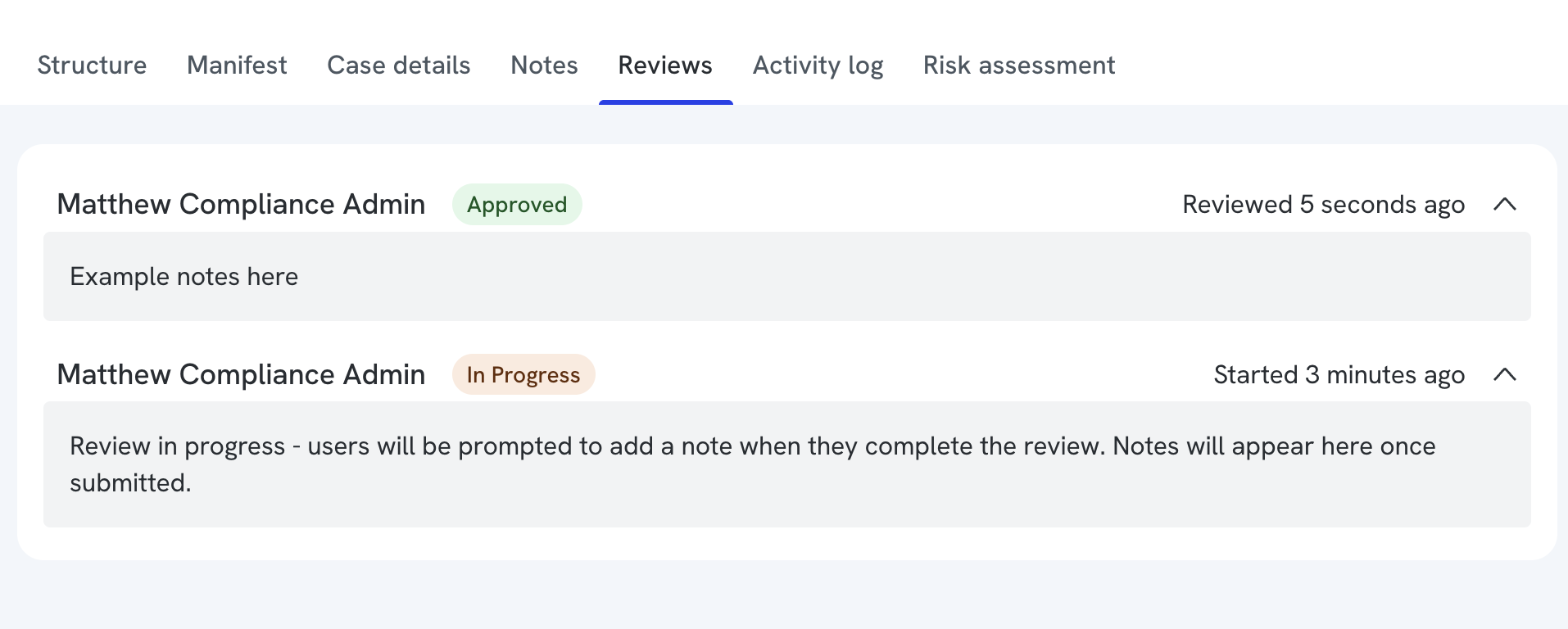
All users can view the case's Reviews tab to see:
- who is currently reviewing
- whether the case is waiting for review, in progress, or complete
- who has been notified or tagged as a reviewer
Assigning and tagging reviewers
Any user can add extra reviewers to a case once it's in Ready for Review, whether they're a required approver or you just want another set of eyes.
- Open the case (it must be in Ready for Review or Review in progress status).
- Click the reviewers icon (a person with a tick) in the top right.
- In the panel that opens, search for or scroll to find the person you want to add.
- Tick the box next to their name to add them as a reviewer. A blue tick confirms they've been added and can review the case.
- Untick the box to remove them.
Anyone added this way is tagged as a reviewer on the case: you can see whether they've taken action, and their activity is recorded on the case's Reviews tab.
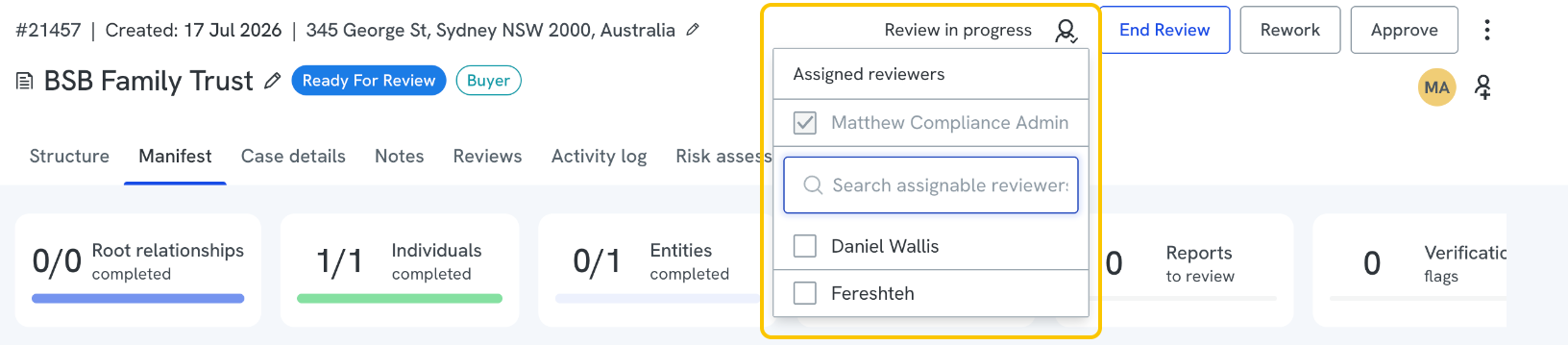
If a person you want to add doesn't appear in the list, it's likely because their role can't approve cases, or their office can't approve cases in this case's office. See Understanding types of user roles to check which roles can approve cases.
Skipping an archived required reviewer
Archiving a user stops them logging in, but it doesn’t remove them from any required reviews they were already assigned to. If a case is waiting on an approval from someone whose account has since been archived, the case can stay in Ready for Review with no way for that approval to come through.
Compliance Admins can clear this from the case itself:
- Open the case and click the reviewers icon (a person with a tick) in the top right to open the Assigned reviewers panel.
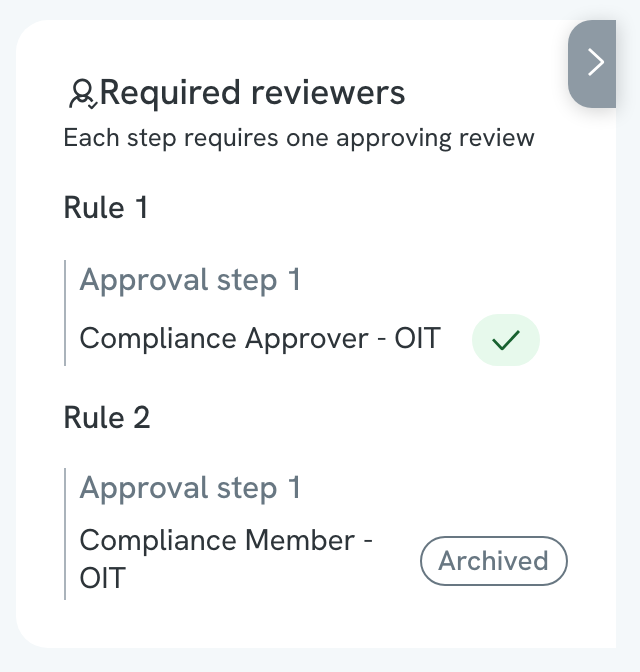
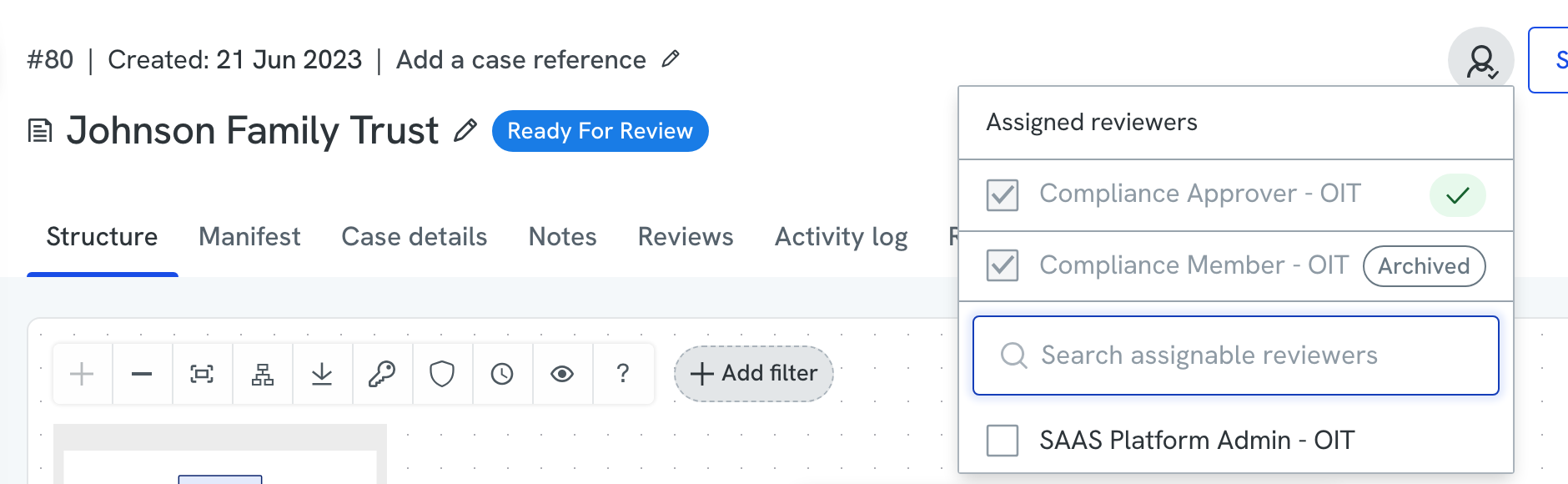
- Find the reviewer that’s holding up the case. Any reviewer whose account is archived shows an Archived badge, with a Skip option next to it.
- Click Skip, then confirm.
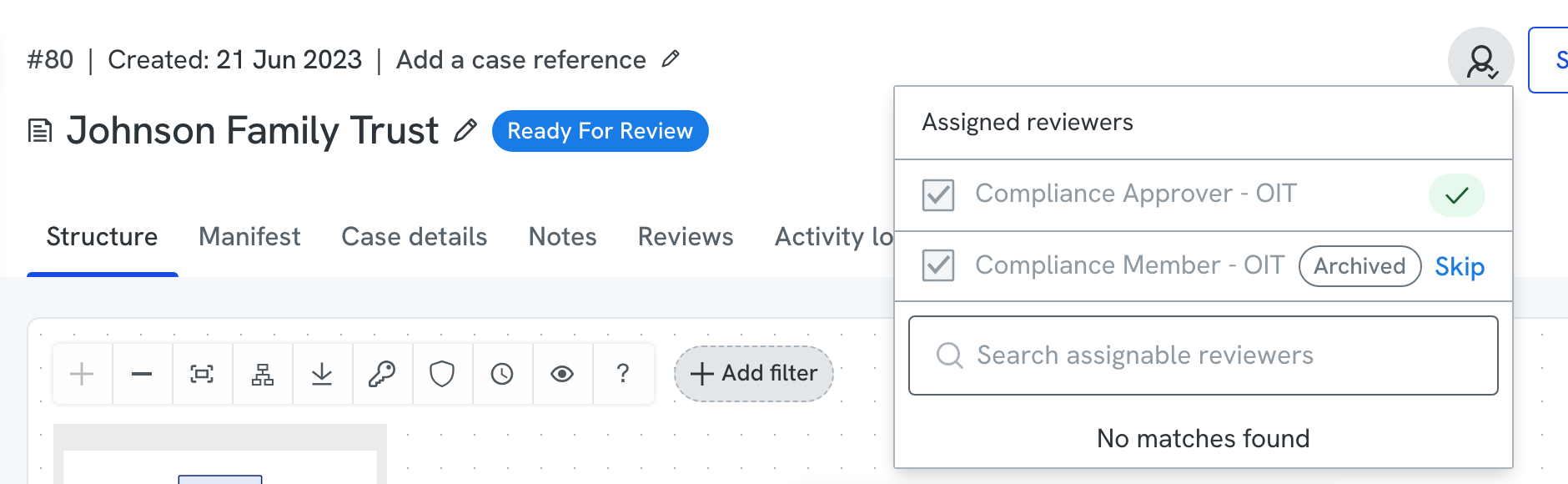
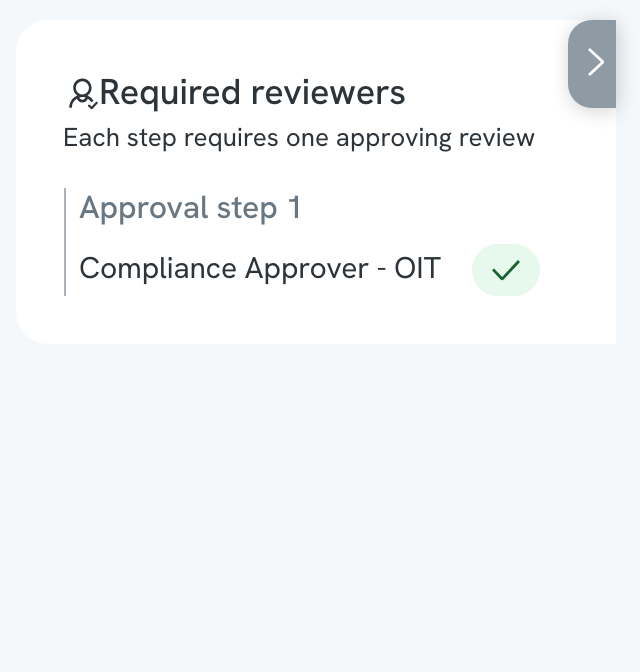
- The case stops waiting on that reviewer. You’ll see the message “Reviewer skipped. This case no longer waits on their approval,” and that reviewer’s step is removed from the case’s Required reviewers.

What skipping does and doesn’t change
- Only archived accounts can be skipped. There’s no Skip option next to an active reviewer, so someone who is simply slow to approve still needs to approve.
- Approvals already given still stand, and skipping a reviewer on one case doesn’t affect any other case they’re assigned to.
- All other approval steps and rules on the case still apply, so skipping one reviewer doesn’t approve the case on its own.
- Every skip is recorded in the audit log, together with the case, the client, who performed the skip, and who was skipped.
Adding review notes
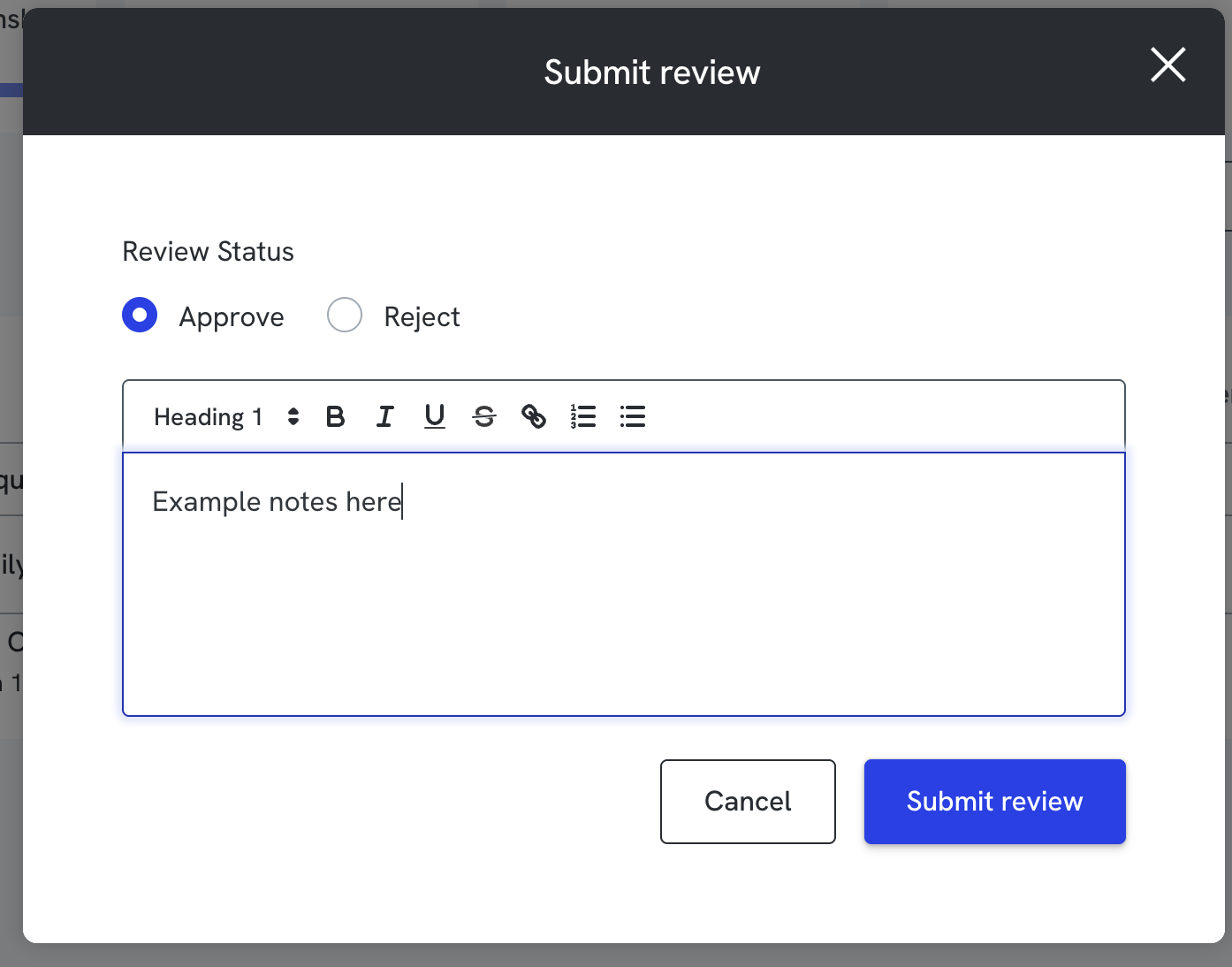
When a reviewer clicks End Review, a modal appears to record the outcome:
- Select a Review Status: Approve or Reject.
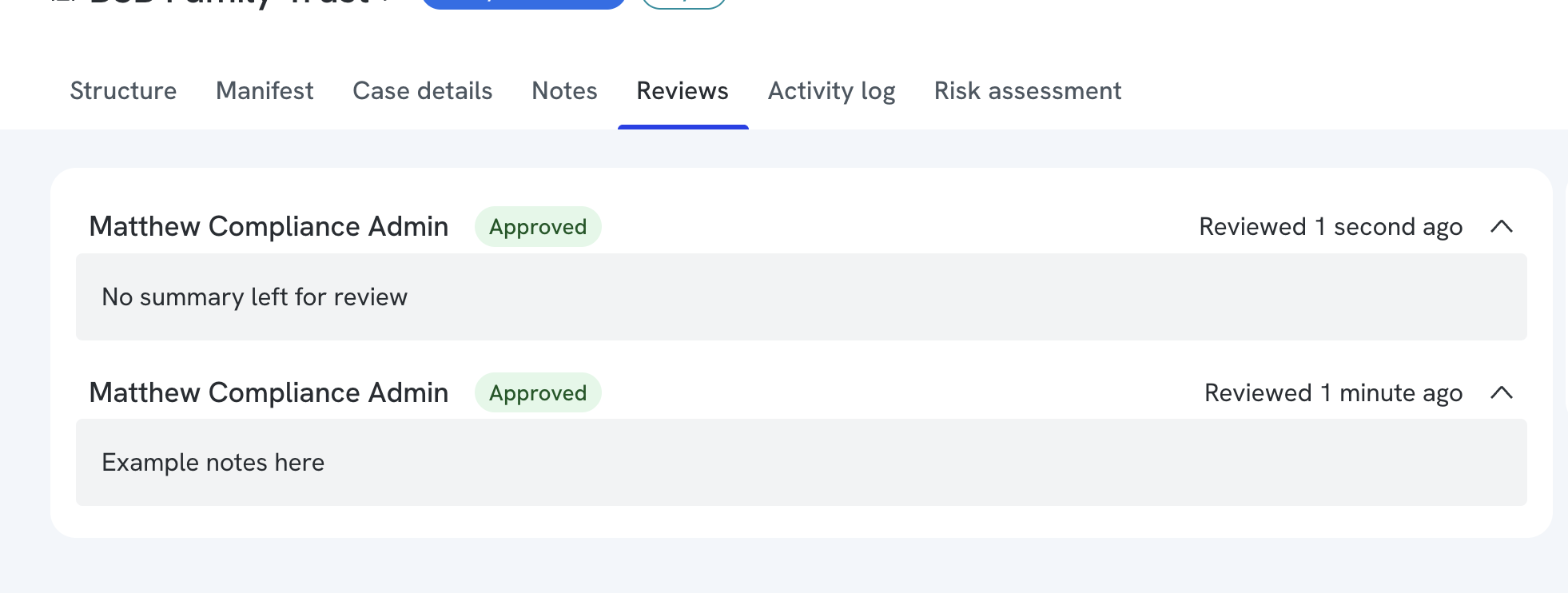
- Add notes in the text field. These notes are saved to the case's Reviews tab, visible to the whole team.
- If you're the final approver in the workflow, choose Approve Case to complete the case, or Submit Review to record your decision and pass the case to the next layer.
- Click Cancel to close the modal without recording an outcome.
These outcomes don't change the case status on their own (aside from Approve Case), but they give visibility into the decisions made at each review layer.
Notifications
Two notification types support multi-layer approval:
Review Required
Sent to required reviewers in the workflow. These notifications are sequential: only the next layer of reviewers is notified once the previous layer has completed its review. For example, Layer 2 reviewers aren't notified until Layer 1 has submitted its review outcome.
This notification only goes to users listed as required reviewers in the compliance rule.
Status change: Ready for Review (RFR)
Not for reviewing purposes. Triggered when a case status changes to Ready for Review. Use this to notify team members who need to know the case is ready, even if they aren't reviewers themselves. For example, a Case Lead who isn't a reviewer but should still be told the case has entered RFR.
To make sure these alerts reach people the way your organisation prefers, check your notification settings are configured for in-app or email delivery at the right cadence. See Setting up notifications.
FAQ
Can I skip this process and approve the case as usual? Yes, if your organisation hasn't configured any approval rules, users can continue to approve cases directly as always.
What happens if a case is rejected? The case stays in its current state, but the Reviews tab records that a reviewer rejected it. Another reviewer can escalate or approve it afterward.
A case is stuck waiting on a reviewer whose account has been archived. How do I clear it? If you’re a Compliance Admin, open the Assigned reviewers panel on the case. Archived reviewers show an Archived badge with a Skip option - click Skip and confirm to stop the case waiting on that approval. See Skipping an archived required reviewer above.