
TABLE OF CONTENTS
- Summary
- Step 1: Create the case from the alert
- If the client already has a case in progress
- Step 2: Review the new structure
- Step 3: Bring across previously verified individuals
- Step 4: Complete the standard case steps
- Step 5: Pass the client and complete the case
Summary
A CDD refresh alert tells you it's time to re-verify a client you've worked with before. When you action an alert, First AML creates a new case tagged as a CDD refresh case and brings across the client's details from their last case.
The steps depend on what you're refreshing:
- An entity: follow every step.
- An individual: follow Step 1, then skip to Step 4.
If the client doesn't need a refresh this cycle, you can skip the review instead. See Managing CDD refresh due dates.
Step 1: Create the case from the alert
- Go to Alerts and open the CDD refresh tab.
- Find the client's alert and click Create case.
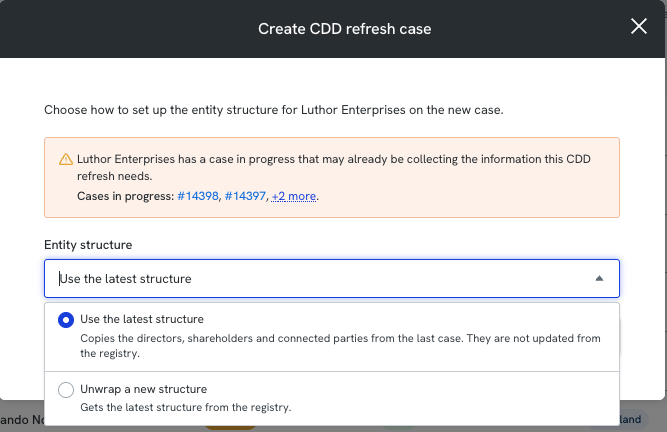
- If you're refreshing an entity, choose an Entity structureoption:
- Use the latest structure: the directors, shareholders and connected parties from the last case come across as they are, including their verified information. They aren't updated from the registry.
- Unwrap a new structure: only the root entity comes across, and the structure is pulled fresh from the registry. This is charged as an unwrap, the same as in a normal case.
- Click Create case.
Choose Unwrap a new structure when you want to check whether the ownership or control of the entity has changed since it was last verified.
If the client already has a case in progress
If a normal case is open for the same client, you'll see a message before the case is created, with a link to the other case. That case may already be collecting the information this refresh needs. This is a notice, not a block, so you can still create the refresh case.
Step 2: Review the new structure
Applies to: entity refreshes where you chose Unwrap a new structure.
Once the unwrap has finished, compare the new structure with the one from the last case:
- Open the client's previous case to see the structure as it was last verified.
- Compare it with the structure in your refresh case.
- Note any new, removed or changed directors, shareholders or beneficial owners.
Step 3: Bring across previously verified individuals
Applies to: entity refreshes where you chose Unwrap a new structure.
Unwrapping a new structure adds individuals as new records. If someone was verified before, a Duplicate detected alert appears next to them in the Manifest tab. Resolve it to retrieve their verified information instead of verifying them again. See De-duplicating individuals and entities.
Step 4: Complete the standard case steps
- Verify any new individuals or entities your compliance programme requires.
- Complete any requirements added by your compliance rules.
- Complete the client risk assessment, if required.
Step 5: Pass the client and complete the case
- Mark the root individual or entity as Pass in the Manifest tab. This sets their new last verified date and moves their next due date.
- Mark the case as Completed.
The client's risk level from this case sets the next refresh cycle. For example, if you've set Low risk clients to be refreshed every 24 months and Medium risk clients every 18 months, a client who was low risk and is now medium risk will next be due in 18 months.
If you mark the root individual or entity as Fail, the client is removed from the refresh cycle.
Note: The case's activity log records which structure option you chose when the case was created.