
TABLE OF CONTENTS
- Summary
- Before you start
- What Are CDD Refresh Alerts?
- Alerts Dashboard
- Configuration & Set Up
- Check what’s needed for CDD refresh
Summary
Ongoing due diligence is a key component of maintaining AML compliance across the customer lifecycle. With First AML, you can automate your KYC refresh processes using smart compliance rules, expiry alerts, and actionable triggers, all tailored to your risk-based approach.
CDD refresh alerts notify you when a re-verification is due for an individual or entity, based on your set cadence for OCDD (Ongoing Customer Due Diligence, sometimes shortened to CDD when referring to the underlying due diligence process itself).
Before you start
- Viewing and actioning alerts: all users with access to the homepage can view the alerts dashboard. Each user sees alerts tied to the offices they're linked to; if a user's role isn't tied to any office, they'll see all alerts across the platform. Any user who can create new cases can act on an alert (create a case from it, or dismiss it).
- Configuring alerts: restricted to Compliance Admin. These settings can be applied at a firm-wide or office level, and cannot be tailored for individual users.
- Alert Date: CDD refresh alert date is based on the date that the individual/entity is moved to a "Pass" and the result of the completed Client Risk Assessment has been provided. Example attached
What Are CDD Refresh Alerts?
- Alerts appear on the last section of the homepage.
- Alerts are ordered by re-verification due date, with the most urgent at the top.
- Clicking an alert takes users directly to the last case (First AML's term for the record of work involved in verifying one or more individuals or entities for a transaction) where the individual or entity was verified.
Who gets a CDD refresh alert?
- 1 individual in a case = 1 alert.
- 3 individuals in a case = 3 alerts.
- The root entity (the primary entity a case is built around, as opposed to related or associated entities or individuals) in a case = 1 alert for the root entity.
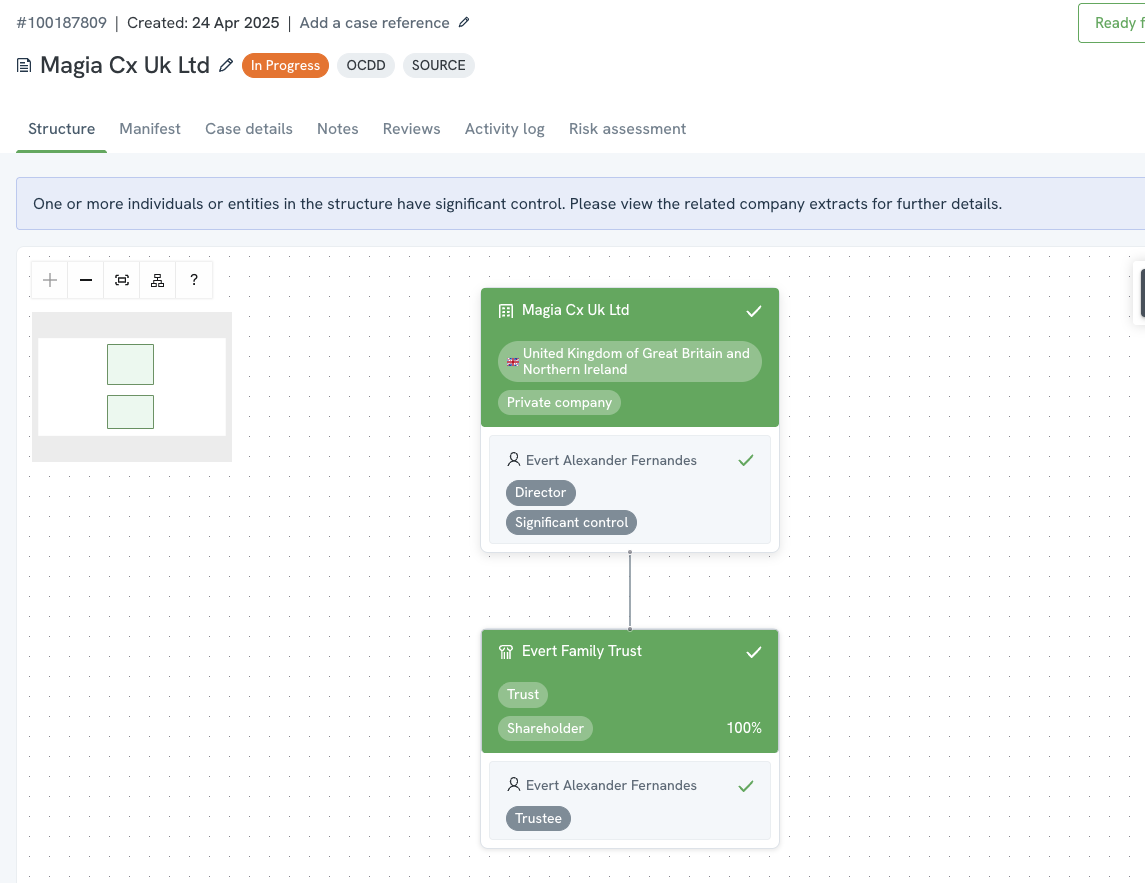
For example, in a case where you have verified a Company (your direct client) with a Trust as a shareholder, you will see one alert for the Company. There will not be any additional alerts for individuals or other entities.
In the example below, only "Magia CX UK Ltd" will generate an alert.
Once the alert is actioned for an entity, all of the relevant individuals and/or entities will pull through into the new case.
Which date does the timeframe start from?
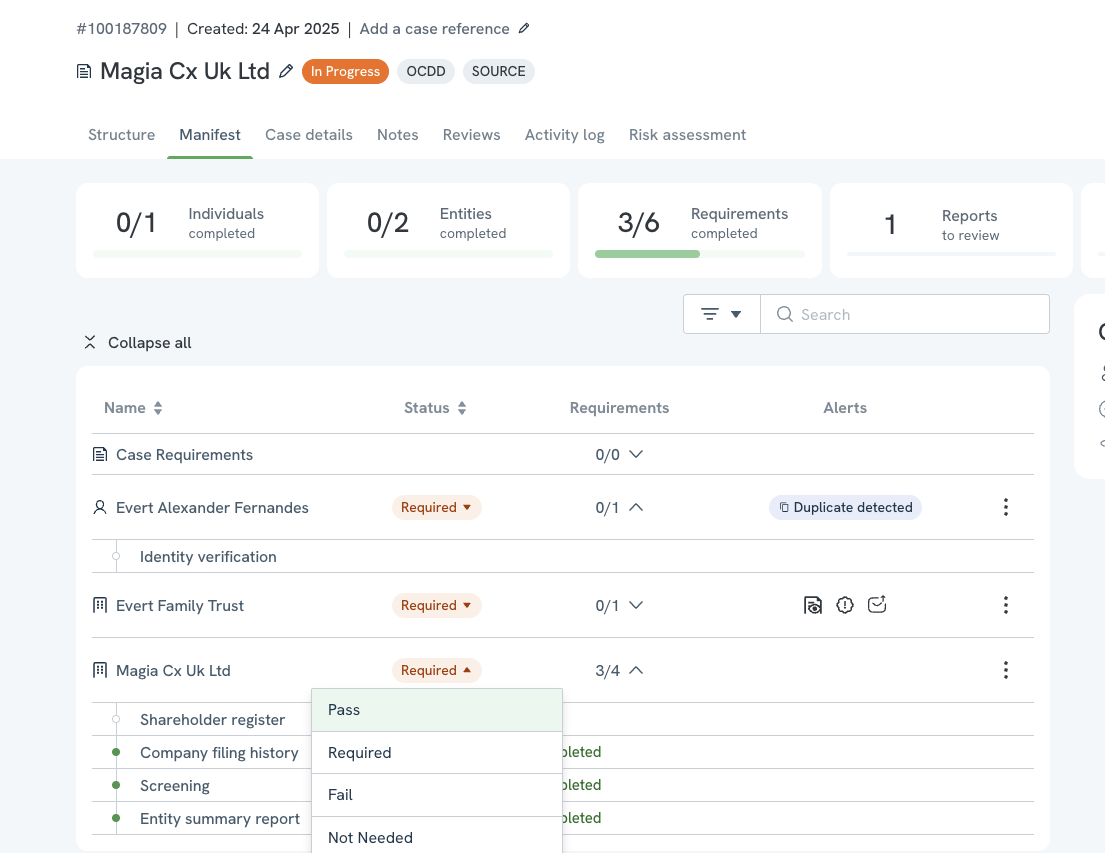
The timer starts when the status of the relevant individual or entity (according to the logic above) is set to Pass within the Manifest tab (the hub within a case that lists all individuals, entities, and requirements).
Alert Date: CDD refresh alert date is based on the date that the individual/entity is moved to a "Pass" and the result of the completed Client Risk Assessment has been provided. Example attached
In the example below, where a Company is the direct client, the alert timer starts once the Company is set to Pass.
Alerts Dashboard
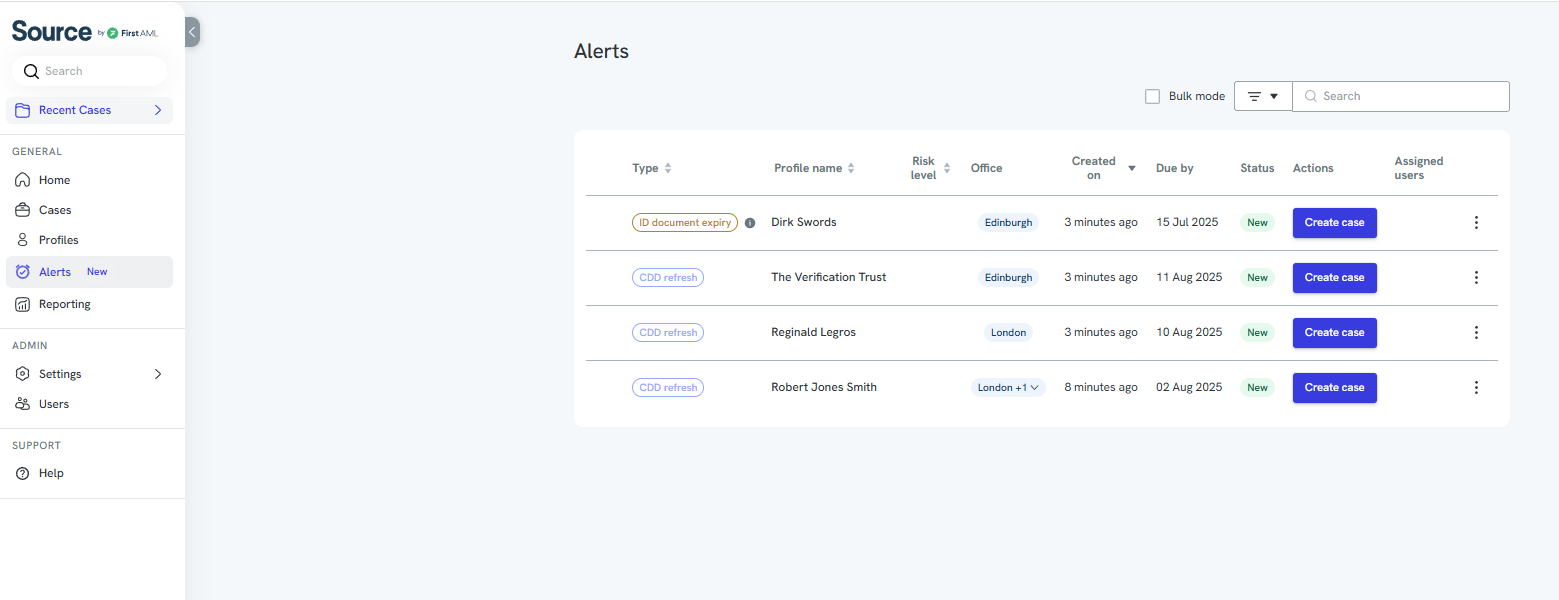
CDD refresh alerts will appear on your Alerts Dashboard, based on your configuration within the Ongoing settings.
From the Alerts Dashboard, you can:
View all upcoming OCDD re-verification alerts
Click into an alert to view the individual or entity's most recent verified case
Create a new case directly from the dashboard to re-verify the individual or entity
Mark alerts as done once the re-verification is complete
Once all individuals and entities are marked as PASS in the new case, the alert will be removed and the CDD cadence will reset. If any party is marked as FAIL, the alert will be removed and they will no longer appear in future CDD alerts.
More on the Alerts Dashboard: Alerts dashboard
Configuration & Set Up
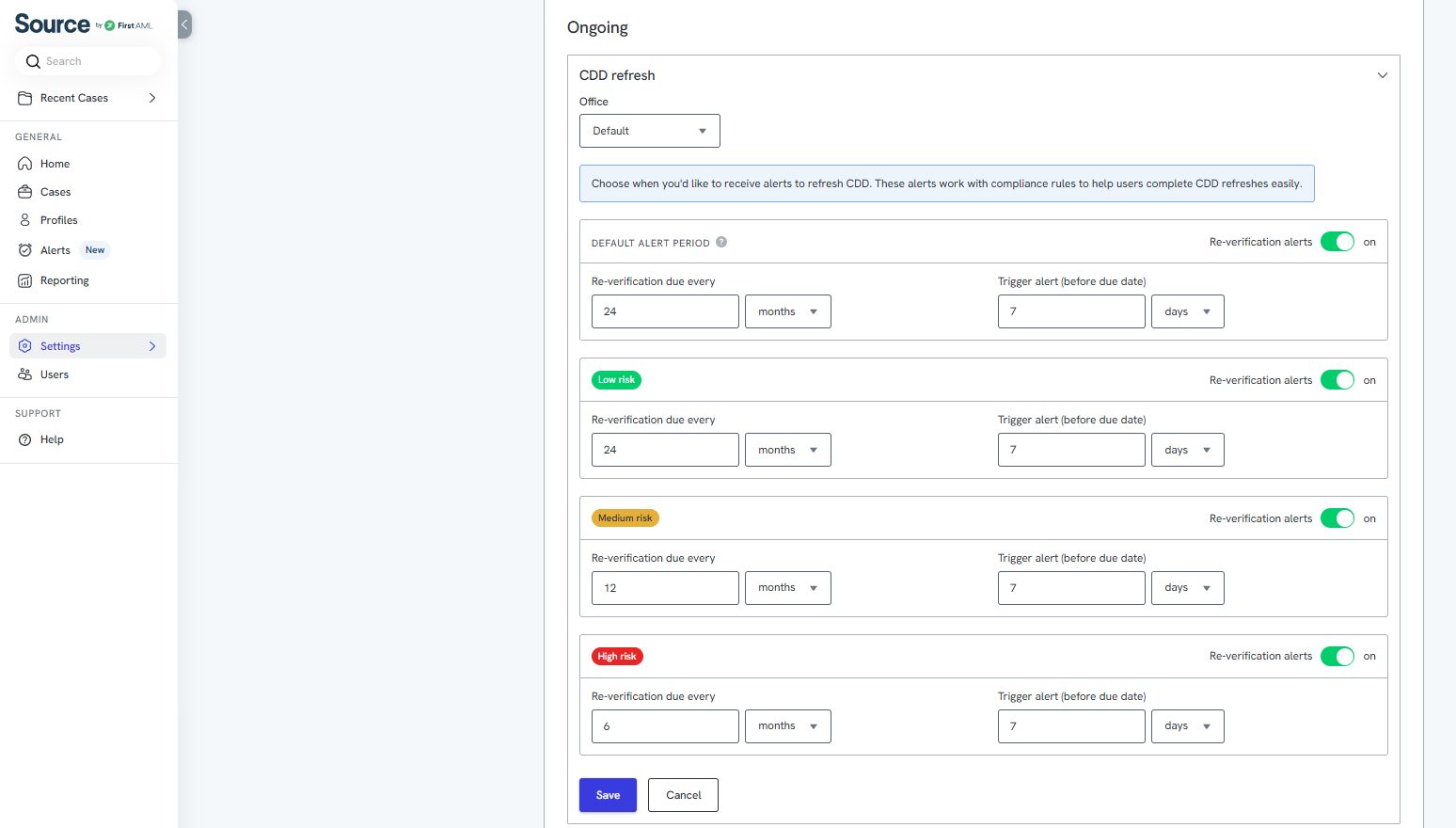
Compliance Admins can build CDD refresh alerts, allowing for different refresh cadences based on:
- Risk level (e.g. Low, Medium, High)
- Office (e.g. different refresh policies across jurisdictions or business units)
This gives you full flexibility to align your CDD refresh strategy with your compliance program.
Example: Configure all High Risk individuals from the Sydney office to have refresh alerts triggered every 6 months. A CDD refresh could be full re-verification or even just reviewing the client risk assessment.
Apply outcomes to Compliance Rules
You can use compliance rules to help your users know exactly what is needed to complete a CDD refresh on a client or individual. When a CDD refresh alert has been triggered and a user creates a CDD refresh case, these rules provide a guide as to what is required, based on conditions that align with your compliance program, e.g. a high risk or public company. You can then choose from a selection of outcomes to specify the actions you expect your users to follow. Examples of outcomes include adding or re-completing requirements, or completing a new verification to a desired VIC level (the specific verification configuration used to run identity, screening, and biometric checks, for example "KYC + ID anti-tampering + biometrics").
Some examples of these actions are:
- Re-running identity verifications.
- Triggering new screenings.
- Re-sending forms or requirements to the client.
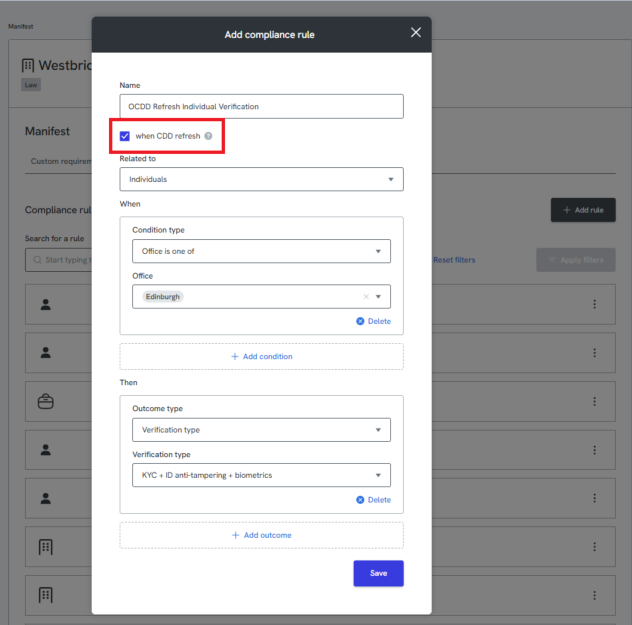
Check what’s needed for CDD refresh
If an individual or entity is pulled into a new case as part of a KYC refresh, and compliance rules have been configured, then previous completed requirements will be set back to in progress. If a requirement has never been completed for this individual or entity, a new requirement will be added to the CDD refresh case.
This ensures users can easily check exactly what is needed to complete the CDD refresh case based on your compliance programme.
You’ll also be able to see why the requirement is visible in this case. This helps users and reviewers understand whether the action was needed as part of a compliance rule, or if it was just retrieved from the individual or entities profile.