
TABLE OF CONTENTS
- Overview
- How alerts are created and cleared
- Finding and reviewing your alerts
- How alerts are assigned
- Updating alert assignees
- Frequently asked questions
- Why don't I see any Ongoing Monitoring alerts?
- An alert has more than one assigned user. Why?
- I reviewed the hits, but the alert is still showing.
- Can I close an alert without reviewing the hits?
- Where did my completed alerts go?
- What happens if an assigned user leaves or loses access?
- What happens when a profile is made inactive?
Overview
Ongoing Monitoring checks your active profiles against sanctions, PEP, and watchlist sources every day. When new hits are found, an Ongoing Monitoring alert appears on your Alerts page, where you can see who the alert is assigned to and review hits.
By default, assigned users get an in-platform notification when an alert is created or when they are added to one. The notification takes them straight to the profile's Ongoing Monitoring page. A Compliance Admin can turn these notifications off using the Send in platform notification to recipients toggle. When it is off, alerts still appear on the Alerts page as usual, but assigned users no longer receive an in-platform notification. To change this setting, see Customising Ongoing Monitoring.
Ongoing Monitoring also sends a periodic email summary of screening changes. A Compliance Admin can set how often it arrives, and turning off in-platform notifications does not affect it. See Customising Ongoing Monitoring: Email notifications
How alerts are created and cleared
Each monitored profile can have only one active alert at a time. The first new hit creates the alert. While it stays open, any additional hits for the same profile are added to it instead of creating separate alerts. This keeps related hits together and prevents duplication. The number on the alert shows how many hits still need to be reviewed, and the alert also shows who it is assigned to and which office it belongs to.
New hits are added to the alert as they are detected. Previously reviewed hits may reappear if they are updated, as changes can affect earlier decisions. When a hit is no longer active, it is removed from the alert count.
You review monitoring hits on the profile’s Ongoing Monitoring page. The alert remains open until all hits have been reviewed, then it is automatically cleared.
Each alert has a status to show progress:
- New: no hits have been reviewed yet.
- In Progress: at least one hit has been reviewed, but others are still pending.
- Complete: all hits have been reviewed.
The Update Column
On the profile's Ongoing Monitoring page, the Update column shows what has changed for each hit since the last monitoring check:
- Added: a new match that wasn't on the profile before.
- Updated: a match you've seen before that has changed. New information has come through, so it's worth reviewing again, as the change can affect an earlier decision.
- Removed: a match that was on the profile before but has now come off.
- A dash (-) means the hit hasn't changed since it was last reviewed.
Completed alerts are hidden from the default Alerts view to keep the list focused on active work. To view completed alerts, use the Completed filter. See Filtering and searching alerts below.
Status updates automatically as you work through the hits.
When all hits have been reviewed, the alert is complete and clears automatically. You can review hits from the Alerts page or by going directly to the profile’s Ongoing Monitoring page. Ongoing Monitoring alerts can’t be dismissed. You have to review all hits.
Finding and reviewing your alerts
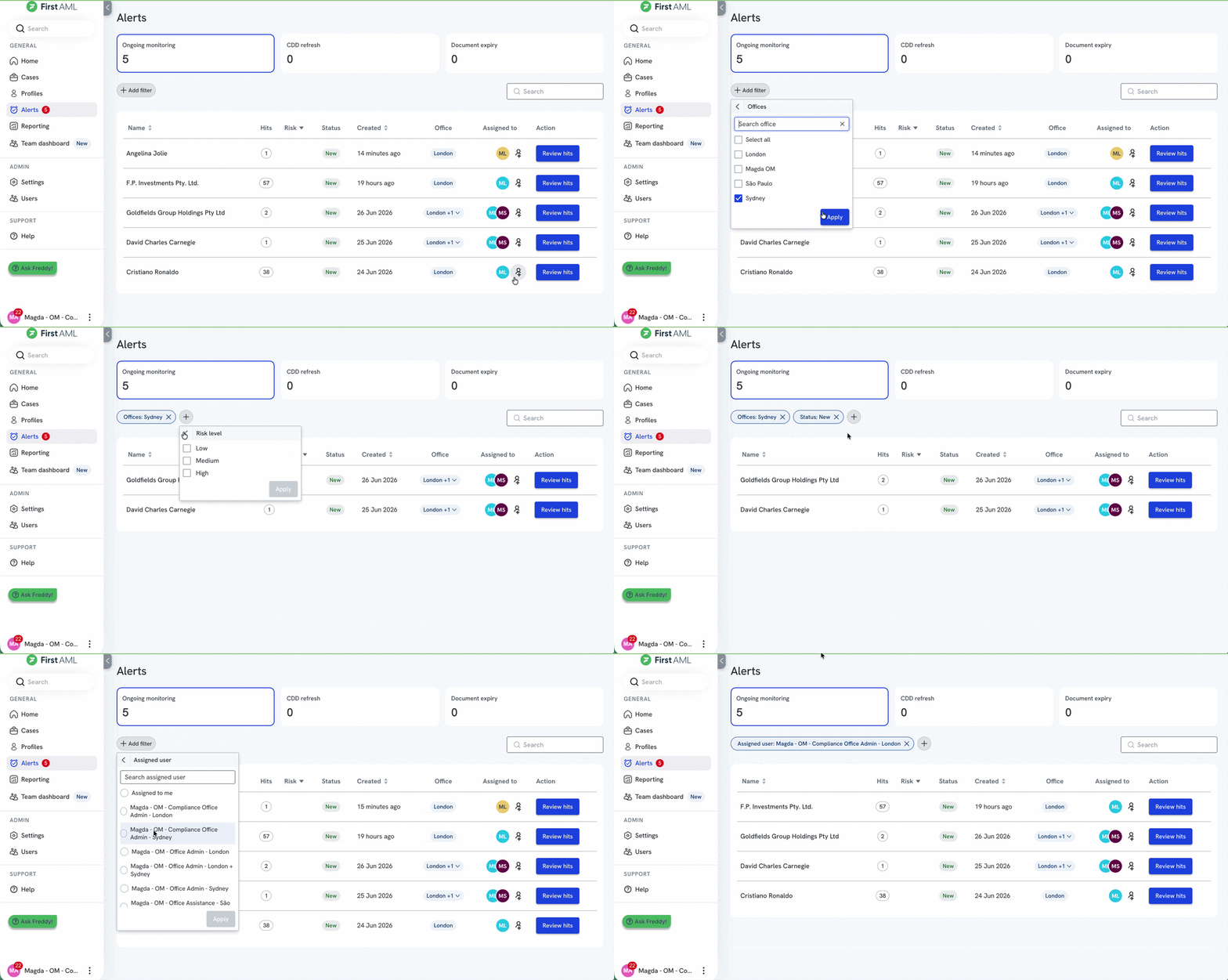
The Alerts page brings all your alerts together. At the top, the Ongoing monitoring card shows how many monitoring alerts are pending. Select it to view only those alerts.
Each alert appears as a row with the profile name, number of pending hits, risk level, status, date created, office, and assigned user. By default, you only see alerts assigned to you. Compliance Office Admins can see all alerts for their offices, and Compliance Admins can see all alerts.
To review an alert from the Alerts page:
- Find the alert you want to work on.
- Select Review hits to open the profile’s Ongoing Monitoring page.
- Review each hit and set its match status. See how to review Ongoing Monitoring
- The alert updates and clears once all hits have been reviewed.
To review an alert from the Notifications panel:
- Open the Notifications panel. Unread items are grouped by profile.
- Select a profile to open it and go directly to its outstanding hits.
- Review each hit and set its match status.
The badge on your avatar shows how many unread notifications you have.
Filtering and searching alerts:
- Select Add filter to narrow the list by status, office, risk level, or assigned user.
- Select a column heading, such as Risk or Created, to sort results. Sorting by Risk brings the highest-risk profiles to the top.
- Use the Search box to find a profile by name.
How alerts are assigned
Every Ongoing Monitoring alert has one or more assigned users. Assigned users are associated with the alert and may review hits, track progress, coordinate follow-up, or simply stay informed, depending on your organisation's workflow. Alerts are assigned in one of two ways: by the default rules below, or by custom recipients your organisation sets up. If custom recipients are configured, alerts follow those instead. See Setting up who gets alerts below.
Turning on Ongoing Monitoring alerts
Before any alerts appear, a Compliance Admin needs to turn the feature on. This applies whether you use the default rules or set up your own recipients.
- Go to Settings > Ongoing, then open the Ongoing Monitoring tab.
- Turn on Individual monitoring or/and Entity monitoring.
Once these are on, alerts appear on the Alerts page using the default rules below. To send alerts to specific roles or people instead, see Setting up who gets alerts.
Default rules
Default rules apply when no custom recipients have been set up. In this case, alerts are assigned in the following order:
- Last reviewer on the profile: the alert is assigned to the person who most recently reviewed a monitoring hit on that profile.
- Office-level fallback: if no one has reviewed a hit on the profile, the alert is assigned to a Compliance Office Admin for that office.
- Organisation-level fallback: if no suitable Compliance Office Admin is available, the alert goes to a Compliance Admin.
Multi-office profiles
A profile can belong to more than one office. When it does, each office is assigned its own owner, so an alert can have more than one assigned user.
Under the default rules, each office gets the last person to review a hit in that office. If an office has no reviewer yet, that office falls back to its Compliance Office Admin, and then to a Compliance Admin if no suitable office admin is available. Each office is resolved on its own, so different offices on the same profile can end up with different owners.
If your organisation has set up custom recipients, each office instead follows whatever recipients are configured for it. See Setting up who gets alerts below.
Setting up who gets alerts
By default, alerts follow the assignment rules above. A Compliance Admin can instead send alerts to specific roles or people.
Make sure Ongoing Monitoring alerts are turned on first, then set up recipients:
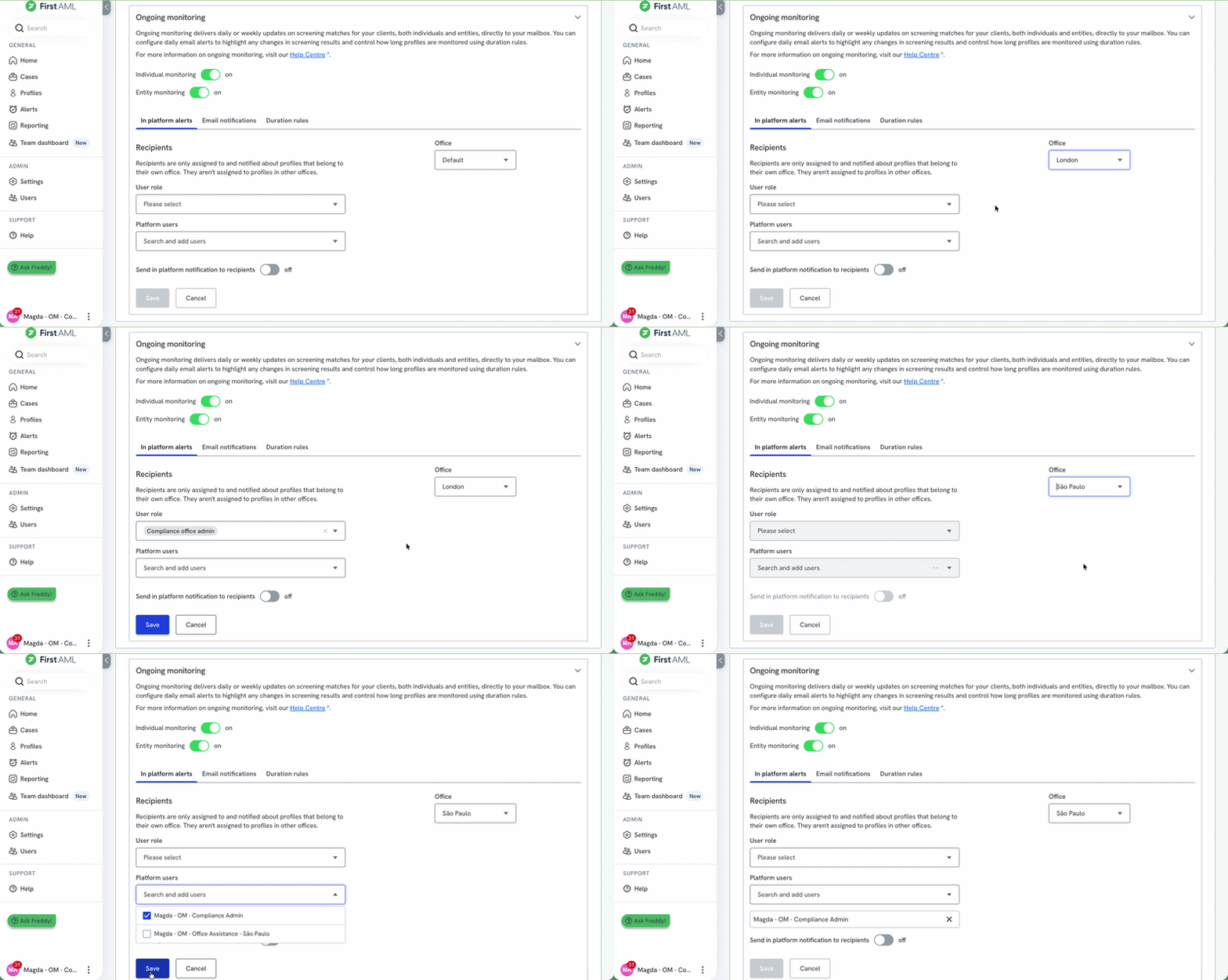
- In Settings > Ongoing > Ongoing Monitoring, go to the Recipients section.
- Go to In platform alerts > Recipients section.
- Under Office, leave it as Default to follow your account's office settings, or select a specific office to set different recipients for that office.
- Choose who should be assigned to alerts:
- User role: assign alerts to anyone with a specific role in the selected office.
- Platform users: assign alerts to specific people by name.
- Select Save.
Recipients only receive alerts for profiles within their own office.
Returning to the default assignment
To remove custom routing, delete all configured recipients and save your changes. Alerts will then follow the default assignment behaviour.
Ongoing ownership
Once assigned, an alert keeps its owner even as new hits are added. It is not reassigned when new activity occurs.
If an assigned user becomes unavailable, for example, their account is deactivated or they lose access to the office, the alert stays visible to Compliance Office Admins and Compliance Admins for that office, who can reassign it so it remains actionable.
Updating alert assignees
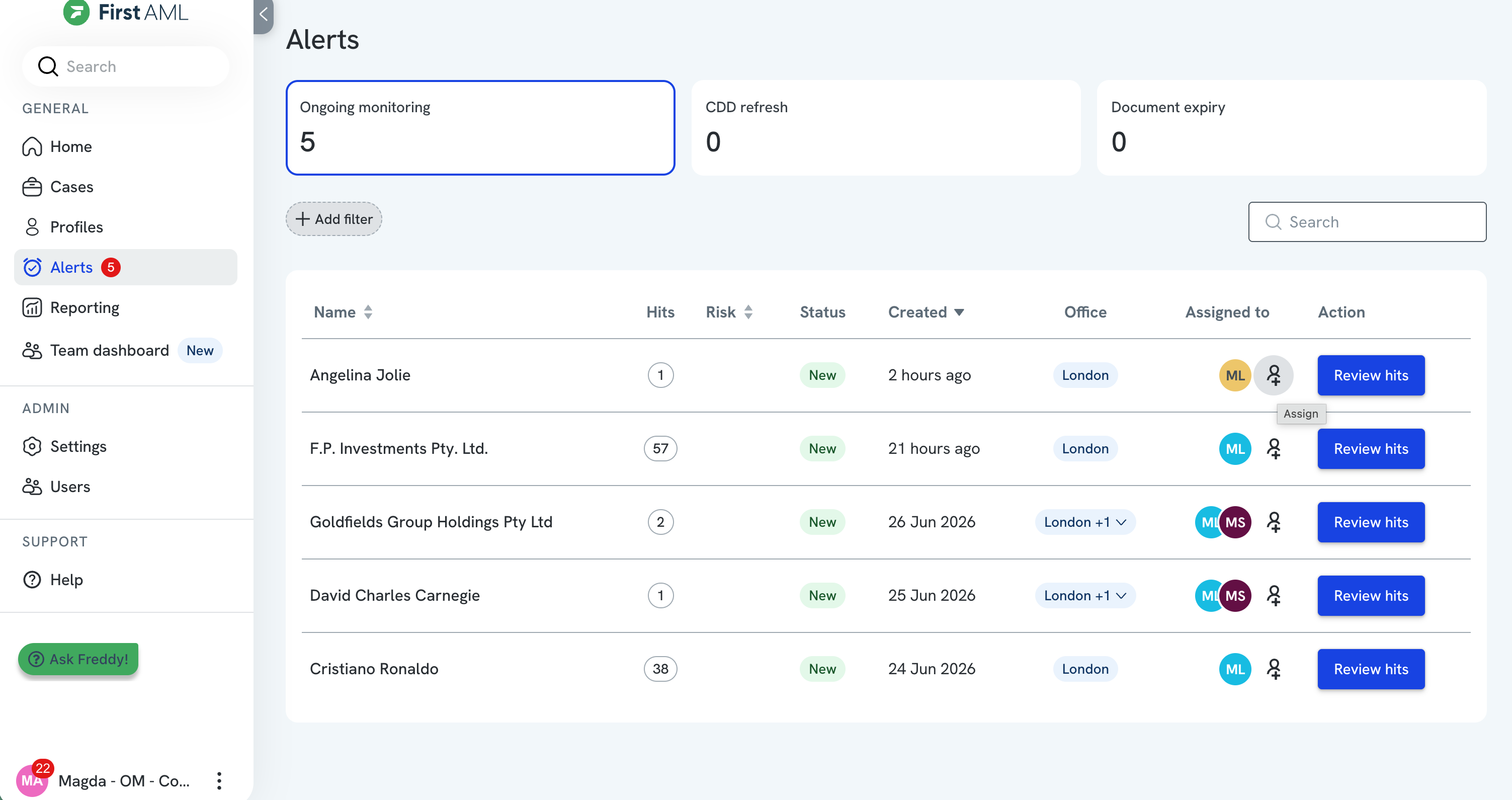
Compliance Office Admins and Compliance Admins can add or remove an alert's assigned users at any time.
To update assignees:
- Go to the Alerts page and find the alert you want to reassign.
- Select the Assigned to field.
- Add or remove users as needed.
- Any newly added assignees receive an in-platform notification.
Assigned users can review hits, track the alert's progress, or stay informed, depending on how your organisation manages Ongoing Monitoring.
Note: Reassigning here only affects this alert. It doesn't change who is assigned to future alerts. To change that, update your recipient settings. See Setting up who gets alerts above.
Frequently asked questions
Why don't I see any Ongoing Monitoring alerts?
You only see alerts assigned to you. If a profile belongs to another office, its alerts are assigned to users in that office instead. If you expect alerts but don't see any, check with a Compliance Office Admin/Compliance Admin that your office and role are set up correctly.
An alert has more than one assigned user. Why?
An alert can have multiple assigned users depending on your organisation's workflow. This allows different people to stay informed or take action on the same alert. In some cases, this happens when a profile belongs to multiple offices.
I reviewed the hits, but the alert is still showing.
An alert only clears once all monitoring hits have been reviewed. If any hits are still pending, the alert remains open and its status shows as In Progress. Open the profile's Ongoing Monitoring page to see which hits still need attention.
Can I close an alert without reviewing the hits?
No. Ongoing Monitoring alerts cannot be dismissed manually. They clear automatically once all hits have been reviewed.
Where did my completed alerts go?
Completed alerts are hidden from the default view to keep your list focused on active work. You can view them using the Completed filter for historical reference.
What happens if an assigned user leaves or loses access?
The alert stays assigned to that user; it isn't reassigned automatically. Compliance Office Admins and Compliance Admins can see every Ongoing Monitoring alert and can reassign it so it stays actionable. Invalid users are only skipped when a new alert is created.
What happens when a profile is made inactive?
Inactive profiles have their alerts removed from the Alerts list. If reactivated, any alert with pending hits reappears so it can be completed.
What do the labels in the Update column mean?
They show what has changed for each hit since the last monitoring check. Added is a new match. Updated is an existing match that has changed information. Removed is a match that has come off the profile. A dash means nothing has changed. See How alerts are created and cleared above