
TABLE OF CONTENTS
- Summary
- Before you start
- How to set up the rule
- What goes into the form
- Who receives the form
- When the form is sent
- Keeping the form to up to date
- When the form stops updating
- What is recorded
- Troubleshooting: the form has not been sent
- Frequently asked questions
Summary
You can use an automation rule to send a secure web form to your clients automatically, without someone having to press send.
The form stays up to date as the case changes.New requirements are added to the same form, requirements that are no longer needed disappear, and the recipient is told when the form changes. A secure web form you send manually does not behave this way. It is a snapshot of what was needed at the time.
This cuts down the need to send a new form or email each time you need to collect something else from the client.
You can set this up using Automation rules in Settings.
Before you start
- Only Compliance Admins can create automation rules.
- Automatically send secure web form must be switched on for your organisation. If Send secure web form does not appear in the Automation list, contact your Customer Success Manager.
- For cases with entities, the "Auto Not Needed" must be switched on in Settings > UBO rules, and your UBO thresholds must be configured. The form is only sent once the platform knows who is and is not required, and that decision depends on these settings. See Auto not needed
How to set up the rule
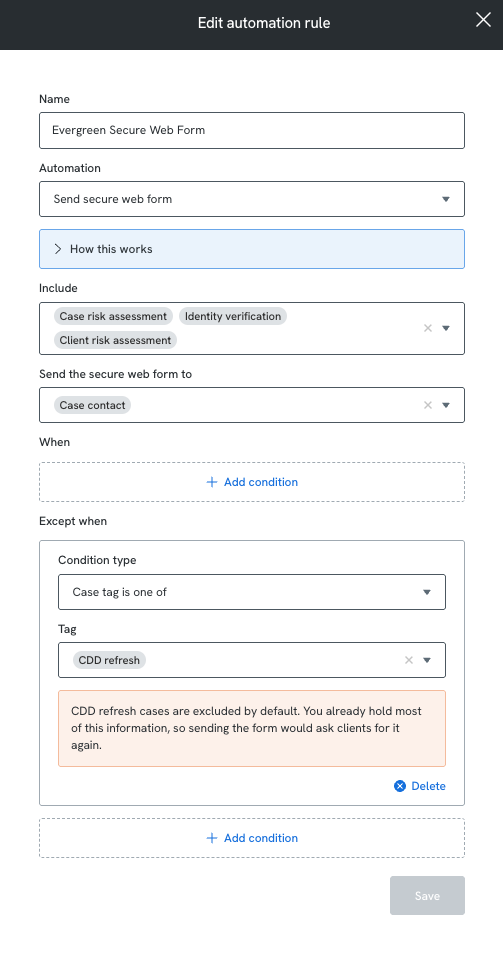
- Go to Settings > Automation rules.
- Select Add Rule.
- Give the rule a Name.
- Under Automation, select Send secure web form.
- Choose what to include in the form. Identity verification, Case risk assessment and Client risk assessment are included by default. Leave one selected to send it inside the secure web form. Clear it to leave it to its own automation rule, Send verification form or Send risk assessment, which sends its own email to its own recipients.
If you already have rules that send identity verification or risk assessments, check them against this rule so the same thing is not requested twice. - Choose who receives the form. Case lead, case contact and case requester. You can select more than one.
- Under When, add the conditions that decide which cases the rule applies to.
- Optionally, under Except when, add conditions that exclude a case from the rule. CDD Refresh cases are excluded by default.
- Select Save.
Building When and Except when conditions works the same way as for every other automation. See Customising automation rules.
What goes into the form
One form, one email. Everything the case needs from that recipient stays in the same secure web form, even when new requirements are added later.
Always included: all Mandatory and Recommended requirements, except for the three types below. You choose whether to include:
- Identity verification
- Case risk assessment
- Client risk assessment
Under Include in the rule, select the ones you want to add to the secure web form.
If you leave one unticked, it is sent separately using its own automation rule: Send verification form or Send risk assessment, with its own recipients and email. This is useful when verification or a risk assessment needs to go to someone different.
People are only included when the case actually needs something from them. Simply appearing on the case does not cause someone to be contacted. For example, if a party falls below your UBO thresholds and no requirement is created for them, they will not receive anything through the secure web form.
Who receives the form
Choose any combination of case lead, case contact and case requester. When the rule runs, the platform checks who currently holds those roles.
- If the same person holds two selected roles, they receive one form, not two.
- If someone has already received a secure web form for this case, they keep the same link. Any new requirements are added to their existing form.
- If none of the selected recipients has the details needed to send the form, nothing is sent. This can happen if the case contact is missing, or if a recipient has no name or email address recorded.
If you include Identity verification, you do not need to send a separate secure web form to each person being verified. If you include Identity verification, the person who receives the form can complete verification for more than one individual. You do not need to send a separate form to each person being verified.
When the form is sent
The rule does not send the moment a case is created. It waits until the case has finished working out and what is required. This is what stops a form going out with requirements missing, or going to someone who turns out not to be needed.
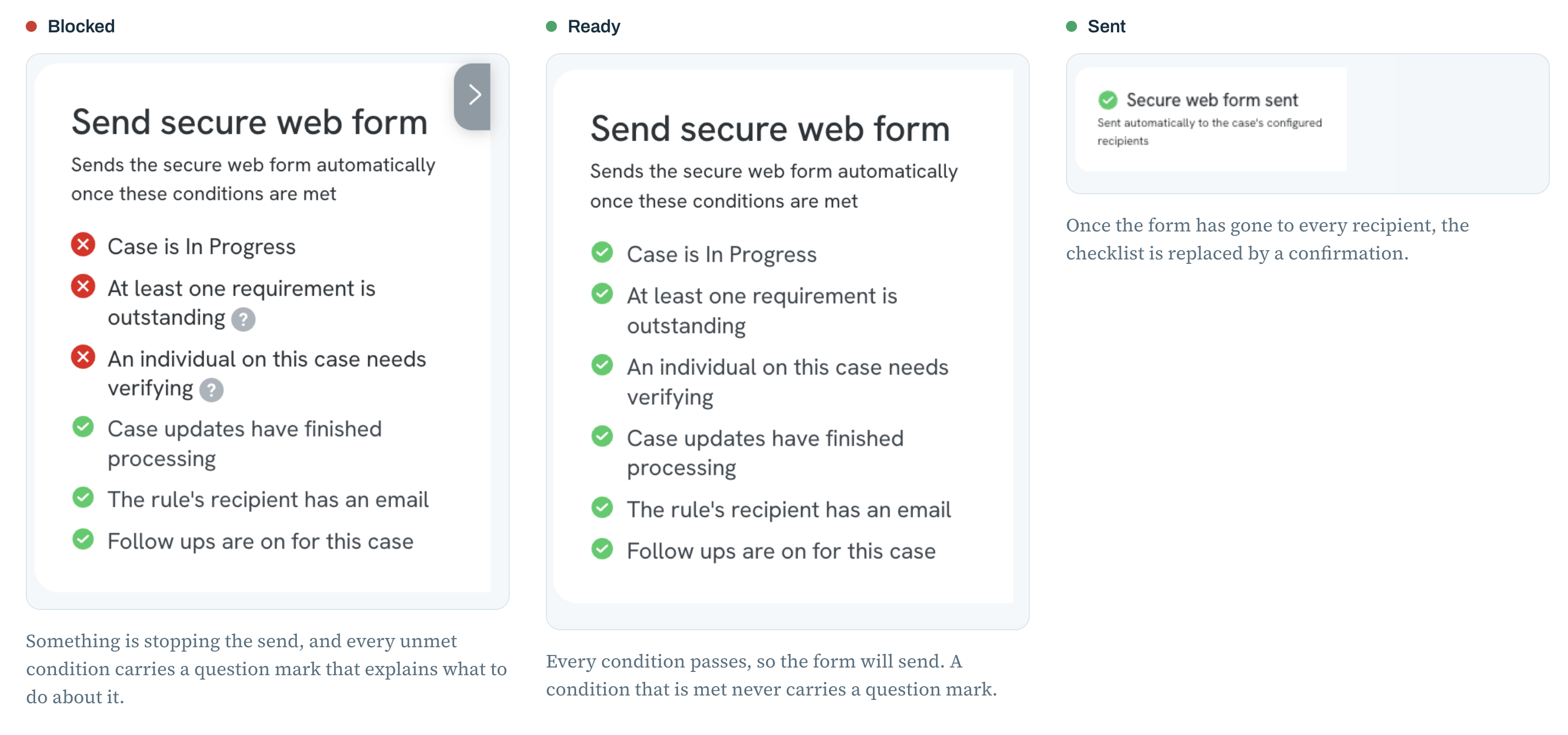
These are the conditions that must be met before the form is sent. You can see them on the case Manifest, under Send secure web form.
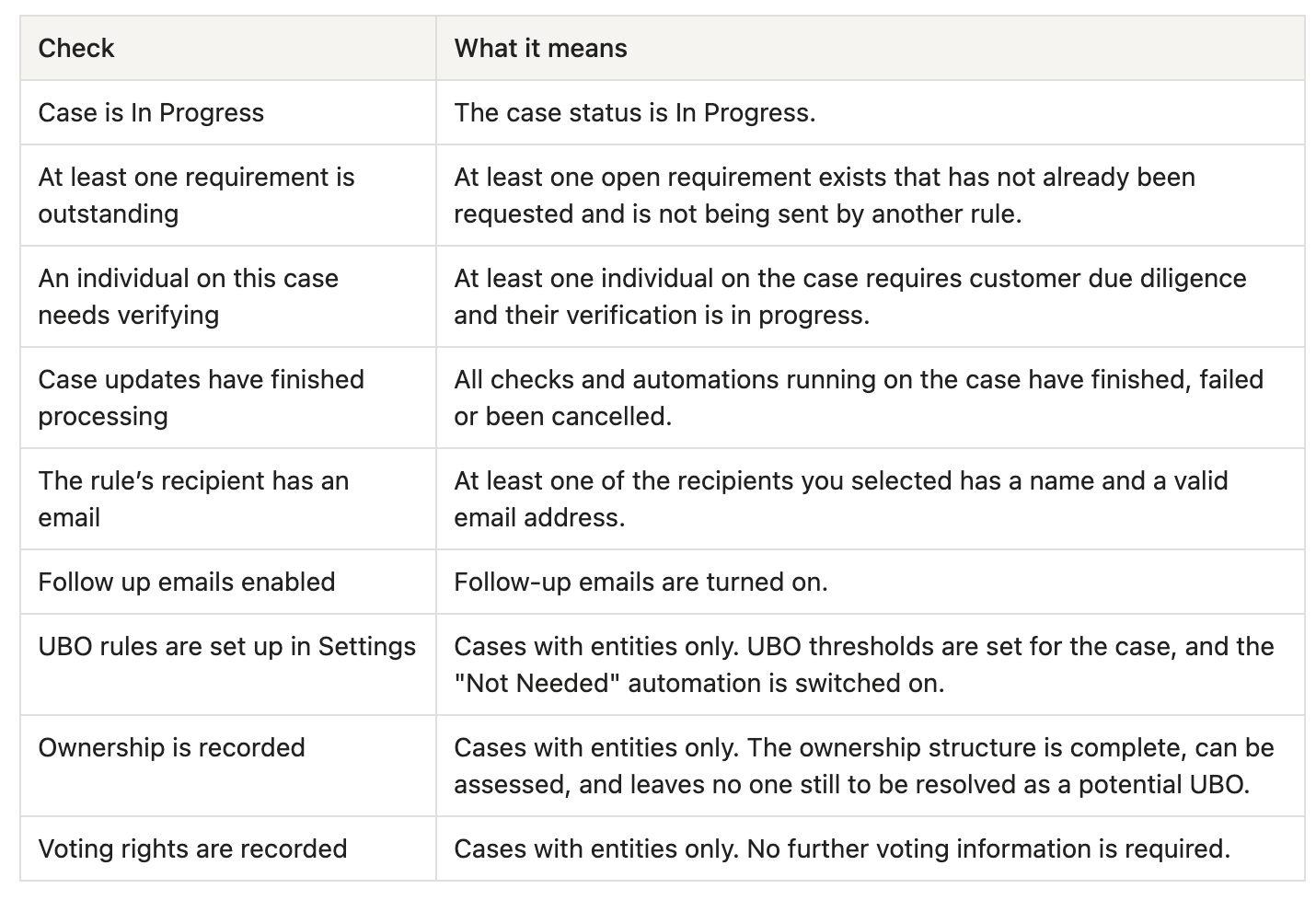
The conditions are checked once more just before the email is sent. If anything on the case has changed, the form is not sent, and the rule tries again the next time the case is updated.
Automatically sending web form in individual case
Automatically sending web form in entity case
Keeping the form to up to date
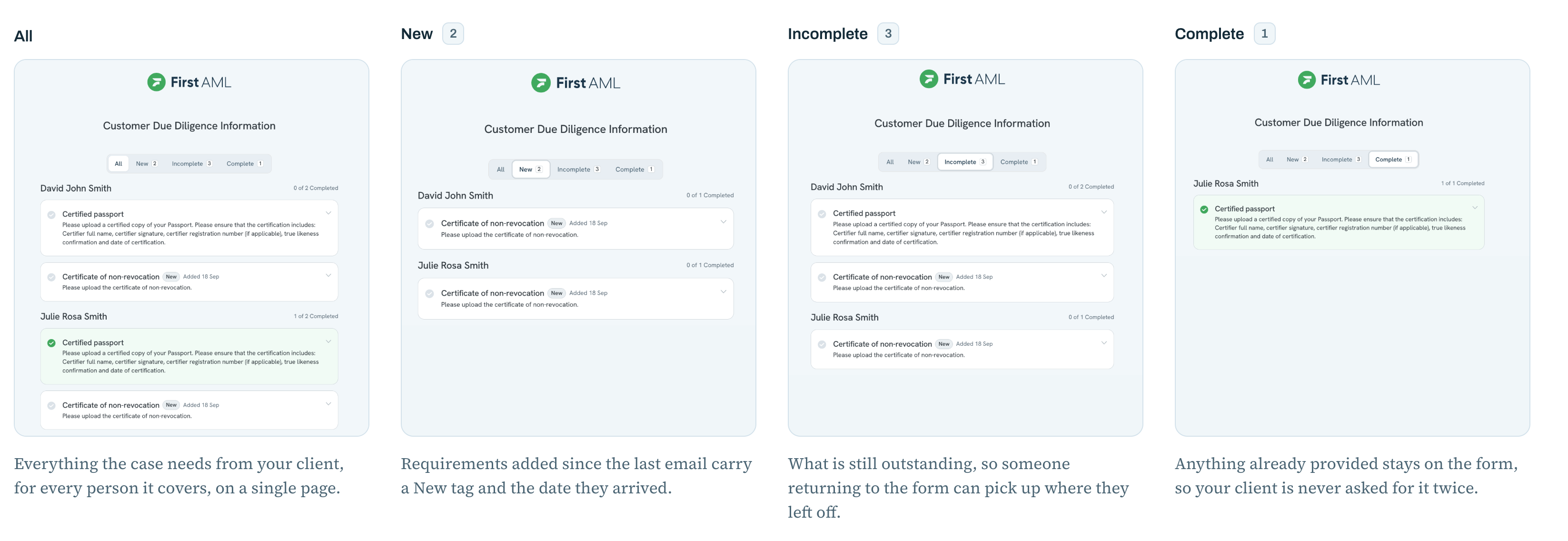
- Requirements added later join the same form. The recipient keeps the link they already have.
- Requirements removed from the case disappear from the form. This includes requirements for anyone you mark as Not Needed after the form was sent. Anything they have already completed stays on the form.
- The link stays valid while the form is still changing. A link lasts 35 days from the day it sent. Each time the form changes for a recipient who still holds it.
- The recipient gets one update email, not one per requirement. Every two hours the platform checks each recipient's form against the last email they received. If anything has changed, they receive a single email covering all of it. If nothing has changed, no email is sent.
- Normal follow up reminders still apply. A newly added requirement does not reset or suppress a reminder that was already due.
Update emails are only sent while the case is in Progress and follow ups are running.
When the form stops updating
The form stops updating when either of the following happens:
- The case is no longer In Progress. Completing, abandoning, rejecting or putting the case on hold all stop it.
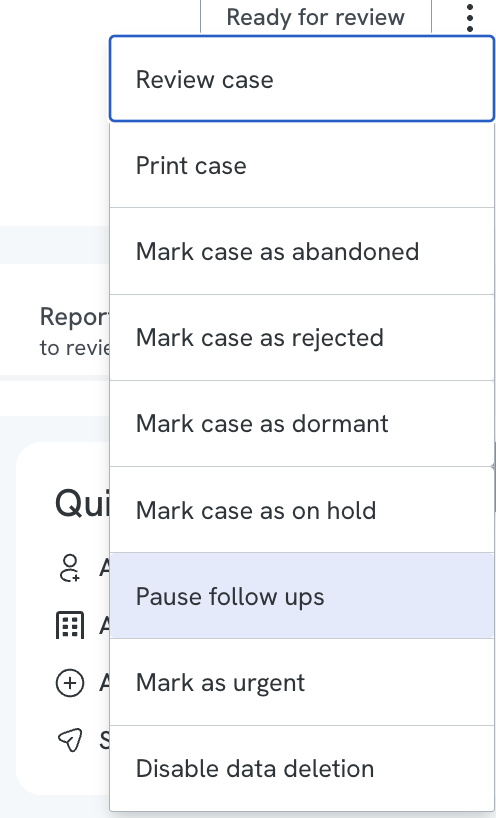
- Follow ups are paused on the case, using Pause follow ups in the case menu. This stops first contact as well as reminders. Select Resume follow ups to start them again.
What is recorded
Automated actions are logged on the case activity log, so you can see what was sent and when:
- The secure web form being sent, with the requirements it contained and who received it.
- The form being updated with new requirements, and who those updates went to.
- Any send that reached some recipients but not all of them.
Email delivery failures also appear in the activity log. See Troubleshooting email and SMS errors.
Troubleshooting: the form has not been sent
Start with the Send secure web form checklist on the case's Manifest page. It lists every condition the rule is waiting on and marks the ones this case has not met. Hover over an unmet condition to see how to resolve it.
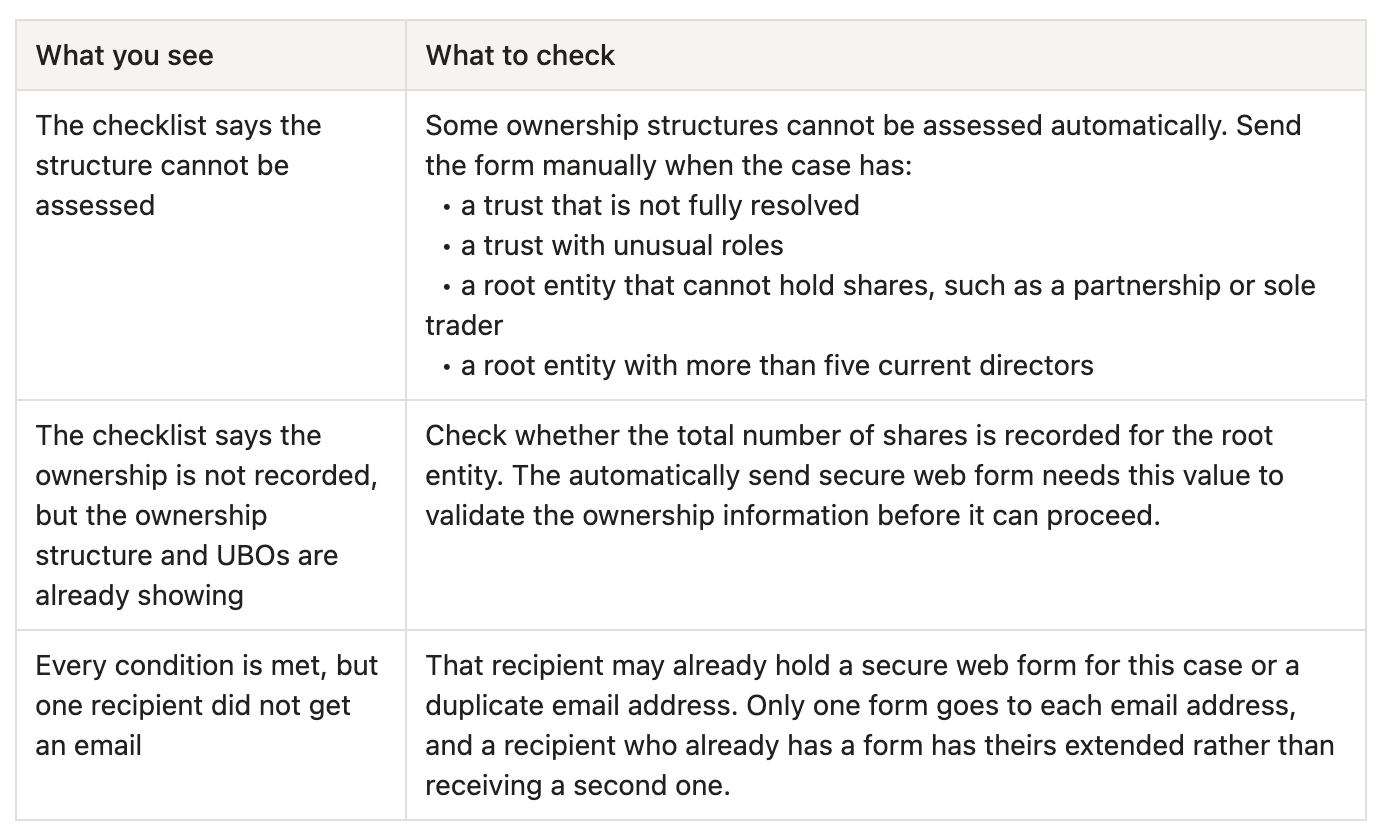
The checklist explains most reasons a form has not been sent out, including a case that is not In Progress, ownership still to be resolved, UBO rules not set up, case updates still processing, no usable recipient, and follow up emails being turned off.
Two situations the checklist cannot explain on its own:
Frequently asked questions
How is this different from sending a secure web form manually?
A form you send manually is a snapshot of what the case needed at the moment you sent it. If something else comes up later, you have to send another form. A form sent by the rule keeps updating, so new requirements join the form your client already has and requirements that are no longer needed drop off it.
Will my client get an email every time a requirement is added?
No. Every two hours the platform compares each recipient's form against the last email they received, and sends one email covering everything that has changed since. If nothing has changed, nothing is sent.
Does a new requirement restart the follow up reminder schedule?
No. Follow up reminders are anchored to the first email sent to that recipient. Adding a requirement later does not start a fresh reminder cycle, and it does not delay or cancel a reminder that was already due.
Does this replace the Send verification form and Send risk assessment rules?
Only for the parts you choose to include. Identity verification, case risk assessment and client risk assessment are included in the secure web form by default. Clear one and it goes back to its own rule, with its own recipients and its own email. Check your existing rules when you set this up, so the same thing is not requested twice.
Someone on the case has not received anything. Is that a fault?
Not necessarily. People are only contacted when the case needs something from them. If a party falls below your UBO thresholds, or has been marked Not Needed, no requirement is created for them and they are not contacted.
I marked someone as Not Needed after the form went out. What happens to their requirements?
They disappear from the form. Anything that person had already completed stays on the form.