
TABLE OF CONTENTS
- Overview
- Resetting your password
- If you are asked to reset your password for security reasons
- Getting back into your account
- If your new password is also rejected
- If you are setting up your account for the first time
- Frequently asked questions
- Next steps
Overview
If the link to set up your password has expired or you have forgotten your password, you can follow these instructions to log into the First AML platform.
Resetting your password
- Open your preferred browser (Google Chrome or Safari are recommended).
- Navigate to the log-in screen for your region:
- Australia and New Zealand: app.firstaml.com
- United Kingdom: app.eu.firstaml.com
- Australia and New Zealand: app.firstaml.com
- Enter the email address associated with your account.
- Select Continue to proceed to the next screen.
- On the next page, select Forgot password, or have not set one yet?
- Enter your email address.
Make sure you enter the email address associated with your First AML account. Using any other email address will not generate a reset password email.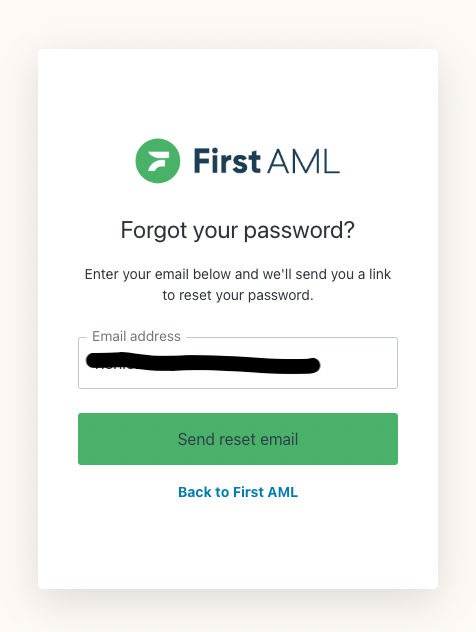
If you have not received the password reset email, check your other inboxes, such as Spam or Junk folders. If you have checked all inboxes and still have not received the email, you can try resending it.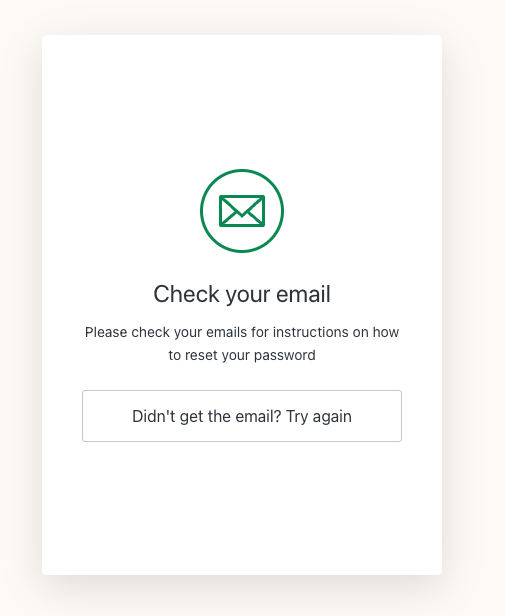
- Find the email in your inbox and select the green Reset your password button. This opens a page in your default browser.
If your browser does not open automatically, right-click the green Reset your password button, select Copy Link, then open Google Chrome or Safari and paste the link into the address bar. - Type in your new password, then select Reset password. Your new password must meet the requirements shown on screen.
A password can be rejected even when it meets all the requirements shown. This happens when that email address and password combination has appeared in a known data breach on another website. If this happens, choose a different password. See If you are asked to reset your password for security reasons below.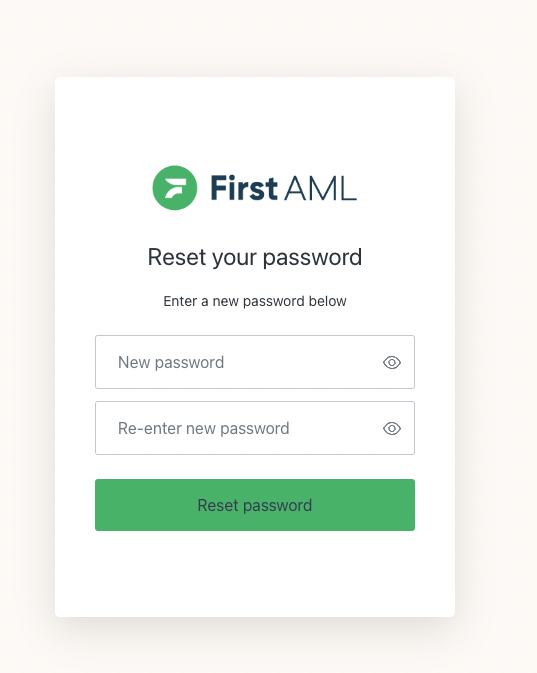
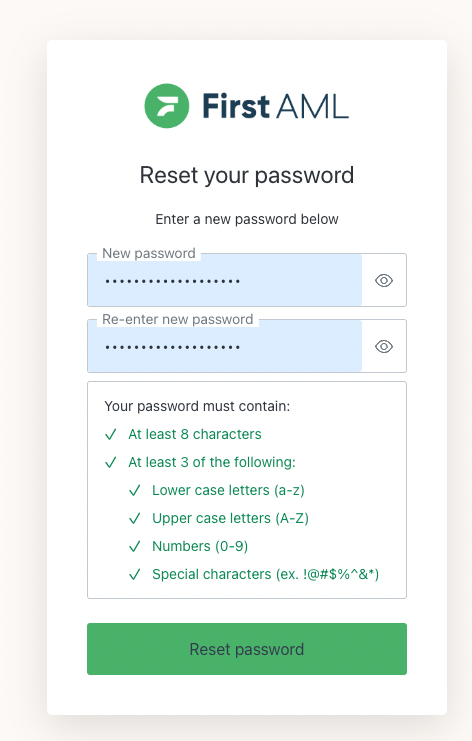
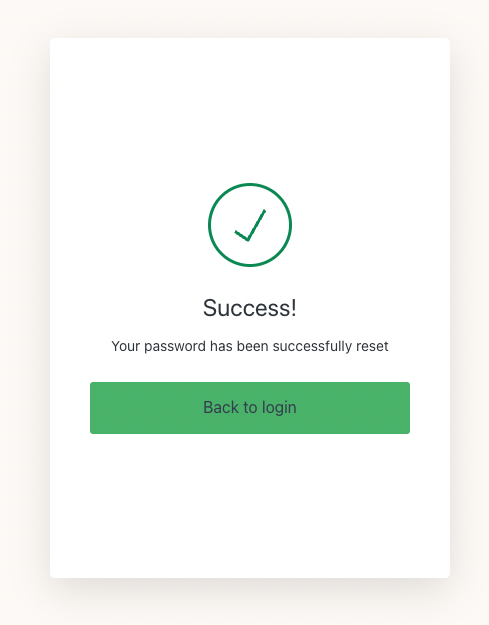
- Select Back to login to log in with your new password
If you continue to experience difficulties logging onto the First AML platform, you can raise a support ticket by selecting New Support Ticket at the top of this page.
If you are asked to reset your password for security reasons
From 12 October 2026, First AML checks the email address and password combination you use against a list of publicly known data breaches on third party websites. The check is run by Auth0, the identity provider First AML uses to manage logins. It applies in three places: when you set up a new account, when you log in, and when you reset your password.
If your combination appears on that list, we block it and ask you to choose a different password before you can continue. At login, you will see a message telling you the combination was found in a public data breach and that you need to reset your password to proceed.
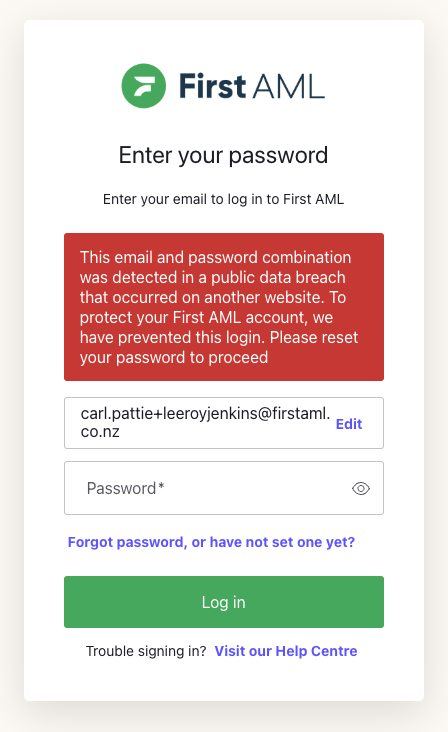
This does not mean First AML has had a data breach, and it does not mean anyone has accessed your First AML account. It means the same email and password pairing has been exposed somewhere else on the internet, which makes it unsafe to keep using here.
Getting back into your account
- On the login screen, select Forgot password, or have not set one yet?
- Enter the email address associated with your First AML account.
- Open the reset email and select Reset. If it is not in your inbox, check your spam or junk folder.
- Enter a new password. It must be different from the one you were using, and it cannot be a password that has appeared in a known breach.
- Return to the login screen and log in with your new password.
If your new password is also rejected
The same check runs when you reset your password. If the new password you have chosen has also appeared in a known breach, you will see a message asking you to choose a different one. Enter another password and continue.
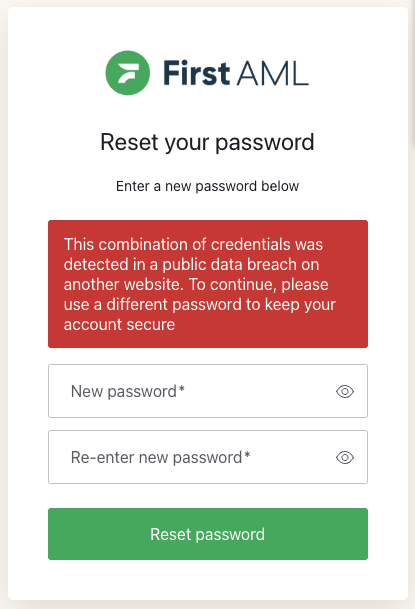
Choosing a password you have not used on any other website is the quickest way through this, and is the safest option in any case.
If you are setting up your account for the first time
The same check runs when you create your password from your account setup link. If the password you choose has appeared in a known breach alongside your email address, it will not be accepted and you will be asked to choose a different one. Your setup link stays valid, so you can carry on and finish setting up your account with a new password.
Frequently asked questions
Has First AML had a data breach?
No. The check looks at breaches on other websites. If your email address and password combination appears in one of those, we block it here so that an exposed password cannot be used to reach your First AML account.
Has someone logged into my First AML account?
No. This message appears before anyone gets in, not after. It is a preventative block, not a report of unauthorised access.
My password meets all the requirements. Why is it being rejected?
Length, numbers, and symbols are one part of a strong password. A password can meet every one of those rules and still be unsafe if it has already been exposed in a breach somewhere else. Both checks have to pass.
Can I reset my password back to the same one?
No. The password you were using has been blocked, so it cannot be reused. You will need to choose a new one.
I have reset my password and I am still being blocked.
This means the new password has also appeared in a known breach. Reset it again and choose a password you have not used on any other website.
I am setting up a brand new account and my password was rejected. Why?
The check runs on new accounts as well as existing ones. If the password you have chosen has already been exposed in a breach alongside your email address, it cannot be used here even though the account is new. Choose a different password and continue. Your setup link is still valid.
I log in using single sign-on. Does this affect me? No. This check applies to accounts that log in with an email address and password. If your organisation uses single sign-on, you sign in through your own provider and nothing changes for you. See Single Sign-On (SSO).
Should I change this password anywhere else?
Yes. If you use the same email address and password on other websites, change it there as well. The combination is already publicly known, so any account using it is at risk.
Where can I get help?
If you have reset your password and still cannot log in, contact your account administrator or First AML support.
Next steps
- Using multifactor? See Multi-factor authentication (MFA)
- Using SSO? See Single sign-on (SSO)
- Need email authentication? See Email authentication
- Need to update your email or name? See How do I update my name or email?
- How to download the web-app? See How to download the web-app